
1. Introduction
Thank you for purchasing the SHARP EL-MA71-X 10-Digit Mini Calculator. This manual provides essential information for the proper setup, operation, and maintenance of your calculator. Please read it thoroughly before use and keep it for future reference.
2. Product Overview
The SHARP EL-MA71-X is a compact 10-digit calculator designed for everyday use. It features dual tax rate buttons (8% and 10%) to accommodate various tax calculations, making it suitable for office and personal financial tasks. The calculator operates on both solar power and a button battery, ensuring reliable performance.

Figure 2.1: Front view of the SHARP EL-MA71-X 10-Digit Mini Calculator, showing the display and key layout.
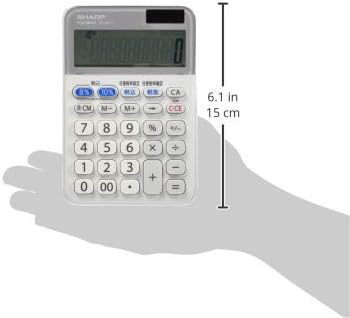
Figure 2.2: Side view of the SHARP EL-MA71-X 10-Digit Mini Calculator, highlighting its slim profile.
3. Setup
3.1 Power Source
The EL-MA71-X calculator utilizes a dual power system: solar power and a button battery. Under sufficient lighting conditions, the calculator will operate using solar power. In low-light environments, it automatically switches to battery power.
3.2 Initial Use
Upon first use, or after prolonged storage, ensure the calculator is exposed to light to activate the solar panel. If the display remains blank, the button battery may need replacement (refer to Section 5.2).
4. Operating Instructions
4.1 Basic Calculations
- Addition (+): Enter the first number, press +, enter the second number, then press =.
- Subtraction (-): Enter the first number, press -, enter the second number, then press =.
- Multiplication (×): Enter the first number, press ×, enter the second number, then press =.
- Division (÷): Enter the first number, press ÷, enter the second number, then press =.
4.2 Tax Calculations
The calculator features dedicated buttons for tax calculations at 8% and 10% rates.
- Setting Tax Rates: The calculator comes with preset tax rates. To adjust, consult the full user manual for detailed instructions on tax rate setting.
- Tax Included (税込): Enter the base amount, then press the 税込 button to calculate the amount including tax.
- Tax Excluded (税抜): Enter the amount including tax, then press the 税抜 button to calculate the base amount excluding tax.
4.3 Memory Functions
- Memory Plus (M+): Adds the displayed value to the memory.
- Memory Minus (M-): Subtracts the displayed value from the memory.
- Memory Recall/Clear (MRC): Press once to recall the memory value. Press twice to clear the memory.
4.4 Clear Functions
- All Clear (CA): Clears all entries and memory, resetting the calculator to its initial state.
- Clear Entry (C/CE): Clears the last entered number or the current calculation entry. Pressing it repeatedly may clear the entire calculation.
5. Maintenance
5.1 Cleaning
To clean the calculator, wipe it gently with a soft, dry cloth. Do not use abrasive cleaners, solvents, or excessive moisture, as this may damage the device or its display.
5.2 Battery Replacement
If the display becomes dim or unresponsive even in bright light, the button battery may need replacement. Refer to the battery compartment on the back of the calculator for the specific battery type (usually a standard button cell like LR1130 or similar). Use a small screwdriver to open the compartment, replace the battery with a new one of the same type, and securely close the cover. Dispose of used batteries according to local regulations.
5.3 Storage
Store the calculator in a cool, dry place away from direct sunlight, extreme temperatures, and high humidity. Avoid placing heavy objects on top of the calculator to prevent damage to the keys or display.
6. Troubleshooting
- Display is blank: Ensure the calculator is in sufficient light for solar power. If not, the battery may be depleted. Replace the button battery as described in Section 5.2.
- Incorrect calculations: Press the CA button to clear all previous entries and memory. Re-enter your calculation carefully. Check if the correct tax rate is applied if using tax functions.
- Keys are unresponsive: Clean the keys and surrounding areas with a soft, dry cloth. If the issue persists, the calculator may require service.
7. Specifications
| Brand | SHARP |
| Model | EL-MA71-X |
| Display Digits | 10 Digits |
| Power Source | Solar and Button Battery |
| Weight | 0.13 kg |
| Country of Origin | Japan |
8. Warranty and Support
8.1 Warranty Information
This SHARP EL-MA71-X calculator comes with a 1-year warranty from the date of purchase. Please retain your proof of purchase for warranty claims. The warranty covers manufacturing defects under normal use. It does not cover damage caused by misuse, accidents, unauthorized repairs, or normal wear and tear.
8.2 Customer Support
For technical assistance, troubleshooting beyond this manual, or warranty service, please contact SHARP customer support. Refer to the official SHARP website or the product packaging for the most current contact information in your region.
