
Introduction
This manual provides essential information for the safe and efficient use of your LG 24TL510S-PZ Smart TV Monitor. This device combines the functionality of a high-definition television with a versatile computer monitor, offering a wide range of entertainment and productivity options. Please read these instructions thoroughly before operating the product and retain them for future reference.
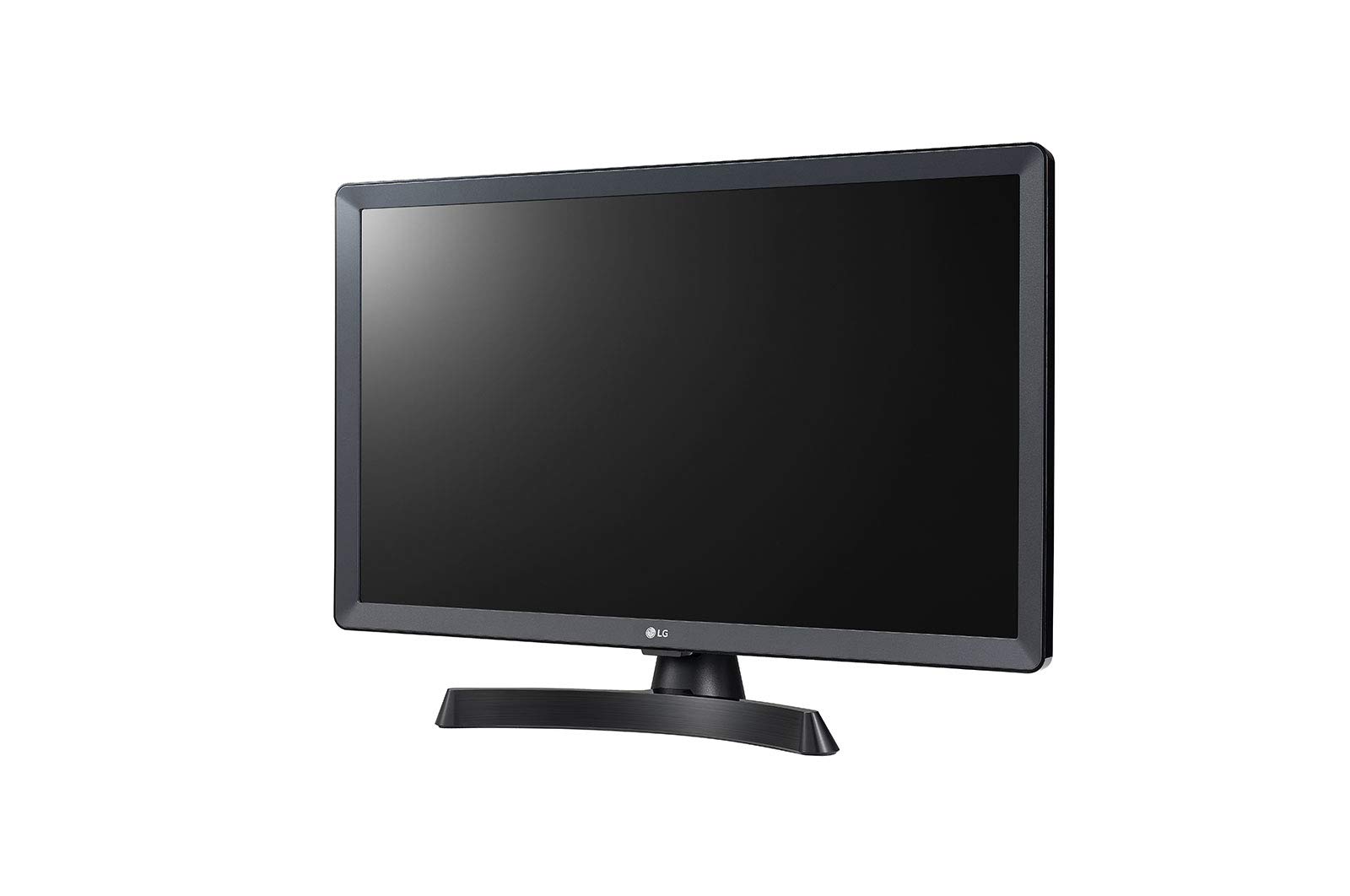
Figure 1: Front view of the LG 24TL510S-PZ Smart TV Monitor with its included stand.
Setup
1. Unpacking
- Carefully remove all components from the packaging.
- Ensure all accessories are present: remote control, power cord, stand components, and documentation.
- Keep packaging materials for potential future transport or service.
2. Attaching the Stand
- Place the monitor face down on a soft, clean surface to prevent screen damage.
- Align the stand neck with the mounting slot on the back of the monitor.
- Secure the stand base to the neck using the provided screws.
- Carefully lift the monitor and place it on a stable, level surface.
3. Wall Mounting (Optional)
This monitor supports VESA wall mounts with a 75 x 75 mm pattern. Ensure you use appropriate screws and a compatible wall mount kit (sold separately). Refer to the wall mount kit's instructions for installation.
4. Connecting Cables

Figure 2: Rear panel with connectivity ports.
- Power: Connect the power cord to the monitor's power input and then to a wall outlet.
- Antenna/Cable: Connect an RF cable from your antenna or cable TV wall outlet to the ANTENNA/CABLE IN port.
- HDMI: For high-definition video and audio, connect devices like Blu-ray players, game consoles, or computers to the HDMI IN ports (2 available).
- USB: Connect USB storage devices for media playback or software updates to the USB 2.0 ports (2 available).
- Optical Digital Audio Out: For connecting to an external audio system with an optical input.
- Ethernet (LAN): Connect an Ethernet cable for a wired internet connection.
5. Initial Power On
After connecting all necessary cables, plug the power cord into an electrical outlet. Press the power button on the monitor or the remote control. Follow the on-screen instructions for initial setup, including language selection, network configuration, and channel scanning.
Operating Instructions
1. Remote Control Functions
The remote control allows you to navigate the Smart TV interface, adjust settings, and control connected devices. Familiarize yourself with buttons for power, volume, channel, input source, home, settings, and navigation.
2. Smart TV Features (WebOS)
- WebOS Platform: Access a variety of streaming services and applications such as Amazon Instant Video, Netflix, and YouTube directly from the home screen.
- Smart Share: Share content from your mobile devices to the TV monitor wirelessly.
- Miracast: Wirelessly mirror the screen of compatible devices to the monitor.
- Internet Browsing: Use the built-in web browser to access websites.
3. Switching Input Sources
Press the 'Input' or 'Source' button on your remote control to switch between TV mode, HDMI inputs, and other connected devices. This allows you to use the device as either a television or a computer monitor.
4. Picture-in-Picture (PIP)
The PIP feature allows you to view content from two different sources simultaneously on the screen. Consult the on-screen menu for specific PIP activation and customization options.
5. Picture and Sound Settings
- Picture Modes: Select from various picture modes (e.g., Vivid, Standard, Cinema, Game) to optimize the display for different content. The Triple XD Processor enhances color, contrast, and image clarity.
- Sound Modes: Adjust sound settings, including Virtual Surround Sound, and equalizer options. The integrated 10W (2 x 5W) stereo speakers provide clear audio.
- Auto Volume Leveler (AVL): Maintain consistent volume levels across different channels and inputs.
Maintenance
1. Cleaning the Monitor
- Always unplug the monitor before cleaning.
- Screen: Gently wipe the screen with a soft, lint-free cloth. For stubborn marks, lightly dampen the cloth with water or a specialized screen cleaner. Do not spray liquid directly onto the screen.
- Body: Use a soft, dry cloth to wipe the exterior surfaces. Avoid abrasive cleaners or solvents.
2. Safety Precautions
- Do not block ventilation openings.
- Avoid exposing the monitor to direct sunlight, high temperatures, or excessive humidity.
- Do not place heavy objects on the monitor or power cord.
- In case of a malfunction, do not attempt to repair the unit yourself. Contact qualified service personnel.
Troubleshooting
If you encounter issues with your monitor, refer to the following common problems and solutions before contacting support.
| Problem | Possible Solution |
|---|---|
| No power | Ensure the power cord is securely connected to both the monitor and a working electrical outlet. Check if the outlet has power. |
| No picture or sound | Verify the correct input source is selected. Check all cable connections (HDMI, antenna). Ensure volume is not muted or set too low. |
| Remote control not working | Replace the batteries (2 x AAA). Ensure there are no obstructions between the remote and the monitor's IR receiver. |
| Cannot connect to Wi-Fi | Check your router and modem. Ensure the Wi-Fi password is entered correctly. Try restarting the monitor and your network equipment. |
| Picture quality issues | Adjust picture settings (brightness, contrast, sharpness). Ensure the input source is providing a high-quality signal. |
Specifications

Figure 3: Monitor dimensions (approximate).
| Feature | Detail |
|---|---|
| Model Name | 24TL510S-PZ |
| Screen Size | 24 inches (61 cm) |
| Display Technology | LED |
| Resolution | HD (1366 x 768) |
| Aspect Ratio | 16:9 |
| Refresh Rate | 60 Hz |
| Response Time | 14 ms |
| Brightness | 200 NIT |
| Contrast Ratio | 1000:1 |
| Audio Output | 2 x 5W Stereo Speakers (Total 10W) |
| Surround Sound | Virtual Surround |
| Connectivity | 2 x HDMI 1.4, 2 x USB 2.0, Optical Digital Audio Out, Ethernet (LAN), Wi-Fi |
| Tuner Type | DVB-T2/C/S2 |
| Smart Features | WebOS, Miracast, Smart Share, Internet Browsing, Amazon Instant Video, Netflix, YouTube |
| Processor | Triple XD Processor |
| VESA Mount | 75 x 75 mm |
| Power Consumption | 23 Watts |
| Weight (without stand) | 3.2 kg |
| Weight (with stand) | 4.5 kg |
| Color | Black |
Warranty and Support
For detailed warranty information, please refer to the warranty card included with your product or visit the official LG website for your region. For technical support, software updates, or service inquiries, please visit www.lg.com/support or contact your local LG customer service center.