
1. Introduction
This manual provides comprehensive instructions for the Gvirtue Universal Replacement Remote Control, model PN-15+EL. Designed as a direct replacement for various Panasonic TV remote controls, this device offers broad compatibility and essential functions for your television viewing experience. Please read this manual carefully to ensure proper setup and operation.
2. Product Overview
The Gvirtue PN-15+EL remote control is engineered to provide a seamless replacement experience for your Panasonic TV. It features a user-friendly design with essential buttons and a learning function for advanced customization.
2.1 Key Features
- Universal Compatibility: Works with a wide range of Panasonic LCD, LED, 3D, Smart, and 4K Ultra HD TV models.
- Learning Function: Ability to learn functions directly from your original remote control.
- Backlit Buttons: Designed for convenient use in low-light conditions.
- Ergonomic Design: Lightweight and comfortable to grip, reducing the chance of slipping.
- No Programming Required: Often works directly out of the box for basic functions.
- Quick Response: Stable performance with a fast response time of 0.2 seconds.
2.2 Compatibility
This remote is compatible with numerous Panasonic TV models and replaces many original Panasonic remote control models. A partial list of compatible TV models includes:
- TC-40AS520, TC-39AS530, TC-55AS530
- TC-42AS630, TC-50AS630, TC-60AS630
- TC-40AS520U, TC-39AS530U, TC-50AS530U, TC-55AS530U, TC-60AS530U
- TC-50AS530UE
- TC-42AS630U, TC-50AS630U, TC-60AS640U
- TC-50ASU534, TC-55LET64
- TC-32LX24, TC-42LD24, TC-42LS24
- TC-50PS24, TC-58PS24, TC-65PS24
- TC-L42ET60, TC-L47ET60, TC-L50ET60, TC-L55ET60
- TC-L32C22, TC-L22X2
- TC-L42U22, TC-L32U22, TC-L37U22, TC-L42U25
- TC-P42C2, TC-P50C2, TC-P46C2
- TC-P42U2, TC-P50U2
- TC-P42X2, TC-P50X2
- TC-P50GT50, TC-P55GT50, TC-P60GT50, TC-P65GT50
- TC-P55ST50, TC-P60ST
This remote also replaces original Panasonic remote models such as N2QAYB000100, N2QAYB000102, N2QAYB000221, N2QAYB000485, N2QAYB000779, and many others.
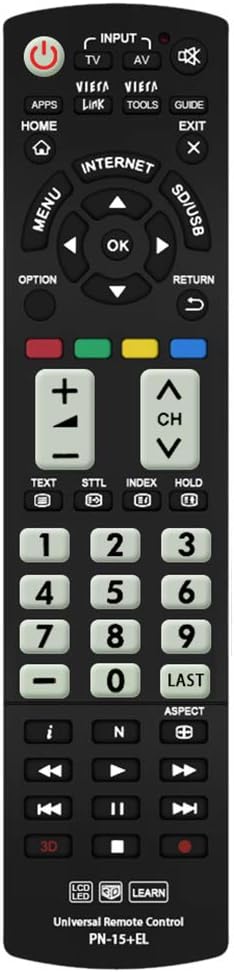
Image: Front view of the Gvirtue PN-15+EL Universal Replacement Remote Control.
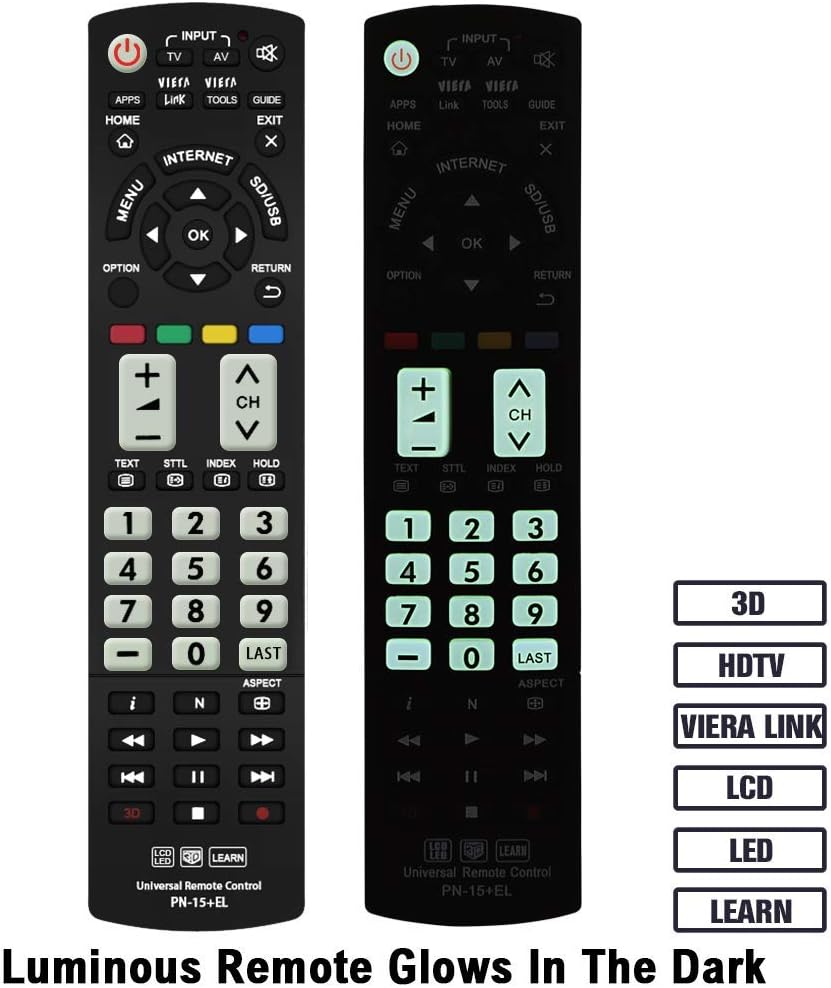
Image: The Gvirtue PN-15+EL remote control highlighting its luminous buttons for use in the dark.

Image: The Gvirtue PN-15+EL remote control shown alongside a list of compatible Panasonic TV models.
3. Setup
3.1 Battery Installation
The remote control requires two (2) AAA batteries (not included) for operation. Follow these steps to install the batteries:
- Locate the battery compartment cover on the back of the remote control.
- Slide the cover downwards or press the latch (if present) to open the compartment.
- Insert two fresh AAA batteries, ensuring the positive (+) and negative (-) terminals align correctly with the markings inside the compartment.
- Close the battery compartment cover by sliding it back into place until it clicks securely.
Note: This remote control does not include batteries. Please purchase them separately.

Image: Illustration showing how to open the battery compartment and insert two AAA batteries into the Gvirtue PN-15+EL remote control.
3.2 Initial Use
For most compatible Panasonic TV models, the Gvirtue PN-15+EL remote control is designed to work immediately after battery installation without any additional programming or pairing. Simply point the remote at your TV and test its functions.
If the remote does not function correctly out of the box, or if you wish to customize specific buttons, refer to the "Learning Function" section below.
4. Operating Instructions
This section details the functions of the buttons on your Gvirtue PN-15+EL remote control.

Image: Diagram illustrating the various function buttons on the Gvirtue PN-15+EL remote control.
4.1 Button Functions
- Power Button (●): Turns the TV on and off.
- INPUT / TV / AV: Selects the TV input source directly.
- VIERA Link: Activates Panasonic's Viera Link feature for integrated control of connected devices.
- TOOLS: Displays frequently used functions or quick settings.
- GUIDE: Displays the Electronic Program Guide (EPG).
- HOME: Enters the TV's home menu or smart TV interface.
- EXIT: Exits the current menu or application.
- MENU: Displays the main on-screen menu.
- OPTION: Displays available options for the current selection.
- RETURN: Returns to the previous menu or screen.
- Directional Pad (Up, Down, Left, Right) & OK: Navigates through menus and confirms selections.
- Color Buttons (Red, Green, Yellow, Blue): Shortcut keys for interactive functions, often context-dependent.
- VOL +/-: Adjusts the volume level.
- CH +/-: Changes channels.
- Mute: Mutes or unmutes the TV audio.
- Number Pad (0-9): Direct channel selection.
- LAST: Returns to the previously viewed channel.
- 3D: Toggles the 3D function on or off (for compatible 3D TVs).
- Media Playback Controls (Play, Pause, Stop, Rewind, Fast Forward, Skip): Controls media playback on compatible devices or TV functions.
4.2 Learning Function
The Gvirtue PN-15+EL remote control features a learning function, allowing you to program specific buttons to mimic functions from your original remote control. This is useful if certain advanced functions are not pre-programmed or if you want to consolidate controls.
Detailed instructions for activating and using the learning function are typically provided on a separate instruction sheet included with the product. Generally, the process involves:
- Entering a learning mode on the Gvirtue remote.
- Pointing your original remote at the Gvirtue remote.
- Pressing the desired button on the original remote, then the corresponding button on the Gvirtue remote to be programmed.
- Exiting the learning mode.
Refer to the specific learning function instructions provided with your remote for precise steps.
5. Maintenance
To ensure the longevity and optimal performance of your remote control, follow these maintenance guidelines:
- Cleaning: Wipe the remote control with a soft, dry cloth. Do not use abrasive cleaners, solvents, or alcohol, as these can damage the surface and buttons.
- Battery Replacement: Replace batteries when the remote's response becomes sluggish or stops working. Always replace both batteries at the same time with new ones of the same type (AAA).
- Storage: If the remote control will not be used for an extended period, remove the batteries to prevent leakage, which can damage the device. Store in a cool, dry place.
- Avoid Damage: Do not drop the remote control, expose it to extreme temperatures, or immerse it in water. Keep it away from direct sunlight and heat sources.
6. Troubleshooting
If you encounter issues with your Gvirtue PN-15+EL remote control, refer to the following troubleshooting tips:
- Remote Not Responding:
- Check if the batteries are inserted correctly with the correct polarity (+/-).
- Replace old batteries with fresh AAA batteries.
- Ensure there are no obstructions between the remote control and the TV's infrared sensor.
- Make sure you are within the effective operating range (approximately 10 meters / 30 feet) and pointing the remote directly at the TV.
- Specific Buttons Not Working:
- If you used the learning function, try re-programming the problematic button.
- Some advanced functions might require specific TV settings or may not be supported by all Panasonic TV models.
- Remote Works Intermittently:
- This often indicates low battery power. Replace the batteries.
- Ensure the battery contacts are clean and free from corrosion.
If the issue persists after trying these steps, please contact Gvirtue customer support for further assistance.
7. Specifications
| Model | PN-15+EL |
| Brand | Gvirtue |
| Material | ABS & Plastic |
| Connectivity Technology | Infrared (IR) |
| Compatible Devices | Panasonic Televisions (LCD, LED, 3D, Smart, 4K UHD) |
| Power Source | 2 x AAA Batteries (not included) |
| Product Dimensions | Approximately 6 x 2 x 0.7 inches (15.2 x 5.1 x 1.8 cm) |
| Item Weight | Approximately 3.2 ounces (90.7 grams) |
| Special Features | Backlit buttons, Ergonomic design, Learning function |

Image: Visual representation of the Gvirtue PN-15+EL remote control's key specifications.

Image: Front, side, and back views of the Gvirtue PN-15+EL remote control with dimensions indicated.
8. Warranty and Support
Gvirtue products are designed for reliability and performance. While specific warranty details may vary, please retain your proof of purchase for any warranty claims.
For technical support, troubleshooting assistance, or inquiries regarding your Gvirtue PN-15+EL remote control, please contact Gvirtue customer service through their official channels or the retailer from whom you purchased the product.
You may find additional support resources by visiting the Gvirtue Store on Amazon.