1. Introduction
The Brother MFC-L3750CDW is a compact digital color all-in-one printer designed for home or small office environments. It offers laser printer quality with color printing capabilities, wireless connectivity, and duplex printing. This manual provides essential information for setting up, operating, maintaining, and troubleshooting your device.
Key Features:
- Fast print and scan speeds: up to 25 ppm print speed, 29 ipm black scan speed, and 22 ipm color scan speed.
- Affordable and flexible color printing with professional-quality output.
- 250-sheet adjustable paper tray and 50-sheet automatic document feeder (ADF).
- 3.7-inch color touchscreen for easy navigation and cloud app integration (Dropbox, Google Drive, Evernote, OneNote).
- Multiple connectivity options: Wireless, Ethernet, Wi-Fi Direct, and USB interfaces.
- Compatible with Brother Genuine Toner cartridges: TN223BK, TN223C, TN223M, TN223Y, TN227BK, TN227C, TN227M, TN227Y.

Figure 1.1: Front view of the Brother MFC-L3750CDW Digital Color All-in-One Printer.
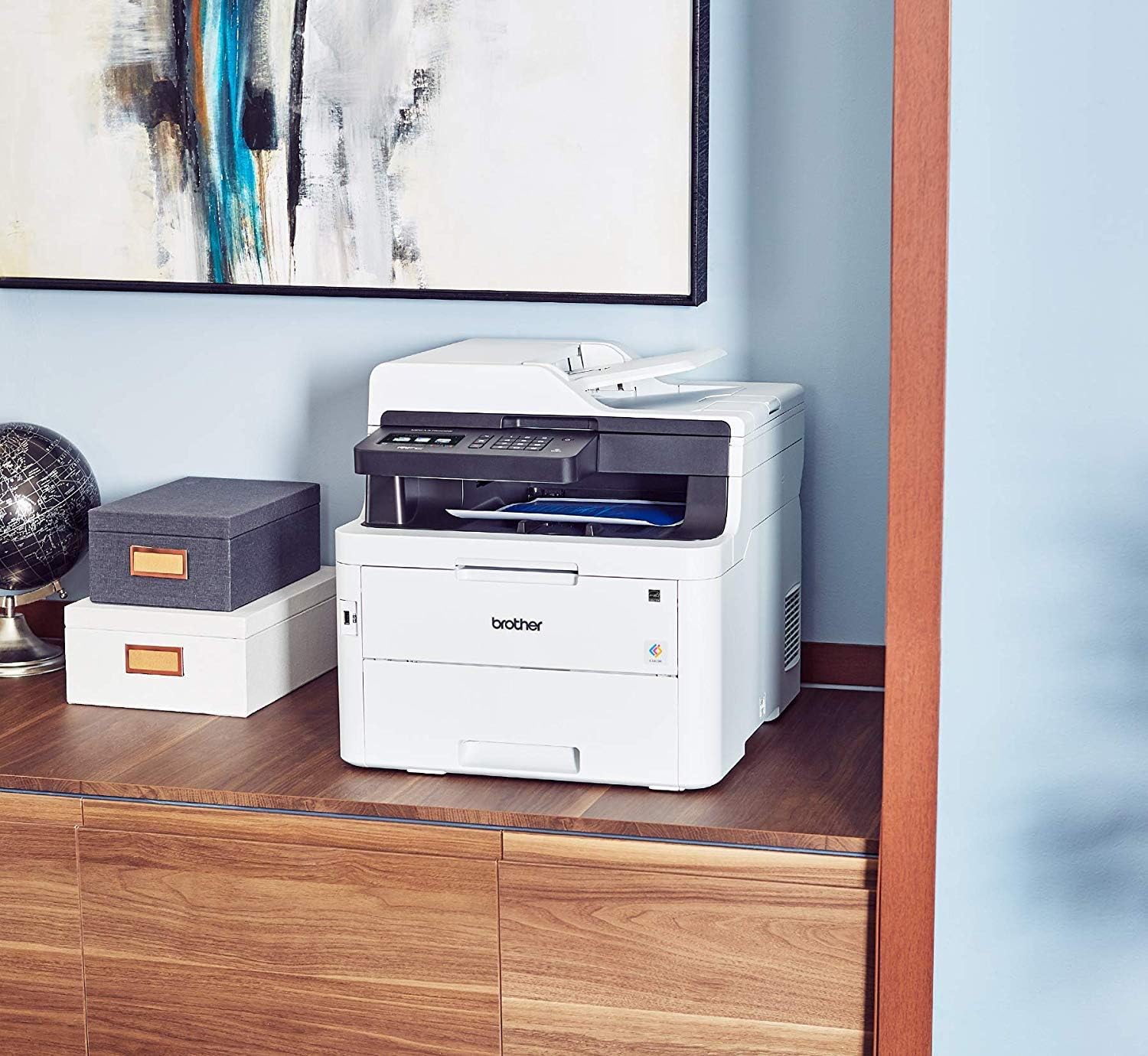
Figure 1.2: The Brother MFC-L3750CDW printer in a typical office setting, demonstrating its compact size.
2. Setup Guide
2.1 Unpacking and Initial Placement
Carefully remove the printer from its packaging. Ensure all protective tapes and packing materials are removed from the exterior and interior of the device. Place the printer on a stable, flat surface with adequate ventilation.
2.2 Installing Toner Cartridges and Drum Unit
Open the front cover of the printer. Remove the drum unit and toner cartridge assembly from its protective bag. Insert the toner cartridges into the drum unit until they click into place. Slide the combined drum unit and toner cartridge assembly into the printer until it locks.

Figure 2.1: Accessing the printer's interior for toner and drum unit installation or replacement.
2.3 Loading Paper
Open the paper tray and adjust the paper guides to fit the size of your paper (Letter, Legal, A4). Load paper into the tray, ensuring it is not overfilled. Close the paper tray. For special media like envelopes or card stock, use the manual feed slot.

Figure 2.2: Loading paper into the adjustable paper tray.
2.4 Power Connection
Connect the power cord to the printer and then to a grounded electrical outlet. Turn on the printer using the power button.
2.5 Software and Network Setup
Install the printer drivers and software from the Brother support website or the included installation disc (if applicable). Follow the on-screen instructions to connect your printer to your computer via USB, Ethernet, or wirelessly to your network. The 3.7-inch color touchscreen can guide you through wireless setup.
3. Operating Instructions
3.1 Printing Documents
From your computer, open the document you wish to print. Select 'Print' from the application's menu. Choose the Brother MFC-L3750CDW as your printer. Adjust print settings such as color/monochrome, paper size, and duplex printing as needed. Click 'Print'.
3.2 Scanning Documents
Place your document face down on the scanner glass or face up in the Automatic Document Feeder (ADF). On the printer's touchscreen or from your computer's scanning software, select the 'Scan' function. Choose your desired scan destination (e.g., computer, email, cloud service) and settings (e.g., resolution, color mode). Initiate the scan.
3.3 Copying Documents
Place your document on the scanner glass or in the ADF. On the printer's touchscreen, select the 'Copy' function. Adjust settings such as number of copies, zoom, and quality. Press 'Start' to begin copying.
3.4 Mobile Printing and Cloud Connectivity
The MFC-L3750CDW supports mobile printing via various apps and services. Ensure your mobile device is connected to the same wireless network as the printer. Use the Brother iPrint&Scan app or other compatible mobile printing solutions. The touchscreen allows direct printing from and scanning to popular cloud apps like Dropbox, Google Drive, Evernote, and OneNote.

Figure 3.1: Utilizing mobile device connectivity for printing tasks.
4. Maintenance
4.1 Replacing Toner Cartridges
When a toner cartridge is low or empty, the printer's display will indicate which cartridge needs replacement. Open the front cover, remove the drum unit assembly, and then remove the old toner cartridge. Unpack a new Brother Genuine Toner cartridge (TN223 or TN227 series) and insert it firmly into the drum unit. Reinstall the assembly into the printer.
4.2 Replacing the Drum Unit
The drum unit has a separate lifespan from the toner cartridges. When the drum unit needs replacement, a message will appear on the display. Follow the instructions in the printer's manual or on the display to replace the drum unit. Always use a Brother Genuine Drum Unit for optimal performance.
4.3 Cleaning the Printer
Regularly clean the exterior of the printer with a soft, lint-free cloth. For internal cleaning, refer to the printer's on-screen maintenance options or the full user guide for specific instructions on cleaning the corona wire or scanner glass to maintain print and scan quality.
5. Troubleshooting
5.1 Common Issues and Solutions
- Printer Not Responding: Check power connections, USB/Ethernet cable connections, and Wi-Fi status. Restart the printer and your computer. Ensure printer drivers are correctly installed.
- Paper Jams: Follow the on-screen instructions to clear paper jams from all access points (paper tray, back cover, fuser area). Ensure paper is loaded correctly and not wrinkled.
- Poor Print Quality: Check toner levels. Perform a print quality test from the printer's menu. Clean the corona wire or drum unit if necessary. Ensure you are using Brother Genuine Toner and Drum Units.
- Network Connectivity Issues: Verify your Wi-Fi password. Restart your router and printer. Check network settings on the printer's touchscreen.
- Scanner Not Working: Ensure the printer is connected to the computer and the scanning software is running. Check for any error messages on the printer's display.
For more detailed troubleshooting, refer to the comprehensive user guide available on the Brother support website or contact Brother customer support.
6. Specifications
| Feature | Specification |
|---|---|
| Model Name | MFC L3750CDW |
| Printing Technology | Laser |
| Printer Output | Color |
| Max Print Speed (Color) | 25 ppm |
| Max Print Speed (Monochrome) | 25 ppm |
| Max Black & White Print Resolution | 1200 dpi |
| Dual-sided Printing | Yes |
| Max Input Sheet Capacity | 250 sheets |
| Automatic Document Feeder (ADF) Capacity | 50 pages |
| Scanner Type | Photo, Sheetfed |
| Max Copy Speed (Black & White) | 25 ppm |
| Connectivity Technology | Ethernet, Wi-Fi, USB |
| Display Type | LCD or LED or OLED (3.7" Color Touchscreen) |
| Memory Storage Capacity | 64 MB |
| Product Dimensions | 40.89 x 47.5 x 41.4 cm (D x W x H) |
| Item Weight | 26.31 kg |
| Compatible Devices | Laptops, PC |
| Included Components | Toner Cartridges (TN223BK, TN223C, TN223M, TN223Y, TN227BK, TN227C, TN227M, TN227Y) |
7. Warranty and Support
Your Brother MFC-L3750CDW printer is covered by a manufacturer's warranty. For specific warranty terms and conditions, please refer to the documentation included with your product or visit the official Brother support website. In case of technical issues or questions not covered in this manual, please contact Brother customer support for assistance.
You can find support resources, FAQs, driver downloads, and contact information on the official Brother website: www.brother.ca