
1. Introduction
This manual provides essential information for setting up, operating, maintaining, and troubleshooting your Lenovo Flex 14 2-in-1 Convertible Laptop. Designed for versatility, this device combines the functionality of a laptop with the flexibility of a tablet, powered by an AMD Ryzen 5 3500U processor and featuring a 14-inch Full HD touchscreen display.
For additional support and resources, please visit the official Lenovo support website.
2. What's in the Box
Upon opening your Lenovo Flex 14 package, ensure all the following items are present:
- Lenovo Flex 14 2-in-1 Convertible Laptop
- Power Adapter
- Power Cable
- Active Pen
- Quick Start Guide (if included)
If any items are missing or damaged, please contact your retailer or Lenovo support immediately.
3. Key Features
The Lenovo Flex 14 is engineered to provide a versatile and powerful computing experience:
- 14-inch Full HD Touchscreen Display: Experience vibrant visuals and intuitive interaction with the 1920 x 1080 resolution display.
- AMD Ryzen 5 3500U Processor: Enjoy powerful and efficient performance for multitasking, streaming, and gaming, complemented by Radeon Vega 8 graphics for enhanced visual tasks.
- 12GB DDR4 RAM & 256GB NVMe SSD: Benefit from fast boot times, quick application loading, and ample memory for smooth operation.
- Windows 10 Operating System: Comes with comprehensive, built-in security features, including firewall and Internet protections.
- Privacy Shutter: A physical webcam shutter allows you to cover the camera for enhanced privacy when not in use.
- Active Pen Support: The included active pen enables direct drawing or note-taking on the touchscreen.
- Long Battery Life with Rapid Charge: Up to 10 hours of battery life with technology to recharge up to 80% in just one hour.
- Versatile Connectivity: Includes HDMI, USB-C, and USB 3.1 inputs for connecting various peripherals.
4. Setup Guide
4.1. Unboxing and Initial Inspection
Carefully remove the laptop and all accessories from the packaging. Inspect the device for any physical damage. Keep the packaging for future transport or warranty claims.

4.2. Powering On and Initial Charge
- Connect the power adapter to the laptop's charging port and then to a power outlet.
- Press the power button, located on the right side of the laptop, to turn on the device.
- Allow the battery to charge fully before its first use, although you can begin setup immediately.
4.3. Windows 10 Setup
Follow the on-screen instructions to complete the Windows 10 initial setup. This includes selecting your region, language, connecting to a Wi-Fi network, and creating a user account. Ensure you have a stable internet connection during this process.
4.4. Connecting Peripherals
You can connect external devices such as mice, keyboards, external storage, and displays using the available ports:
- USB Ports: For connecting USB devices.
- HDMI Port: For connecting to an external monitor or TV.
- USB-C Port: For data transfer and connecting compatible USB-C devices.
- Audio Jack: For headphones or external speakers.

5. Operating Your Lenovo Flex 14
5.1. Convertible Modes
Your Flex 14 offers multiple modes to adapt to your needs:
- Laptop Mode: Standard laptop configuration for typing and traditional computing.
- Tent Mode: Fold the screen back to form an A-frame, ideal for watching videos or presentations.
- Stand Mode: Fold the screen back further, with the keyboard facing down, for a tablet-like experience with a stand.
- Tablet Mode: Fold the screen completely back against the base for a full tablet experience, perfect for drawing or touch-based applications.

5.2. Touchscreen and Active Pen Usage
The Full HD touchscreen allows for direct interaction with Windows 10. Use multi-touch gestures for navigation, zooming, and scrolling. The included Active Pen provides precision for writing, drawing, and annotating directly on the screen. Ensure the pen has power (if applicable) and is paired with your device according to its specific instructions.
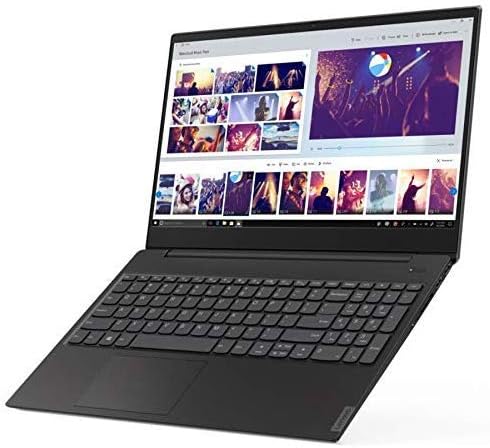
5.3. Privacy Shutter
To activate or deactivate the webcam, slide the physical privacy shutter located above the camera lens. This provides an immediate and secure way to ensure your privacy.
5.4. Fingerprint Reader
For quick and secure login, configure the fingerprint reader through Windows Hello settings. Once set up, you can unlock your laptop by simply placing your registered finger on the sensor.
6. Maintenance
6.1. Cleaning Your Laptop
- Use a soft, lint-free cloth slightly dampened with water or a screen cleaner to wipe the display.
- For the keyboard and chassis, use a soft cloth. Avoid harsh chemicals or abrasive materials.
- Regularly clean the fan vents to prevent dust buildup, which can affect performance.
6.2. Software Updates
Keep your operating system and drivers updated to ensure optimal performance and security. Windows Update will automatically manage most updates, but you can manually check for updates through the Settings menu.
6.3. Battery Care
To prolong battery life, avoid extreme temperatures and fully discharging the battery frequently. For long-term storage, charge the battery to about 50-60% and store the device in a cool, dry place.
7. Troubleshooting
Here are solutions to some common issues:
- Laptop Not Turning On: Ensure the power adapter is securely connected and the battery has sufficient charge. Try holding the power button for 10-15 seconds to perform a hard reset.
- Display Issues: If the screen is blank or flickering, try connecting an external monitor to check if the issue is with the laptop's display or graphics card. Adjust display settings in Windows.
- Slow Performance: Close unnecessary applications, check for malware, ensure sufficient free storage space, and update your operating system and drivers.
- Wi-Fi Connectivity Problems: Restart your router and laptop. Check network settings in Windows and ensure Wi-Fi drivers are up to date.
- Touchscreen or Pen Not Responding: Restart the laptop. Ensure the Active Pen has power and is properly paired. Check for driver updates for the touchscreen and pen.
If problems persist, refer to the Lenovo support website or contact customer service.
8. Specifications
| Feature | Specification |
|---|---|
| Brand | Lenovo |
| Model Name | Flex 14 |
| Model Number | 81SS0005US |
| Screen Size | 14 Inches |
| Display Resolution Maximum | 1920x1080 (Full HD) |
| CPU Model | Ryzen 5 4600H (Note: Product description mentions 3500U, please verify actual CPU model) |
| Processor Speed | 2.1 GHz (up to 3.7 GHz max) |
| RAM Memory Installed Size | 12 GB DDR4 |
| Hard Disk Size | 256 GB SSD |
| Operating System | Windows 10 |
| Graphics Coprocessor | AMD Radeon Vega 8 |
| Battery Life | 10 Hours (Average Standby) |
| Item Weight | 3.5 Pounds |
| Item Dimensions (L x W x Thickness) | 12.91"L x 9.02"W x 0.7"Th |
| Connectivity Technology | Bluetooth, HDMI, USB, Wi-Fi |
| Special Feature | Support Stylus |
9. Warranty and Support
9.1. Warranty Information
Your Lenovo Flex 14 2-in-1 Convertible Laptop comes with a 1 Year Limited Parts and Labor Warranty. Please retain your proof of purchase for warranty claims. For detailed terms and conditions, refer to the warranty documentation included with your product or visit the official Lenovo support website.
9.2. Customer Support
For technical assistance, troubleshooting, or service requests, please contact Lenovo Customer Support. You can find contact information and additional resources on the official Lenovo website: www.lenovo.com/support.


