
Introduction
This manual provides instructions for the Ematic NSWC012W Wired Controller. This controller is designed for use with Nintendo Switch and PC devices, offering an ergonomic design, responsive controls, rumble feedback, and a 7.2-foot USB cable for a reliable gaming experience.
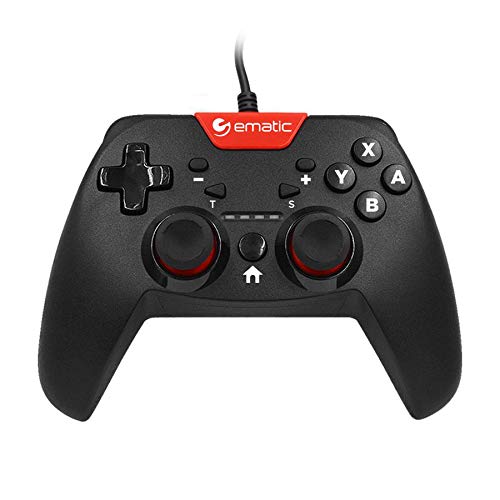
Image: Two individuals are shown holding Ematic wired controllers, actively engaged in a video game displayed on a television. The controllers are black with red accents, featuring joysticks and face buttons.
Package Contents
- Ematic NSWC012W Wired Controller
- Instruction Manual (this document)
Setup
Connecting to Nintendo Switch
- Ensure your Nintendo Switch console is powered on and docked.
- Plug the USB connector of the Ematic NSWC012W controller into an available USB port on the Nintendo Switch dock.
- The controller should be automatically recognized by the console. You may need to navigate to the 'Controllers' menu on your Switch to confirm connection.
- The controller is now ready for use.
Connecting to PC (Windows)
- Ensure your PC is powered on.
- Plug the USB connector of the Ematic NSWC012W controller into an available USB port on your computer.
- The operating system will typically install the necessary drivers automatically. This process may take a few moments.
- Once drivers are installed, the controller will be recognized as a standard game controller. You can verify its functionality in your PC's device settings or within compatible games.
Operating Instructions
Controller Layout and Functions
The Ematic NSWC012W controller features a standard button layout for intuitive gameplay.
- Analog Sticks: Two clickable analog sticks for precise movement and camera control.
- Directional Pad (D-Pad): For directional input in games.
- Face Buttons (A, B, X, Y): Action buttons for in-game commands.
- Shoulder Buttons (L, R): Top-mounted buttons.
- Trigger Buttons (ZL, ZR): Bottom-mounted triggers.
- HOME Button: Returns to the console's home screen (Nintendo Switch).
- PLUS (+) / MINUS (-) Buttons: For in-game menu navigation and options.
- Screenshot Button: Captures screenshots during gameplay (Nintendo Switch).
- TURBO Button: Activates turbo function for assigned buttons.
Using TURBO Mode
- Press and hold the TURBO button.
- While holding TURBO, press the desired action button (e.g., A, B, X, Y, L, R, ZL, ZR) you wish to assign the turbo function to.
- Release both buttons. The assigned button will now rapidly repeat its input when held down.
- To disable TURBO mode for a specific button, repeat steps 1 and 2.
Screenshot Function
Press the Screenshot Button during gameplay on Nintendo Switch to capture an image of your screen. The captured image will be saved to your console's album.
Maintenance
- Keep the controller clean by wiping it with a soft, dry cloth.
- Avoid exposing the controller to extreme temperatures, humidity, or direct sunlight.
- Do not use abrasive cleaners or solvents on the controller.
- Store the controller in a safe place when not in use to prevent damage to the cable or buttons.
- Do not attempt to disassemble the controller, as this will void the warranty.
Troubleshooting
Controller Not Responding
- Check Cable Connection: Ensure the USB cable is securely plugged into both the controller and the console/PC.
- Try a Different USB Port: Connect the controller to another USB port on your console or PC.
- Restart Device: Restart your Nintendo Switch or PC and try connecting the controller again.
- PC Driver Check: On PC, verify that the controller drivers are installed correctly in Device Manager.
Buttons or Joysticks Not Working Correctly
- Clean Controller: Ensure no debris is lodged around the buttons or joysticks.
- Test in Another Game/Application: Determine if the issue is specific to one game or widespread.
- Recalibrate (PC): On PC, you may be able to recalibrate the controller through Windows Game Controller settings.
Specifications
| Model Number | NSWC012W |
| Brand | Ematic |
| Compatible Devices | Nintendo Switch, PC, Windows |
| Connectivity Technology | USB |
| Cable Length | 7.2 feet (approx. 2.2 meters) |
| Additional Features | Ergonomic design, Rumble feedback, TURBO button, Screenshot button |
| Button Quantity | 10 (excluding D-Pad and analog stick clicks) |
| Power Source | Corded Electric (via USB) |
| UPC | 815592024156 |
Warranty Information
This Ematic product is covered by a STANDARD 90 DAYS warranty from the date of purchase. This warranty covers manufacturing defects under normal use. It does not cover damage caused by misuse, accidents, unauthorized modifications, or normal wear and tear. Please retain your proof of purchase for warranty claims.
Support
For further assistance, technical support, or warranty inquiries, please refer to the official Ematic website or contact their customer service department. Contact information can typically be found on the product packaging or the manufacturer's official website.
Note: Product specifications and features are subject to change without prior notice.