
1. Introduction
Thank you for purchasing the VIVIBRIGHT GP100UP LED Projector. This manual provides essential information for the safe and efficient operation of your device. Please read it thoroughly before use and retain it for future reference.
The VIVIBRIGHT GP100UP is an Android 6.0-based LED projector featuring built-in Wi-Fi and Bluetooth, designed for home theater and office presentations. It supports Full HD content and offers a bright projection experience.
2. Safety Information
- Power Supply: Use only the specified power adapter. Ensure the voltage matches your local power supply.
- Ventilation: Do not block ventilation openings. Ensure adequate airflow around the projector to prevent overheating.
- Liquid Exposure: Keep the projector away from water or other liquids. Do not operate in damp environments.
- Cleaning: Disconnect power before cleaning. Use a soft, dry cloth. Avoid liquid or aerosol cleaners.
- Object Insertion: Never insert objects of any kind into the projector openings as they may touch dangerous voltage points or short-out parts.
- Servicing: Do not attempt to service this product yourself. Refer all servicing to qualified service personnel.
- Eye Protection: Do not look directly into the projector lens when the lamp is on. The bright light can cause eye damage.
3. Package Contents
Verify that all items listed below are included in your package:
- VIVIBRIGHT GP100UP Projector
- Power Cable
- VGA Cable
- AV Cable
- Remote Control
- User Manual (this document)
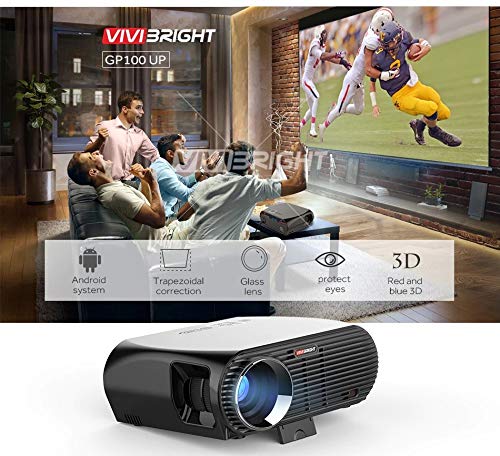
Figure 3.1: Included accessories with the VIVIBRIGHT GP100UP projector, including power cable, VGA cable, remote control, and AV cable.
4. Product Overview
4.1. Projector Dimensions
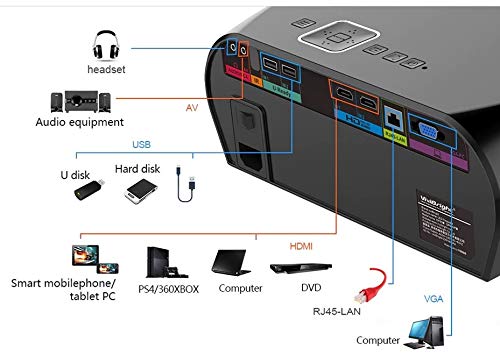
Figure 4.1: Front and top view of the VIVIBRIGHT GP100UP projector with approximate dimensions: 11 inches (length), 8.85 inches (width), and 4 inches (height).
4.2. Input/Output Ports
The projector features various ports for connecting external devices:
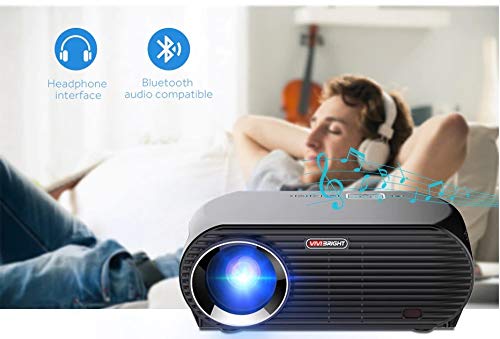
Figure 4.2: Detailed diagram of the projector's rear panel, illustrating connectivity options including headset, audio equipment (AV), USB ports for U disk and hard disk, HDMI ports, RJ45-LAN, and VGA port.
- HDMI: Connect to Blu-ray players, gaming consoles, laptops, or other HDMI-enabled devices.
- USB: For connecting USB drives (U disk) or external hard drives.
- AV: For connecting older devices using composite video and stereo audio.
- VGA: For connecting to computers or laptops with a VGA output.
- RJ45-LAN: For wired network connection.
- Headphone Jack: For connecting external headphones or speakers.
4.3. Remote Control
The included remote control allows for convenient operation of the projector.
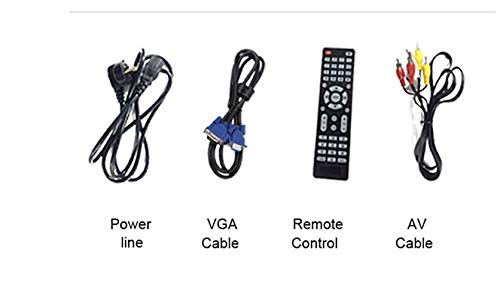
Figure 4.3: Remote control layout with key functions: ON/OFF, Volume Up/Down, OK, Menu, Home, Speed, Mute, Back, Mouse Mode, and the USB receiver.
- ON/OFF: Power on or off the projector.
- Volume +/-: Adjust the audio volume.
- OK: Confirm selection.
- Menu: Access projector settings.
- Home: Return to the main Android interface.
- Back: Go back to the previous screen.
- Mouse Mode: Activate/deactivate air mouse function (if applicable).
- Mute: Mute or unmute audio.
5. Setup
5.1. Placement
Place the projector on a stable, flat surface or mount it to the ceiling. Ensure there are no obstructions to the lens or ventilation ports. The optimal projection distance for a clear image is between 1 to 5 meters.
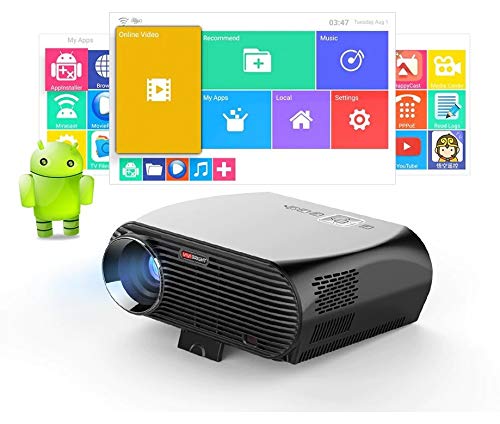
Figure 5.1: Illustration of projection distances and corresponding screen sizes, along with the location of the keystone correction and focus rings on the projector.
- For a 72-inch screen, the recommended distance is approximately 7.2 feet (2.2 meters).
- For a 120-inch screen, the recommended distance is approximately 11.8 feet (3.6 meters).
5.2. Power Connection
- Connect the power cable to the projector's power input.
- Plug the other end of the power cable into a suitable electrical outlet.
- The power indicator light on the projector should illuminate.
5.3. Focus and Keystone Correction
After powering on, adjust the image for clarity and proper geometry.
- Focus: Rotate the focus ring near the lens until the projected image is sharp and clear.
- Keystone Correction: If the projected image appears trapezoidal (wider at the top or bottom), use the keystone correction ring or lever (usually located near the focus ring) to adjust the image until it is rectangular. The GP100UP supports +/- 15 degrees vertical keystone correction.
6. Operating Instructions
6.1. Initial Power On and Android Interface
Press the power button on the projector or remote control to turn on the device. The projector will boot into its Android 6.0 operating system interface.
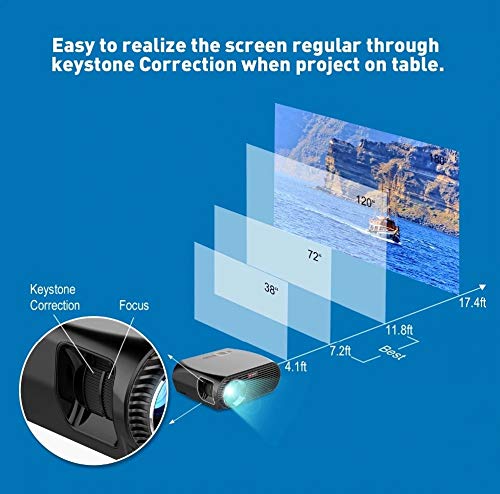
Figure 6.1: The VIVIBRIGHT GP100UP projector in operation, highlighting its Android system capabilities and other features.
Navigate the Android interface using the remote control. You can access pre-installed applications, settings, and media files.
6.2. Connecting External Devices
To project content from external sources:
- Connect your device (e.g., laptop, gaming console, USB drive) to the appropriate port on the projector (HDMI, USB, AV, VGA).
- On the projector's Android interface, navigate to the "Input Source" or "Source" option.
- Select the corresponding input source (e.g., HDMI1, USB, AV, VGA) to display content from your connected device.
6.3. Wireless Connectivity (Wi-Fi, Bluetooth, Screen Mirroring)
The GP100UP supports various wireless functions:
- Wi-Fi:
- Go to "Settings" on the Android interface.
- Select "Wi-Fi" and turn it on.
- Choose your desired network and enter the password to connect.
- Bluetooth:
- Go to "Settings" on the Android interface.
- Select "Bluetooth" and turn it on.
- Pair with Bluetooth audio devices like headphones or speakers.
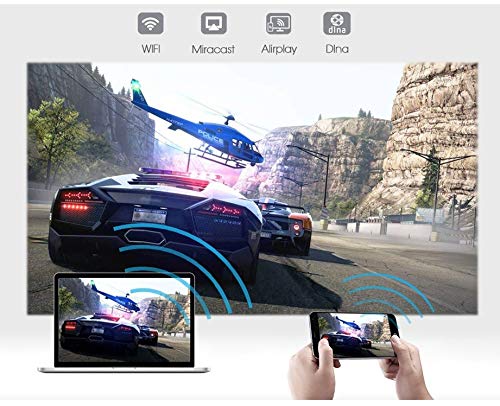
Figure 6.2: The projector's Bluetooth audio compatibility, allowing connection to wireless headphones or speakers.
- Screen Mirroring (Miracast/Airplay/DLNA):
The projector supports mirroring content from compatible smartphones, tablets, and laptops via Wi-Fi, Miracast, Airplay, and DLNA.
- Ensure both your device and the projector are connected to the same Wi-Fi network.
- On the projector's Android interface, open the relevant screen mirroring application (e.g., Miracast, Airplay, DLNA).
- On your smartphone/tablet/laptop, activate its screen mirroring function (e.g., "Screen Mirroring," "Smart View," "Cast," "AirPlay").
- Select the projector from the list of available devices to begin mirroring.

Figure 6.3: Wireless screen mirroring capabilities, enabling content from mobile devices and laptops to be displayed on the projector.
7. Maintenance
7.1. Cleaning the Lens
Use a soft, lint-free cloth specifically designed for optical lenses. Gently wipe the lens to remove dust or smudges. Avoid using abrasive materials or harsh chemicals.
7.2. Cleaning the Projector Casing
Wipe the projector's exterior with a soft, dry cloth. For stubborn marks, a slightly damp cloth can be used, followed by a dry cloth. Ensure no liquid enters the ventilation openings.
7.3. Air Filter (if applicable)
While LED projectors typically have sealed optical engines, regularly check ventilation openings for dust accumulation. Use a soft brush or compressed air to clear any blockages.
8. Troubleshooting
| Problem | Possible Cause | Solution |
|---|---|---|
| No image displayed |
|
|
| Image is blurry |
|
|
| Image is trapezoidal |
|
|
| No sound |
|
|
| Wi-Fi/Bluetooth connection issues |
|
|
9. Specifications
| Feature | Detail |
|---|---|
| Model Number | GP100UP |
| Display Technology | LCD |
| Native Resolution | 1280x800dpi (WXGA) |
| Brightness | 3500 Lumens |
| Contrast Ratio | 1000:1-2000:1 |
| Light Source | LED |
| Light Source Life | Not specified (typically 20,000+ hours for LED) |
| Projection Distance | 1-5m |
| Projected Dimension | 40-300 inches (Best image size: 72-120 inches) |
| Screen Scale | 4:3/16:9 |
| Keystone Correction | Manual Correction, +/- 15 degrees (vertical) |
| System | Android 6.0.1, CPU: Quad core ARM Cortex-A53 |
| Memory (RAM/ROM) | RAM: 1G / ROM: 8G |
| Wireless Connectivity | Wi-Fi, Bluetooth, DLNA, Miracast, Airplay |
| Input Ports | HDMI, USB, AV, VGA, RJ45-LAN |
| Power Supply | AC 90-240V, 50/60Hz |
| Power Consumption | 140W |
| Dimensions (approx.) | 37 x 30.5 x 15.9 cm |
| Weight (approx.) | 2.6kg |
| 3D Function | Red-blue 3D |
10. Warranty and Support
The VIVIBRIGHT GP100UP Projector comes with a 1-Year Warranty from the date of purchase. This warranty covers manufacturing defects under normal use.
For technical support, warranty claims, or service inquiries, please contact your retailer or the official VIVIBRIGHT customer service channel. Please have your product model number (GP100UP) and proof of purchase ready when contacting support.


