
Introduction
This manual provides comprehensive instructions for the Mobility Lab ML311692 Wireless Ergonomic Vertical Mouse. Please read this manual carefully before using the product to ensure proper operation and to maximize its benefits. This mouse is designed to offer a comfortable and natural hand position, reducing strain during extended use.
Package Contents
- Mobility Lab ML311692 Wireless Ergonomic Vertical Mouse
- USB 2.4GHz Receiver
- User Manual
Setup
1. Installing Batteries
The Mobility Lab ML311692 mouse requires two AAA batteries for operation. Locate the battery compartment on the underside of the mouse. Open the compartment, insert two AAA batteries according to the polarity indicators, and close the compartment securely.
2. Connecting the USB Receiver
- Locate the USB 2.4GHz receiver, typically stored in a small slot on the underside of the mouse or within the packaging.
- Insert the USB receiver into an available USB port on your computer (PC or laptop).
- The mouse is plug-and-play, meaning no additional software installation is required. Your operating system (Windows or macOS) will automatically detect and configure the mouse.


Operating Instructions
1. Ergonomic Design
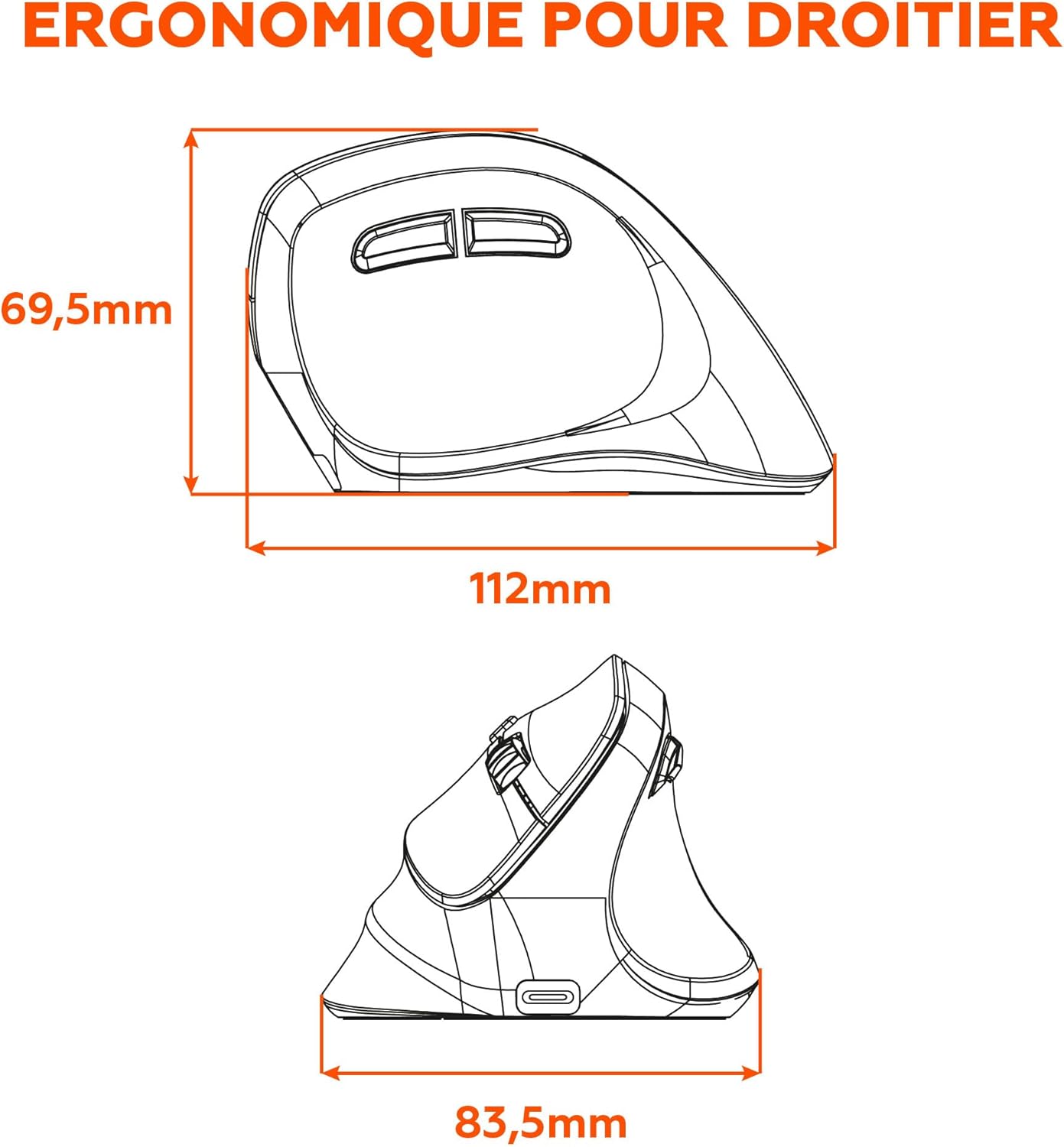
This mouse features a vertical ergonomic design, intended for right-handed users. This design promotes a more natural hand and wrist posture, which can help alleviate discomfort associated with traditional mouse usage.
2. DPI Adjustment
The mouse offers adjustable precision settings (DPI - Dots Per Inch) to control cursor speed and sensitivity. You can switch between 1000 DPI and 1600 DPI to suit your preference or task requirements. The DPI button is typically located near the scroll wheel.

3. Button Functions
The mouse is equipped with 6 buttons:
- Left Click: Standard primary function.
- Right Click: Standard secondary function.
- Scroll Wheel: For vertical scrolling and middle-click function.
- DPI Button: To switch between 1000 and 1600 DPI.
- Forward Button: For navigating forward in web browsers or file explorers.
- Backward Button: For navigating backward in web browsers or file explorers.

4. Silent Clicks
The mouse features silent click buttons, designed to reduce noise during use, providing a quieter working environment.

Maintenance
1. Battery Replacement
When the mouse performance degrades or stops responding, it is likely that the batteries need to be replaced. Open the battery compartment on the underside of the mouse and replace the two AAA batteries with new ones, ensuring correct polarity.
2. Cleaning
To clean the mouse, use a soft, dry cloth. For stubborn dirt, a slightly damp cloth can be used, but ensure no moisture enters the device. Avoid using harsh chemicals or abrasive cleaners.
Troubleshooting
- Mouse not responding:
- Check if the batteries are correctly installed and have sufficient charge. Replace if necessary.
- Ensure the USB receiver is securely plugged into a working USB port on your computer.
- Try plugging the USB receiver into a different USB port.
- Restart your computer.
- Erratic cursor movement:
- Clean the optical sensor on the underside of the mouse.
- Ensure you are using the mouse on a suitable surface. Reflective or uneven surfaces can affect tracking.
- Check for interference from other wireless devices.
- Wireless connection issues:
- Ensure the mouse is within the effective operating range (up to 8 meters) of the USB receiver.
- Avoid placing the receiver near large metal objects or other sources of electromagnetic interference.
Specifications
| Feature | Detail |
|---|---|
| Model Number | ML311692 |
| Sensor Type | Optical |
| DPI Precision | 1000 / 1600 DPI (Adjustable) |
| Number of Buttons | 6 |
| Hand Orientation | Right-handed |
| Dimensions (L x W x H) | 120.5 x 76 x 63.25 mm |
| Weight | 102g (with batteries) |
| Power Source | 2 x AAA batteries |
| Connection Type | 2.4GHz USB Receiver |
| Wireless Range | >8 meters |
| Compatibility | Windows, macOS |
| Special Features | Ergonomic Design, Silent Clicks |
Warranty and Support
Warranty Information
This Mobility Lab product comes with a 1-month manufacturer's warranty from the date of purchase. This warranty covers manufacturing defects under normal use. Please retain your proof of purchase for warranty claims.
Customer Support
For technical assistance, troubleshooting, or warranty inquiries, please visit the official Mobility Lab brand store or contact their customer service through the following link: Mobility Lab Brand Store

