
Langsdom H3/H3B
Langsdom Bluetooth Headset H3/H3B User Manual
Model: H3/H3B | Brand: Langsdom
Introduction
This user manual provides detailed instructions for the Langsdom Bluetooth Headset H3/H3B. It covers product features, setup, operation, maintenance, and troubleshooting to ensure optimal performance and user experience. The H3/H3B headset is designed for clear communication and comfort, featuring extended talk time, noise reduction technology, and versatile connectivity.
What's in the Box
Upon unboxing your Langsdom Bluetooth Headset H3/H3B, you should find the following components:
- Langsdom Bluetooth Headset H3/H3B
- Charging Station
- USB Charging Cable
- User Manual (this document)
Product Overview
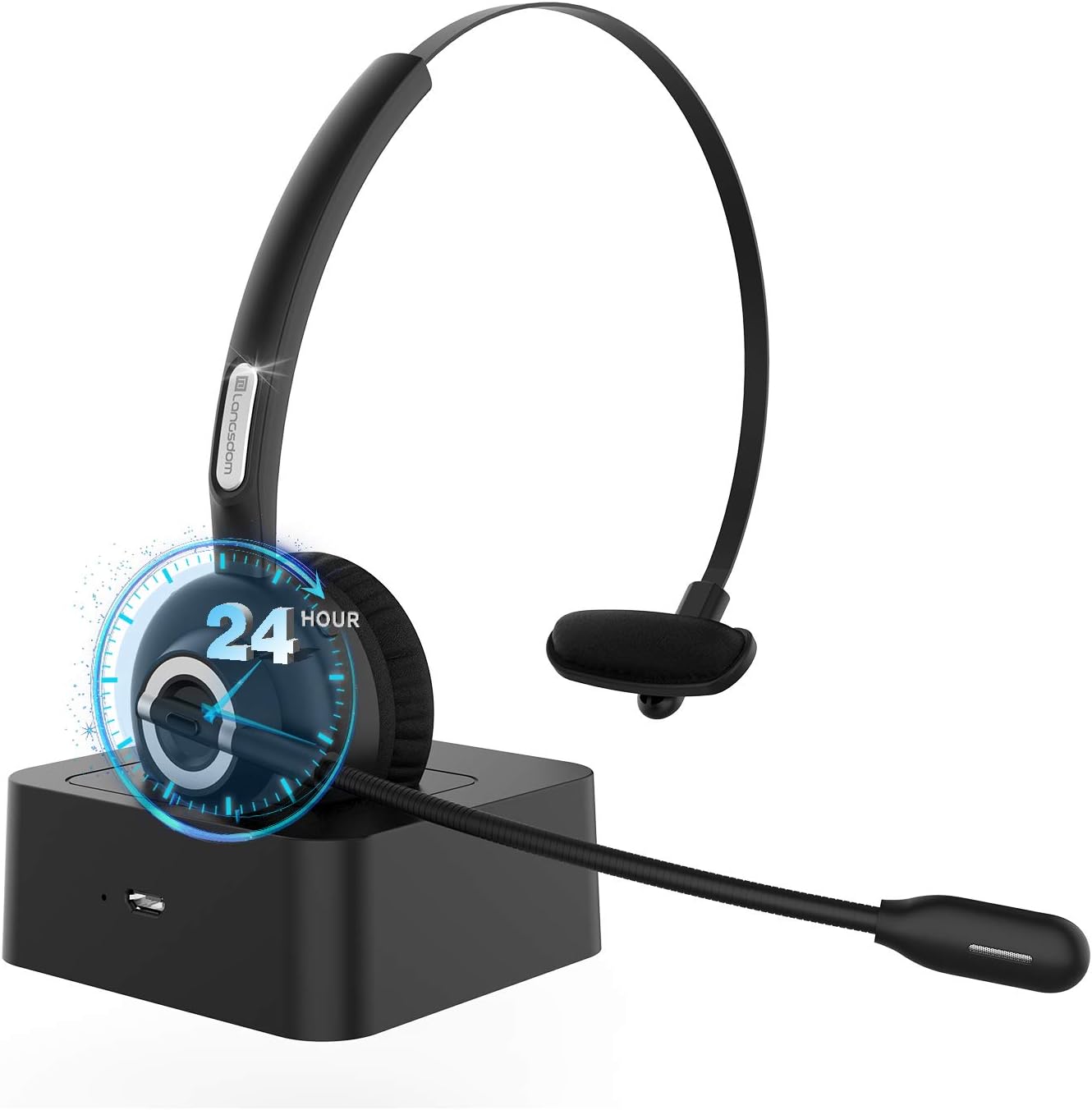
Figure 1: Langsdom Bluetooth Headset H3/H3B with Charging Station. The headset features a single earcup and an adjustable microphone boom, designed for comfortable wear and clear communication.
Key Features
- Extended Talk Time: Up to 24 hours of continuous talk time and 250 hours of standby time on a single 3-hour charge.
- Noise Reduction: Equipped with CVC 8.0 noise reduction technology to filter out high and medium frequency noise for clearer calls.
- Bluetooth 5.0: Advanced CSR chip and Bluetooth A2DP technology ensure quick, stable signal transmission and lower power consumption within a 33ft range.
- Multi-Device Connectivity: Ability to connect and switch between two devices simultaneously (e.g., laptop and mobile phone).
- Lightweight Design: Weighing only 1.7oz, with a skin-friendly soft earpad and flexible headband for all-day comfort.
- Adjustable Microphone: The microphone can rotate 250° to be worn on either the left or right ear.
Controls and Indicators

Figure 2: Detailed view of the headset's controls, including volume buttons, LED indicator, multi-function button, USB charging port, and charging interface.
- Volume + / Next Song: Increases volume or skips to the next track.
- Volume - / Previous Song: Decreases volume or goes to the previous track.
- LED Indicator: Displays status (pairing, charging, connected).
- Multi-function Button: Used for Play/Pause music, Answer/End/Reject/Redial calls.
- USB Charging Port: For direct charging of the headset.
- Charging Interface: Connects to the charging station.
- Microphone: Flexible boom microphone for voice input.
Setup Guide
1. Charging the Headset
Before first use, fully charge the headset. You can charge it using the provided charging station or directly via the USB charging port.
- Connect the USB charging cable to the charging station and a power source (e.g., computer USB port, USB wall adapter).
- Place the headset onto the charging station, ensuring the charging contacts align. The LED indicator on the headset will show charging status.
- A full charge takes approximately 3 hours. The LED indicator will change color or turn off when charging is complete.

Figure 3: Illustration of the headset's battery performance, highlighting 24 hours working time, 250mAh battery capacity, 3 hours charging time, and 250 hours standby time.
2. Pairing with a Device
The headset uses Bluetooth 5.0 for wireless connection.
- Power On: Press and hold the Multi-function Button until the LED indicator flashes blue and red, indicating pairing mode.
- Activate Bluetooth: On your device (smartphone, laptop, tablet), enable Bluetooth.
- Search for Devices: In your device's Bluetooth settings, search for available devices.
- Select "Langsdom H3/H3B": Choose the headset from the list of found devices.
- Confirm Pairing: Once connected, the LED indicator on the headset will flash blue slowly.
The headset can connect to two devices simultaneously. After pairing with the first device, disable Bluetooth on that device, then pair with the second device. Re-enable Bluetooth on the first device, and the headset should automatically connect to both.

Figure 4: Visual representation of the headset's internal components and the CSR8615 chipset, illustrating the stable and fast signal connection provided by Bluetooth 5.0 technology.
Operating Instructions
Call Management
- Answer/End Call: Press the Multi-function Button once.
- Reject Call: Press and hold the Multi-function Button for 2 seconds.
- Redial Last Number: Double-press the Multi-function Button.
Audio Playback
- Play/Pause: Press the Multi-function Button once.
- Volume Up: Press the Volume + button.
- Volume Down: Press the Volume - button.
- Next Track: Press and hold the Volume + button.
- Previous Track: Press and hold the Volume - button.
Microphone Adjustment
The microphone boom can be rotated 250 degrees to position it optimally for your voice, regardless of whether you wear the headset on your left or right ear. Ensure the microphone is close to your mouth for the best voice pickup and noise reduction performance.

Figure 5: Demonstrates the 250° rotation angle of the microphone, allowing for flexible wearing on either ear, and highlights the HD microphone for clear audio.
Maintenance and Care
- Cleaning: Use a soft, dry cloth to clean the headset and charging station. Avoid using harsh chemicals or abrasive materials.
- Storage: Store the headset in a cool, dry place away from extreme temperatures and direct sunlight.
- Battery Care: To prolong battery life, avoid fully discharging the headset frequently. Charge it regularly, even if not in constant use.
- Avoid Water: The headset is not waterproof. Keep it away from liquids and high humidity.
Troubleshooting
| Problem | Possible Cause | Solution |
|---|---|---|
| Headset does not power on. | Low battery. | Charge the headset fully using the charging station or USB cable. |
| Cannot pair with device. | Headset not in pairing mode; Bluetooth off on device; device too far. | Ensure headset is in pairing mode (flashing blue/red). Turn on Bluetooth on your device. Move headset closer to the device (within 33ft). |
| No sound or low volume. | Volume too low; headset not selected as audio output; poor connection. | Increase headset and device volume. Check device's audio output settings. Re-pair the headset. |
| Call quality is poor (noise). | Environmental noise; microphone not positioned correctly. | Ensure microphone is close to your mouth. The CVC 8.0 noise reduction should minimize background noise. Move to a quieter environment if possible. |
| Headset disconnects frequently. | Out of range; interference; low battery. | Stay within 33ft of your device. Avoid strong electromagnetic interference. Charge the headset. |
Specifications
| Feature | Detail |
|---|---|
| Model Name | H3B |
| Connectivity Technology | Wireless |
| Wireless Communication Technology | Bluetooth |
| Included Components | Cable, Charging Station |
| Specific Uses For Product | Office, Trucker |
| Charging Time | 3 Hours |
| Recommended Uses For Product | Calling |
| Compatible Devices | Cell Phones, iPhone, Android |
| Control Type | Volume Control |
| Cable Feature | Without Cable |
| Item Weight | 1.76 ounces |
| Unit Count | 1.0 Count |
| Control Method | Remote |
| Number of Items | 1 |
| Battery Life | 24 Hours |
| Bluetooth Range | 10 Meters |
| Bluetooth Version | 5.0 |
| Earpiece Shape | Rounded tips |
| Is Autographed | No |
| Special Feature | Adjustable Headband, Lightweight, Long time use |
| Manufacturer | Langsdom |
| Product Dimensions | 5.51 x 2.76 x 5.91 inches |
| Item model number | H3/H3B |
| Batteries | 1 Lithium Ion batteries required. (included) |
| Color | Black |
| Ear Placement | On Ear |
| Form Factor | On Ear |
| Noise Control | CVC 8.0 Noise Reduction |
Warranty and Support
Langsdom offers a 30-day no-reason refund policy and a 12-month free replacement warranty. If you encounter any issues with your product or have suggestions for improvement, please contact Langsdom customer support. Your satisfaction is 100% guaranteed.
For support, please refer to the contact information provided with your purchase or visit the official Langsdom website.
Ask a question about this manual
Ask about setup, troubleshooting, compatibility, parts, safety, or missing instructions. Manuals+ will review the question and use this page’s manual context to help answer it.