
1. Introduction
The ABLEWE USB 3.0 Switcher Adapter is designed to allow two computers to share up to four USB 3.0 peripheral devices. This device eliminates the need to constantly swap cables between computers, providing a convenient solution for sharing peripherals such as a mouse, keyboard, printer, scanner, or flash drive. It features a simple one-button switch for seamless toggling between connected computers.
Package Contents:
- 1 x ABLEWE USB 3.0 Switcher Adapter
- 2 x USB 3.0 A-to-A Cables
- 1 x User Guide
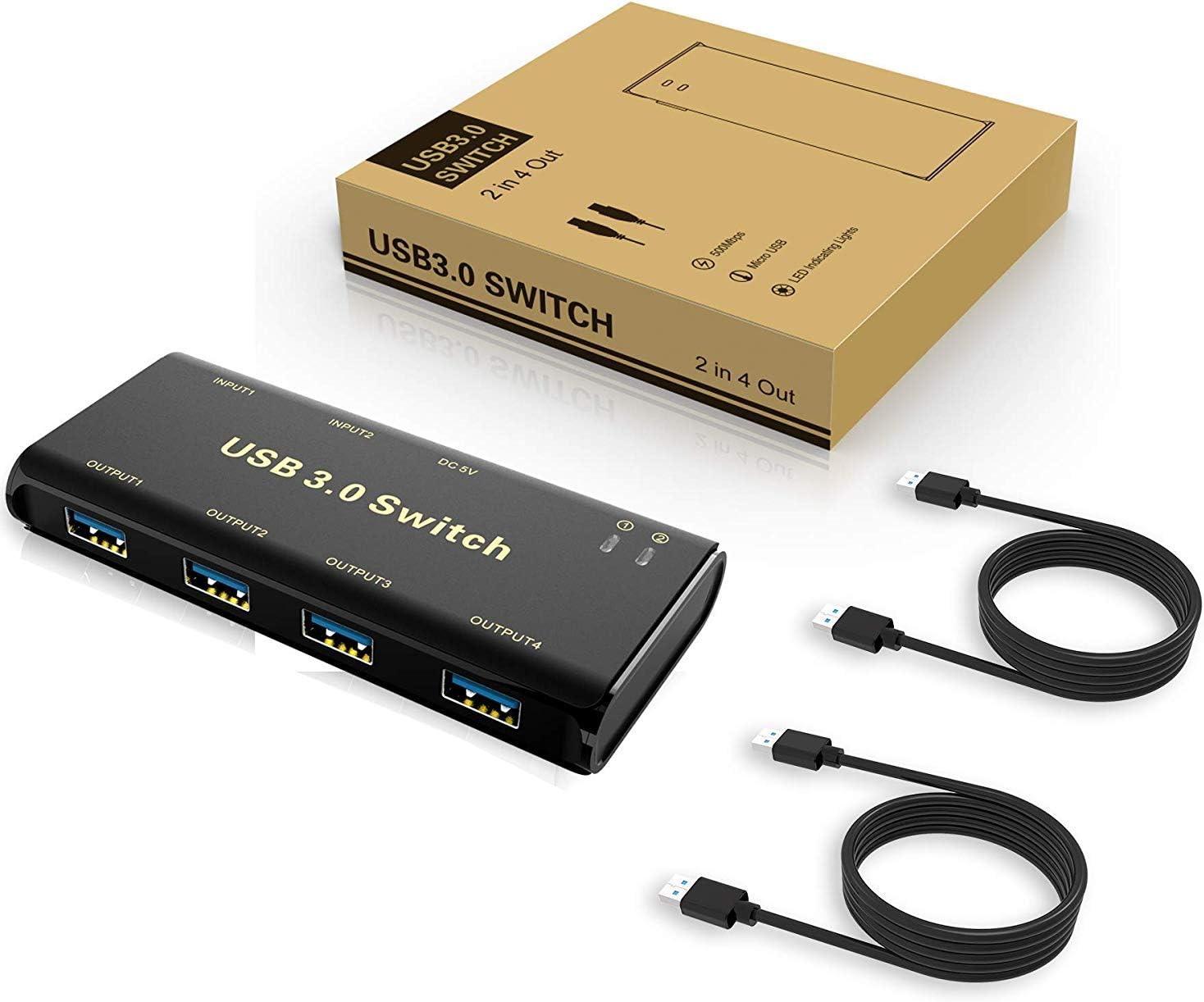
Image: ABLEWE USB 3.0 Switcher Adapter and included accessories.
2. Key Features
- 4-Port USB 3.0 Sharing: Allows two computers to share four USB 3.0 peripheral devices.
- One-Button Switch: Easily toggle between the two connected computers with a single button press.
- Wide Compatibility: Driver-free for Windows 10/8/8.1/7/Vista/XP, Mac OS, Linux, and Chrome OS.
- LED Indicators: Lights indicate which computer is currently active.
- Stable Connection: Features a separate Micro-USB female port for optional power, enhancing compatibility with power-intensive devices like HDDs or digital video cameras.
- Plug and Play: No software installation required for most operating systems.
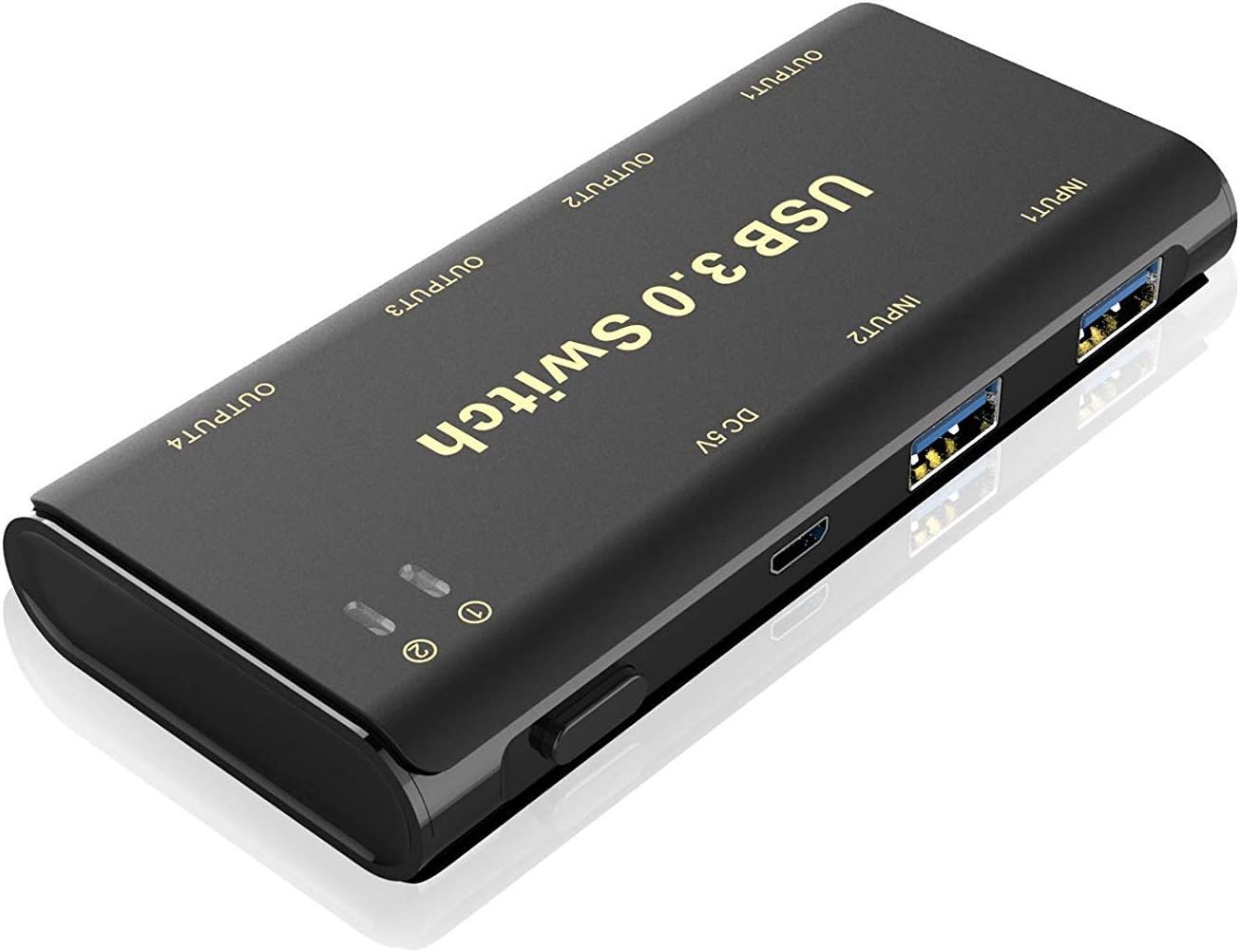
Image: Overview of the ABLEWE USB 3.0 Switcher Adapter.
3. Setup Instructions
Follow these steps to set up your ABLEWE USB 3.0 Switcher Adapter:
- Connect Computers: Use the provided USB 3.0 A-to-A cables to connect the 'INPUT1' and 'INPUT2' ports on the switcher to the USB 3.0 ports on your two computers.
- Connect Peripherals: Plug your USB peripheral devices (e.g., mouse, keyboard, printer, scanner, USB drive) into the 'OUTPUT1', 'OUTPUT2', 'OUTPUT3', and 'OUTPUT4' ports on the switcher.
- Optional Power Connection: For power-hungry devices or to ensure stable operation, connect a standard Micro-USB 5V power adapter (not included) to the 'DC 5V' port on the switcher.
- Power On: Ensure both computers are powered on. The switcher is now ready for use.

Image: Connection diagram for two computers and peripherals.

Image: Example setup with a laptop, keyboard, and mouse.

Image: Detailed view of the switcher's ports.
4. Operating Instructions
To switch control of the shared USB devices between your two computers:
- Press the physical button on the top of the ABLEWE USB 3.0 Switcher Adapter.
- The LED indicator corresponding to the active computer (Input 1 or Input 2) will illuminate, showing which computer currently has control of the connected peripherals.
- The switch takes approximately 3-4 seconds for the computer to recognize the devices.
5. System Compatibility
The ABLEWE USB 3.0 Switcher Adapter offers broad compatibility with various operating systems, requiring no additional drivers for most setups:
- Windows 10, 8.1, 8, 7, Vista, XP
- Mac OS
- Linux
- Chrome OS

Image: Wide operating system compatibility.
6. Technical Specifications
| Feature | Specification |
|---|---|
| Model | USB-3.0-AB03L |
| Brand | ABLEWE |
| Operation Mode | Manual |
| Operating Voltage | 5 Volts |
| Connector Type | USB Type A |
| Switch Type | Push Button, Toggle |
| Circuit Type | 4-way |
| Mounting Type | Plug-In Mount |
| Actuator Type | Push Button |
| Contact Material | Phosphor Bronze |
| Number of Positions | 2 |
| Control Method | Push Button |
| Connectivity Protocol | USB |
| Color | Black |
| Unit Count | 1 Count |
7. Troubleshooting
If you encounter issues with your ABLEWE USB 3.0 Switcher Adapter, consider the following:
- Device Not Recognized/Sluggish Performance:
- Ensure all USB cables are securely connected to both the switcher and your computers/peripherals.
- If using power-intensive devices (e.g., external hard drives, certain wireless hubs), connect an external 5V Micro-USB power adapter to the 'DC 5V' port on the switcher. This provides additional power for stable operation.
- Verify that your computer's USB ports are functioning correctly.
- Tight USB Ports: Some users have reported that the USB ports can be tight. Exercise caution when plugging in or unplugging devices to avoid damage to the ports or your peripherals.
- Switching Delays: A brief delay (typically 3-4 seconds) is normal as the operating system detects the reconnected devices after switching. If delays are excessive, check cable connections and consider using the optional power supply.
- Intermittent Disconnections: Ensure all cables are of good quality and properly seated. The optional 5V power supply can help stabilize connections, especially for devices that draw more power.
8. Warranty and Support
ABLEWE provides a 12-month warranty for this USB switch. Additionally, lifetime technical support is available to assist you with any product-related inquiries or issues. For warranty claims or technical assistance, please contact ABLEWE customer support through their official channels.