1. Introduction
The SONOFF MINI R2 is a compact Smart WiFi Switch designed to integrate traditional light switches into a smart home system. It enables remote control of connected devices via the eWeLink app, voice commands through Amazon Alexa or Google Home Assistant, and supports various smart scene automations. This module operates on a 2.4GHz WiFi network and does not require a separate hub.

Image 1.1: The SONOFF MINI R2 Smart WiFi Switch, a compact device for smart home integration.
2. Safety Information and Important Notes
- Power Disconnection: Always cut off the power supply before installing or performing any maintenance on the device. Failure to do so can result in electric shock or damage to the device.
- Wiring: Ensure that the neutral wire and live wire connections are correct according to the wiring diagram. Incorrect wiring can cause malfunction or safety hazards.
- External Switch Connection: The S1/S2 terminals are designed for connecting a rocker light switch and operate with weak current for safety. Do not connect the neutral wire and live wire to S1/S2.
- WiFi Network: The device requires a 2.4GHz WiFi network for operation. 5.0GHz WiFi networks are not supported.
- Installation Environment: Do not install the device in a metal junction box. Metal enclosures can interfere with the WiFi signal, leading to poor performance or disconnection.

Image 2.1: Illustration showing the SONOFF MINI R2 and a warning against installation in a metal junction box due to potential WiFi interference.
3. Setup
3.1 Wiring Instructions
Follow the diagram below carefully for proper installation. Ensure power is disconnected before proceeding.

Image 3.1: Detailed wiring diagram for the SONOFF MINI R2, showing connections for live (L In), neutral (N In), output (L Out), and external switch (S1/S2).
- Connect the incoming Live (L In) and Neutral (N In) wires to the corresponding terminals on the MINI R2.
- Connect the Live output (L Out) to your light fixture or appliance.
- Connect the Neutral output (N Out) to your light fixture or appliance.
- For an external rocker switch, connect the switch wires to the S1 and S2 terminals. These terminals use a weak current for safety.
3.2 App Installation and Device Pairing
The SONOFF MINI R2 uses the eWeLink app for control and configuration.
- Download the eWeLink app from the App Store (iOS) or Google Play Store (Android).
- Register an account and log in.
- Power on the SONOFF MINI R2. The device will enter pairing mode automatically (indicated by a rapidly blinking LED). If not, press and hold the pairing button for 5 seconds until the LED blinks rapidly.
- In the eWeLink app, tap the '+' icon to add a device. Follow the on-screen instructions to connect the device to your 2.4GHz WiFi network.

Image 3.2: Visual representation of the eWeLink app, the SONOFF MINI R2, and a smartphone, illustrating the device pairing process.
4. Operating Instructions
4.1 App Remote Control
Once paired, you can control the connected device from anywhere using the eWeLink app on your iOS or Android smartphone.
- Open the eWeLink app and select your SONOFF MINI R2 device.
- Tap the power icon to turn the connected light or appliance on/off.
- The app provides real-time status feedback, indicating whether the device is on or off.

Image 4.1: A smartphone showing the eWeLink app interface, used to remotely control a light connected to the SONOFF MINI R2.
4.2 Voice Control
The SONOFF MINI R2 is compatible with Amazon Alexa and Google Home Assistant, allowing for hands-free control.
- Link your eWeLink account with Amazon Alexa or Google Home Assistant through their respective apps.
- Use voice commands such as "Alexa, turn on the light" or "Hey Google, turn off the bedroom light."
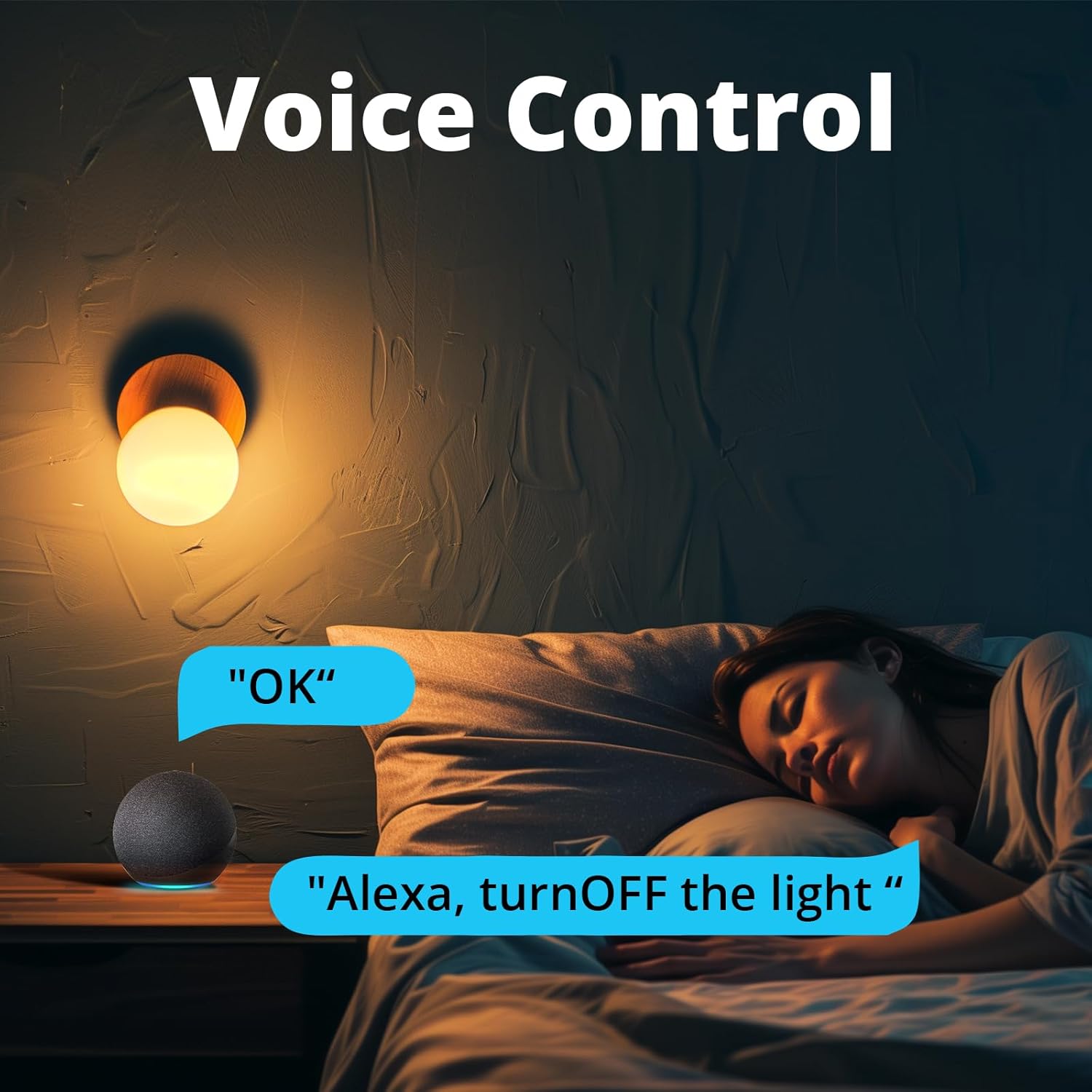
Image 4.2: A person in bed using an Amazon Echo Dot to issue a voice command, "Alexa, turn OFF the light," demonstrating voice control functionality.
4.3 Smart Scenes and Scheduling
Automate your devices with various scheduling options within the eWeLink app.
- Schedule: Set specific times for the device to turn on or off daily or on selected days.
- Countdown: Set a timer for the device to turn off after a specified duration.
- Loop Timer: Configure the device to cycle on and off repeatedly at set intervals.
- Smart Scene: Create custom automation rules where one SONOFF device can trigger another, or group multiple devices to operate together with a single tap.
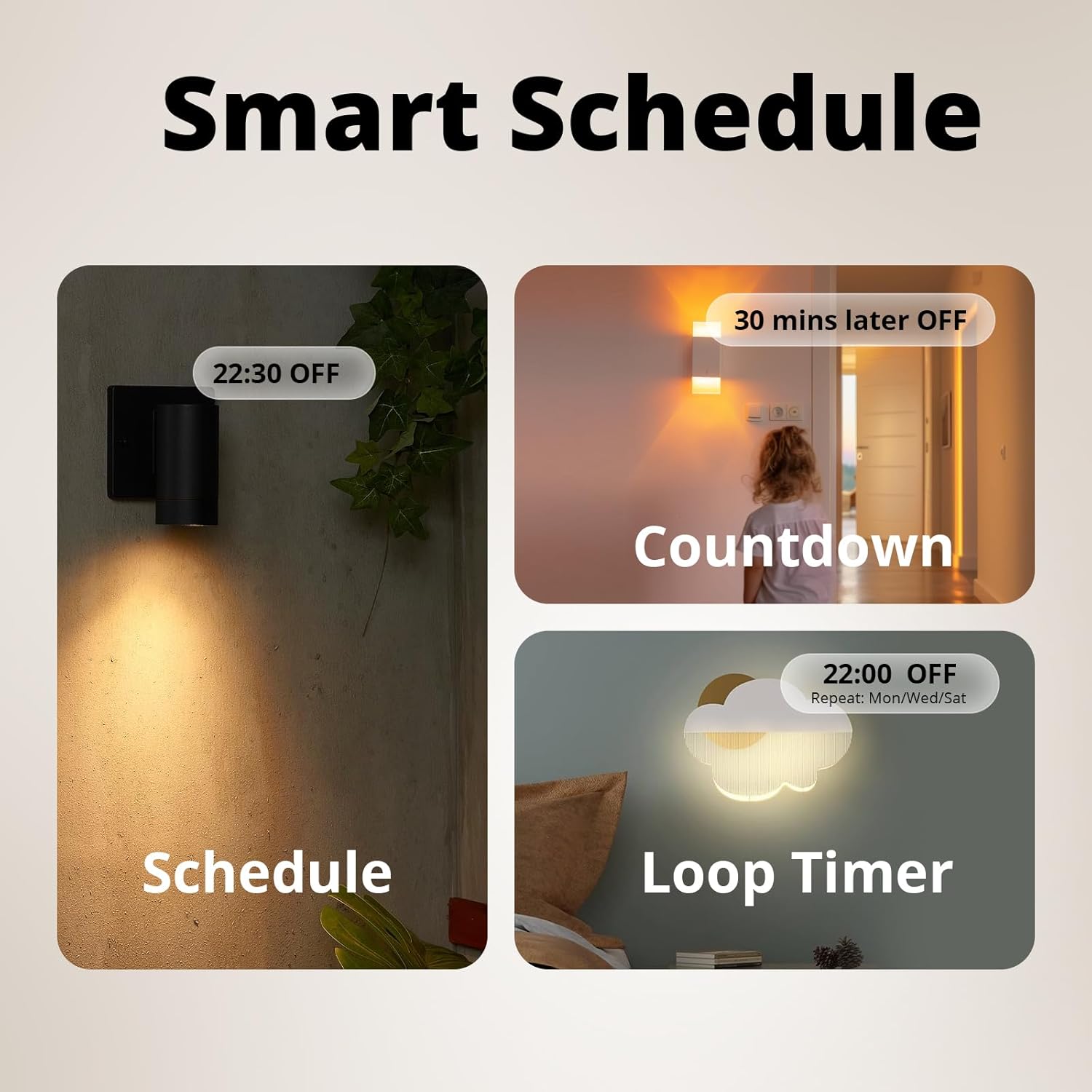
Image 4.3: Visual examples of smart scheduling features including a fixed schedule (e.g., 22:30 OFF), a countdown timer (e.g., 30 mins later OFF), and a loop timer (e.g., 22:00 OFF, repeat Mon/Wed/Sat).
4.4 External Switch Control
The MINI R2 allows you to retain the functionality of your existing rocker light switch while adding smart control.
- After wiring the external switch to the S1/S2 terminals, the physical switch can still control the connected light.
- This provides flexibility, allowing control via the app, voice, or the traditional wall switch.
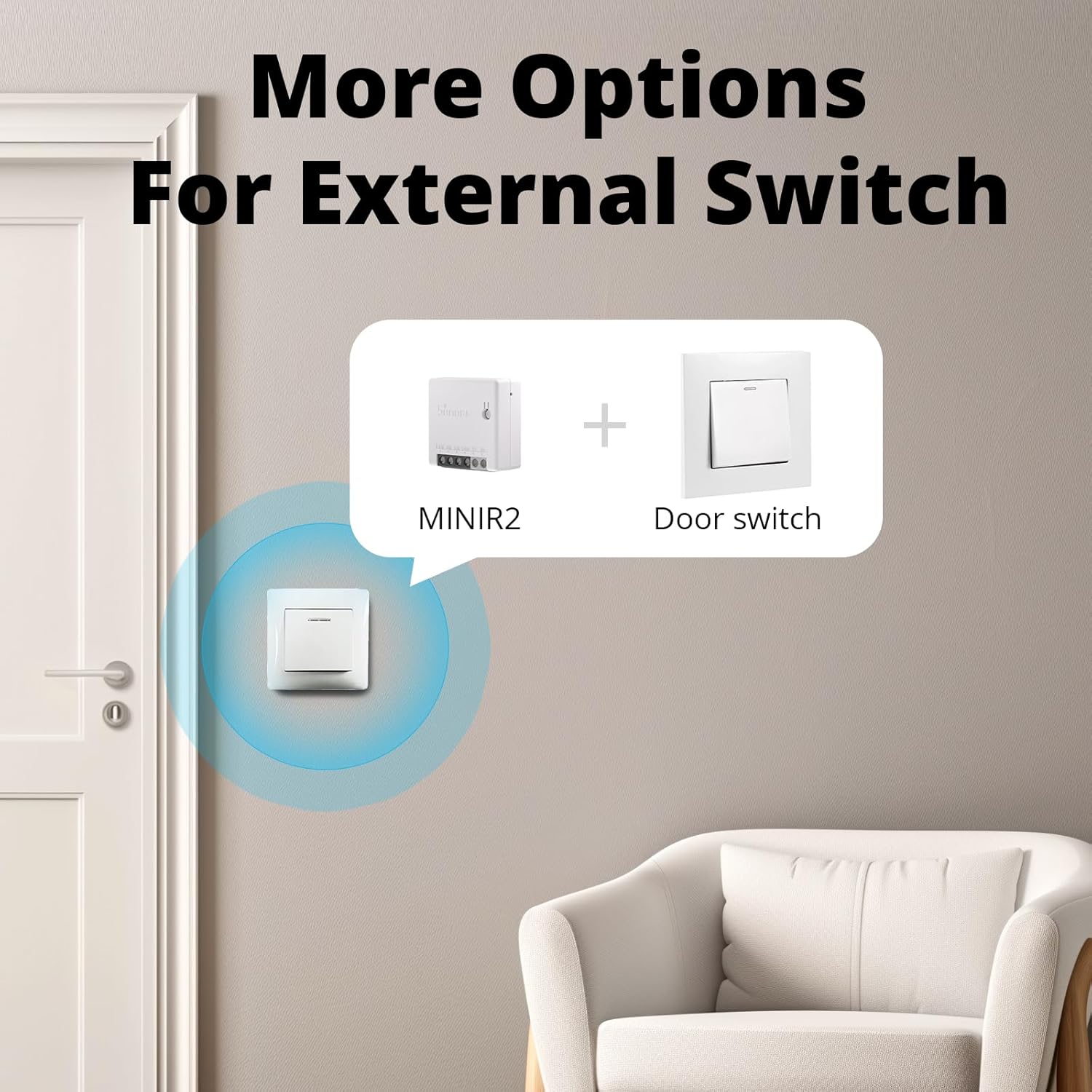
Image 4.4: An illustration showing the SONOFF MINI R2 integrated with a standard wall switch, providing multiple control options.
4.5 Sharing Control
You can share control of your SONOFF MINI R2 with other eWeLink users.
- In the eWeLink app, navigate to the device settings and select the 'Share' option.
- Enter the eWeLink account of the person you wish to share control with. They will receive a notification and gain access to operate the device.
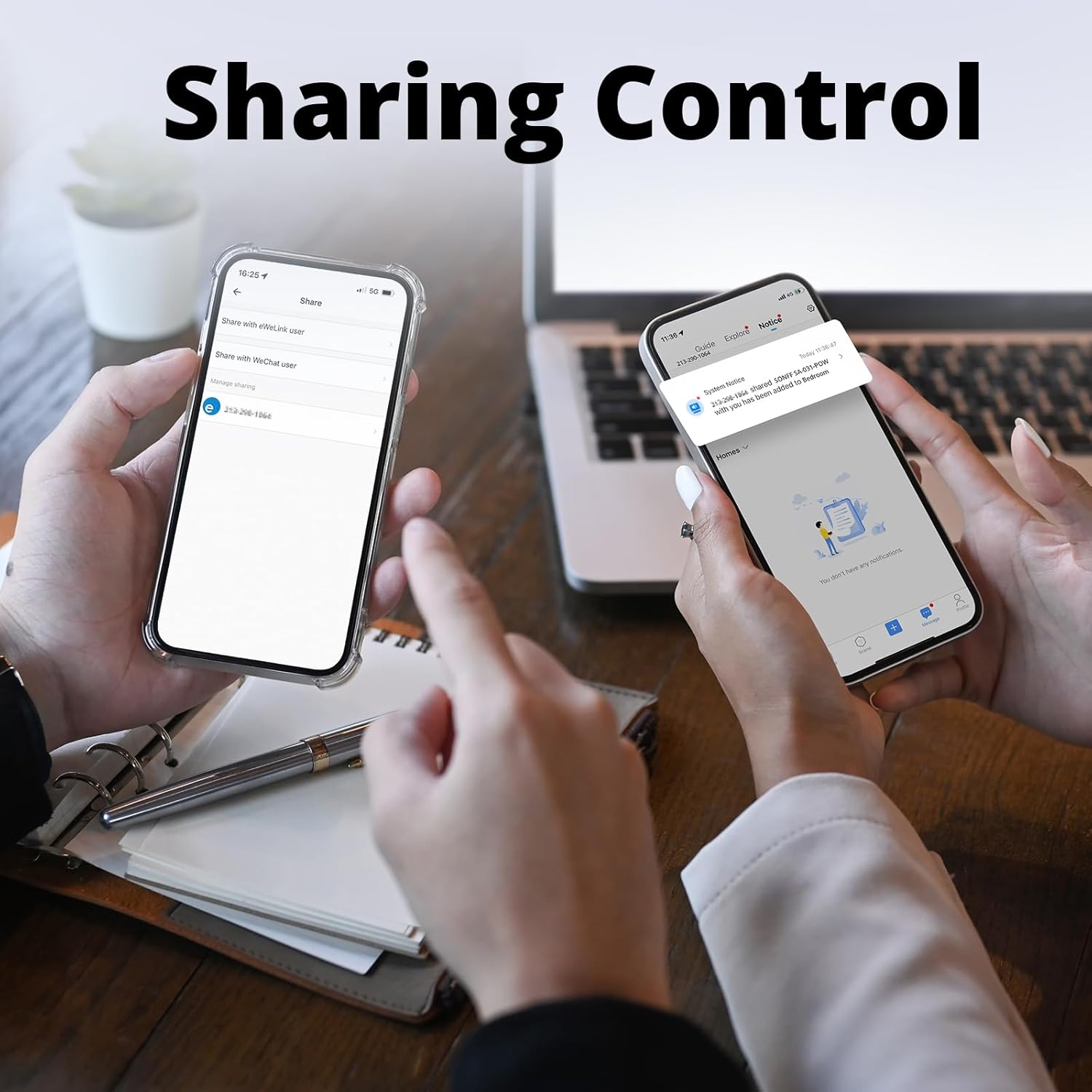
Image 4.5: Two hands holding smartphones, one displaying the 'Share' option in the eWeLink app, indicating the ability to share device control with other users.
5. Maintenance
- Keep the device clean and dry. Avoid exposure to moisture or extreme temperatures.
- Do not attempt to disassemble or repair the device yourself. Refer to qualified personnel for service.
- Regularly check for firmware updates in the eWeLink app to ensure optimal performance and security.
6. Troubleshooting
- Device not connecting to WiFi: Ensure your router is operating on a 2.4GHz frequency. Check that the WiFi password is correct. Move the device closer to the router to improve signal strength.
- Device offline in app: Verify that your home WiFi network is active and the device has power. Restart the device by cycling its power. If the issue persists, try re-pairing the device.
- External switch not working: Confirm that the S1/S2 wires are correctly connected and that the physical switch itself is functional. Remember, S1/S2 should only be connected to a weak current switch, not live or neutral wires.
- Voice control not responding: Ensure your eWeLink account is properly linked to Amazon Alexa or Google Home Assistant. Check the device name in the eWeLink app and use that name in your voice commands.
- Intermittent connection: Avoid installing the device in metal junction boxes, as this can block the WiFi signal. Ensure there are no major obstructions between the device and your WiFi router.
7. Specifications
| Feature | Specification |
|---|---|
| Model Number | MINIR2 |
| Brand | SONOFF |
| Operation Mode | ON-OFF |
| Current Rating | 10 Amps |
| Contact Type | Normally Closed |
| Connector Type | Plug In |
| Terminal | Screw |
| Item Dimensions (L x W x H) | 1.68 x 0.79 x 1.68 inches |
| Circuit Type | 1-way |
| Actuator Type | Push Button |
| Contact Material | Copper |
| Product Weight | 1.48 ounces |
| Manufacturer | SONOFF |
| Date First Available | June 29, 2019 |