
Wacom Cintiq 22
Contents
Wacom Cintiq 22 User Manual
Model: Cintiq 22
Introduction
Welcome to the Wacom Cintiq 22, a creative pen display designed for artists, designers, and animators. This 21.5-inch Full HD display offers a natural and intuitive drawing experience directly on screen, powered by the highly responsive Wacom Pro Pen 2. This manual provides essential information for setting up, operating, maintaining, and troubleshooting your Cintiq 22 to ensure optimal performance and longevity.

The Wacom Cintiq 22 display with the Pro Pen 2, showcasing its large screen ideal for detailed graphic work.
What's in the Box
Before you begin, please verify that all components are present in your Wacom Cintiq 22 package:
- Wacom Cintiq 22 digital drawing pad
- Wacom Pro Pen 2
- 3 replacement nibs
- Nib remover tool
- 3-in-1 connectivity cable (USB, HDMI, Power)
- AC adapter
- Power cable
- Quick Start Guide
- Adjustable stand
- Detachable pen holder

An overview of the Wacom Cintiq 22's dimensions compared to the Cintiq 16, along with a detailed list of items included in the box and system compatibility.
Setup
1. Connecting Your Cintiq 22
- Place your Cintiq 22 on a stable surface.
- Connect the 3-in-1 cable to the port on the back of the Cintiq 22.
- Connect the HDMI connector of the 3-in-1 cable to your computer's HDMI port.
- Connect the USB-A connector of the 3-in-1 cable to an available USB port on your computer.
- Connect the power adapter to the 3-in-1 cable's power connector, then plug the power cable into an electrical outlet.
- Press the power button on the Cintiq 22 to turn it on.

A detailed view of the connectivity ports on the back of the Wacom Cintiq 22, including HDMI, USB, and power input.
2. Driver Installation
For full functionality, you must install the latest Wacom drivers. Visit the official Wacom website (wacom.com/start/cintiq22) to download and install the drivers compatible with your operating system (Windows 7 or later, Mac OS X 10.12 or later). Follow the on-screen instructions for installation and restart your computer if prompted.
3. Adjusting the Stand
The included adjustable stand allows you to set your preferred working angle, ranging from 16 to 82 degrees. Loosen the locking mechanisms on the stand, adjust the tablet to your desired tilt, and then secure the locks firmly.

The Wacom Cintiq 22 with its adjustable stand, illustrating how to achieve different working angles for ergonomic comfort.
Operating
Using the Pro Pen 2
The Wacom Pro Pen 2 offers 8192 levels of pressure sensitivity and tilt recognition, providing a natural and precise drawing experience. The pen is battery-free and features two customizable side switches for quick access to shortcuts and commands. You can configure these settings in the Wacom Tablet Properties software after driver installation.

Key features of the Wacom Pro Pen 2, highlighting its advanced capabilities for digital artistry.
Display Features
The Cintiq 22 features a vibrant Full HD LCD display with uniform brightness and true-to-life color quality. Its anti-glare glass surface minimizes reflections, allowing you to focus on your work. The relaxed parallax design ensures that your pen tip appears exactly where you expect it on the screen, enhancing precision.
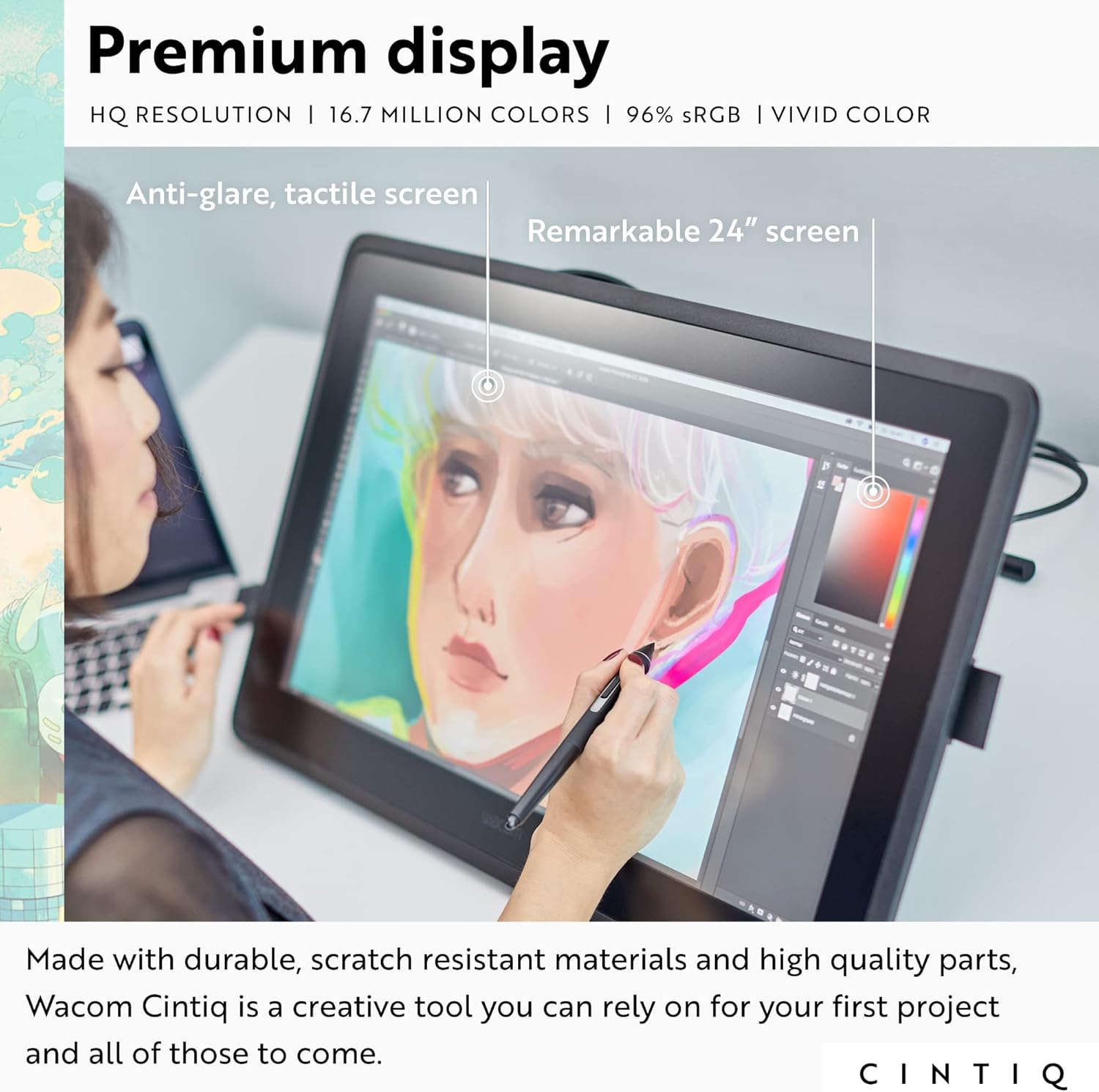
The Wacom Cintiq's premium display, emphasizing its anti-glare, tactile screen and vibrant color reproduction.
Software Compatibility
The Wacom Cintiq 22 is compatible with a wide range of creative software applications, including Adobe Photoshop, Illustrator, Clip Studio Paint, Corel Painter, and many more. Its intuitive pen-on-screen interaction makes creating digital art feel as natural as traditional drawing.

The Wacom Cintiq is designed to work seamlessly with popular creative software like Clip Studio Paint, offering a natural digital painting experience.
Maintenance
Cleaning the Display
To clean your Cintiq 22 display, power it off and use a soft, lint-free cloth lightly dampened with water or a screen cleaner specifically designed for LCD displays. Avoid using harsh chemicals, abrasive materials, or excessive moisture, as these can damage the screen.
Replacing Pen Nibs
Over time, the nib of your Pro Pen 2 may wear down. To replace it, use the nib remover tool to gently pull out the old nib. Insert a new replacement nib firmly until it clicks into place. Ensure the nib is fully seated to prevent issues with pen performance.
Driver Updates
Regularly check the Wacom website for the latest driver updates. Keeping your drivers current ensures optimal performance, compatibility with new software, and access to the latest features and bug fixes.
Troubleshooting
No Display on Cintiq 22
- Ensure all cables (HDMI, USB, Power) are securely connected to both the Cintiq and your computer.
- Verify that the Cintiq 22 is powered on.
- Check your computer's display settings to ensure the Cintiq is detected and configured as an extended or mirrored display.
- Try connecting the Cintiq to a different HDMI port or using a different HDMI cable if available.
Pen Not Responding or Inaccurate
- Ensure the Wacom drivers are correctly installed and up to date.
- Restart your computer.
- Check if the pen nib is worn out and replace it if necessary.
- Recalibrate the pen in the Wacom Tablet Properties software.
- Ensure there are no strong electromagnetic fields nearby that could interfere with the pen.
Driver Issues or Software Conflicts
- Uninstall and reinstall the Wacom drivers.
- Temporarily disable any antivirus or security software during driver installation.
- Check for conflicts with other tablet drivers or input device software.
Specifications
| Feature | Description |
|---|---|
| Brand | Wacom |
| Model | Cintiq 22 |
| Display Size | 21.5 inches |
| Resolution | Full HD (1920 x 1080) |
| Connectivity Technology | AC adapter, HDMI, USB |
| Pressure Sensitivity | 8192 Levels |
| Operating System Compatibility | Windows 7 or later, Mac OS X 10.12 or later |
| Special Feature | Anti-Glare Glass |
| Dimensions (L x W x H) | 22.4 x 14.1 x 1.6 inches (approx.) |

Visual representation of the Wacom Cintiq 22's approximate dimensions.
Warranty and Support
Wacom products are designed for reliability and performance. Your Wacom Cintiq 22 comes with a standard manufacturer's warranty. For detailed warranty terms and conditions, please refer to the warranty card included in your product packaging or visit the official Wacom website. For technical support, driver downloads, FAQs, and community forums, please visit wacom.com/support.
Ask a question about this manual
Ask about setup, troubleshooting, compatibility, parts, safety, or missing instructions. Manuals+ will review the question and use this page’s manual context to help answer it.