
1. Introduction
This user manual provides detailed instructions for the installation, configuration, and operation of your Jennov 5.0MP PTZ Outdoor WiFi Security Camera. Please read this manual thoroughly before using the product to ensure proper functionality and safety. Keep this manual for future reference.
Product Features Overview:
- 5.0 Megapixel Resolution: Delivers clear and detailed video footage.
- 5X Optical Zoom: Allows for detailed magnification of distant objects without loss of clarity.
- Pan/Tilt/Zoom (PTZ) Functionality: Offers a 355° horizontal rotation and 100° vertical tilt for comprehensive area coverage.
- Two-Way Audio: Built-in microphone and speaker enable real-time communication.
- Enhanced Night Vision: Equipped with infrared LEDs for clear monitoring up to 65ft in low-light conditions.
- Motion Detection & Alerts: Configurable motion detection zones and sensitivity with push notifications and email alerts.
- IP66 Weatherproof Rating: Durable metal casing designed to withstand various outdoor weather conditions.
- 64GB SD Card Included: Provides local storage for continuous 24/7 recording.
- Remote Access: Monitor and control the camera from your smartphone, tablet, or PC.
2. Package Contents
Verify that all items listed below are present in your package. If any items are missing or damaged, please contact customer support.
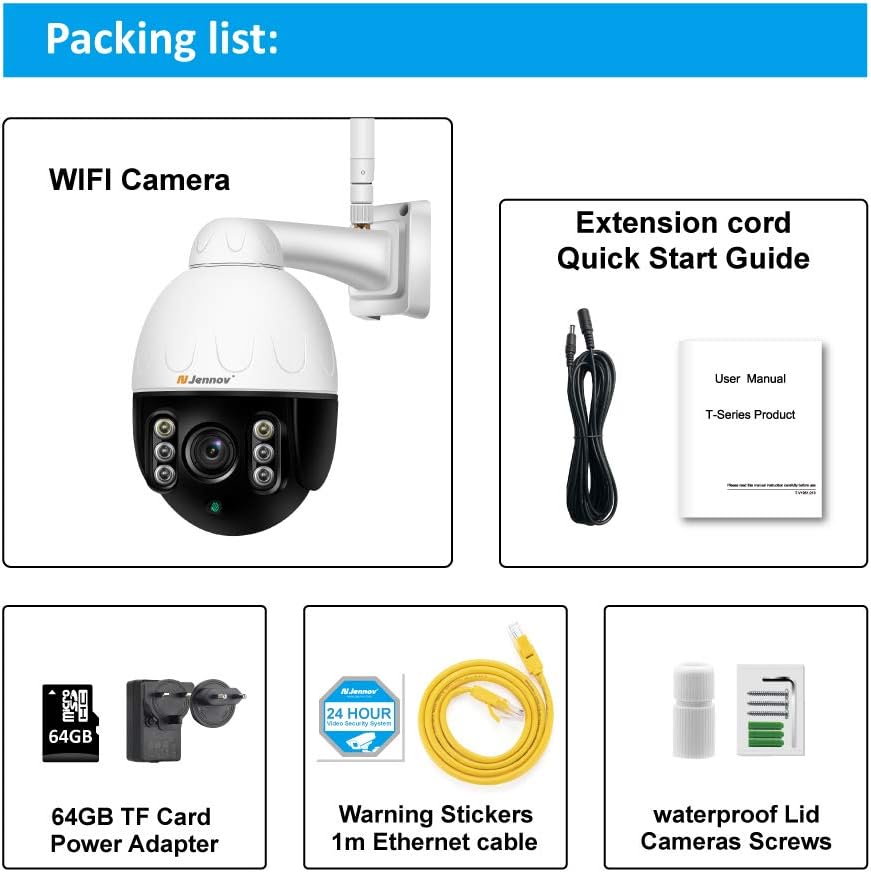
Image: Visual representation of the Jennov PTZ Camera and its included accessories.
- Jennov 5.0MP PTZ WiFi Camera (1 unit)
- 12V1A Power Adapter (1 unit)
- 3.3ft Ethernet Cable (1 unit)
- Mounting Screws (set)
- Waterproof Cap for Ethernet connection (1 unit)
- Warning Label (1 unit)
- 64GB Micro SD Card (pre-installed)
- Quick Start Guide / User Manual
3. Setup Instructions
3.1 Physical Installation
- Choose a Location: Select a suitable outdoor location for mounting the camera. Ensure it has a clear line of sight to the area you wish to monitor and is within range of your 2.4GHz Wi-Fi network. The camera is designed for wall or ceiling mounting.
- Mount the Camera: Use the provided mounting screws to securely attach the camera bracket to the chosen surface. Ensure the camera is positioned correctly for optimal viewing angle.
- Connect Power: Connect the 12V1A power adapter to the camera's power input and plug it into a power outlet.
- Ethernet Connection (Optional): For a more stable connection, you can use the provided Ethernet cable to connect the camera directly to your router. Use the waterproof cap to protect the Ethernet port if installed outdoors.
3.2 App Installation and Initial Setup
- Download the App: Search for the recommended camera application (e.g., 'HiCam' or similar as per quick start guide) on your smartphone's app store (iOS or Android) and install it.
- Register an Account: Open the app and follow the on-screen instructions to register a new user account.
- Add Camera: Power on the camera. In the app, select 'Add Device' or '+' icon. Follow the prompts to connect the camera to your home 2.4GHz Wi-Fi network. Ensure your phone is also connected to the 2.4GHz network during setup.
- Configure Settings: Once connected, you can rename the camera, set a password, and adjust initial video settings.
4. Operating Instructions
4.1 Live View and PTZ Control
Access the live video feed through the mobile app or PC client.

Image: A smartphone screen displaying the camera's live feed with pan and tilt controls, indicating 355° horizontal and 100° vertical rotation.
- Pan/Tilt: Use the directional controls within the app to rotate the camera horizontally (355°) and vertically (100°) to adjust the viewing angle.
- Optical Zoom: Utilize the zoom controls (often a pinch-to-zoom gesture or dedicated buttons) to activate the 5X optical zoom for closer inspection of details.
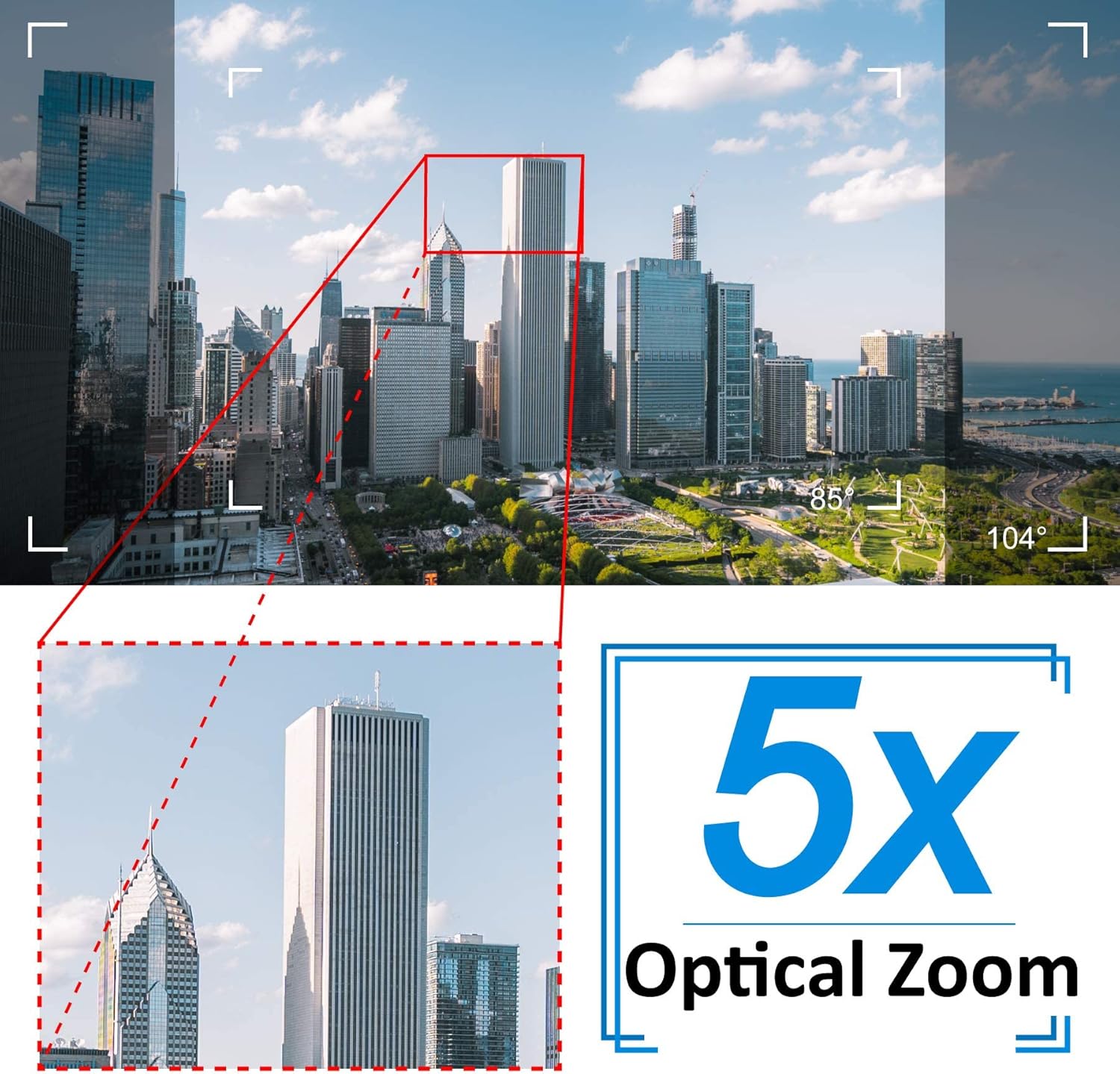
Image: A cityscape view demonstrating the 5X optical zoom feature, highlighting the ability to magnify distant objects clearly.
4.2 Two-Way Audio
The camera supports two-way audio communication.

Image: A person interacting with the camera's two-way audio feature via a smartphone, showing speech bubbles for communication.
- Listen: Tap the speaker icon in the app to hear audio from the camera's location.
- Speak: Press and hold the microphone icon to speak through the camera's speaker. Release to stop speaking.
4.3 Night Vision
The camera automatically switches to night vision mode in low-light conditions.

Image: A comparison showing a daytime view of a house and its clear night vision equivalent captured by the 5MP 1920P camera.
- The integrated IR-Cut filter and infrared LEDs provide clear black-and-white video up to 65ft (20 meters) in complete darkness.
4.4 Motion Detection and Alerts
Configure motion detection settings to receive alerts for suspicious activity.

Image: A visual representation of the camera's human detection, email alert, and app notification features, with highlighted detection zones.
- Set Detection Zone: In the app settings, define specific areas within the camera's view for motion detection.
- Adjust Sensitivity: Modify the motion detection sensitivity to minimize false alarms.
- Configure Alerts: Enable push notifications to your smartphone and/or email alerts with snapshots when motion is detected.
4.5 Recording and Storage
The camera comes with a pre-installed 64GB SD card for local storage.
- Continuous Recording: The camera supports 24/7 continuous recording to the SD card.
- Loop Recording: When the SD card is full, new recordings will automatically overwrite the oldest footage.
- Playback: Access recorded footage through the app's playback function.
5. Maintenance
Regular maintenance ensures optimal performance and longevity of your security camera.

Image: The Jennov PTZ camera shown outdoors in various weather conditions (rain, snow, sun, wind), emphasizing its IP66 weatherproof rating.
- Cleaning: Periodically clean the camera lens with a soft, damp cloth to remove dust, dirt, or water spots that may affect image quality. Do not use harsh chemicals.
- Check Connections: Regularly inspect power and Ethernet cable connections for any signs of wear or damage. Ensure waterproof caps are securely in place.
- Firmware Updates: Check the app regularly for available firmware updates. Keeping the camera's firmware updated can improve performance and security.
- Environmental Protection: While the camera is IP66 weatherproof, extreme conditions (e.g., direct lightning strikes, prolonged submersion) should be avoided.
6. Troubleshooting
If you encounter issues with your camera, refer to the following common problems and solutions.
| Problem | Possible Cause | Solution |
|---|---|---|
| Camera fails to connect to Wi-Fi. | Incorrect Wi-Fi password; Camera too far from router; Only supports 2.4GHz Wi-Fi. | Verify password. Move camera closer to router. Ensure your router is broadcasting a 2.4GHz network and your phone is connected to it during setup. |
| No image or black screen in live view. | Power issue; Network disconnection; Camera malfunction. | Check power connection. Verify Wi-Fi/Ethernet connection. Restart camera and router. |
| Night vision is unclear. | Dirty lens; Obstruction; Insufficient IR illumination. | Clean the camera lens. Ensure no objects are blocking the IR LEDs. |
| Motion detection alerts are too frequent or not triggered. | Sensitivity too high/low; Detection zone not configured correctly. | Adjust motion detection sensitivity in the app. Redefine the detection zone to focus on critical areas. |
| Two-way audio not working. | Microphone/speaker muted; App permissions; Network latency. | Check mute settings in the app. Ensure the app has microphone permissions on your phone. Verify stable network connection. |
7. Specifications
Detailed technical specifications for the Jennov 5.0MP PTZ Outdoor WiFi Security Camera.
| Feature | Specification |
|---|---|
| Model Number | JE-P22HT55-5X-FAS-64-UK |
| Effective Video Resolution | 5 MP (1920p) |
| Optical Zoom | 5X (2.7-13.5mm autofocus lens) |
| Pan/Tilt Angle | Horizontal: 355°, Vertical: 100° |
| Wireless Technology | Wi-Fi (2.4GHz only) |
| Night Vision Range | Up to 65ft (20 meters) with Infrared LED |
| Weatherproof Rating | IP66 |
| Storage | 64GB Micro SD Card (pre-installed) |
| Power Supply | 12V1A DC (24 Watts) |
| Material | Metal Casing |
| Dimensions (L x W x H) | 21.5 x 19.5 x 11.5 cm |
| Weight | 1.2 Kilograms |
| Compatible Devices | Android/iOS Smartphones, Tablets, PCs |
| Installation Type | Wall Mount, Ceiling Mount |
8. Warranty and Support
For warranty information and technical support, please refer to the official Jennov website or contact their customer service directly. Details regarding warranty periods and support channels are typically provided with your purchase documentation or on the manufacturer's product page.
Please retain your proof of purchase for any warranty claims.


