
1. Introduction
The Symcode MJ-X5 is a versatile 3-in-1 barcode scanner designed for efficient data capture. It supports USB wired, 2.4G wireless, and Bluetooth 4.1 wireless connectivity, offering flexibility for various operating environments. Its compact and lightweight design makes it highly portable, suitable for a wide range of applications from retail to inventory management.
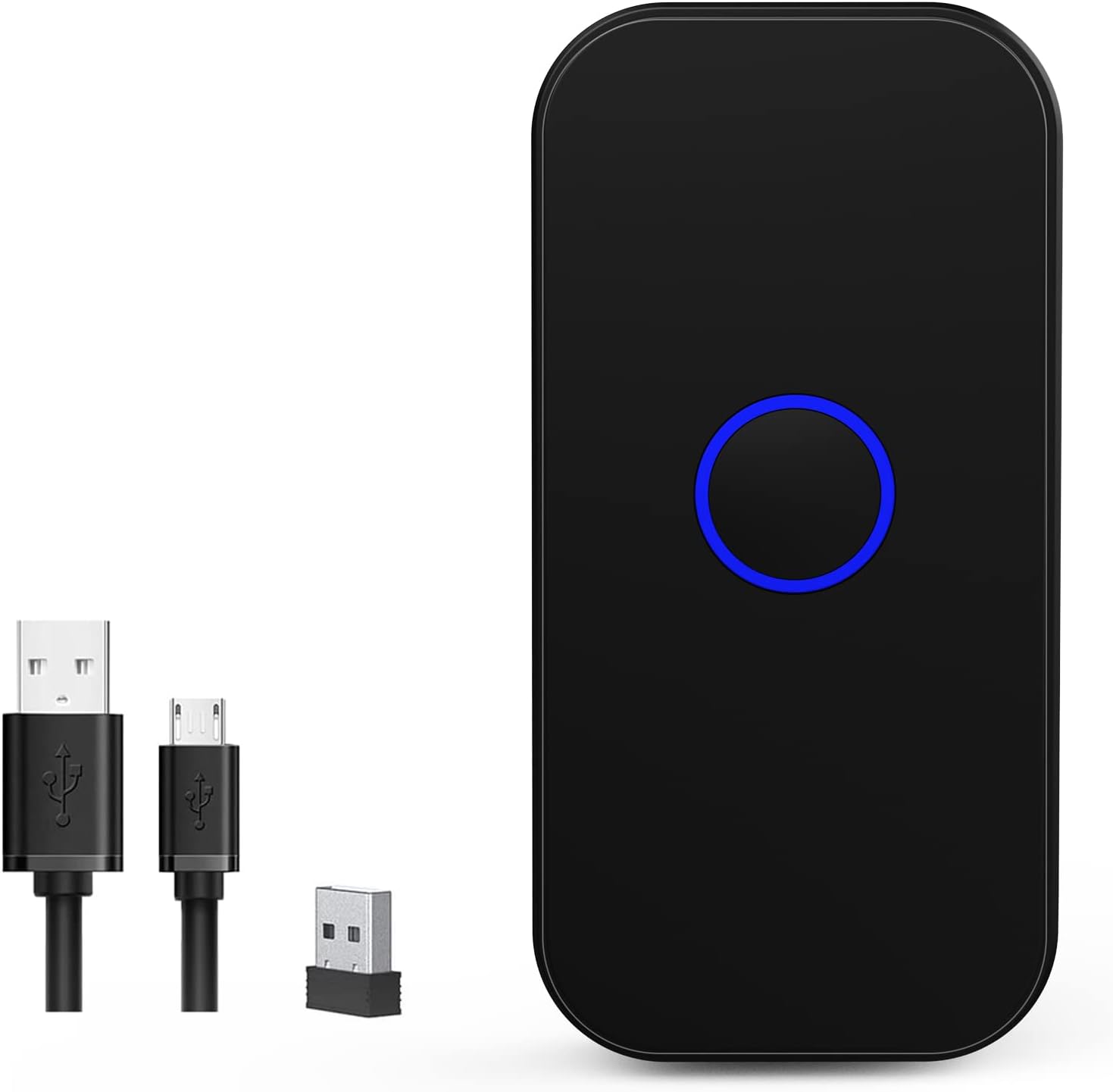
Figure 1: Symcode MJ-X5 Barcode Scanner and accessories.
Key Features:
- 3-in-1 Connectivity: Seamlessly switch between USB wired, 2.4G wireless, and Bluetooth 4.1 modes.
- Compact and Portable: Weighing only 35g (1.23oz), its mini size ensures easy portability.
- Tactile Feedback: Provides a mild vibration upon successful scan, in addition to buzzer and LED light. The buzzer can be muted for quiet operation.
- Broad Compatibility: Works with Windows XP/7/8/10, Mac OS, Linux, Android, and iOS devices.
- Two Upload Modes: Supports instant upload for real-time data transfer and storage mode for offline scanning (16MB capacity, over 100,000 barcodes).
- Long Battery Life: Built-in 650mAh rechargeable battery offers up to 5 hours of continuous scanning and 30 days standby time after a 2-hour charge.
- Extended Transmission Range: Up to 150m (492ft) in barrier-free environments for 2.4G wireless mode, and up to 50m (164ft) for Bluetooth mode.
- Advanced Decoding: Capable of reading common 1D and 2D barcodes from labels and mobile displays, including blurred or incomplete codes.
- Customization Options: Allows for turning sound and vibration on/off, adding/hiding custom prefixes/suffixes, deleting characters, and adding keyboard keys.

Figure 2: The compact and portable design of the MJ-X5 scanner.
2. Package Contents
Please verify that all items are present in your package:
- 1x Symcode MJ-X5 2D Barcode Scanner
- 1x USB Charging Cable
- 1x 2.4G USB Dongle
- 1x User Manual (this document)
3. Setup and Connection Modes
The Symcode MJ-X5 scanner offers three distinct connection methods to suit your operational needs.

Figure 3: Overview of the 3-in-1 connection capabilities.
3.1. USB Wired Connection
- Connect the USB charging cable to the scanner's charging port.
- Plug the other end of the USB cable into an available USB port on your computer or host device.
- The scanner will automatically enter USB wired mode. No additional drivers are typically required.
- Open a text editor or application on your computer and begin scanning barcodes. The data will appear directly.
3.2. 2.4G Wireless Connection
- Insert the 2.4G USB dongle into an available USB port on your computer or host device.
- Turn on the scanner. It should automatically connect to the dongle.
- Open a text editor or application on your computer and begin scanning barcodes. The data will appear directly.
3.3. Bluetooth Wireless Connection
- Ensure the scanner is powered on.
- On your host device (smartphone, tablet, computer), navigate to the Bluetooth settings.
- Long press the scan button on the MJ-X5 scanner for approximately 8 seconds until the indicator light flashes, indicating it is in pairing mode.
- Search for available Bluetooth devices. The scanner should appear as "BarCode Scanner HID" or similar.
- Select the scanner to pair. Once connected, the indicator light will stabilize.
- Open an application (e.g., notes app, spreadsheet) and scan a barcode to confirm the connection.

Figure 4: Demonstrating 2.4G and Bluetooth connection setups.

Figure 5: Wireless transmission range capabilities.
Video: Symcode Barcode Scanner Function Introduction
Video 1: This video provides a comprehensive overview of the Symcode MJ-X5 barcode scanner's functions, including demonstrations of USB, Bluetooth, and 2.4GHz wireless connections, various barcode decoding capabilities, and the instant upload and offline storage modes. It serves as a visual guide for initial setup and operation.
4. Operating Modes
The MJ-X5 scanner supports different modes for data handling and scanning activation.
4.1. Data Upload Modes
- Instant Upload Mode: In this mode, scanned barcode data is immediately transmitted to your connected device. This is ideal for real-time inventory updates or point-of-sale operations.
- Offline Storage Mode: When out of range or not connected, the scanner can store up to 100,000 barcodes in its 16MB internal memory. Data can be uploaded to your device later when a connection is re-established.

Figure 6: Instant Upload Mode vs. Offline Storage Mode.
4.2. Scanning Activation Modes
The scanner can be configured for different trigger behaviors:
- Trigger Mode (Manual): The scanner will only activate and scan when the scan button is pressed.
- Auto-sensing Mode: The scanner automatically detects a barcode within its scanning range and activates the scan without requiring a button press.
Refer to the included quick setup guide or the full manual (if provided separately) for specific barcodes to switch between these modes.
5. Decoding Capabilities
The Symcode MJ-X5 scanner is equipped with advanced decoding technology to read a wide array of 1D and 2D barcodes, even those that are blurred or incomplete.
Supported Symbologies:
- 1D Barcodes: JAN/EAN-13, JAN/EAN-8, UPC-A, UPC-E, Code11, Code32, Code39, Code 39 Full ASCII, Code93, Code128, Codabar (NW-7), Interleaved 2 of 5, Matrix 2 of 5, Industrial 2 of 5, Standard 2 of 5, PLESSEY, MSI, ITF14, ISBN, ISSN, GS1 Databar, GS1-128 (UCC/EAN128), ISBT-128.
- 2D Barcodes: QR Code, Data Matrix, PDF417, Aztec code, Maxicode.
6. Customization Options
The scanner offers several customization features to enhance user experience and integrate seamlessly with various systems.
6.1. Sound and Vibration Control
You can enable or disable the sound and vibration feedback for successful scans according to your preference or working environment. This is particularly useful in quiet settings or when tactile feedback is preferred over audible alerts.

Figure 7: Sound and Vibration settings.
6.2. Prefix/Suffix and Keyboard Key Settings
The scanner supports advanced configurations such as adding custom prefixes or suffixes to scanned data, deleting specific characters, and embedding keyboard keys (like TAB or CR&LF for new lines) into the scanning output. These settings are typically configured by scanning specific setup barcodes found in the detailed product manual.
7. Charging and Battery
The MJ-X5 scanner is equipped with a 650mAh rechargeable Lithium-Ion battery.
- Charging Time: Approximately 2 hours for a full charge.
- Continuous Working Time: Up to 5 hours of continuous scanning.
- Standby Time: Up to 30 days.
To charge the scanner, connect it to a power source using the provided USB charging cable.

Figure 8: Battery specifications and charging.
8. Maintenance
Proper maintenance ensures the longevity and optimal performance of your Symcode MJ-X5 barcode scanner.
- Cleaning: Use a soft, dry cloth to clean the scanner's exterior. For the scanning window, use a lint-free cloth lightly dampened with a mild, non-abrasive cleaner. Avoid harsh chemicals or abrasive materials.
- Storage: Store the scanner in a cool, dry place away from direct sunlight and extreme temperatures.
- Handling: While the scanner is designed to sustain drops from up to 5ft (as shown in Figure 9), avoid unnecessary drops or impacts to prevent damage.

Figure 9: Scanner durability and drop height.
9. Troubleshooting
If you encounter issues with your Symcode MJ-X5 scanner, please refer to the following common problems and solutions:
- Scanner not connecting: Ensure the scanner is charged, powered on, and within range of the host device. For Bluetooth, verify it's in pairing mode and selected in your device's Bluetooth settings. For 2.4G, ensure the dongle is properly inserted. For USB, check the cable connection.
- No data transmitted after scanning: Verify the scanner is successfully connected to your device. Ensure you have an active text input field or application open to receive the data. Check if the scanner is in offline storage mode; if so, upload the stored data.
- Unable to scan certain barcodes: Ensure the barcode is clean, undamaged, and within the scanner's optimal reading range and angle. Confirm that the specific barcode symbology is supported by the MJ-X5 scanner (refer to Section 5).
- Scanner beeps but no data: This often indicates a successful scan but a communication issue. Re-establish the connection or try a different connection mode.
- Short battery life: Ensure the scanner is fully charged. Reduce continuous scanning time or adjust power-saving settings if available (refer to the full manual for advanced settings).
If the problem persists, please contact Symcode customer support for further assistance.
10. Specifications
| Feature | Specification |
|---|---|
| Product Dimensions | 3.15 x 1.57 x 0.79 inches |
| Item Weight | 3.2 ounces |
| Item Model Number | MJ-X5 |
| Battery Type | 1 Lithium Ion battery (included) |
| Power Source | Battery Powered, Corded Electric |
| Brand | Symcode |
| Connectivity Technology | Bluetooth, USB Cable, 2.4G Wireless |
| Compatible Devices | Smartphone, PC, POS, Laptop, Tablet, iPhone, iPad |
11. Warranty and Support
Symcode products are designed for reliability and performance. For warranty information, please refer to the documentation included with your purchase or visit the official Symcode website.
For technical support, troubleshooting assistance, or any inquiries regarding your MJ-X5 barcode scanner, please contact Symcode customer service. Contact details can typically be found on the product packaging or the official brand website.


