
1. Introduction
Thank you for choosing the NovelLife TS101 Electric Soldering Iron Kit. The TS101 is an upgraded, portable, and intelligent soldering iron designed for precision work. It features an ergonomic design, a larger OLED display, adjustable temperature control (50-400°C), and dual power input options (DC5525 and USB Type-C PD3.0). Its rapid heating capabilities and smart functions like auto-sleep and boost mode make it an efficient tool for various electronic repair and soldering tasks.
This manual provides detailed instructions for the safe and effective use of your TS101 soldering iron. Please read it thoroughly before operation.

Figure 1.1: Overview of the NovelLife TS101 Electric Soldering Iron.
2. Safety Information
Always observe the following safety precautions to prevent injury or damage to the device:
- Hot Tip Hazard: The soldering iron tip reaches very high temperatures. Avoid direct contact with skin or flammable materials.
- Ventilation: Use the soldering iron in a well-ventilated area to avoid inhaling solder fumes.
- Eye Protection: Always wear safety glasses to protect your eyes from solder splatter.
- Proper Handling: Place the soldering iron in a suitable stand when not in use. Do not leave it unattended while powered on.
- Power Off: Disconnect the power supply when the soldering iron is not in use or during maintenance.
- Electrical Safety: Do not use the soldering iron with damaged cables or if the device itself is damaged. Keep it away from water or damp environments.
- Children and Pets: Keep the soldering iron out of reach of children and pets.
3. Setup
3.1 Unboxing and Components
Carefully unpack all items from the box. The standard kit includes:
- Original Miniware TS101 Soldering Iron
- Original TS-BC2 Soldering Iron Tip
- 24V 3A US Power Supply Kit
- 1 meter Soft Silicone Rubber USB Type-C Cable
- XT60 to DC5525 Power Cable
- ESD Ground Clip
- Mini Soldering Stand (may vary by kit)

Figure 3.1: Useful parts included in the TS101 kit, such as the ESD ground clip and XT60 cable.

Figure 3.2: Complete contents of the TS101 soldering iron kit.
3.2 Installing the Soldering Tip
The TS101 uses a pluggable ball-nut tip fixation system for easy tip replacement.
- Ensure the soldering iron is powered off and cool.
- Gently insert the desired soldering tip (e.g., TS-BC2) into the heating element receptacle until it clicks into place.
- Ensure the tip is securely seated.

Figure 3.3: Diagram showing the TS-BC2 soldering tip with its dimensions and angle.

Figure 3.4: Close-up of the pluggable ball-nut tip fixation, allowing easy tip installation without screws.
3.3 Powering the Device
The TS101 supports multiple power input options:
- DC5525 Jack: Supports DC 9-24V power supply (up to 65W MAX). Use the included 24V 3A power supply.
- USB Type-C Port: Supports PD3.0 9V-28V power supply (up to 90W MAX). Can be powered by a laptop power supply, power bank, or smartphone quick charger.
Note: DC and PD inputs cannot be used simultaneously.
- Connect the appropriate power cable to the TS101's power jack.
- Plug the power supply into a suitable electrical outlet or connect to a compatible power source.

Figure 3.5: The TS101 features both DC5525 and USB Type-C dual power input jacks.

Figure 3.6: Illustration of the DC (65W MAX) and PD (90W MAX) power input capabilities.
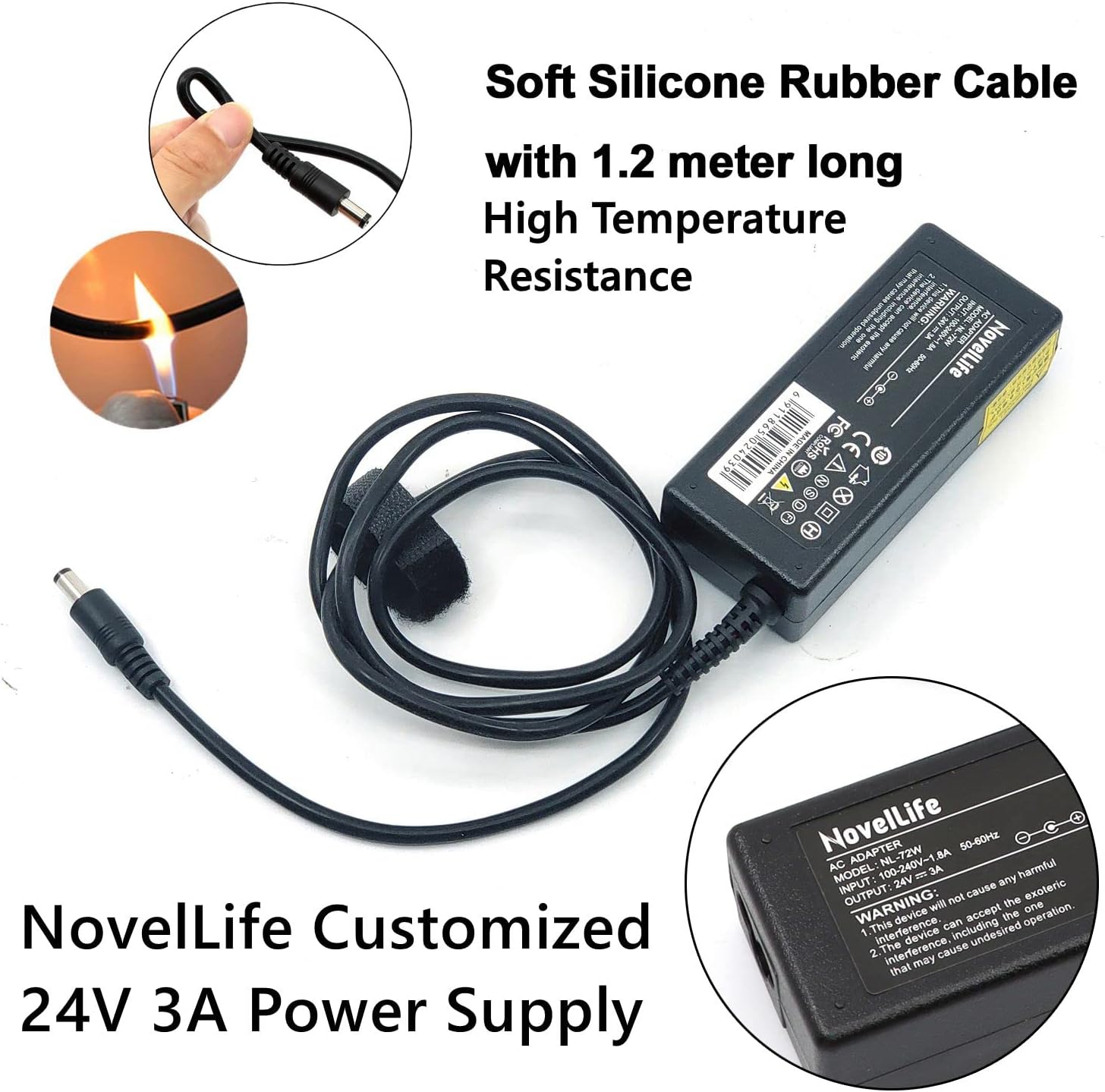
Figure 3.7: The included NovelLife 24V 3A power supply with a 1.2-meter soft silicone rubber cable.
Video 3.1: An unboxing and test video for the NovelLife TS100 soldering iron, which shares many similarities with the TS101 model, demonstrating initial setup and functionality.
4. Operating Instructions
4.1 Power On/Off
- Power On: Once connected to a power source, the TS101 will automatically power on and begin heating to the last set temperature or a default preset.
- Power Off: Disconnect the power supply from the device to power it off. The iron will cool down.
4.2 Temperature Adjustment
The TS101 allows for precise temperature control within a range of 50°C to 400°C. Use the control buttons (A and B) on the handle to adjust the temperature up or down. The OLED screen will display the current and set temperatures.
4.3 Preset Temperatures and Boost Mode
The device supports 3 groups of default heating temperatures for quick access. Additionally, a one-key turbo boost heating mode is available to rapidly increase the tip temperature for demanding soldering tasks, saving time.

Figure 4.1: The OLED display showing options for 3 preset temperatures (T1, T2, T3) and the Boost Mode temperature setting.
4.4 Smart Features
The TS101 incorporates smart features to enhance safety and efficiency:
- Auto Sleep: The iron will enter auto-sleep mode after a period of inactivity (adjustable sleep time).
- Auto Screen Off: The OLED screen will turn off automatically after a set period to conserve power and prevent screen burn-in.
- Short Circuit Protection: Timely monitoring of the soldering tip status helps prevent short circuits and protects the control handle.
Video 4.1: A demonstration of the NovelLife TS100 soldering iron, highlighting features such as auto-sleep, which is also present in the TS101 model.
5. Maintenance
5.1 Soldering Tip Care
- Cleaning: Always clean the soldering tip before and after use. Use a damp sponge or brass wool to remove excess solder and oxidation.
- Tinning: After cleaning, apply a small amount of fresh solder to the tip (tinning) to prevent oxidation and prolong its lifespan.
- Storage: Store tips properly to prevent damage. Ensure the tip is tinned before storing.
5.2 General Cleaning
Wipe the handle and body of the soldering iron with a soft, dry cloth. Do not use abrasive cleaners or solvents, as they may damage the device.
6. Troubleshooting
- Iron Not Heating:
- Ensure the power supply is correctly connected and functioning.
- Check if the soldering tip is properly installed.
- Verify the power source meets the required voltage and wattage (DC 9-24V or PD3.0 9V-28V).
- Inaccurate Temperature Reading or Fluctuations:
- Ensure the tip is clean and properly tinned. Oxidation can affect temperature transfer.
- Consider updating the firmware. Firmware updates can resolve performance issues. Refer to the manufacturer's website for instructions.
- Screen Not Displaying:
- Check power connection.
- The device may be in auto-screen off mode. Briefly move or press a button to reactivate.
7. Specifications
| Feature | Specification |
|---|---|
| Brand | NovelLife |
| Model | TS101 Soldering Iron |
| Power Source | Electric |
| Wattage | 65 watts (DC), 90 watts (PD) |
| Input Voltage | DC 9-24V, PD3.0 9V-28V |
| Temperature Range | 50°C - 400°C |
| Heating Element | Ceramic |
| Special Features | Auto Screen Off, Auto Sleep, One Key Boost Heating, Portable, Programmable |
| Item Length | 6.61 inches (168mm) |
| Item Weight | 33 g |
| Handle Material | Acrylonitrile Butadiene Styrene (ABS) |
| Included Components | TS101 Soldering Iron, TS-BC2 Tip, Power Supply, USB Type-C Cable, XT60 Cable, ESD Ground Clip |
8. Warranty and Support
NovelLife products are designed for reliability and performance. For warranty information, technical support, or to purchase replacement parts, please visit the official NovelLife store or contact customer service through your retailer.
You can find more information and support at the NovelLife Store on Amazon.