1. Introduction
Thank you for choosing the AWOW Mini Smart Socket WiFi Outlet. This device allows you to control your home electronics from anywhere using your smartphone or voice commands. This manual provides detailed instructions for setup, operation, and troubleshooting to ensure optimal performance and safety.

Image 1.1: Four AWOW Mini Smart Sockets, showcasing the compact design and standard US plug type.
2. Safety Information
Please read and follow all safety instructions carefully before using the AWOW Mini Smart Socket.
- This device is designed for indoor use only.
- Do not exceed the maximum load of 10A (120V AC). Overloading may cause damage to the device or connected appliances.
- Ensure the smart socket is securely plugged into a wall outlet.
- Do not disassemble or modify the device.
- Keep away from water, moisture, and high temperatures.
- The product is ETL and FCC certified and constructed with 5VA fire-retardant material, offering protection against overheating, overcurrent, and overvoltage.
- A secure 2.4 GHz Wi-Fi network is required for operation. This device does not support 5 GHz Wi-Fi networks.
3. Package Contents
The package typically includes:
- 4 x AWOW Mini Smart Socket WiFi Outlet (Model X5P)
- 1 x User Manual (this document)
4. Product Features
The AWOW Mini Smart Socket offers a range of convenient features:
- Remote Control: Control connected devices from anywhere using the Smart Life app on your smartphone.
- Voice Control: Compatible with Amazon Alexa and Google Assistant for hands-free operation.
- Scheduling & Timers: Set custom schedules and countdown timers to automatically turn devices on or off.
- No Hub Required: Connects directly to your existing 2.4 GHz Wi-Fi network.
- Compact Design: Minimizes obstruction of adjacent outlets.
- Device Sharing: Share control of your smart sockets with family members through the app.

Image 4.1: Diagram illustrating the smart plug's capabilities, including remote control, device sharing, and compatibility with voice assistants.
5. Setup Guide
Follow these steps to set up your AWOW Mini Smart Socket:
5.1. Download the Smart Life App
- Scan the QR code provided in the product packaging or search for "Smart Life" in the Apple App Store (for iOS) or Google Play Store (for Android).
- Download and install the app.
5.2. Register and Log In
- Open the Smart Life app.
- If you are a new user, tap "Register" and follow the on-screen instructions to create an account.
- If you already have an account, log in with your credentials.
5.3. Add Device
- Plug the AWOW Mini Smart Socket into a wall outlet. The indicator light on the plug should blink rapidly. If it does not, press and hold the power button on the plug for 5-10 seconds until it blinks rapidly.
- Open the Smart Life app, tap the "+" icon in the top right corner, and select "Electrical Outlet" or "Socket (Wi-Fi)" from the device list.
- Confirm that the indicator light on the smart socket is blinking rapidly.
- Enter your 2.4 GHz Wi-Fi network name and password. Ensure your smartphone is connected to the same 2.4 GHz Wi-Fi network.
- Tap "Confirm" and wait for the app to connect to the device. This process may take a few moments.
- Once connected, you can rename the device for easier identification (e.g., "Living Room Lamp").

Image 5.1: A smartphone displaying the Smart Life app's 'Connecting' screen, showing the device pairing process with a smart plug.
6. Operating Instructions
6.1. Remote Control via Smart Life App
After successful setup, you can control your smart socket from anywhere:
- Open the Smart Life app and tap on the device name.
- Use the on/off toggle button to control the power to the connected appliance.
6.2. Voice Control with Amazon Alexa or Google Assistant
To enable voice control, you need to link your Smart Life account with your Amazon Alexa or Google Assistant account.
- For Amazon Alexa: Open the Alexa app, go to "Skills & Games," search for "Smart Life," enable the skill, and link your Smart Life account.
- For Google Assistant: Open the Google Home app, go to "Set up device" > "Works with Google," search for "Smart Life," and link your Smart Life account.
- Once linked, you can use voice commands such as:
- "Alexa, turn on [Device Name]"
- "Hey Google, turn off [Device Name]"
- "Alexa, set [Device Name] to 50%" (if applicable for dimmable devices, though this plug is on/off only)

Image 6.1: AWOW smart plugs integrated with Google Home and Amazon Echo devices, demonstrating seamless voice control capabilities.

Image 6.2: A smart plug in a wall outlet, with a speech bubble indicating an Alexa voice command: "Alexa, start my day."
6.3. Scheduling and Timers
The Smart Life app allows you to create schedules and set timers for your smart socket:
- Schedules: In the device control interface, tap "Schedule" or "Timer" to set specific times for the smart socket to turn on or off daily or on selected days of the week.
- Countdown Timer: Set a countdown timer for the smart socket to turn off after a specified duration.
6.4. Device Sharing
You can share control of your smart sockets with other Smart Life app users:
- In the device settings within the Smart Life app, look for the "Share Device" option.
- Enter the Smart Life account (email or phone number) of the person you wish to share with.
7. Maintenance
To ensure the longevity and proper functioning of your AWOW Mini Smart Socket:
- Unplug the device from the wall outlet before cleaning.
- Wipe the exterior with a dry, soft cloth.
- Do not use liquid cleaners or immerse the device in water.
- Avoid exposing the device to extreme temperatures or direct sunlight for extended periods.
8. Troubleshooting
If you encounter issues with your AWOW Mini Smart Socket, refer to the following common problems and solutions:
- Device cannot connect to Wi-Fi:
- Ensure your Wi-Fi network is 2.4 GHz. The smart socket does not support 5 GHz networks.
- Check your Wi-Fi password for accuracy.
- Make sure the smart socket is within range of your Wi-Fi router.
- Try resetting the smart socket by unplugging it for 10 seconds and plugging it back in, then attempt pairing again.
- If the indicator light is not blinking rapidly, press and hold the power button on the plug for 5-10 seconds to enter pairing mode.
- Device is unresponsive in the app:
- Check your internet connection.
- Ensure the smart socket is powered on.
- Try restarting the Smart Life app.
- Voice control is not working:
- Verify that your Smart Life account is correctly linked to Amazon Alexa or Google Assistant.
- Ensure the device name used in voice commands matches the name set in the Smart Life app.
- Check if your voice assistant device (e.g., Echo, Google Home) is online and functioning correctly.
9. Specifications
| Parameter | Value |
|---|---|
| Model | X5P |
| Input Voltage | AC 120V |
| Max Load Current | 10A |
| Wi-Fi Standard | 2.4 GHz only |
| Material | Acrylonitrile Butadiene Styrene |
| Dimensions (L x W x H) | 46 x 52 x 32 mm (1.8 x 2.04 x 1.25 inches) |
| Certifications | ETL, FCC |
| Operating Temperature | Up to 92°F (33°C) |
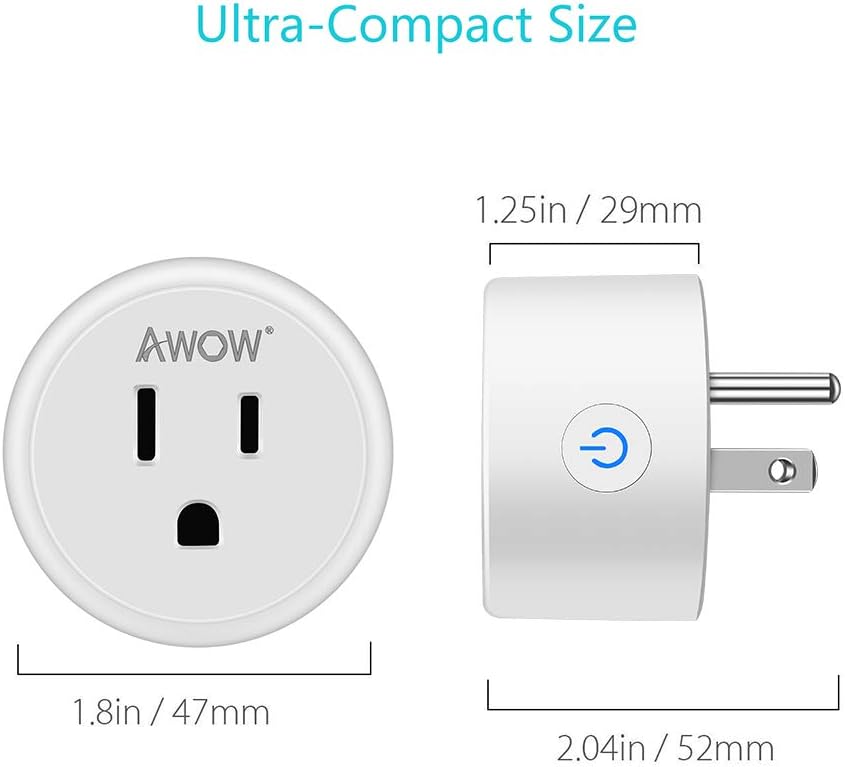
Image 9.1: Detailed dimensions of the AWOW Mini Smart Socket, highlighting its ultra-compact size.
10. Warranty and Support
AWOW provides a 2-year buyer warranty for this product, covering manufacturing defects and malfunctions under normal use. Additionally, lifetime technical support is available to assist you with any product-related inquiries or issues.
For support, please refer to the contact information provided with your purchase or visit the official AWOW website.


