
1. Introduction
This manual provides comprehensive instructions for the installation, operation, and maintenance of your BirdDog Eyes P200 Full NDI PTZ Camera. Please read this manual thoroughly before using the product to ensure proper and safe operation.
The BirdDog Eyes P200 is a high-performance 1080p60 PTZ camera featuring BirdDog's custom NDI silicon chip, a 30x optical zoom, and a Sony backlit sensor and image module. It is designed for professional video production environments, offering visually lossless full NDI for high-quality video transmission.
2. Safety Information
Always observe the following safety precautions to prevent damage to the product or injury to yourself and others.
- Power Supply: Use only the specified power adapter. Ensure the power source matches the camera's requirements.
- Environment: Do not expose the camera to rain, moisture, or extreme temperatures. Operate within the recommended temperature and humidity ranges.
- Handling: Handle the camera with care. Avoid dropping or subjecting it to strong vibrations.
- Cleaning: Disconnect power before cleaning. Use a soft, dry cloth. Do not use liquid or aerosol cleaners.
- Servicing: Do not attempt to open or service the camera yourself. Refer all servicing to qualified personnel.
3. Package Contents
Verify that all items listed below are included in your package:
- BirdDog Eyes P200 PTZ Camera (White)
- Power Adapter
- IR Remote Control
- Mounting Bracket (if applicable)
- Quick Start Guide
4. Setup
4.1 Camera Overview
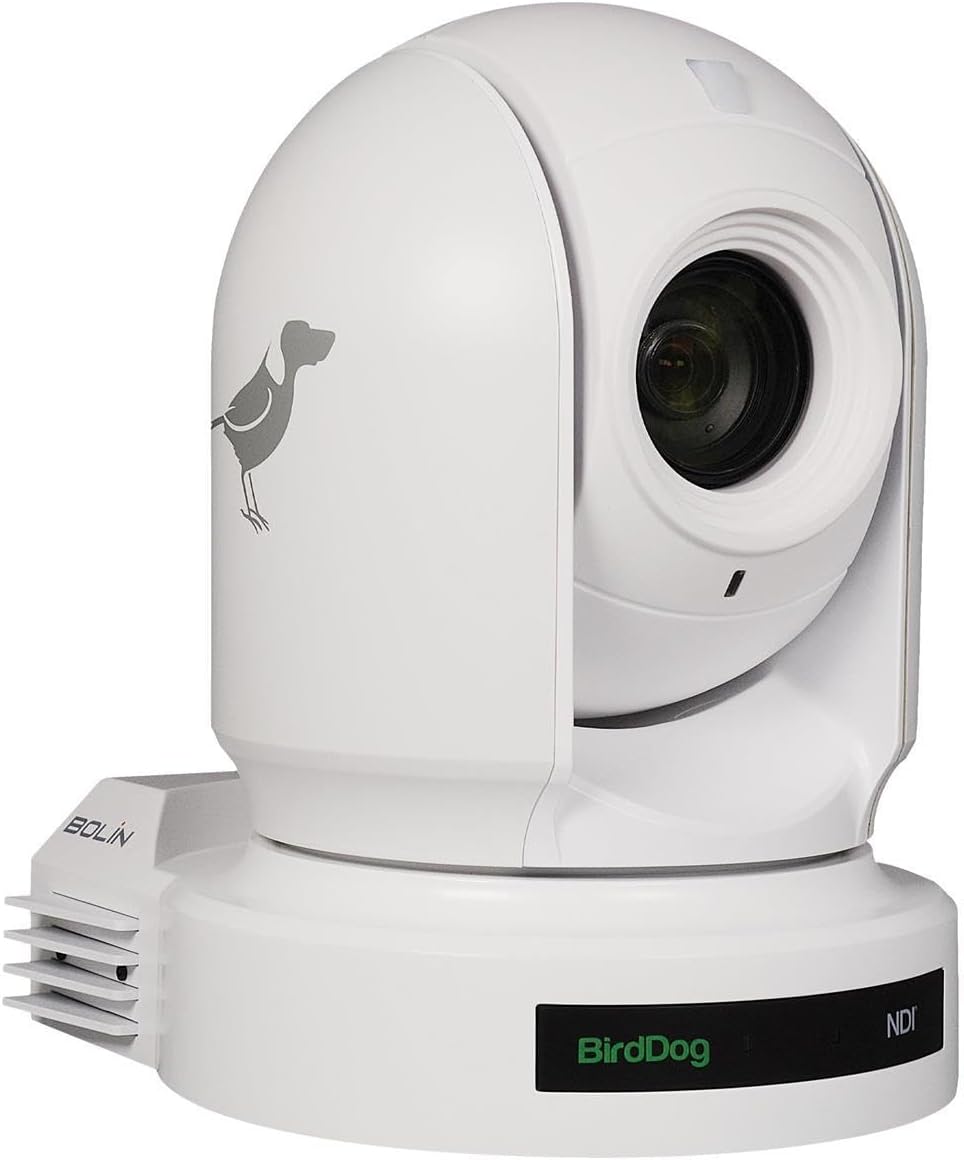
Figure 4.1: Front view of the BirdDog Eyes P200 PTZ Camera, showing the lens and the BirdDog logo on the base.

Figure 4.2: Rear view of the BirdDog Eyes P200 PTZ Camera, detailing the various connectivity ports including DC 12V, RS232, RS422, NDI Video/PoE Network, HDMI, and 3G-SDI.
4.2 Physical Installation
- Mounting: Securely mount the camera on a stable surface using the provided mounting bracket (if applicable). Ensure the camera is level and has a clear line of sight to the desired area.
- Power Connection: Connect the supplied power adapter to the DC 12V input port on the rear of the camera (refer to Figure 4.2). Plug the adapter into a suitable power outlet. Alternatively, if using Power over Ethernet (PoE), connect an Ethernet cable from a PoE-enabled switch to the NDI Video/PoE Network port.
- Video Output: Connect your video display or capture device to the camera using either the HDMI or 3G-SDI output ports. For NDI workflows, connect an Ethernet cable from the NDI Video/PoE Network port to your network.
- Control Connections: For external control, connect RS232 or RS422 cables to compatible control devices as needed.
4.3 Network Configuration (NDI)
The BirdDog P200 supports Full NDI for high-quality, low-latency video over IP. Upon connecting to a network, the camera will typically acquire an IP address via DHCP. You can access the camera's web interface for advanced settings.
- Discovering the Camera: Use BirdDog Central Lite or a similar NDI discovery tool on your network to find the camera's IP address.
- Accessing Web Interface: Open a web browser and enter the camera's IP address. Log in using the default credentials (refer to the Quick Start Guide for details).
- Network Settings: Within the web interface, you can configure network settings, including static IP address, NDI stream settings, and video parameters.
5. Operating the Camera
5.1 Basic Operation
- Power On: Once connected to power, the camera will automatically power on. The status indicator will illuminate.
- Pan/Tilt/Zoom (PTZ) Control: Use the IR remote control or a compatible NDI controller to adjust the camera's pan, tilt, and zoom.
- Focus: The P200 features auto-focus. Manual focus adjustments can be made via the web interface or compatible control software.
- Presets: Save and recall camera positions (pan, tilt, zoom, focus) as presets for quick scene changes. Refer to your controller's manual for preset management.
5.2 Advanced Settings (Web Interface)
The camera's web interface provides access to a wide range of advanced settings:
- Video Settings: Adjust resolution, frame rate, exposure, white balance, and color settings.
- Audio Settings: Configure audio input levels and embedding options.
- NDI Settings: Manage NDI stream name, group, and bandwidth.
- Network Settings: Configure IP address, DNS, and other network parameters.
- System Settings: Update firmware, reset to factory defaults, and manage user accounts.
6. Maintenance
- Cleaning the Lens: Use a soft, lint-free cloth specifically designed for optical lenses. Do not use abrasive materials or harsh chemicals.
- Firmware Updates: Periodically check the BirdDog website for firmware updates. Keeping your camera's firmware up-to-date ensures optimal performance and access to new features. Follow the instructions provided with the firmware update package carefully.
- Environmental Conditions: Ensure the camera is operated and stored in a clean, dry environment within the specified temperature and humidity ranges to prevent damage.
7. Troubleshooting
| Problem | Possible Cause | Solution |
|---|---|---|
| No Power | Power adapter not connected; Power outlet faulty; PoE not active. | Check power connections. Test power outlet. Ensure PoE switch is active and providing power. |
| No Video Output | Incorrect cable connection; Incorrect input selected on display; NDI stream not active. | Verify HDMI/SDI cable connections. Select correct input on monitor. Check NDI settings in web interface. |
| Camera Not Responding to Control | IR remote battery low; Incorrect control protocol; Network issue. | Replace IR remote batteries. Verify control protocol (RS232/RS422/NDI) settings. Check network connectivity. |
| Poor Image Quality | Lens dirty; Lighting conditions; Incorrect video settings. | Clean the lens. Adjust lighting. Configure exposure, white balance, and other video settings in the web interface. |
8. Specifications
| Feature | Detail |
|---|---|
| Model | BDP200W |
| Video Capture Resolution | 1080p |
| Optical Zoom | 30x |
| Connectivity Technology | HDMI, 3G-SDI, NDI (Ethernet), RS232, RS422 |
| Power Source | AC/DC, PoE |
| Color | White |
| Dimensions (L x W x H) | 12.3 x 12.3 x 9.9 inches |
| Item Weight | 7.09 pounds |
| Photo Sensor Technology | CMOS |
| International Protection Rating | IP54 |
| Recommended Uses | Indoor Security, Professional Video Production |
9. Warranty and Support
For warranty information and technical support, please refer to the official BirdDog website or contact your authorized BirdDog dealer. Keep your proof of purchase for warranty claims.
Official BirdDog Website: www.birddog.tv


