
SOYO SY-5EMA
SOYO SY-5EMA Motherboard User Manual
Model: SY-5EMA | Brand: SOYO
Introduction
This manual provides detailed instructions for the installation, operation, maintenance, and troubleshooting of your SOYO SY-5EMA Motherboard. Please read this manual thoroughly before beginning installation to ensure proper setup and optimal performance.
Setup and Installation
Proper installation is crucial for the stability and longevity of your system. Follow these steps carefully.
1. Preparing the Motherboard
- Ensure you are working in an anti-static environment. Use an anti-static wrist strap or frequently touch a grounded metal object.
- Carefully remove the motherboard from its packaging. Avoid touching components directly.
2. Installing the CPU
- Locate the Socket 7 CPU socket on the motherboard.
- Lift the CPU retention lever.
- Align the CPU with the socket, matching the golden triangle or notch on the CPU with the corresponding mark on the socket.
- Gently place the CPU into the socket. Do not force it. If it doesn't seat easily, recheck alignment.
- Lower the retention lever to secure the CPU.
- Apply a thin, even layer of thermal paste to the top of the CPU.
- Install the CPU cooler according to its manufacturer's instructions, ensuring good contact with the CPU.
3. Installing Memory (RAM)
- Locate the memory slots (2 available).
- Open the clips at both ends of the memory slot.
- Align the notch on the memory module with the key in the memory slot.
- Press down firmly on both ends of the memory module until the clips snap into place.
4. Mounting the Motherboard in the Case
- Install the I/O shield into the case's rear opening.
- Install standoffs in the case at the locations corresponding to the motherboard's mounting holes.
- Carefully place the motherboard onto the standoffs, aligning the screw holes.
- Secure the motherboard with screws, but do not overtighten.
5. Connecting Power and Peripherals
- Connect the 24-Pin main power connector from your power supply to the corresponding port on the motherboard.
- Connect any additional power connectors (e.g., 4-pin ATX 12V) if present and required by your power supply or CPU.
- Connect front panel headers (power button, reset button, HDD LED, power LED) according to the motherboard manual's pinout diagram.
- Connect USB headers, audio headers, and other internal connectors as needed.
- Install expansion cards (PCI, ISA) into their respective slots and secure them.
- Connect storage devices (hard drives, SSDs) to the appropriate data and power connectors.
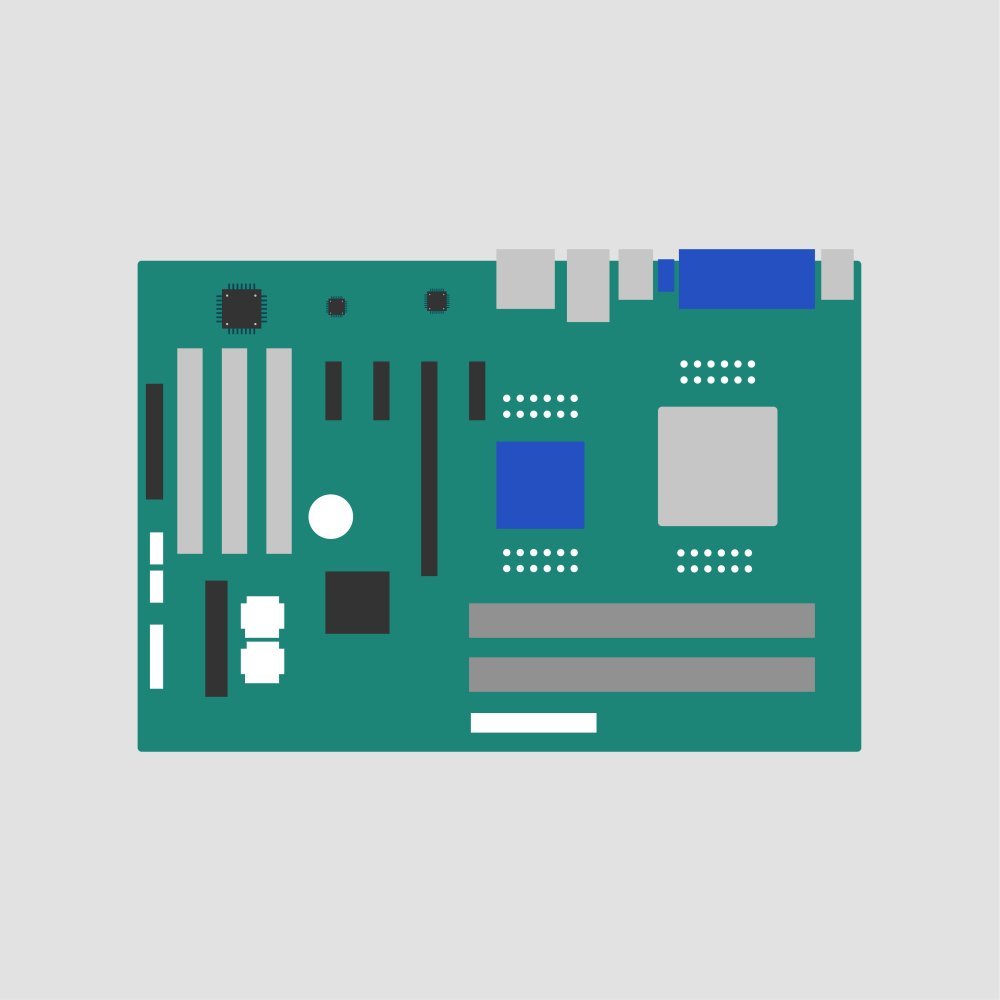
This image displays a general layout of the SOYO SY-5EMA motherboard, highlighting key areas such as the CPU socket, memory slots, PCI and ISA expansion slots, and various connectors. Refer to this diagram for component placement during installation.
Operating Instructions
Once the motherboard is installed, follow these steps to power on your system and install the operating system.
1. First Boot
- Before powering on, double-check all connections: power cables, data cables, and expansion cards.
- Connect a monitor, keyboard, and mouse.
- Power on your system. The system should perform a Power-On Self-Test (POST).
- Listen for beep codes, which can indicate issues. Refer to the troubleshooting section if you hear unusual beeps.
2. Accessing BIOS/UEFI
- During the initial boot sequence, repeatedly press the designated key (commonly Del, F2, F10, or F12) to enter the BIOS/UEFI setup utility. The exact key may vary; check the screen prompts during boot.
- In the BIOS/UEFI, you can configure boot order, system time, enable/disable integrated peripherals, and monitor system status.
- Save changes before exiting the BIOS/UEFI.
3. Driver Installation
- After installing your operating system, install the necessary drivers for the motherboard's chipset, audio, network, and other integrated components.
- Drivers are typically provided on a CD/DVD included with the motherboard or can be downloaded from the SOYO official website.
4. Operating System Installation
- Insert your operating system installation media (USB drive or DVD) into the appropriate drive.
- Set the boot order in BIOS/UEFI to prioritize the installation media.
- Follow the on-screen prompts to install your operating system.
Maintenance
Regular maintenance helps ensure the longevity and stable operation of your motherboard and system.
1. Dust Removal
- Periodically open your computer case and use compressed air to remove dust buildup from the motherboard, CPU cooler, and other components.
- Ensure the system is powered off and unplugged before performing any cleaning.
- Hold fan blades stationary while blowing air to prevent over-spinning and potential damage.
2. BIOS/UEFI Updates
- Check the SOYO official website for updated BIOS/UEFI versions. Updates can improve compatibility, stability, and performance.
- Follow the specific update instructions provided by SOYO carefully. Incorrect BIOS flashing can render the motherboard inoperable.
3. Component Checks
- Occasionally inspect cables for secure connections and signs of wear.
- Ensure all expansion cards and memory modules are seated firmly in their slots.
Troubleshooting
This section provides solutions to common issues you might encounter.
No Power / No Boot
- Check Power Connections: Ensure the 24-Pin main power connector and any auxiliary power connectors are securely plugged into the motherboard and power supply.
- Power Supply: Verify the power supply is switched on and functioning correctly. Test with another power supply if possible.
- Front Panel Headers: Double-check that the power button header is correctly connected to the motherboard.
- Short Circuit: Remove the motherboard from the case and test it on a non-conductive surface (e.g., cardboard box) with only essential components (CPU, one RAM stick, CPU cooler, power supply, monitor). This helps rule out case short circuits.
POST Beep Codes
The motherboard may emit a series of beeps during POST to indicate specific hardware issues. Consult the SOYO website or a comprehensive BIOS beep code list for your specific BIOS version (e.g., Award BIOS, AMI BIOS) to interpret these codes.
- Common Beep Codes:
- One long, two short beeps: Graphics card error.
- Continuous short beeps: Power error or loose component.
- No beeps, no display: CPU or motherboard failure.
- Action: Reseat components (RAM, graphics card), check power connections, or test components individually.
System Instability / Crashes
- Overheating: Ensure CPU cooler is properly installed and fans are spinning. Check case airflow.
- RAM Issues: Run a memory diagnostic tool (e.g., MemTest86). Try one RAM stick at a time.
- Driver Issues: Ensure all drivers are up-to-date and correctly installed. Reinstall problematic drivers.
- Power Supply: An insufficient or failing power supply can cause instability.
Specifications
Key technical specifications for the SOYO SY-5EMA Motherboard.
| Feature | Detail |
|---|---|
| Brand | SOYO |
| Model Name | SY-5EMA |
| CPU Socket | Socket 7 |
| Compatible Processors | Intel Core 2 EXTREME (Note: This may be a data error, Socket 7 is for older CPUs like Pentium MMX, K6. Please verify compatibility with SOYO.) |
| Chipset Type | Intel B250 (Note: This may be a data error, B250 is a modern chipset. Please verify compatibility with SOYO.) |
| Memory Slots Available | 2 |
| Graphics Card Interface | PCI |
| Main Power Connector Type | 24-Pin |
| Number of Ports | 6 |
| Item Weight | 3 pounds |
| Manufacturer | Soyo Computer inc. |
Note: Some specifications provided (e.g., Compatible Processors, Chipset Type) appear to be inconsistent with a Socket 7 motherboard (SY-5EMA). Please refer to the official SOYO documentation or contact SOYO support for the most accurate and up-to-date specifications.
Warranty and Support
For warranty information and technical support, please refer to the following resources:
- Manufacturer Website: Visit the official SOYO website for the most current warranty terms, driver downloads, and support resources.
- Purchase Retailer: Contact the retailer from whom you purchased the motherboard for specific return or exchange policies.
- Technical Support: For technical assistance, refer to the support section on the SOYO website or contact their customer service department.
Related documentsSY-5EMA


Ask a question about this manual
Ask about setup, troubleshooting, compatibility, parts, safety, or missing instructions. Manuals+ will review the question and use this page’s manual context to help answer it.