
1. Introduction and Overview
This manual provides detailed instructions for the setup, operation, and maintenance of your NZXT H510 Compact ATX PC Gaming Case. Designed for optimal performance and ease of use, the H510 features a sleek design, efficient cable management, and robust cooling capabilities.
Key Features:
- Front I/O USB Type-C Port for high-speed connectivity.
- Tempered glass side panel with single thumbscrew installation for easy access.
- Patented cable routing kit with pre-installed channels and straps for simplified cable management.
- Includes two Aer F120mm fans for optimized internal airflow.
- Removable dust filters on front panel and PSU intakes.
- Removable bracket for radiators up to 240mm, supporting both closed-loop and custom-loop water cooling.
- Motherboard support for Mini-ITX, MicroATX, and ATX form factors.
2. Product Components
External Views:


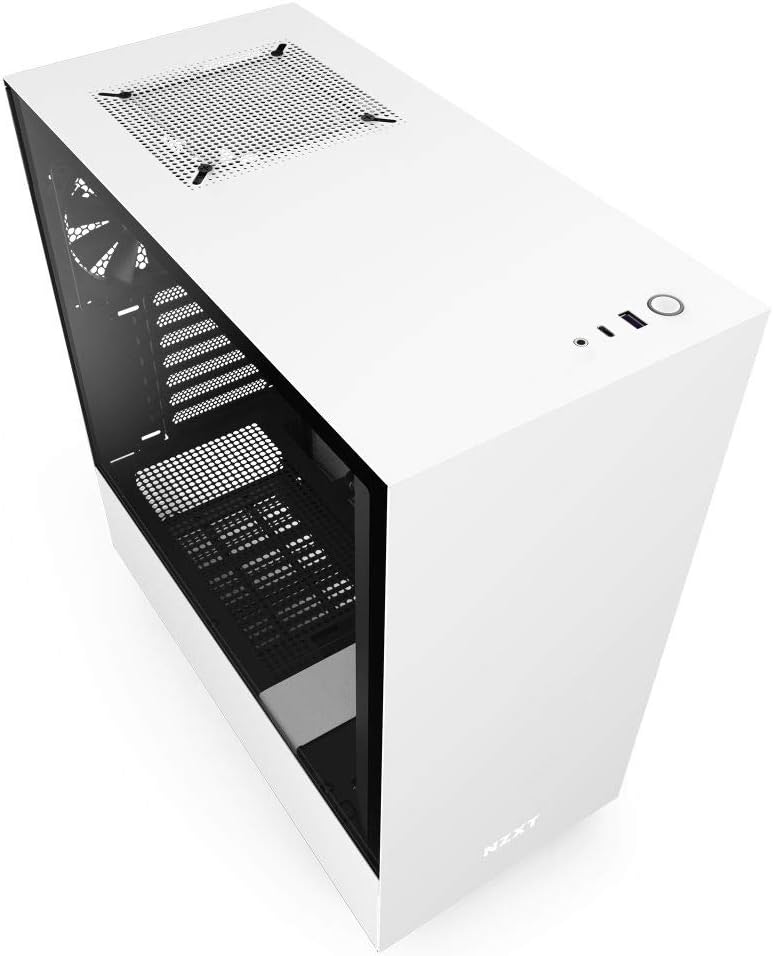
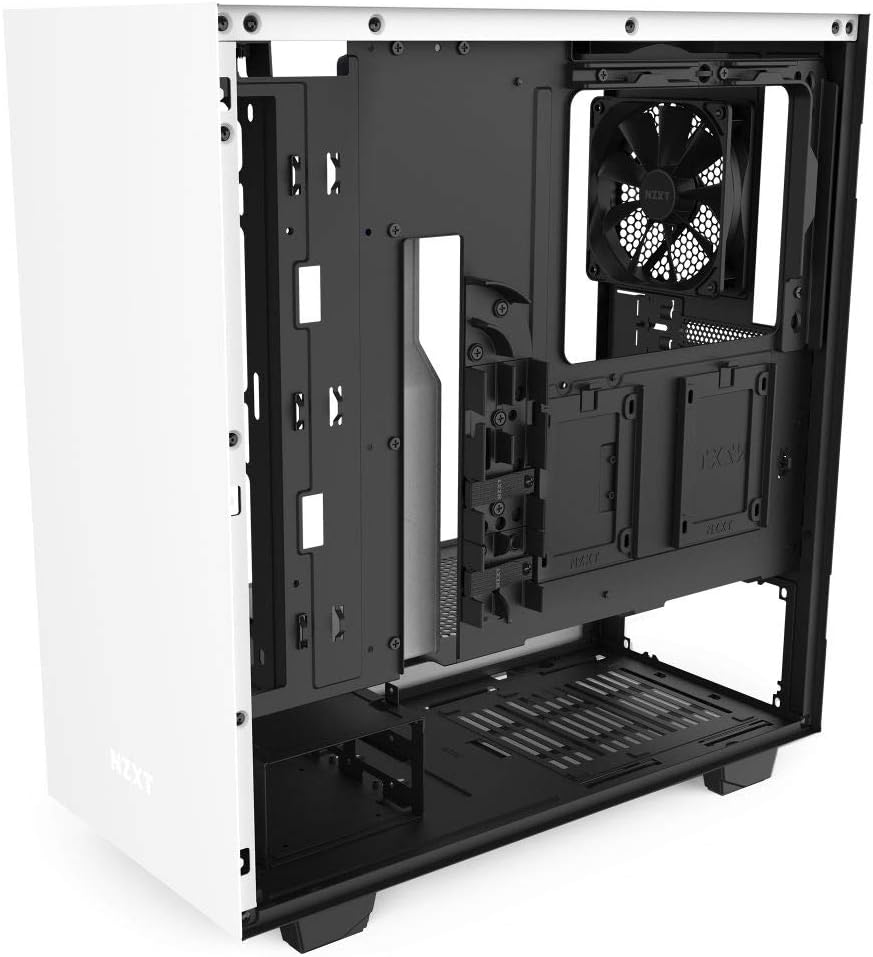
Internal Layout:

3. Setup and Installation
3.1 Unpacking
Carefully remove the case from its packaging. Inspect for any damage during transit. Retain the packaging for future transport or warranty claims.
3.2 Tempered Glass Panel Removal
The tempered glass side panel is secured with a single thumbscrew at the rear of the case. Unscrew the thumbscrew and gently pull the panel away from the chassis. Place the panel on a soft, flat surface to prevent scratches or damage.
3.3 Motherboard Installation
- Install the I/O shield (if not pre-attached to your motherboard) into the rear opening of the case.
- Align your Mini-ITX, MicroATX, or ATX motherboard with the standoffs inside the case. Ensure all standoffs align with the motherboard's mounting holes.
- Secure the motherboard using the provided screws.
3.4 Power Supply Installation
The power supply unit (PSU) mounts at the bottom rear of the case. Slide the PSU into its designated bay and secure it with screws from the rear of the chassis.
3.5 Cable Management
Utilize the patented cable routing kit located behind the motherboard tray. Route all necessary cables (24-pin ATX, 8-pin EPS, SATA, PCIe, front panel connectors) through the pre-installed channels and secure them with the included straps for a clean build and improved airflow.
3.6 Component Installation
- Graphics Card (GPU): Install your GPU into the appropriate PCIe slot on the motherboard and secure it with the thumbscrew or latch.
- Storage Drives: The case supports multiple drive configurations. Install 2.5" SSDs onto the dedicated trays behind the motherboard tray. 3.5" HDDs can be installed in the drive cage located beneath the PSU shroud.
- Cooling: The H510 includes two Aer F120mm fans. Additional fans or a 240mm radiator can be mounted on the front bracket. A 120mm fan can be mounted at the rear exhaust.
3.7 Front I/O Connections
Connect the front panel cables (USB 3.1 Gen 2 Type-C, USB 3.0 Type-A, Audio, Power, Reset, HDD LED) to their corresponding headers on your motherboard. Refer to your motherboard manual for exact header locations.
4. Operating Instructions
4.1 Powering On
Once all components are securely installed and cables connected, plug the power cable into the PSU and a wall outlet. Press the power button located on the top panel of the case to start your system.
4.2 Front Panel Functionality
- Power Button: Initiates system startup or shutdown.
- USB 3.1 Gen 2 Type-C Port: For connecting compatible high-speed USB-C devices.
- USB 3.0 Type-A Port: For connecting standard USB-A devices.
- Audio Jack: For connecting headphones or headsets.
5. Maintenance
5.1 Cleaning
Regular cleaning helps maintain optimal performance and extends the lifespan of your PC components. Use compressed air to remove dust from fans and internal components. Wipe exterior surfaces with a soft, damp cloth.
5.2 Dust Filters
The NZXT H510 is equipped with removable dust filters on the front panel and PSU intake. Periodically remove and clean these filters to prevent dust buildup and ensure unrestricted airflow. The top panel also features a magnetic dust filter for easy removal and cleaning.
6. Troubleshooting
6.1 System Not Powering On
- Ensure the power cable is securely connected to both the PSU and the wall outlet.
- Verify the PSU switch is in the 'ON' position.
- Check all internal power connections, especially the 24-pin ATX and 8-pin EPS cables to the motherboard.
- Confirm front panel power button cables are correctly connected to the motherboard headers.
6.2 Overheating Issues
- Ensure all case fans are spinning correctly and are oriented for proper airflow (intake/exhaust).
- Clean all dust filters and internal components to remove any obstructions to airflow.
- Verify CPU cooler and GPU fans are functioning.
- Check thermal paste application on the CPU.
6.3 USB or Audio Ports Not Functioning
- Ensure the front panel USB and audio cables are correctly connected to the corresponding headers on your motherboard.
- Check your motherboard manual for correct header locations.
7. Technical Specifications
| Feature | Specification |
|---|---|
| Model Number | CA-H510B-W1 |
| Case Type | Mid Tower |
| Motherboard Compatibility | Mini-ITX, MicroATX, ATX |
| Material | SGCC Steel, Tempered Glass |
| Dimensions (LxWxH) | 16.85" x 8.27" x 18.11" (428mm x 210mm x 460mm) |
| Item Weight | 16.3 pounds (7.41 kg) |
| Front I/O Ports | 1x USB 3.1 Gen 2 Type-C, 1x USB 3.0 Type-A, 1x Headset Audio Jack |
| Included Fans | 2x Aer F120mm (Case Version) |
| Radiator Support | Front: Up to 240mm, Rear: 120mm |
| Power Supply Mounting Type | Rear Mount |
| Cooling Method | Air |
8. Warranty and Support
8.1 Warranty Information
The NZXT H510 Compact ATX PC Gaming Case comes with a manufacturer's warranty. Please refer to the official NZXT website or your purchase documentation for specific warranty terms and conditions.
8.2 Contact Support
For technical assistance, troubleshooting, or warranty inquiries, please visit the official NZXT support page or contact their customer service. You can find more information and products at the NZXT Store on Amazon.


