
iOCHOW S-1
Contents
iOCHOW Portable Scanner & Document Camera S1 User Manual
Model: S-1 | Brand: iOCHOW
1. Introduction
The iOCHOW Portable Scanner & Document Camera S1 is a versatile device designed for high-definition capture of documents and objects up to A3 size. It features an 8MP HD camera, multi-language Optical Character Recognition (OCR), auto-focus, and is suitable for various applications including home office, education, presentations, and live streaming. This manual provides essential information for setting up, operating, and maintaining your device.
2. Safety Information
- Do not expose the device to water or excessive humidity.
- Avoid placing the device in direct sunlight or near heat sources.
- Use only the provided power adapter and USB cable.
- Keep out of reach of children.
- Do not attempt to disassemble or repair the device yourself. Contact qualified service personnel.
3. Package Contents
Please check the box for the following items:
- iOCHOW Portable Scanner & Document Camera S1
- USB Cable
- Scanning Mat
- Software CD (or download link provided)
- User Manual (this document)
4. Product Overview
The iOCHOW S1 features a compact and adjustable design, making it suitable for various desktop environments. Its main components include the camera head, adjustable arm, and stable base.
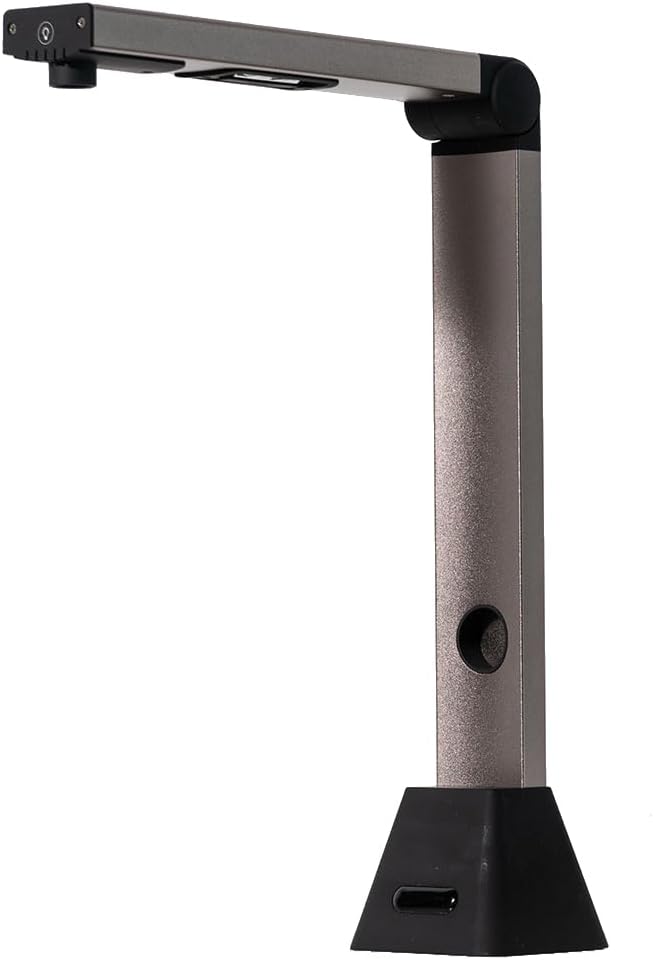
Figure 4.1: iOCHOW Portable Scanner S1 in its upright, ready-to-use position.

Figure 4.2: The iOCHOW S1 in its folded, compact state for easy storage and portability.

Figure 4.3: Close-up view of the 8MP HD camera lens and integrated controls on the scanner head.

Figure 4.4: Detail of the built-in LED fill lights, which can be used to illuminate documents in dimly lit environments.
5. Setup
Setting up your iOCHOW S1 is straightforward. Follow these steps to get started:
- Unpack the Device: Carefully remove the scanner and all accessories from the packaging.
- Position the Scanner: Place the scanner on a flat, stable surface. Unfold the scanner arm to its upright position.
- Connect to PC: Connect the scanner to your computer using the provided USB cable. Ensure a secure connection.
- Install Software: Insert the software CD into your computer's CD drive. If your computer does not have a CD drive, download the latest software from the official iOCHOW website. Follow the on-screen instructions to complete the installation. Note: The software is compatible only with Windows operating systems (Windows 7 and above) and is not compatible with Apple Mac OS.
- Place Scanning Mat: Position the scanning mat directly under the camera lens. This mat helps in accurate document placement and provides a clear background for scanning.
For a visual guide on setup, please watch the official product video below:
Video 5.1: Official iOCHOW Document Camera setup and feature demonstration.
6. Operating Instructions
6.1. Scanning Documents
The iOCHOW S1 software offers advanced features for efficient document scanning:
- Optical Character Recognition (OCR): The software can recognize multiple languages and convert scanned materials into editable text formats such as TXT, Word, or JPG. This allows for easy editing and searching of your documents.
- Automatic Cropping & Edge Filling: The scanner intelligently detects the edges of your document, automatically cropping and correcting any broken edges for a clean scan.
- Smart Paging: For multi-page documents, the software can automatically segment images and merge both sides of scanned ID photos, streamlining the scanning process.
- Smart Tilt Correction: The software automatically corrects skewed documents, ensuring perfectly aligned scans even if the document is not placed perfectly straight.
- Auto-Scan Technology: Set the scan mode to 'Multiple page' and 'Automatic' to enable continuous scanning without manual clicks, significantly increasing efficiency for large volumes of documents.
Refer to the official product video in Section 5 for demonstrations of these scanning features.
6.2. Video Recording and Real-time Projection
Beyond scanning, the iOCHOW S1 functions as a versatile visualizer:
- Real-time Projection: Connect the scanner to a computer or laptop to project live images of documents or objects onto a larger screen or projector. This is ideal for presentations, demonstrations, or collaborative work.
- Video Recording: Utilize the software to record video of your documents or objects. This feature is particularly useful for creating educational content, recording writing processes, or conducting online teaching sessions via platforms like Zoom.
7. Maintenance
To ensure the longevity and optimal performance of your iOCHOW S1, follow these maintenance guidelines:
- Cleaning: Use a soft, dry cloth to wipe the exterior of the scanner. For the camera lens, use a lens cleaning cloth and solution if necessary. Avoid abrasive cleaners or solvents.
- Storage: When not in use, fold the scanner to its compact form and store it in a dry, dust-free environment. Keep the scanning mat clean and flat to prevent creases.
- Software Updates: Periodically check the iOCHOW official website for software updates to ensure you have the latest features and bug fixes.
8. Troubleshooting
If you encounter issues with your iOCHOW S1, refer to the table below for common problems and solutions:
| Problem | Possible Cause | Solution |
|---|---|---|
| Scanner not recognized by PC. | Loose USB connection, driver not installed, or incompatible OS. | Ensure USB cable is securely connected. Install the correct drivers from the CD or iOCHOW website. Verify your operating system is Windows 7 or later. |
| Poor image quality (blurry, dark). | Insufficient lighting, dirty lens, or incorrect focus. | Turn on the built-in LED lights. Ensure the camera lens is clean. Allow the auto-focus to adjust, or manually adjust focus if available in software. Ensure the document is flat on the scanning mat. |
| OCR not working or inaccurate. | Incorrect language setting, poor scan quality, or complex font. | Check the language setting in the OCR software. Improve scan quality (see above). Ensure the document text is clear and legible. |
| Software crashes or freezes. | Outdated software, system resource issues, or conflict with other programs. | Update the software to the latest version. Close other unnecessary applications. Restart your computer. |
9. Specifications
| Feature | Detail |
|---|---|
| Brand | iOCHOW |
| Model Number | S-1 |
| Scanner Type | Document, Photo |
| Camera Resolution | 8 Megapixel |
| Max Scan Size | A3 |
| Light Source Type | LED |
| Connectivity Technology | USB |
| Minimum System Requirements | Windows 7 |
| Item Weight | 3.61 pounds |
| Package Dimensions | 13.54 x 5.83 x 4.41 inches |
| UPC | 631105889193 |
10. Warranty and Support
iOCHOW products are manufactured to high-quality standards. For warranty information and technical support, please refer to the warranty card included with your product or visit the official iOCHOW website. You can also contact customer service through the retailer where you purchased the product.
Ask a question about this manual
Ask about setup, troubleshooting, compatibility, parts, safety, or missing instructions. Manuals+ will review the question and use this page’s manual context to help answer it.