
1. Introduction
The Carlinkit Wireless CarPlay/Android Auto USB Adapter is designed to convert your vehicle's wired CarPlay or Android Auto system into a wireless connection. This device allows for seamless integration of your smartphone's features, including navigation, music, and communication, directly onto your car's infotainment display without the need for physical cables. It supports Android head units with system version 4.4.2 or above.
2. Safety Information
- Always ensure the device is securely placed and does not obstruct driving controls or airbags.
- Do not attempt to disassemble or modify the device. This may void the warranty and pose a safety risk.
- Avoid exposing the device to extreme temperatures, direct sunlight for prolonged periods, or moisture.
- Operate your vehicle's infotainment system responsibly. Distracted driving can lead to accidents.
3. Package Contents
- Carlinkit Wireless CarPlay/Android Auto USB Adapter
- USB-A to USB-C Cable (if applicable)
- Instruction Manual (this document)
4. Setup
4.1. Compatibility Check
Ensure your vehicle's Android head unit system version is 4.4.2 or above. This product is designed for vehicles with existing wired CarPlay or Android Auto functionality.
4.2. APK Installation (for Android Head Units)
For Android head units, you must first install the 'Autokit.apk' application. This is a critical step for the adapter to function correctly.
- Connect your car's head unit to a Wi-Fi network.
- Plug the Carlinkit adapter into the USB port of your car.
- On your car's head unit, navigate to the file manager or browser.
- Locate and install the 'BoxHelper.apk' or 'Autokit.apk' file. This file is typically found on the adapter itself or can be downloaded from the official Carlinkit website.
This video demonstrates the steps for installing the Autokit APK on your Android head unit. Ensure your car is connected to a network and follow the on-screen instructions to install the necessary application for the Carlinkit adapter.
4.3. Connecting Your Smartphone
Once the APK is installed (if required) and the adapter is plugged in, proceed with connecting your smartphone:
- Ensure Bluetooth and Wi-Fi are enabled on your smartphone.
- On your smartphone, go to Bluetooth settings and search for available devices.
- Select the Carlinkit adapter from the list (it may appear as "VehConn_XXXX" or similar).
- Confirm the pairing request on both your phone and the car's display.
- Allow contacts and favorites sync if prompted.
- Your car's display should now show the CarPlay or Android Auto interface.

This image illustrates the ease of connecting the Carlinkit adapter, highlighting its quick setup process and support for 2.4/5G WiFi frequencies for stable wireless connectivity.
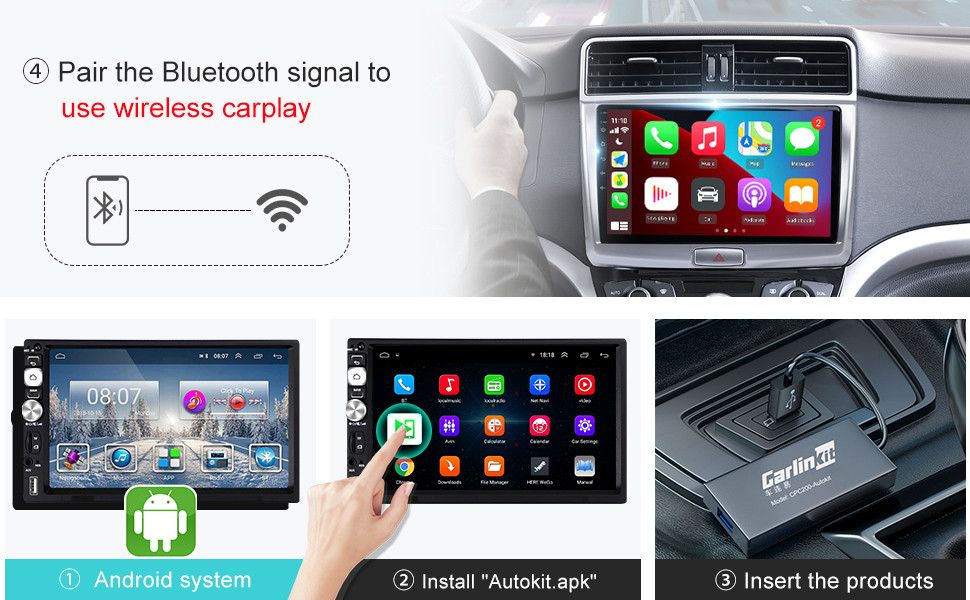
A visual guide demonstrating the process of pairing your smartphone's Bluetooth with the Carlinkit adapter to enable wireless CarPlay on an Android head unit. Steps include ensuring Android system, installing Autokit.apk, inserting the product, and pairing Bluetooth.
This video provides a demonstration of the Carlinkit wireless CarPlay dongle in action with an Android head unit, showcasing its features and functionality.
5. Operating Instructions
Once connected, your car's infotainment screen will mirror your smartphone's CarPlay or Android Auto interface. You can interact with it directly via the touchscreen or your car's controls.
- Navigation: Use your preferred navigation apps (e.g., Google Maps, Apple Maps) for real-time directions.
- Music & Audio: Access your music streaming services (e.g., Spotify, Apple Music) or podcasts.
- Calls & Messages: Make and receive calls, send and read messages using voice commands or the car's interface.
- Voice Assistant: Activate Siri or Google Assistant for hands-free control.

This image demonstrates how the Carlinkit adapter upgrades your car's original infotainment system to support both Apple CarPlay and Android Auto, allowing users to choose their preferred interface.
5.1. Online Firmware Upgrade
The device supports online firmware upgrades to ensure optimal performance and compatibility. Access the 'Autokit.apk' application on your car's head unit, navigate to settings, and check for updates. Follow the on-screen prompts to install any available updates.
6. Maintenance
- Keep the device clean by wiping it with a soft, dry cloth.
- Store the device in a cool, dry place when not in use.
- Avoid pulling on the cables excessively to prevent damage to the connectors.
7. Troubleshooting
- Device Not Connecting:
- Ensure the 'Autokit.apk' is correctly installed on your Android head unit.
- Verify that your car's head unit meets the minimum Android version requirement (4.4.2 or above).
- Check that Bluetooth and Wi-Fi are enabled on your smartphone and the adapter is visible for pairing.
- Try restarting both your smartphone and the car's infotainment system. - Audio Skips or Intermittent Disconnections:
- Ensure there is no significant signal interference. Try moving your phone closer to the adapter.
- Check for and install any available firmware updates for the adapter via the 'Autokit.apk' settings.
- If the device becomes excessively hot, it may temporarily disconnect. Allow it to cool down. - Blank Screen or UI Issues:
- Confirm that the adapter is securely plugged into the USB port.
- Restart the 'Autokit.apk' application or the car's infotainment system. - Compatibility Issues:
- If you are unsure about your car's compatibility, contact Carlinkit customer support with your vehicle's make, model, and year.
8. Specifications
| Feature | Detail |
|---|---|
| Hardware Interface | USB |
| Color | Black |
| Compatible Devices | Android head units for vehicles with version 4.4.2 or above |
| Data Link Protocol | Bluetooth, USB |
| Compatible Operating System Family | Android |
| Minimum Required Operating System Version | Android 4.4 KitKat |
| Item Weight | 5.6 ounces (0.16 Kilograms) |
| Package Dimensions | 9.25 x 3.66 x 1.46 inches |
9. Warranty and Support
Carlinkit offers a warranty for its products. For specific warranty details, technical support, or any inquiries, please refer to the contact information provided in your product packaging or visit the official Carlinkit website. It is recommended to contact the seller or manufacturer directly for assistance with product-related issues.


