
Introduction
Thank you for choosing the Case Logic 2.4Ghz Wireless Mouse. This device is designed for reliability, ease of use, and user comfort, providing fast data transmission without delays or dropouts. This manual provides instructions for setting up, operating, and maintaining your wireless mouse.
Package Contents
- Case Logic 2.4Ghz Wireless Mouse
- USB Receiver
- 2 x AAA Batteries
Setup
1. Install Batteries
Locate the battery compartment on the underside of the mouse. Open the cover and insert the two AAA batteries, ensuring correct polarity (+/-). Close the battery compartment cover securely.

Image: Underside of the mouse with battery compartment and receiver slot.
2. Connect USB Receiver
Remove the USB receiver from its storage slot on the underside of the mouse. Plug the USB receiver into an available USB port on your computer (laptop, PC, or MacBook). The mouse is plug-and-play and should be recognized automatically by your operating system.
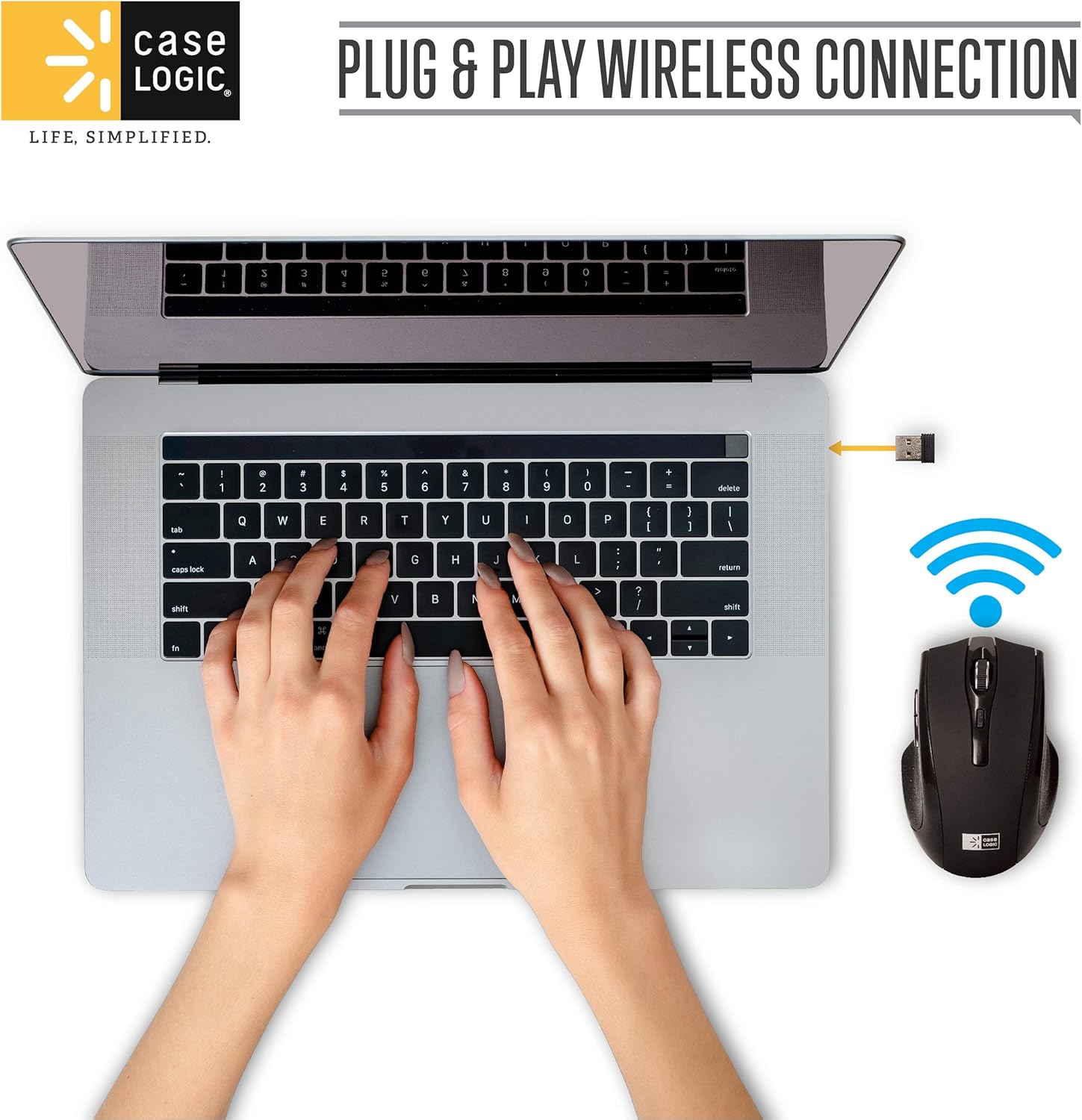
Image: USB receiver connected to a laptop, demonstrating plug & play setup.
For storage, the compact USB receiver can be re-inserted into the slot on the mouse when not in use.
Operating Instructions
Adjusting DPI Levels
The mouse features adjustable DPI (Dots Per Inch) levels, allowing you to change cursor sensitivity. To adjust the CPI (Counts Per Inch) setting, press the CPI button located on the top of the mouse, below the scroll wheel:
- Press the CPI button once: The red indicator light flashes once, setting CPI to 800.
- Press the CPI button twice: The red indicator light flashes twice, setting CPI to 1200.
- Press the CPI button three times: The red indicator light flashes three times, setting CPI to 1600.

Image: Mouse with labels for DPI Adjust Button, Ribbed Scroll Button, and Secondary Side Buttons.
Power Saving Mode
To conserve battery life, the mouse will automatically enter a power-saving mode if it is not used for over 10 minutes. To reactivate the mouse, simply move it or click any button.
Compatibility
The mouse is compatible with most operating systems, including Windows, Mac, and Linux. Please note that the Back and Forward buttons (secondary side buttons) are not functional on Mac OS due to system limitations. All other mouse functions operate as expected.
Maintenance
- Cleaning: Use a soft, dry cloth to clean the mouse. Avoid using harsh chemicals or abrasive cleaners.
- Battery Replacement: Replace batteries when the mouse performance degrades or stops responding. Always use fresh AAA batteries.
- Storage: When not in use for extended periods, remove the batteries and store the USB receiver in its designated slot on the mouse.
- Environment: Avoid exposing the mouse to extreme temperatures, direct sunlight, or excessive moisture.
Troubleshooting
- Mouse not responding:
- Ensure batteries are correctly installed and not depleted. Replace if necessary.
- Check that the USB receiver is securely plugged into a working USB port. Try a different USB port.
- Move the mouse closer to the USB receiver to ensure a strong wireless connection.
- Restart your computer.
- Cursor movement is erratic or slow:
- Clean the optical sensor on the underside of the mouse.
- Ensure you are using the mouse on a suitable surface. Highly reflective or transparent surfaces may affect tracking.
- Adjust the DPI setting to a lower value if the cursor is too fast.
- Back/Forward buttons not working on Mac OS:
- This is a known compatibility limitation with Mac OS. These buttons are not supported on Apple's operating system.
Specifications
| Model Number | CL-MS-WS-124-BK |
| Connectivity Technology | 2.4Ghz Wireless, USB Receiver |
| Movement Detection | Optical |
| Number of Buttons | 6 |
| DPI Levels | 800 / 1200 / 1600 |
| Power Source | 2 x AAA Batteries (Included) |
| Compatible Operating Systems | Windows, Mac OS, Linux |
| Hand Orientation | Right |
| Color | Black |
| UPC | 805112048281 |
Warranty and Support
This Case Logic Wireless Mouse comes with a 12-month limited warranty from the date of purchase. This warranty covers manufacturing defects and ensures the product functions as intended under normal use.
For technical support, warranty claims, or any inquiries, please contact our professional after-sale service team. We are committed to resolving any issues within 24 hours.
Please refer to your purchase documentation for specific contact details or visit the official Case Logic website for support information.