
1. Introduction
This manual provides detailed instructions for the installation, operation, and maintenance of the GIGABYTE B365M DS3H motherboard. Please read this manual thoroughly before installing or using your motherboard to ensure correct setup and optimal performance. This motherboard supports 9th and 8th Generation Intel Core processors with an LGA1151 socket.
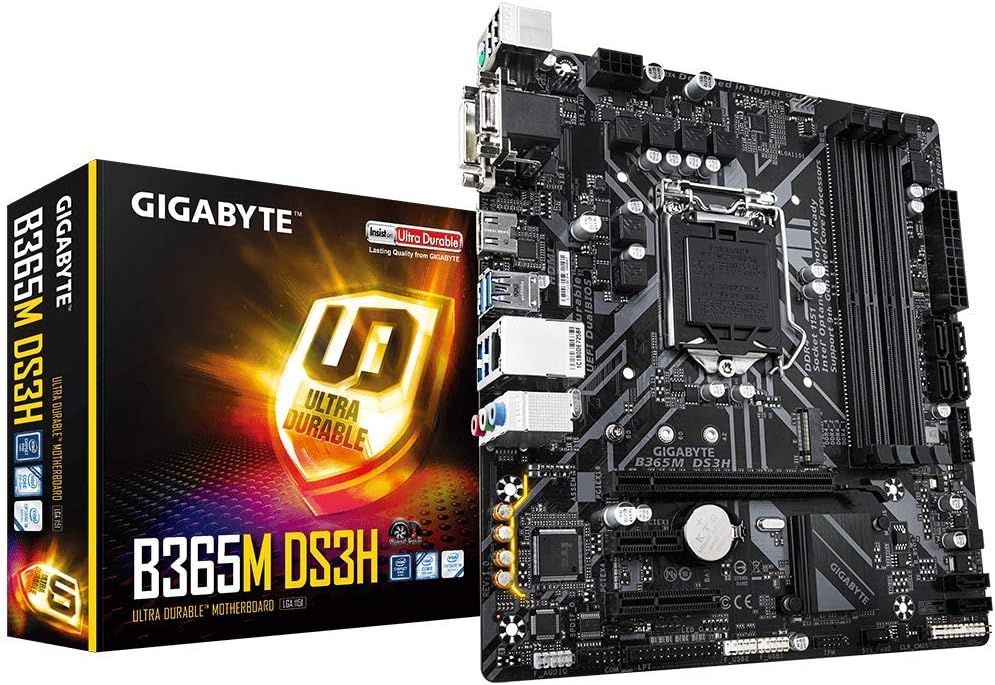
Image 1.1: The GIGABYTE B365M DS3H motherboard shown alongside its retail packaging.
2. Setup and Installation
Follow these steps for proper installation of your GIGABYTE B365M DS3H motherboard into a compatible PC case.
2.1. Component Overview

Image 2.1: A top-down view of the GIGABYTE B365M DS3H motherboard, highlighting various components and connectors.
2.2. CPU Installation
- Carefully open the CPU socket lever on the motherboard.
- Align the CPU (LGA1151) with the socket, ensuring the gold triangle on the CPU matches the triangle on the socket.
- Gently place the CPU into the socket without forcing it.
- Close the socket lever to secure the CPU.
- Apply thermal paste and install the CPU cooler according to its manufacturer's instructions.
2.3. Memory (RAM) Installation
This motherboard supports Dual Channel Non-ECC Unbuffered DDR4 memory.
- Open the clips on both ends of the DIMM slots.
- Align the memory module with the slot, ensuring the notch on the module matches the key in the slot.
- Press down firmly on both ends of the memory module until the clips snap into place.
2.4. Storage Device Installation
The motherboard features an ultra-fast M.2 slot with PCIe Gen3 x4 and SATA interface, as well as multiple SATA 6Gb/s ports.
- M.2 SSD: Locate the M.2 slot. Insert the M.2 SSD at an angle and then gently push it down. Secure it with the provided screw.
- SATA Drives: Connect one end of a SATA data cable to a SATA port on the motherboard and the other end to your SATA HDD/SSD. Connect a SATA power cable from your power supply to the drive.
2.5. Expansion Card Installation
Install graphics cards or other PCIe expansion cards into the appropriate PCIe slots.
- Align the expansion card with the PCIe slot.
- Press down firmly until the card is seated correctly.
- Secure the card with a screw to the case.
- Note: If using an Intel 'F' series CPU (e.g., i5-9400F) which lacks integrated graphics, a discrete graphics card is required for video output. The motherboard's video outputs rely on the CPU's integrated graphics.
2.6. Power Connections
- Connect the 24-pin ATX main power connector from your power supply to the motherboard.
- Connect the 8-pin ATX 12V CPU power connector to the motherboard.
2.7. Front Panel Connections
Connect the case's front panel cables (power button, reset button, USB ports, audio jacks, LED indicators) to the corresponding headers on the motherboard. These headers are clearly labeled on the board for ease of connection.

Image 2.2: The rear input/output panel of the GIGABYTE B365M DS3H motherboard, showing various ports including USB, video outputs, Ethernet, and audio jacks.
3. Operating Instructions
This section details key features and operational aspects of the GIGABYTE B365M DS3H motherboard.
3.1. BIOS Setup
The motherboard features GIGABYTE UEFI Dual BIOS, providing a user-friendly interface for system configuration. To enter BIOS setup, press the DEL key during system startup.
3.2. Smart Fan 5
Smart Fan 5 allows users to interchange their fan headers to reflect different thermal sensors across the motherboard. This feature includes:
- Multiple Temperature Sensors: Monitor temperatures at various locations.
- Hybrid Fan Headers: Support both voltage mode and PWM mode fans.
- FAN STOP: Allows fans to stop completely when temperatures drop below a specified threshold, reducing noise.
3.3. RGB Fusion
The motherboard supports RGB Fusion, allowing customization of lighting effects. It supports RGB LED strips in 7 colors, which can be controlled via GIGABYTE's utility software.
3.4. Network Connectivity
The GIGABYTE exclusive 8118 Gaming LAN provides reliable network connectivity with bandwidth management capabilities, optimizing network traffic for gaming and other applications.
3.5. Audio Features
High-quality audio capacitors and an audio noise guard with LED trace path lighting are integrated to provide an enhanced audio experience by minimizing interference.
3.6. Intel Optane Memory Ready
This motherboard is compatible with Intel Optane Memory, which can accelerate traditional storage devices to improve system responsiveness.
3.7. CEC 2019 Ready
The motherboard is designed to meet CEC 2019 power consumption standards, contributing to energy efficiency and power savings.
4. Maintenance
Proper maintenance ensures the longevity and stable operation of your motherboard.
4.1. Cleaning
Regularly clean the interior of your PC case to prevent dust buildup on the motherboard and components. Use compressed air to gently remove dust from heatsinks, fans, and other surfaces. Ensure the system is powered off and unplugged before cleaning.
4.2. Component Protection
- Anti-Sulfur Resistors Design: The motherboard incorporates an Anti-Sulfur Resistors Design to protect components from sulfur compounds in the air, which can cause corrosion and component failure over time.
- Ultra Durable 15KV Surge LAN Protection: This feature provides enhanced protection against electrical surges on the Ethernet port, safeguarding your network connection and motherboard.
5. Troubleshooting
This section addresses common issues you might encounter with your GIGABYTE B365M DS3H motherboard.
5.1. System Does Not Power On or Boot
- Verify all power cables (24-pin ATX, 8-pin CPU) are securely connected to the motherboard and power supply.
- Ensure the power supply is switched on and functioning correctly.
- Check that the front panel power button cable is correctly connected to the motherboard header.
- If the system enters a boot loop, try pressing the reset button on your case. If the issue persists, ensure all components are correctly seated.
5.2. No Video Output (5 Beeps Error)
A common issue resulting in 5 short beeps during startup indicates a CPU error. This often occurs when using an Intel 'F' series CPU (e.g., i5-9400F) which lacks integrated graphics, and no discrete graphics card is installed. The motherboard's video outputs (HDMI, DVI-D, D-Sub) rely on the CPU's integrated graphics.
- Solution: Install a discrete graphics card into the PCIe x16 slot. Ensure the monitor is connected to the discrete graphics card's output.
5.3. Slow Internet Connection
If you experience slow internet speeds via the LAN port:
- Ensure the latest LAN drivers are installed.
- Check your network cable for damage.
- Verify your router/modem is functioning correctly.
5.4. General Troubleshooting Tips
- Reseat all components: CPU, RAM, graphics card, and all cables.
- Clear the CMOS: Refer to your motherboard's detailed manual for instructions on how to clear the CMOS, which can resolve various boot issues.
- Test components individually if possible to isolate the faulty part.
6. Specifications
Below are the technical specifications for the GIGABYTE B365M DS3H motherboard.
| Feature | Specification |
|---|---|
| Brand | GIGABYTE |
| Model Name | B365M DS3H |
| CPU Socket | LGA 1151 |
| Compatible Processors | 8th and 9th Generation Intel Core |
| Chipset Type | Intel B365 |
| RAM Memory Technology | DDR4 |
| Memory Clock Speed | 2666 MHz |
| Memory Storage Capacity (Max) | 64 GB |
| Product Dimensions | 10.43 x 10.43 x 2.12 inches |
| Item Weight | 0.01 ounces |
| Number of USB 2.0 Ports | 2 |
| Platform | Windows 10, Windows 8, Windows 8.1 |
| Wireless Type | Bluetooth (if applicable, check specific SKU) |
7. Warranty and Support
For warranty information, please refer to the warranty card included with your product or visit the official GIGABYTE website. GIGABYTE provides technical support and resources for its products.
For further assistance, driver downloads, or detailed product information, please visit the official GIGABYTE support page: GIGABYTE Support


