
1. Product Overview
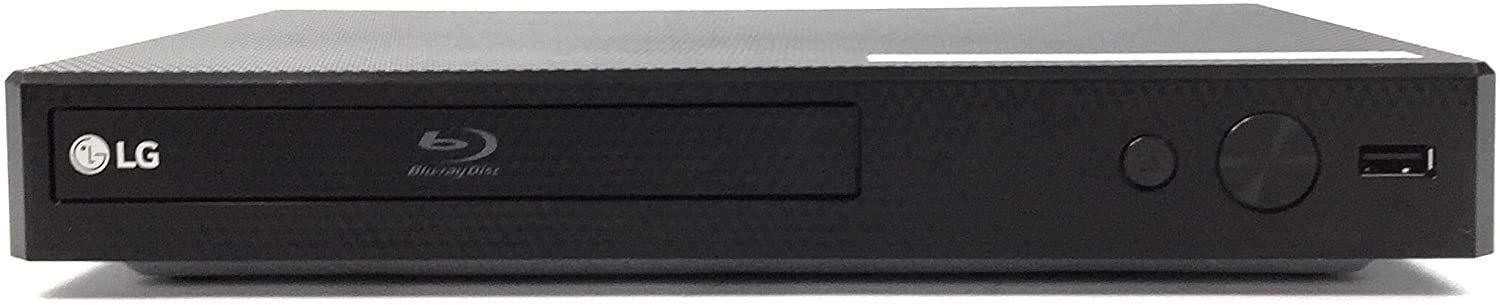
The LG BPM35/BP350 Blu-ray Disc Player offers high-definition entertainment with support for both Blu-ray and DVD formats. It features built-in Wi-Fi for streaming services and a front-mounted USB port for media playback. This player is designed for seamless integration with your home entertainment system, providing enhanced video and audio quality.
Key Features:
- Blu-ray & DVD Playback: Experience movies in Full HD 1080p with exceptional video and hi-definition sound. Supports DVD up-scaling to 1080p via HDMI.
- Built-In Wi-Fi: Easily connect to the internet for access to online content and streaming services without the need for additional cables.
- USB Connectivity: A front-mounted USB port allows for convenient connection of devices to share and play content.
- SMART HI-FI-Compatible: Connects to LG Smart Hi-Fi compatible devices via Wi-Fi to stream audio from CDs or USB to LG Music Flow Speakers.
- Included Accessories: Comes with a power adapter, remote control, and HDMI cable for immediate setup.
2. Setup Guide
Follow these steps to set up your LG Blu-ray Disc Player:
- Unpack: Carefully remove all components from the packaging. Ensure you have the Blu-ray player, power adapter, remote control, and HDMI cable.
- Placement: Place the Blu-ray player on a stable, flat surface near your television. Ensure adequate ventilation around the unit.
- Connect to TV (HDMI): Connect one end of the provided HDMI cable to the "HDMI OUT TO TV" port on the back of the Blu-ray player. Connect the other end to an available HDMI input port on your television. Note the HDMI input number on your TV for later selection.
- Power Connection: Connect the power adapter to the DC IN port on the back of the Blu-ray player, then plug the adapter into a wall outlet.
- Initial Power On: Press the Power button on the front of the player or on the remote control to turn on the unit.
- TV Input Selection: Using your TV's remote control, select the HDMI input that corresponds to the port where you connected the Blu-ray player.
- Wi-Fi Setup: Once the player is on and connected to your TV, navigate to the network settings menu to connect to your home Wi-Fi network. Follow the on-screen prompts to select your network and enter the password.
3. Operating Instructions
Disc Playback:
- Insert Disc: Press the "OPEN/CLOSE" button on the remote control or the player's front panel to open the disc tray. Place a Blu-ray disc or DVD onto the tray with the label side facing up. Press "OPEN/CLOSE" again to close the tray.
- Playback: The player will automatically detect the disc and begin playback or display the disc menu. Use the remote control's navigation buttons and "ENTER" to make selections.
- Stop/Pause: Use the "STOP" or "PAUSE" buttons on the remote control to manage playback.
USB Media Playback:
- Connect USB Device: Insert a USB storage device (e.g., USB flash drive) into the USB port on the front of the player.
- Access Media: The player should automatically detect the USB device and prompt you to select the type of media (photos, music, videos) you wish to play. Navigate through the files using the remote control.
Streaming Services:
After connecting to Wi-Fi, access available streaming applications from the player's home menu. Select your desired service and log in with your account credentials to begin streaming content.
LG Music Flow Support:
If you have LG Music Flow compatible speakers, you can use the player to send audio from CDs or USB devices to these speakers via your Wi-Fi network. Refer to your LG Music Flow speaker manual for specific pairing instructions.
4. Maintenance
Proper maintenance ensures the longevity and optimal performance of your Blu-ray Disc Player:
- Cleaning the Unit: Use a soft, dry cloth to wipe the exterior of the player. Avoid using liquid cleaners or abrasive materials, as they can damage the finish.
- Disc Care: Handle discs by their edges to prevent fingerprints and scratches. Store discs in their cases when not in use. Clean dirty discs with a soft, lint-free cloth, wiping from the center outwards.
- Ventilation: Ensure the player's ventilation openings are not blocked to prevent overheating.
- Power Off When Not in Use: For extended periods of inactivity, it is recommended to power off the player.
5. Troubleshooting
If you encounter issues with your Blu-ray Disc Player, refer to the following common solutions:
- No Power:
- Check if the power adapter is securely connected to both the player and the wall outlet.
- Ensure the wall outlet is functioning by plugging in another device.
- No Picture/Sound:
- Verify the HDMI cable is securely connected to both the player and the TV.
- Ensure your TV is set to the correct HDMI input source.
- Try a different HDMI cable or TV input port.
- Disc Not Playing/Reading:
- Check if the disc is inserted correctly with the label side up.
- Inspect the disc for scratches, smudges, or damage. Clean the disc if necessary.
- Ensure the disc format (Blu-ray or DVD) is supported by the player.
- Remote Control Not Responding:
- Replace the batteries in the remote control.
- Ensure there are no obstructions between the remote and the player's IR sensor.
- Point the remote directly at the player.
- Wi-Fi Connection Issues:
- Restart your home router and the Blu-ray player.
- Ensure the player is within range of your Wi-Fi router.
- Re-enter your Wi-Fi password in the player's network settings.
6. Specifications
| Feature | Detail |
|---|---|
| Brand | LG |
| Model Name | BP350 |
| Model Number | BPM35/BP350 |
| Media Type | Blu-Ray Disc, DVD |
| Special Feature | Wireless |
| Resolution | 1920x1080 (1080p) |
| Connectivity Technology | HDMI, USB, Wi-Fi |
| Connector Type | HDMI |
| Color | Black |
| Item Weight | 2 Pounds |
| Audio Output Mode | Dolby TrueHD, DTS Surround |
| Supported Audio Format | Dolby TrueHD, DTS |
| Surround Sound Channel Configuration | 5.1 |
| Total Number of HDMI Ports | 1 |
| Video Encoding | H.264, MPEG4 AVC, SMPTE VC1, MKV, AVC Rec, AVCHD, MPEG-1, VOB, TS, DAT, DTS |
| Compatible Devices | Television |
| Analog Video Format | NTSC |
| Video Output Resolution | 1080p |
| Controller Type | Remote Control |
| File Format | MP3, MP4 |
| Built-In Media | Blu-ray |
| UPC | 300384830003 |
7. Warranty and Support
This LG BPM35/BP350 Blu-ray Disc Player comes with a 90-day limited warranty. For technical support, service, or warranty claims, please refer to the contact information provided in your product packaging or visit the official LG support website.