
Introduction
This manual provides instructions for the installation, operation, and maintenance of your Swann SRDVR-44580V 4 Channel Digital Video Recorder. This DVR is designed to work with select Swann cameras, offering 1080p Full HD recording capabilities, HDMI and VGA outputs, and remote access via the HomeSafe View App. Please read this manual thoroughly before operating the device.
Package Contents
Verify that all items listed below are included in your package:
- Swann SRDVR-44580V 4 Channel Digital Video Recorder
- Power Adapter
- HDMI Cable
- Ethernet Cable
- USB Mouse
- Theft Deterrent Stickers

Image 1: Contents of the Swann SRDVR-44580V package, including the DVR unit, power adapter, HDMI cable, Ethernet cable, USB mouse, and theft deterrent stickers.
Device Overview
Front Panel
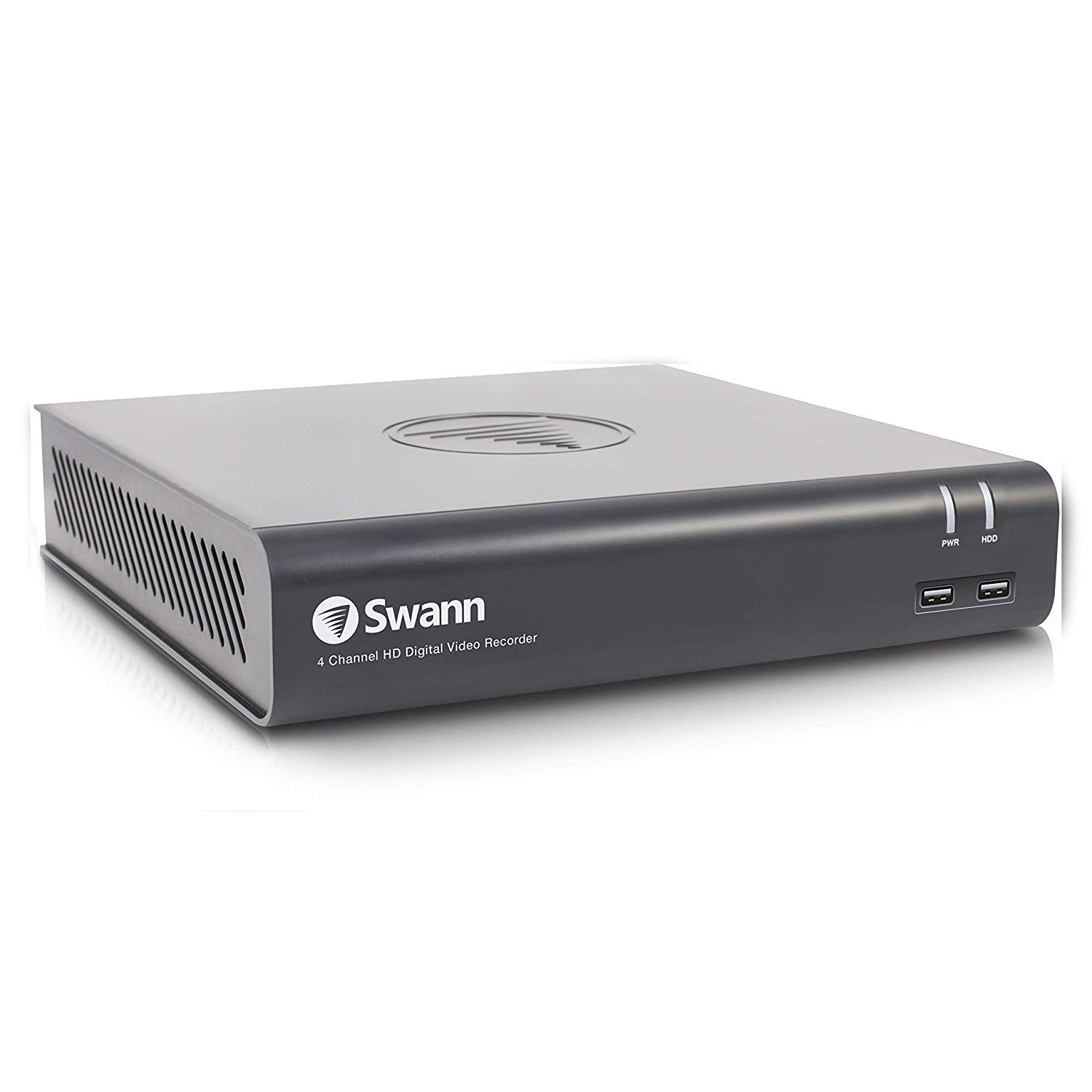
Image 2: Front view of the Swann SRDVR-44580V Digital Video Recorder, showing the Swann logo, '4 Channel HD Digital Video Recorder' text, PWR and HDD indicator lights, and two front USB ports.
The front panel features indicator lights for power (PWR) and hard disk drive activity (HDD). Two USB 2.0 ports are conveniently located on the front for connecting a mouse or USB storage devices.
Rear Panel
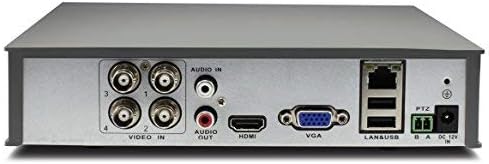
Image 3: Rear view of the Swann SRDVR-44580V Digital Video Recorder, displaying various input and output ports including Video In (BNC), Audio In/Out (RCA), HDMI, VGA, LAN, USB, PTZ, and Power Input.
The rear panel provides all necessary connections for your security system:
- Video In (BNC): Four ports for connecting compatible security cameras.
- Audio In/Out (RCA): For connecting audio input devices (e.g., microphone) and audio output to a speaker or monitor.
- HDMI Output: For connecting to a high-definition monitor or TV.
- VGA Output: For connecting to a standard computer monitor.
- LAN Port (RJ45): For network connection to enable remote viewing and internet access.
- USB Ports: Additional USB ports for peripherals.
- PTZ Port: For connecting Pan-Tilt-Zoom cameras.
- Power Input: For connecting the DC 12V power adapter.
Setup
Follow these steps to set up your Swann SRDVR-44580V:
- Connect Cameras: Connect your compatible Swann security cameras to the BNC 'Video In' ports on the rear panel. Ensure connections are secure.
- Connect a Monitor: Use an HDMI cable to connect the DVR's HDMI output to your TV or monitor. Alternatively, use a VGA cable for VGA-compatible displays.
- Connect USB Mouse: Plug the included USB mouse into one of the USB ports on the front or rear of the DVR.
- Connect to Network (Optional for Remote Access): For remote viewing and network features, connect an Ethernet cable from the DVR's LAN port to your router or network switch.
- Connect Power: Connect the power adapter to the DVR's 'Power Input' port and then plug it into a power outlet. The DVR will power on automatically.
- Initial Configuration: Follow the on-screen prompts to complete the initial setup, including setting the date/time, creating a password, and configuring network settings.
Operating
Once set up, you can begin operating your DVR system:
- Live View: The DVR will display live video from connected cameras on your monitor. Use the mouse to navigate the on-screen menu.
- Recording: The DVR is pre-configured to record continuously or based on motion detection. You can customize recording schedules and settings via the main menu.
- Playback: To review recorded footage, access the 'Playback' function from the main menu. You can search by date, time, and event type.
- Remote Access (HomeSafe View App):
- Download the 'HomeSafe View' app from your mobile device's app store (iOS or Android).
- Open the app and follow the instructions to add your DVR using its unique ID or QR code.
- Once connected, you can view live camera feeds, play back recordings, and receive alerts from anywhere with an internet connection.
- Backup: You can back up important video footage to a USB flash drive connected to the DVR's USB port.
Maintenance
Regular maintenance ensures optimal performance and longevity of your DVR system:
- Hard Drive Management: The DVR's hard drive will automatically overwrite the oldest recordings when it becomes full. Regularly back up any critical footage to external storage.
- Cleaning: Keep the DVR unit clean and free from dust. Use a soft, dry cloth to wipe the exterior. Do not use liquid cleaners directly on the device. Ensure ventilation openings are not blocked.
- Firmware Updates: Periodically check the official Swann support website for available firmware updates. Updating the firmware can improve performance, add new features, and enhance security.
- Power Cycle: If the DVR experiences minor issues, try power cycling the unit by disconnecting the power adapter for a few seconds and then reconnecting it.
Troubleshooting
If you encounter issues with your DVR, refer to the following common troubleshooting steps:
- No Video Output on Monitor:
- Ensure the HDMI or VGA cable is securely connected to both the DVR and the monitor.
- Verify the monitor is powered on and set to the correct input source (HDMI/VGA).
- Check if the DVR's power indicator light is on.
- No Recording:
- Check the hard drive status in the DVR's menu to ensure it is detected and functioning correctly.
- Verify that recording schedules are properly configured and motion detection is enabled if desired.
- Ensure cameras are connected and displaying live video.
- Remote Access Not Working:
- Confirm the DVR is connected to your network via an Ethernet cable and has an active internet connection.
- Check your router settings to ensure the DVR is assigned an IP address and there are no firewall restrictions.
- Verify that the HomeSafe View app is correctly configured with the DVR's details.
- Camera Not Displaying Video:
- Check the BNC cable connection between the camera and the DVR.
- Ensure the camera is receiving power.
- Confirm the camera is compatible with the Swann SRDVR-44580V.
Specifications
| Model Number | SRDVR-44580V |
| Video Input | 4 Channels (BNC) |
| Video Outputs | 1 x HDMI, 1 x VGA |
| Recording Resolution | Up to 1080p (supports resolutions up to 1920 x 1536 pixels) |
| Audio Input | 1 x RCA |
| Audio Output | 1 x RCA |
| Hard Drive | 1TB SATA HDD (supports up to 4TB) |
| Network Interface | 1 x RJ45 Ethernet Port |
| USB Interface | 2 x USB 2.0, 1 x USB 3.0 (Total 3 USB ports) |
| Dimensions (W x D x H) | 230mm x 210mm x 47mm (9.05" x 8.3" x 1.9") |
| Connectivity Technology | Wired |
| Compatible Devices | Select Swann Cameras |
Warranty Information
Swann products typically come with a limited warranty that covers defects in materials and workmanship. The specific terms and duration of the warranty may vary by region and product. For detailed warranty information, including coverage, exclusions, and how to make a claim, please refer to the official Swann website or the warranty card included with your purchase documentation.
Support
For further assistance, technical support, or to download the latest software, firmware, and comprehensive manuals, please visit the official Swann support website. You can also find FAQs and contact customer service for personalized help.
Official Swann Website: www.swann.com


