
1. Introduction
This manual provides detailed instructions for the installation, operation, and maintenance of your Dasaita 9-inch Android 10.0 Car Stereo. This unit is designed to enhance your driving experience with advanced features such as Android Auto, Apple CarPlay, GPS navigation, Bluetooth connectivity, and multimedia playback. Please read this manual thoroughly before using the product to ensure proper functionality and safety.
For optimal performance and to prevent damage, it is recommended to have the unit installed by a qualified professional.
2. Setup and Installation
2.1 Package Contents
Verify that all components are present in the package before proceeding with installation. The standard package includes the main head unit, various cables, and antennas.

Figure 2.1: Contents of the Dasaita Car Stereo Package. This image displays the main head unit, along with various accessories including audio cables, USB cables, antennas for GPS and Wi-Fi, a microphone, power cable, and an AUX adapter, all essential for installation and operation.
2.2 Compatibility
This car stereo is specifically designed for Nissan Qashqai J10 models manufactured between 2008 and 2014.
2.3 Installation Overview
Installation typically involves removing the factory radio, connecting the new head unit using the provided wiring harnesses, and securing it in the dashboard. Ensure all connections are firm and correctly matched to avoid electrical issues or malfunction. Refer to your vehicle's specific wiring diagrams and consult a professional if you are unsure about any steps.

Figure 2.2: Before and After Installation. This image illustrates the visual transformation of the Nissan Qashqai J10 dashboard, showing the original factory radio compared to the sleek, integrated appearance of the Dasaita 9-inch Android car stereo once installed.
3. Operating Instructions
3.1 Basic Interface Navigation
The unit runs on Android 10.0, providing a familiar smartphone-like interface. Swipe left or right to access different home screens and app drawers. Tap icons to launch applications. Use the back button, home button, and recent apps button (if available on screen) for navigation.
3.2 Apple CarPlay and Android Auto
The unit supports both wired and wireless Apple CarPlay and Android Auto. To use these features:
- Ensure your smartphone's Bluetooth is enabled and connected to the car stereo.
- Launch the 'Zlink' application on the car stereo.
- Follow the on-screen prompts to connect your device. For wired connection, use a USB cable.
Once connected, you can access navigation, music, calls, and messages directly from the car stereo's display.
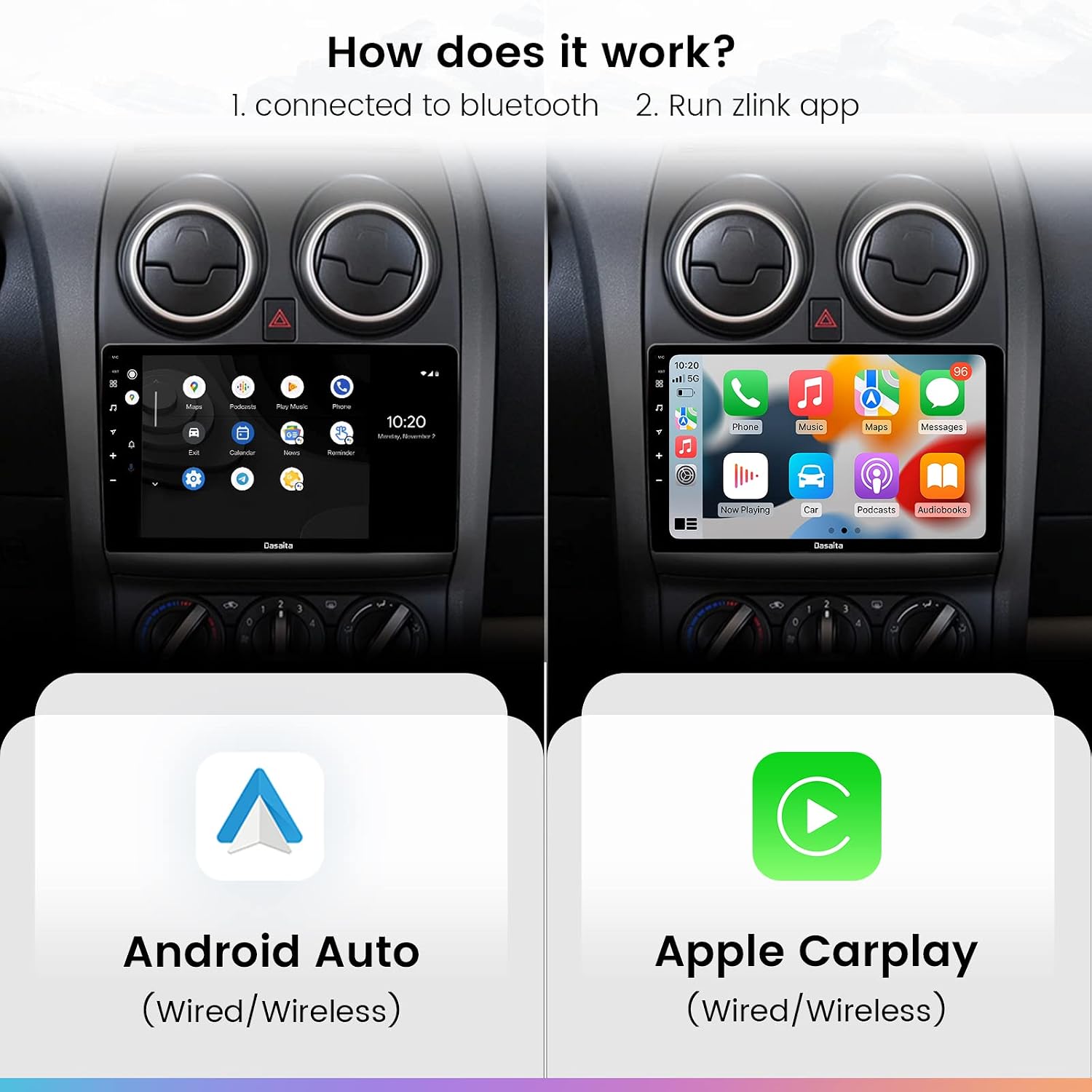
Figure 3.1: Android Auto and Apple CarPlay Interfaces. This image demonstrates the seamless integration of smartphone functionalities, showing the car stereo's native Android interface on the left and the familiar Apple CarPlay layout on the right, accessible after connecting a compatible device.
3.3 Multimedia Playback
The unit supports various multimedia functions:
- Music: Play audio files from USB, Bluetooth streaming, or online services.
- Video: Watch videos from USB or streaming apps.
- Radio: Tune into FM/AM radio stations.
- Phone Call: Make and receive calls via Bluetooth hands-free calling.

Figure 3.2: Multimedia Functions. This image displays the various entertainment and communication options available on the car stereo, including dedicated interfaces for music, video, radio, and hands-free phone calls.
3.4 Customization
You can personalize the unit's appearance by changing wallpapers and themes to match your vehicle's interior or personal preference. Access these options through the system settings.

Figure 3.3: Customizable Wallpaper and Themes. This image illustrates the personalization features of the car stereo, allowing users to select different wallpapers and user interface styles to suit their driving environment and preferences.
4. Maintenance
4.1 Cleaning the Unit
To clean the screen and exterior of the unit, use a soft, dry, lint-free cloth. For stubborn smudges, lightly dampen the cloth with water or a screen-safe cleaning solution. Avoid using harsh chemicals, abrasive materials, or excessive moisture, as these can damage the screen or internal components.
4.2 Software Updates
Periodically check for software updates provided by Dasaita to ensure optimal performance and access to new features. Updates can typically be downloaded via Wi-Fi. Caution: Exercise care when performing firmware or MCU updates. Incorrect procedures or incompatible updates may lead to system instability or loss of functionality. It is advisable to back up important data before any major software update.
5. Troubleshooting
If you encounter issues with your Dasaita car stereo, refer to the following common problems and solutions:
- No Power: Check all power connections and fuses. Ensure the vehicle's ignition is on.
- No Sound: Verify speaker connections. Check volume levels and audio settings. Ensure the mute function is not active.
- GPS Signal Loss: Ensure the GPS antenna is properly installed and has a clear view of the sky. Check GPS settings within the navigation application.
- Bluetooth Connection Issues: Ensure Bluetooth is enabled on both the stereo and your device. Try unpairing and re-pairing the devices.
- Touchscreen Unresponsive: Try restarting the unit. If the issue persists, a factory reset might be necessary (note: this will erase all user data).
For persistent issues not resolved by these steps, please contact customer support.
6. Specifications
The Dasaita 9-inch Android 10.0 Car Stereo features advanced hardware for a responsive and high-quality audio-visual experience.

Figure 6.1: HD IPS Screen and DSP Technology. This image highlights the superior display and audio processing capabilities of the car stereo, detailing the sound and Bluetooth chips, and showcasing the vibrant visual quality of the IPS screen.
| Feature | Specification |
|---|---|
| Model Number (ASIN) | B07T3L4FBD |
| Operating System | Android 10.0 |
| Processor | Rockchip PX6 64-bit (Quad-Core 1.4G + Dual-Core 1.8G CPU) |
| RAM | 4GB |
| Internal Storage (ROM) | 64GB |
| Screen Size | 9 inches |
| Audio Encoding | Stereo |
| Number of Channels | 4 |
| Output Power | 50 Watts per channel (Total 200 Watts) |
| Item Weight | 3 Kilograms |
| UPC / GTIN | 606462550796 |
7. Warranty Information
Dasaita products are covered by a manufacturer's warranty against defects in materials and workmanship. The specific terms and duration of the warranty may vary by region and purchase date. Please retain your proof of purchase for warranty claims. For detailed warranty information, refer to the documentation included with your product or visit the official Dasaita website.
8. Customer Support
If you require further assistance, technical support, or have questions regarding your Dasaita car stereo, please contact Dasaita customer service. Contact information can typically be found on the official Dasaita website or through your point of purchase. When contacting support, please have your product model number (B07T3L4FBD) and purchase details readily available.


