
1. Introduction
This manual provides essential information for setting up, operating, maintaining, and troubleshooting your ASUS ZenBook 14 Laptop, model UX434FL-DB77. Please read this guide thoroughly to ensure proper use and to maximize the performance and longevity of your device.
Package Contents
Upon unpacking your ASUS ZenBook 14, verify that all items listed below are present and in good condition:
- UX434FL-DB77 ZenBook Laptop
- Carry Sleeve
- USB 3.0 to RJ45 Cable
- Power Adapter & Cord
- User Guide (this document)
- Warranty Card

Image: The ASUS ZenBook 14 is designed for durability, having passed military-grade MIL-STD 810G multiple tests, including drop, low temperature, and altitude simulations.
2. Setup
2.1 Initial Power-On
- Unpack the laptop and all accessories from the box.
- Connect the power adapter to the laptop's DC-IN port and then plug it into a power outlet.
- Open the laptop lid. The system may automatically power on, or you may need to press the power button located on the top-right of the keyboard.
- Follow the on-screen instructions to complete the initial Windows 10 Pro setup, including language selection, network connection, and user account creation.
2.2 Identifying Ports
Familiarize yourself with the various ports on your ZenBook 14 for connecting external devices.
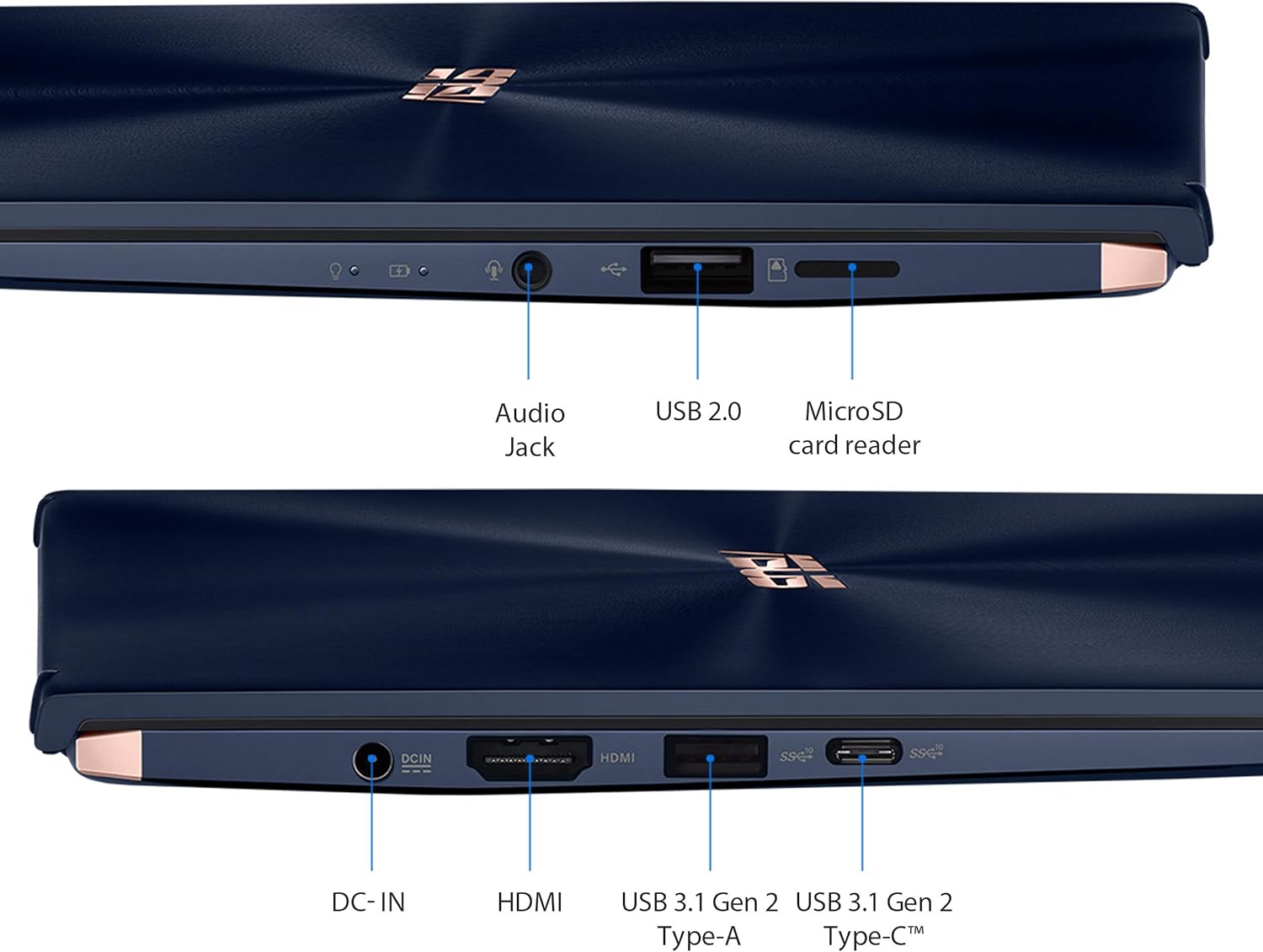
Image: Detailed view of the left and right side ports on the ASUS ZenBook 14. The left side includes an Audio Jack, USB 2.0 port, and a MicroSD card reader. The right side features the DC-IN power input, HDMI port, a USB 3.1 Gen 2 Type-A port, and a USB 3.1 Gen 2 Type-C port.
3. Operating the ZenBook 14
3.1 Keyboard Functions
The keyboard provides standard typing functionality. Many keys also have secondary functions accessible by holding the Fn key and pressing the desired function key (F1-F12) or other designated keys. These functions often control screen brightness, volume, Wi-Fi, and more.
3.2 ScreenPad 2.0
The ScreenPad 2.0 is an interactive secondary touchscreen integrated into the touchpad, designed to enhance productivity and multitasking. It functions as a regular touchpad when not actively used for ScreenPad features.
3.2.1 ScreenPad Features Overview
The ScreenPad 2.0 offers a variety of utility apps and functions:
- App Switcher: Easily move docked windows between your main display and the ScreenPad display.
- Handwriting: Take notes or jot down ideas by writing directly on the ScreenPad.
- Number Key: Transform the ScreenPad into a numeric keypad for efficient data entry.
- Quick Key: Automate complex keyboard sequences with a single tap.
- Doc Xpert, Slide Xpert, Sheet Xpert: ASUS utility apps designed to boost productivity within Microsoft Office applications.
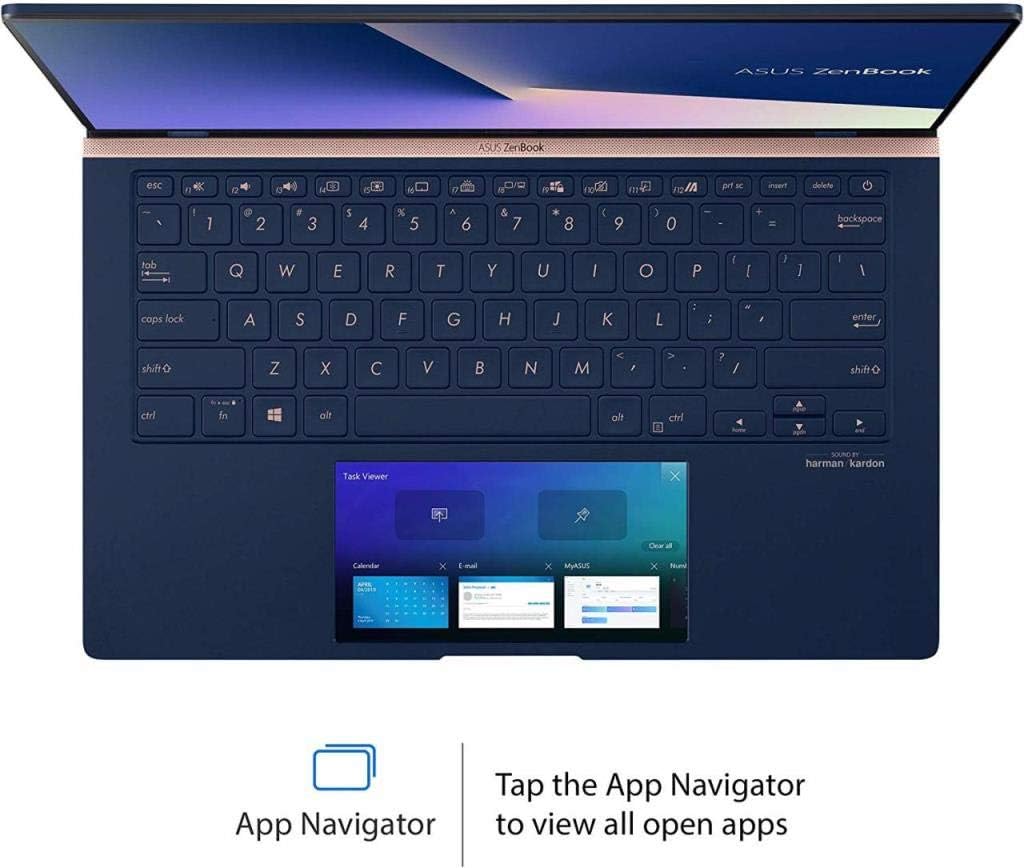
Image: The ScreenPad 2.0 showing the App Navigator interface, allowing users to view and manage all open applications directly from the secondary screen.

Image: The Handwriting feature on ScreenPad 2.0, demonstrating how users can write notes or ideas directly on the touchpad, which then converts to text.
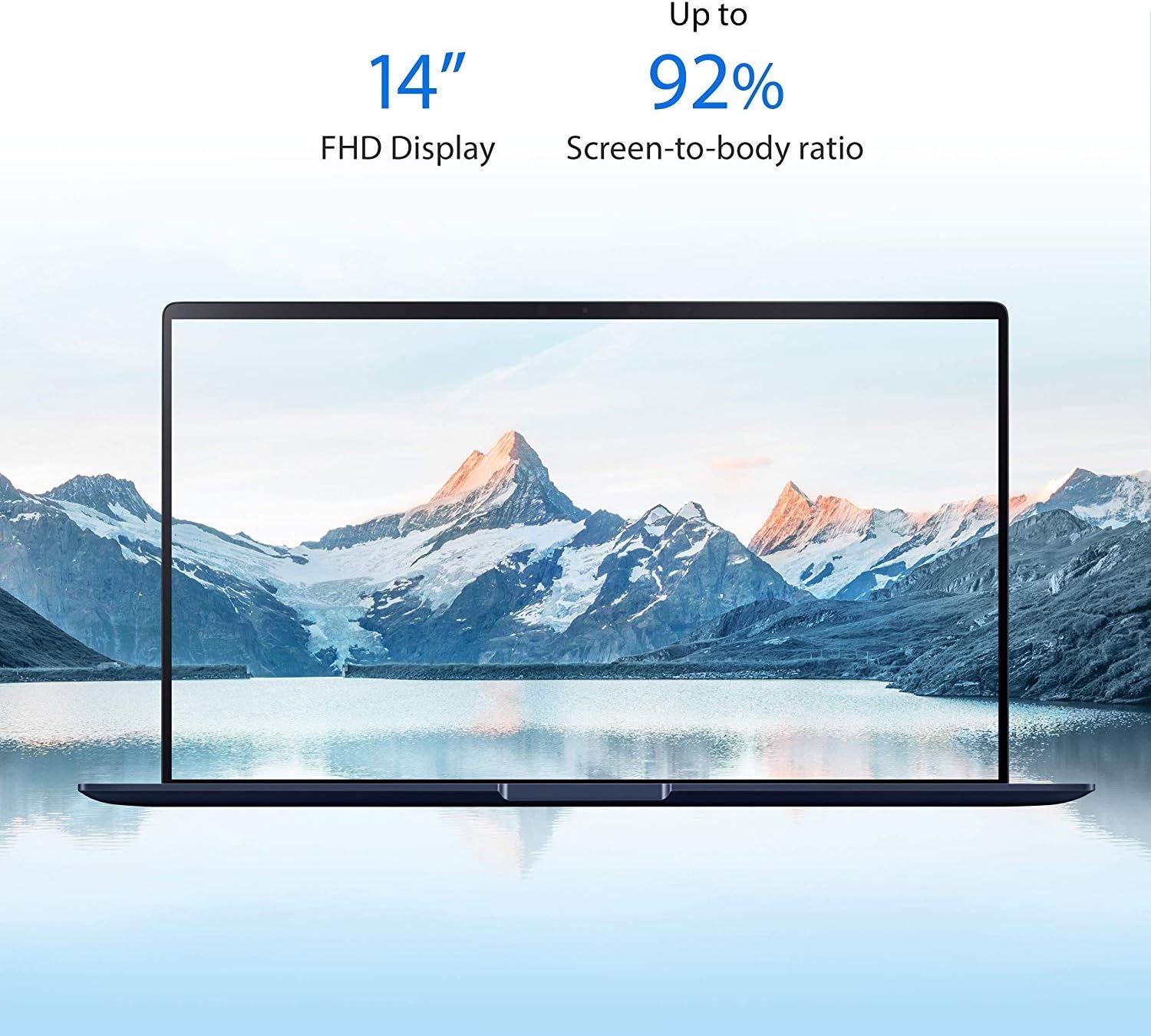
Image: The Slide Xpert utility on ScreenPad 2.0, providing quick access to common Microsoft Office functions and formatting tools for presentations.
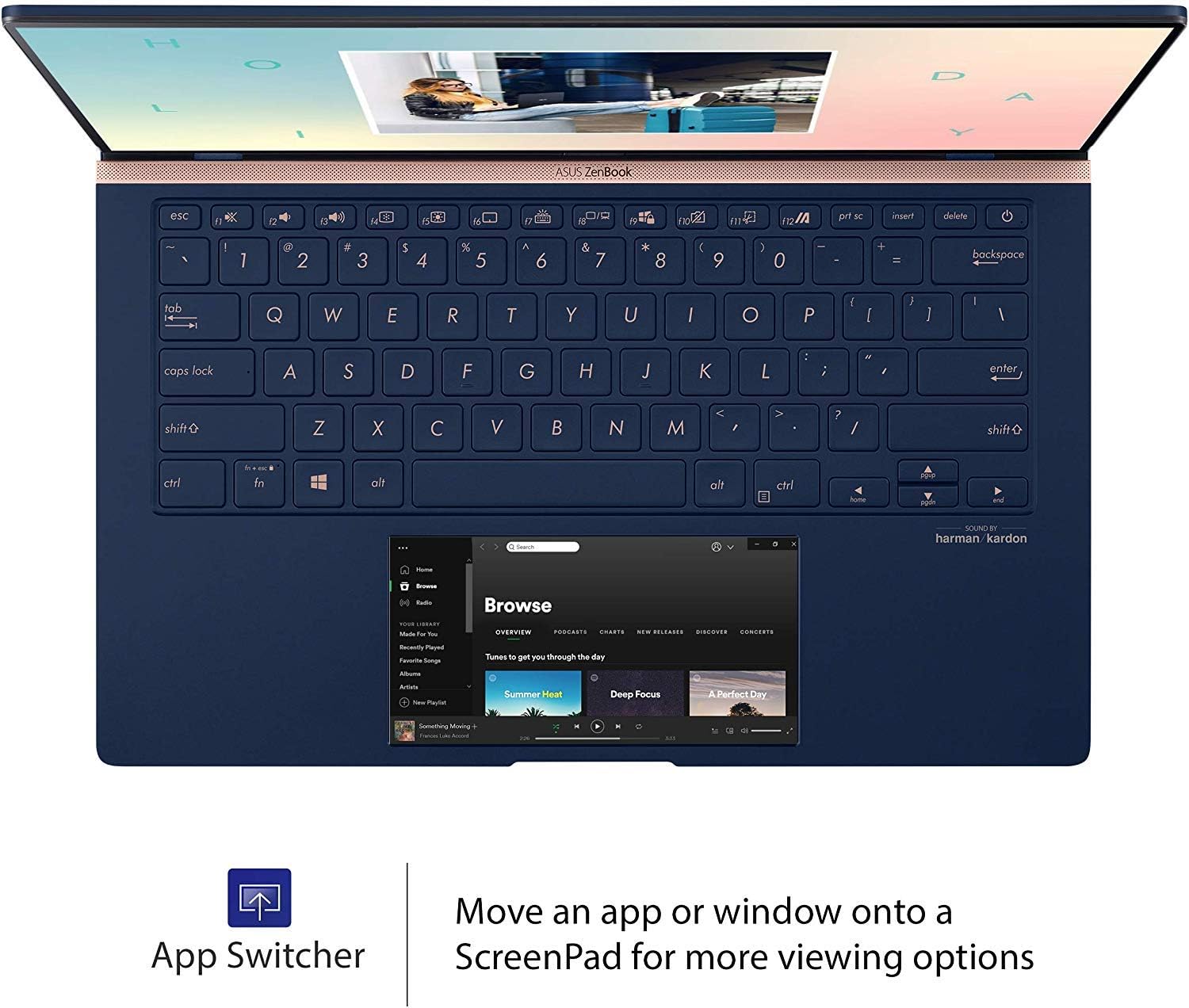
Image: The App Switcher feature on ScreenPad 2.0, illustrating how users can seamlessly move applications or windows between the main display and the ScreenPad for enhanced multitasking.
3.2.2 ScreenPad Video Demonstration
Video: An official product video from ASUS Computers demonstrating the features and capabilities of the ZenBook 13/14/15 series, including the innovative ScreenPad 2.0.
4. Maintenance
4.1 Cleaning Your Laptop
- Screen: Use a soft, lint-free cloth slightly dampened with water or a screen-specific cleaning solution. Avoid harsh chemicals.
- Chassis and Keyboard: Wipe with a soft, dry cloth. For stubborn dirt, a slightly damp cloth can be used. Avoid getting moisture into ports or vents.
- Vents: Use compressed air to clear dust from the cooling vents periodically to ensure optimal airflow.
4.2 Battery Care
- Avoid fully discharging the battery frequently.
- Store the laptop in a cool, dry place if not used for extended periods.
- For optimal battery health, avoid exposing the laptop to extreme temperatures.
4.3 Software Updates
Regularly check for and install operating system updates (Windows Update) and ASUS driver/utility updates (via MyASUS app or ASUS support website) to ensure system stability, security, and performance.
5. Troubleshooting
This section addresses common issues you might encounter with your ZenBook 14.
5.1 Power Issues
- Laptop does not turn on: Ensure the power adapter is securely connected to both the laptop and a working power outlet. Check if the power adapter's indicator light is on. Try pressing and holding the power button for 15-20 seconds to perform a hard reset.
- Battery not charging: Verify the power adapter and cable are not damaged. Ensure the DC-IN port is clean. If the issue persists, contact ASUS support.
5.2 Display and ScreenPad Issues
- Blank screen: Connect an external monitor to check if the main display is faulty. Try adjusting screen brightness using keyboard function keys.
- ScreenPad not responding: Ensure ScreenPad is enabled. Try restarting the laptop. Check for ScreenPad driver updates via the MyASUS app or ASUS support website.
5.3 General Performance Issues
- Slow performance: Close unnecessary applications. Check for malware. Ensure sufficient free storage space.
- Overheating: Ensure cooling vents are clear of obstructions. Use the laptop on a hard, flat surface.
6. Specifications
Below are the key technical specifications for the ASUS ZenBook 14 UX434FL-DB77.
| Feature | Specification |
|---|---|
| Brand | ASUS |
| Series | ZenBook 14 UX434FL |
| Model Number | UX434FL-DB77 |
| Screen Size | 14 Inches |
| Screen Resolution | 1920 x 1080 pixels (Full HD) |
| Processor | Intel Core i7-8565U (4.6 GHz) |
| RAM | 16 GB LPDDR3 |
| Hard Drive | 512 GB PCIe SSD |
| Graphics Coprocessor | NVIDIA GeForce MX250 (2 GB GDDR5) |
| Operating System | Windows 10 Pro |
| Wireless Type | 802.11ac |
| USB Ports | 1x USB 2.0, 2x USB 3.0 (USB 3.1 Gen 2 Type-A, USB 3.1 Gen 2 Type-C) |
| HDMI Port | Yes |
| MicroSD Card Reader | Yes |
| Audio Jack | Yes |
| Average Battery Life | Up to 14 Hours |
| Item Weight | 3.3 pounds |
| Product Dimensions | 12.7 x 8.3 x 0.6 inches |
| Color | Royal Blue |
7. Warranty Information
Your ASUS ZenBook 14 UX434FL-DB77 comes with a limited warranty. Please refer to the included Warranty Card in your package for detailed terms, conditions, and coverage period. Keep your proof of purchase for warranty claims.
8. Support
For further assistance, technical support, or service inquiries, please contact ASUS customer support through the following channels:
- ASUS Official Website: Visit www.asus.com/support/ for drivers, manuals, FAQs, and contact information specific to your region.
- MyASUS Application: The pre-installed MyASUS application provides system diagnostics, software updates, and direct access to ASUS customer service.