
1. Introduction
Thank you for choosing the Pinell Supersound 701. This portable analog and digital radio offers a wide range of listening options, including DAB+, FM, Internet Radio, Spotify Connect, and Bluetooth connectivity. This manual provides essential information for setting up, operating, and maintaining your device to ensure optimal performance and longevity.
2. Safety Information
- Power Supply: Use only the provided power adapter. Ensure the voltage matches your local power supply.
- Water and Moisture: Do not expose the device to water, rain, or excessive moisture. Avoid placing liquid-filled objects on the radio.
- Ventilation: Ensure adequate ventilation around the unit. Do not block ventilation openings.
- Heat: Keep the device away from heat sources such as radiators, heat registers, stoves, or other apparatus that produce heat.
- Cleaning: Disconnect from power before cleaning. Use a soft, dry cloth. Do not use liquid cleaners or aerosol cleaners.
- Servicing: Do not attempt to service this product yourself. Refer all servicing to qualified service personnel.
3. Package Contents
Verify that all items are present in the package:
- Pinell Supersound 701 Radio Unit
- Power Adapter
- Quick Start Guide
- Remote Control
- Battery Pack (pre-installed or separate)
4. Product Overview
The Pinell Supersound 701 features an integrated display and intuitive controls for easy navigation. The front panel includes the display, control buttons, and integrated speakers. The rear panel typically houses power input, AUX input, and headphone output.
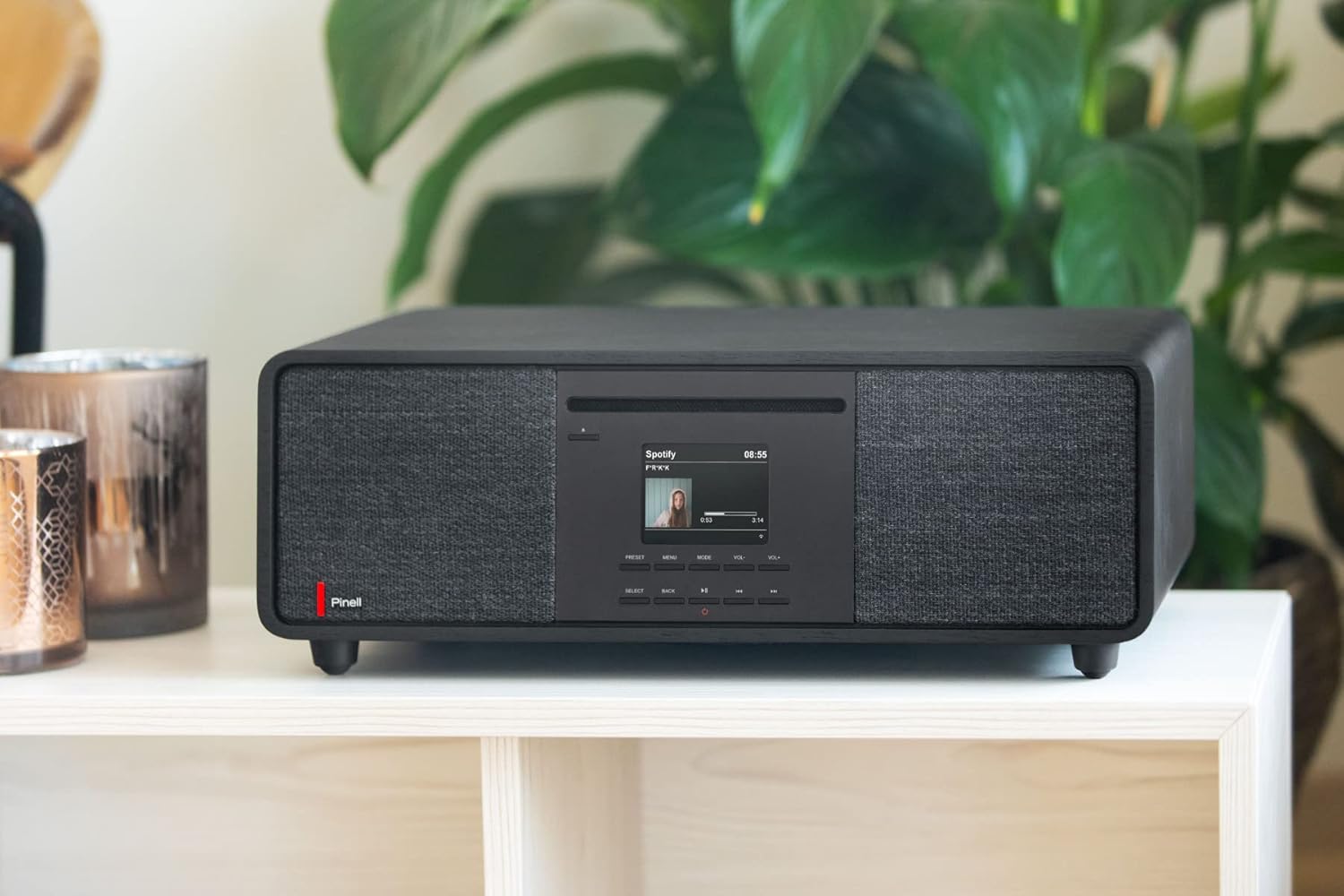
Image 1: Front view of the Pinell Supersound 701 radio, showcasing its design and integrated speakers.
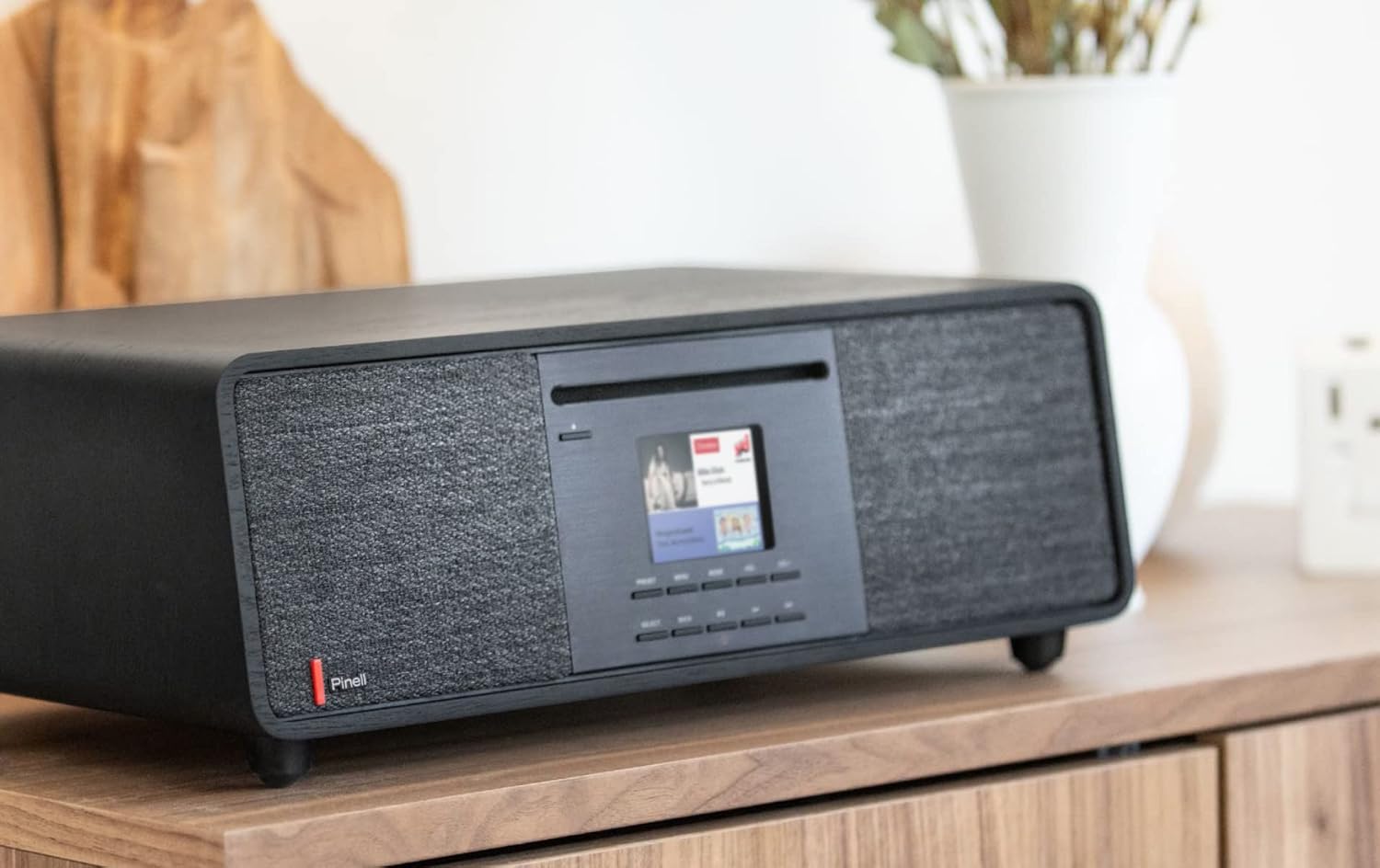
Image 2: Side view of the Pinell Supersound 701, highlighting its compact form factor.
4.1 Controls and Display
The central display provides visual feedback for navigation, station information, and settings. Below the display are various buttons for power, mode selection, navigation, and volume control.
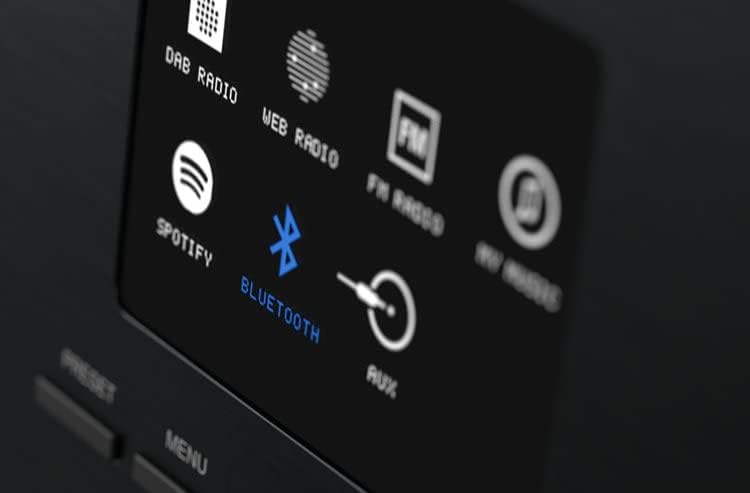
Image 3: Close-up of the radio's display, illustrating available input sources such as DAB Radio, Web Radio, FM Radio, Spotify, Bluetooth, and AUX.
- Power Button: Turns the unit on/off or puts it into standby.
- Mode Button: Cycles through available audio sources (DAB+, FM, Internet Radio, Bluetooth, AUX).
- Navigation Buttons: Up, Down, Left, Right arrows for menu navigation.
- Select/OK Button: Confirms selections.
- Volume Control: Adjusts the audio output level.
- Preset Buttons: For saving and recalling favorite stations.
- Menu Button: Accesses system settings and options.
5. Setup
5.1 Power Connection
- Connect the power adapter to the DC input port on the back of the radio.
- Plug the power adapter into a wall outlet.
- Press the Power button to turn on the radio.
5.2 Initial Setup Wizard
Upon first power-on, the radio will guide you through an initial setup wizard:
- Language Selection: Use the navigation buttons to select your preferred language and press Select.
- Time/Date Setting: Choose to set the time manually or automatically via network/DAB signal.
- Network Configuration: Proceed to Wi-Fi setup.
5.3 Wi-Fi Network Connection
To access Internet Radio and Spotify Connect, a Wi-Fi connection is required.
- During the initial setup or via the Menu > Settings > Network menu, select 'Wi-Fi Network'.
- The radio will scan for available networks. Select your network from the list.
- Enter your Wi-Fi password using the navigation buttons and Select button.
- Once connected, the radio will display a confirmation message.
5.4 Bluetooth Pairing
Connect your smartphone or other Bluetooth-enabled device to the radio.
- Press the Mode button until 'Bluetooth' is selected on the display. The radio will enter pairing mode.
- On your Bluetooth device, enable Bluetooth and search for available devices.
- Select 'Pinell Supersound 701' from the list of devices.
- Once paired, the radio will confirm the connection, and you can stream audio from your device.
6. Operation
6.1 Radio Modes
- DAB+ Radio: Press the Mode button to select DAB+. The radio will scan for available digital stations. Use navigation buttons to browse and select stations.
- FM Radio: Press the Mode button to select FM. Use navigation buttons to tune to stations or perform an auto-scan.
- Internet Radio: Press the Mode button to select Internet Radio. Browse stations by location, genre, or search for specific stations. A stable Wi-Fi connection is required.
6.2 Spotify Connect
The Pinell Supersound 701 supports Spotify Connect, allowing you to control music playback directly from the Spotify app on your smartphone or tablet.
- Ensure your radio is connected to the same Wi-Fi network as your smartphone/tablet.
- Open the Spotify app on your device.
- Play a song and tap the 'Devices Available' icon (usually a speaker or computer icon).
- Select 'Pinell Supersound 701' from the list of devices.
- The music will now play through your radio, controlled by the Spotify app.

Image 4: The Pinell Supersound 701 radio connected to a smartphone via Spotify Connect, demonstrating seamless music streaming.
6.3 AUX Input
Connect external audio devices using a 3.5mm audio cable to the AUX input port on the radio.
- Connect one end of a 3.5mm audio cable to your external device (e.g., MP3 player, laptop).
- Connect the other end to the AUX input port on the radio.
- Press the Mode button to select 'AUX'.
- Playback will be controlled from your external device.
6.4 Using Presets
Save your favorite stations for quick access.
- Tune to the desired station (DAB+, FM, or Internet Radio).
- Press and hold a Preset button (e.g., 1-5) until the display confirms the station has been saved.
- To recall a saved station, simply press the corresponding Preset button briefly.
6.5 Volume and Navigation
- Volume: Use the dedicated volume control buttons to increase or decrease the sound level.
- Navigation: Use the Up/Down/Left/Right buttons to scroll through menus, lists, or adjust settings. The Select/OK button confirms your choice.
6.6 Remote Control
The included remote control provides convenient access to all functions from a distance. Refer to the Quick Start Guide for a diagram of the remote control buttons.
7. Maintenance
7.1 Cleaning
To clean the radio, ensure it is powered off and unplugged from the wall outlet. Use a soft, dry, lint-free cloth to wipe the surfaces. Do not use abrasive cleaners, waxes, or solvents as they may damage the finish.
7.2 Battery Care
The Pinell Supersound 701 includes a battery pack for portable use. To maximize battery life:
- Avoid fully discharging the battery frequently.
- Store the radio in a cool, dry place if not used for extended periods.
- Recharge the battery periodically if stored for a long time to prevent deep discharge.
8. Troubleshooting
- No Power: Ensure the power adapter is securely connected to both the radio and a working wall outlet. Check if the power button is pressed.
- No Sound: Check the volume level. Ensure the correct audio source (DAB+, FM, Internet Radio, Bluetooth, AUX) is selected. If using external devices, check their volume and connections.
- Poor Radio Reception: For FM/DAB+, ensure the antenna is fully extended and positioned for best reception. For Internet Radio, check your Wi-Fi connection strength.
- Wi-Fi Connection Issues: Verify your Wi-Fi password. Ensure the radio is within range of your router. Try restarting your router and the radio.
- Bluetooth Pairing Failure: Ensure the radio is in Bluetooth mode and discoverable. Make sure no other device is currently connected to the radio via Bluetooth. Try restarting both the radio and your Bluetooth device.
- Remote Control Not Working: Check the battery in the remote control. Ensure there are no obstructions between the remote and the radio's sensor.
9. Specifications
| Brand | Pinell |
| Model | Supersound 701 (Model Number: 7090011022071) |
| Color | Black |
| Tuner Type | Analog and Digital |
| Supported Radio Bands | DAB+, FM |
| Connectivity Technology | Bluetooth (v4.0), Wi-Fi (802.11b, 802.11g, Wi-Fi 4 (802.11n)) |
| Internet Radio Services | Spotify Connect |
| Audio Inputs | AUX Input (3.5mm) |
| Audio Outputs | Headphone Output (1) |
| Integrated Speakers | Yes (2 speakers) |
| Display Type | LCD |
| Power Source | Battery Powered, AC Adapter |
| Material | Aluminium, Wood |
| Dimensions (W x D x H) | 405 mm x 245 mm x 143 mm |
10. Warranty and Support
Pinell products are designed for reliability and performance. For warranty information, please refer to the warranty card included in your product packaging or visit the official Pinell website. For technical support or service inquiries, please contact Pinell customer service through their official channels.


