
1. Product Overview
The Epson Expression Home XP-4100 is a versatile all-in-one printer designed for home and small office use, offering printing, scanning, and copying capabilities. Its compact design and wireless connectivity make it a convenient solution for everyday document and photo needs.
Key features include automatic two-sided printing, a 2.4-inch color LCD for intuitive control, and support for printing directly from mobile devices. The printer utilizes individual ink cartridges, allowing you to replace only the color that runs out, which can be more economical.
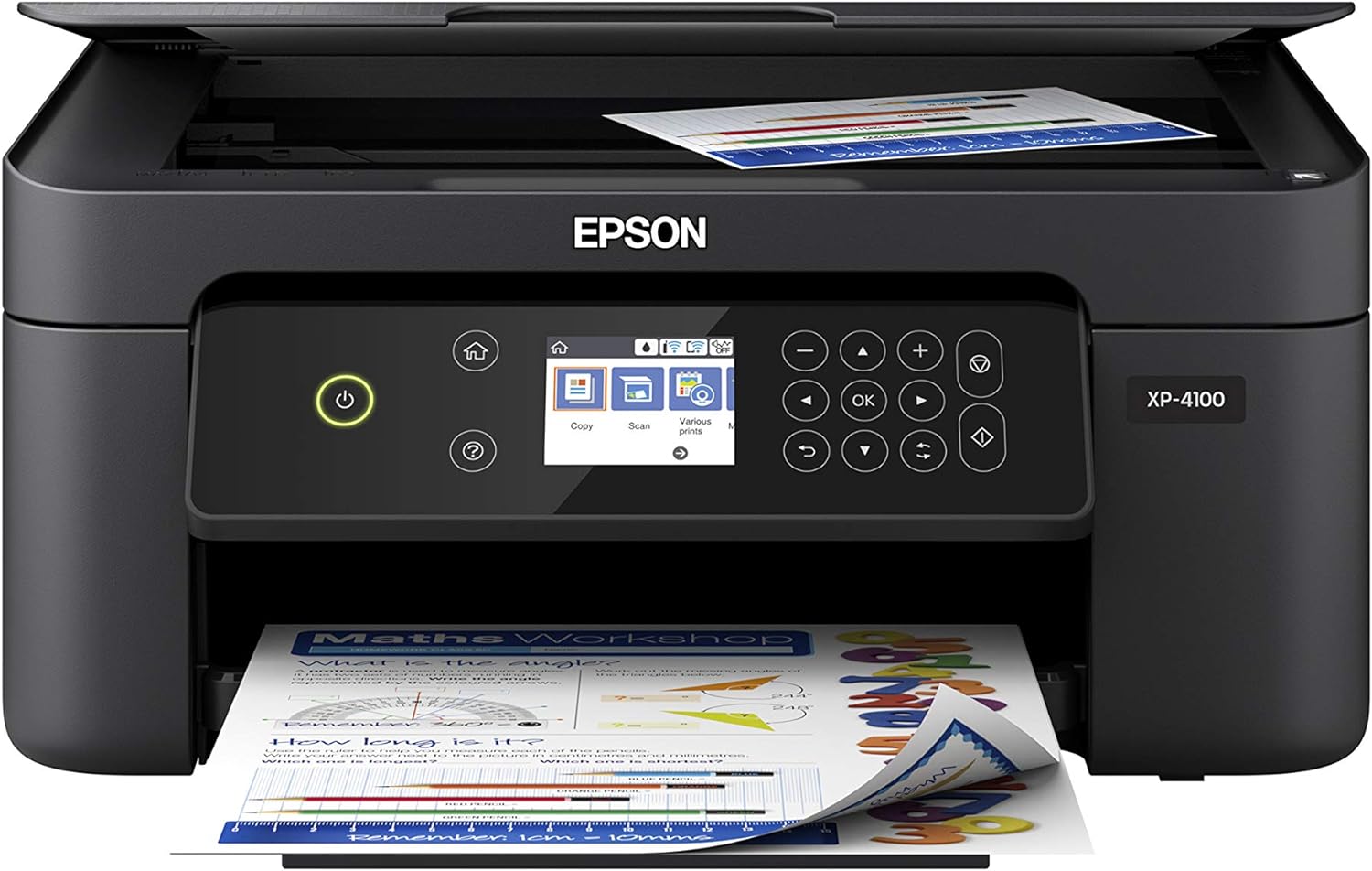
Figure 1.1: Front view of the Epson Expression Home XP-4100 printer, showcasing its compact design and user-friendly control panel.
Features at a Glance:
- Wireless connectivity (Wi-Fi and Wi-Fi Direct)
- Print, Scan, and Copy functions
- Automatic 2-sided printing
- 2.4-inch Color LCD for easy navigation
- Individual ink cartridges (Epson Claria Ink)
- Voice-activated printing support
- 100-sheet paper capacity
- Compact, space-saving design
2. Setup Guide
Follow these steps to set up your Epson Expression Home XP-4100 printer.
2.1 Unpacking and Initial Setup
- Carefully remove the printer from its packaging.
- Remove all protective tapes and packing materials from the exterior and interior of the printer.
- Connect the power cord to the printer and then to a power outlet. Do not connect to your computer yet.
- Turn on the printer using the power button.
- Follow the on-screen instructions on the 2.4-inch color LCD to select your language and region.

Figure 2.1: The contents typically found in the box, including the printer, initial ink cartridges, power cord, and setup documentation.
2.2 Installing Ink Cartridges
- Open the printer cover to access the ink cartridge area.
- Unpack the individual Claria Ink cartridges.
- Insert each cartridge into its corresponding color slot until it clicks into place.
- Close the printer cover. The printer will begin initializing the ink system.
Important: This printer is designed to work only with genuine Epson brand cartridges. Other brands of ink cartridges and ink supplies are not compatible and may not function properly or at all.
2.3 Loading Paper
- Pull out the paper cassette tray.
- Load up to 100 sheets of plain paper (or other supported media) into the tray, print side down.
- Adjust the paper guides to fit the paper size.
- Slide the paper cassette tray back into the printer.
2.4 Connecting to a Network (Wireless)
The XP-4100 offers a complete wireless solution, including Wi-Fi Direct.
- On the printer's LCD screen, navigate to the Wi-Fi setup menu.
- Select your wireless network (SSID) from the list.
- Enter your network password (WPA2 key) using the on-screen keyboard.
- Confirm the connection.
- For mobile printing, download the Epson iPrint app on your iPad, iPhone, Android tablet, or smartphone.
3. Operating Instructions
This section covers the basic operations of your Epson Expression Home XP-4100.
3.1 Printing Documents and Photos
You can print from a computer, smartphone, or tablet. The printer supports automatic 2-sided printing to save paper.
- From a Computer: Ensure the printer drivers are installed. Select the XP-4100 from your application's print dialog, adjust settings (e.g., paper size, quality, 2-sided printing), and click Print.
- From a Mobile Device: Use the Epson iPrint app or other compatible printing services (e.g., Apple AirPrint, Mopria Print Service) to select documents or photos and send them to the printer.
- Voice-Activated Printing: With compatible voice assistants and Epson Connect account registration, you can issue commands like "Print my shopping list" for hands-free printing.
3.2 Copying Documents
The XP-4100 allows for quick and easy copying directly from the control panel.
- Place the original document face-down on the scanner glass.
- On the printer's LCD, select the "Copy" option.
- Adjust settings such as number of copies, paper type, or quality if needed.
- Press the Start button to begin copying.
3.3 Scanning Documents and Photos
You can scan documents and photos to your computer or to cloud services.
- Place the original document face-down on the scanner glass.
- On the printer's LCD, select the "Scan" option.
- Choose your scan destination (e.g., computer, cloud service).
- Adjust scan settings like resolution or color mode.
- Press the Start button to begin scanning.
Bonus software is included to automatically scan to the cloud, requiring an Internet connection, a free Epson Connect account, and a destination email address or cloud storage account.
4. Maintenance
Regular maintenance ensures optimal performance and longevity of your printer.
4.1 Replacing Ink Cartridges
The Epson XP-4100 uses individual ink cartridges. Replace only the cartridge that runs out.
- When an ink cartridge is low or empty, a message will appear on the LCD screen.
- Open the printer cover. The print head will move to the replacement position.
- Press the tab on the empty cartridge and lift it out.
- Unpack a new genuine Epson ink cartridge and gently shake it a few times.
- Insert the new cartridge into the correct slot until it clicks into place.
- Close the printer cover. The printer will prepare the new ink cartridge for use.

Figure 4.1: Epson's commitment to quality and reliability through the use of genuine Epson inks.
4.2 Cleaning the Printer
Periodically clean the exterior of the printer with a soft, damp cloth. For print quality issues, perform a nozzle check and head cleaning from the printer's maintenance menu on the LCD screen or through the printer driver software on your computer.
5. Troubleshooting
This section provides solutions to common issues you might encounter.
5.1 Common Issues and Solutions
- Printer Not Responding:
- Check power connections.
- Verify wireless connection status on the printer's LCD and your device.
- Restart the printer and your computer/router.
- Poor Print Quality:
- Perform a nozzle check and head cleaning.
- Ensure genuine Epson ink cartridges are installed and not empty.
- Check paper type settings match the loaded paper.
- Paper Jams:
- Turn off the printer and carefully remove any jammed paper from the input tray, output tray, or rear access cover.
- Ensure paper is loaded correctly and not over the maximum capacity.
- Firmware Updates: Epson periodically provides firmware updates to address security, performance, and bug fixes. These updates are designed to ensure the printer functions as designed with genuine Epson ink cartridges. Non-Epson branded or altered Epson cartridges that functioned prior to a firmware update may not continue to function.
6. Specifications
| Feature | Specification |
|---|---|
| Model Name | Epson Expression Home XP-4100 |
| Functions | Print, Scan, Copy |
| Printing Technology | Inkjet |
| Connectivity Technology | Wi-Fi |
| Maximum Print Speed (Black) | 10 ppm |
| Maximum Print Speed (Color) | 5 ppm |
| Maximum Print Resolution | 5760 x 1440 dpi |
| Automatic Duplex Printing | Yes |
| Scanner Type | Flatbed |
| Max Copy Speed (Black & White) | 10 ppm |
| Max Input Sheet Capacity | 100 sheets |
| Display Type | 2.4-inch Color LCD |
| Product Dimensions (DxWxH) | 5.75"D x 6.93"W x 2.99"H |
| Item Weight | 9.5 pounds |
| Power Consumption | 15 Watts (On-mode) |
| Included Components | Printer, instruction booklets, CD-ROM with drivers, power cord, 4 Claria Ink cartridges |
7. Warranty and Support
7.1 Product Warranty
The Epson Expression Home XP-4100 comes with a limited warranty. For specific details regarding the warranty period and coverage, please refer to the warranty documentation included with your product or visit the official Epson support website.
7.2 Customer Support
For technical assistance, troubleshooting, or to download the latest drivers and software, please visit the official Epson support website or contact Epson customer service. You can also refer to the comprehensive User Manual (PDF) for more detailed information.