
BOAVISION 1080P WiFi PTZ Camera
BOAVISION 1080P WiFi PTZ Security Camera User Manual
Model: 1080P WiFi PTZ Camera
Introduction
This manual provides detailed instructions for the installation, operation, and maintenance of your BOAVISION 1080P WiFi PTZ Security Camera. Please read this manual thoroughly before using the product to ensure proper functionality and safety.
Packing List
Verify that all items are present in the package:
- BOAVISION WiFi PTZ IP Camera
- Network Cable
- Quick Start Manual
- Power Supply
- Screws Bag (for mounting)
- Waterproof Port Kit
- Installation CD

Image: Contents of the BOAVISION PTZ Camera package, including the camera, network cable, power supply, mounting screws, waterproof port, and manual.
Setup and Installation
1. Power Connection
Connect the provided power adapter to the camera's power input port and then plug it into a power outlet. The camera will initiate its startup sequence.
2. Network Connection
The camera supports 2.4GHz Wi-Fi connectivity. Ensure your Wi-Fi network is 2.4GHz, as 5GHz networks are not supported. For initial setup or a stable connection, you may use the provided network cable to connect the camera directly to your router.
3. App Installation and Pairing
Download the "CamHiPro" application from the Google Play Store (for Android devices) or the Apple App Store (for iOS devices). The camera is also compatible with PC (Mac OS, Windows) software available on the included CD or for download.
- Install the CamHiPro app on your smartphone or tablet.
- Open the app and follow the on-screen instructions to add your camera. This typically involves scanning a QR code on the camera or manually entering its ID.
- Configure Wi-Fi settings within the app if connecting wirelessly.

Image: The CamHiPro app interface shown on various devices, including smartphones, tablets, and computers, highlighting multi-platform compatibility.
4. Physical Mounting
The camera is designed for outdoor wall mounting. Use the provided screws and waterproof port kit to secure the camera in your desired location. Ensure the mounting surface is stable and can support the camera's weight.

Image: A BOAVISION PTZ camera mounted, illustrating its 355-degree pan and 90-degree tilt capabilities, controlled via a mobile application.
Operating Instructions
Pan/Tilt and Optical Zoom
Control the camera's movement and zoom directly from the CamHiPro app. The camera offers 355 degrees of horizontal pan and 90 degrees of vertical tilt, providing a wide 328-foot view. The 5x optical zoom allows for detailed observation without loss of image quality.

Image: Comparison showing a scene at 1X optical zoom versus 5X optical zoom, demonstrating the camera's ability to magnify distant objects clearly.
HD Color Night Vision
The camera features 1080P resolution and is equipped with 6 array infrared LEDs and 2 white supplement lights, enabling clear color night vision up to 196 feet. You can switch between normal (infrared), smart, and full-color night vision modes via the app.
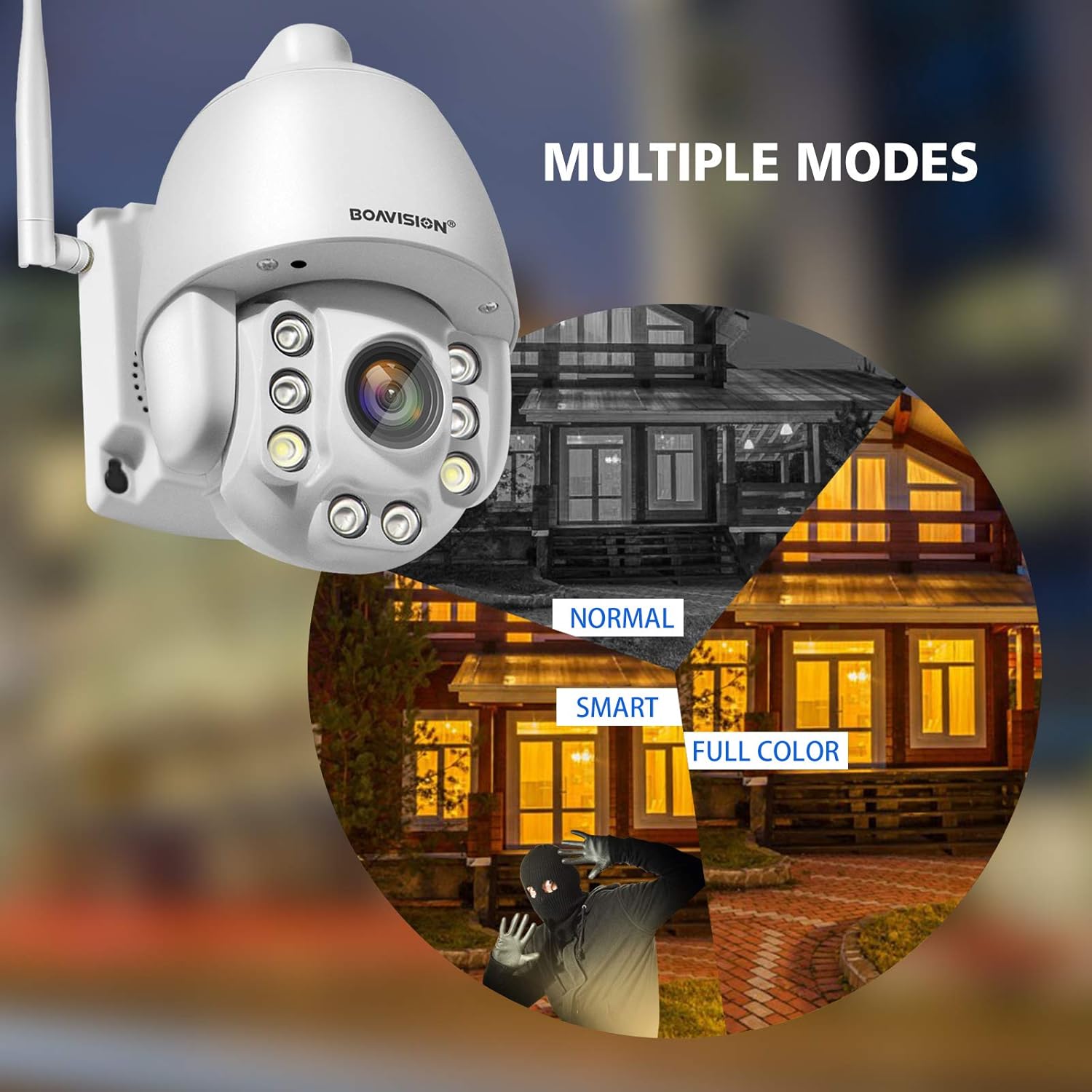
Image: Illustrates the three night vision modes: Normal (infrared black and white), Smart (activates white light upon motion), and Full Color (constant white light for color video at night).
Two-Way Audio
Utilize the built-in microphone and speaker for two-way communication. The anti-noise technology ensures clear audio. This feature allows you to speak with visitors or deter intruders remotely through the app.

Image: A delivery person at a door, with speech bubbles indicating two-way audio communication between the person and someone viewing through the camera app on a smartphone.
Motion Detection and Alerts
Configure motion detection zones and sensitivity within the CamHiPro app. Upon detecting motion, the camera can send push notifications to your phone or email alerts, providing real-time security updates.

Image: Depicts a person triggering motion detection at night, with the camera's spotlight activating and an alert shown on a smartphone screen.
Storage
The camera supports local storage via a TF card slot (microSD card, not included). Ensure the card is inserted correctly for continuous recording or event-triggered recording. Cloud storage options may also be available through the app.
Maintenance
- Cleaning: Regularly clean the camera lens with a soft, dry cloth to ensure clear image quality. Do not use harsh chemicals.
- Firmware Updates: Check the CamHiPro app periodically for firmware updates to ensure optimal performance and security.
- Power Supply: Ensure the power supply is securely connected and free from damage.
- Waterproofing: Verify that all connections, especially the waterproof port, are sealed correctly to maintain the IP66 weather resistance.
Troubleshooting
- Camera not connecting to Wi-Fi:
- Ensure your Wi-Fi network is 2.4GHz. The camera does not support 5GHz Wi-Fi.
- Verify the Wi-Fi password is correct.
- Place the camera closer to the Wi-Fi router to improve signal strength.
- Restart the camera and your router.
- Try connecting via Ethernet cable for initial setup.
- No image or poor image quality:
- Check power connection.
- Clean the camera lens.
- Ensure sufficient lighting for optimal image quality, especially at night.
- Verify network stability and bandwidth.
- Motion detection alerts not received:
- Check app notification settings on your phone and within the CamHiPro app.
- Ensure motion detection is enabled and sensitivity is adjusted correctly.
- Verify the camera has a stable internet connection.
- Two-way audio issues:
- Ensure microphone and speaker permissions are granted to the CamHiPro app.
- Check volume settings on your device and within the app.
- Minimize background noise for clearer communication.
Specifications
| Model | 1080P WiFi PTZ Camera |
| Resolution | 1080p (1920x1080) |
| Optical Zoom | 5x |
| Pan/Tilt Range | Pan: 355 degrees, Tilt: 90 degrees |
| Night Vision Range | Up to 196 feet (60 meters) |
| Night Vision Type | HD Color Night Vision (Infrared, Smart, Full Color modes) |
| Audio | Two-Way Audio with Anti-Noise Technology |
| Connectivity | 2.4GHz Wi-Fi (IEEE 802.11b/g/n), Ethernet |
| Storage | TF Card Slot (MicroSD, up to 128GB, not included) |
| Compatibility | iOS, Android, Mac OS, Windows (via CamHiPro app/software) |
| Power Source | AC/DC Adapter |
| Weather Resistance | IP66 (Dustproof and Waterproof) |
| Dimensions (L x W x H) | 6.89 x 4.53 x 4.33 inches |
| Weight | 1.76 pounds |
| Mounting Type | Wall Mount |
| Video Capture Format | MPEG-4 |
Warranty Information
Specific warranty details are typically provided with your purchase documentation or on the manufacturer's official website. Please refer to these resources for information regarding warranty duration and terms.
Customer Support
For technical assistance, troubleshooting not covered in this manual, or further inquiries, please contact BOAVISION customer support. Refer to the contact information provided in your product packaging or on the official BOAVISION website.
You can also visit the BOAVISION Store on Amazon for additional product information and resources.
Related documents1080P WiFi PTZ Camera


Ask a question about this manual
Ask about setup, troubleshooting, compatibility, parts, safety, or missing instructions. Manuals+ will review the question and use this page’s manual context to help answer it.