Introduction
Thank you for choosing the Cooler Master MasterFan SF360R ARGB 360mm Triple Set Chassis Fans. This product is designed to provide efficient cooling and vibrant addressable RGB lighting for your PC chassis or liquid cooling radiators. This manual provides detailed instructions for installation, operation, maintenance, and troubleshooting to ensure optimal performance and longevity of your fans.

Image: Top view of the Cooler Master MasterFan SF360R ARGB 360mm Triple Set Chassis Fans, showcasing the vibrant addressable RGB lighting in multiple colors.
Safety Information
- Always disconnect power from your PC before installation or maintenance.
- Handle components with care to avoid damage.
- Ensure proper grounding to prevent electrical hazards.
- Keep out of reach of children.
- Do not attempt to modify the product. Unauthorized modifications may void your warranty and pose safety risks.
Package Contents
Verify that all items are present in your package:
- Cooler Master MasterFan SF360R ARGB 360mm Triple Set Chassis Fans (1 unit)
- Addressable RGB Controller (1 unit)
- Mounting Screws (12 units)
- User Manual (this document)
Setup and Installation
1. Physical Installation
- Prepare your PC: Power off your computer and disconnect it from the power source. Open your PC case.
- Identify mounting location: Determine where you will install the fan unit (e.g., front, top, rear of chassis, or on a liquid cooler radiator). The SF360R is designed for 360mm mounting points.
- Mount the fan unit: Align the fan unit with the screw holes on your chassis or radiator. Secure the fan unit using the provided mounting screws. Ensure a snug fit to prevent vibrations.

Image: Angled view of the Cooler Master MasterFan SF360R ARGB 360mm Triple Set Chassis Fans, showing the integrated frame and individual fan blades.
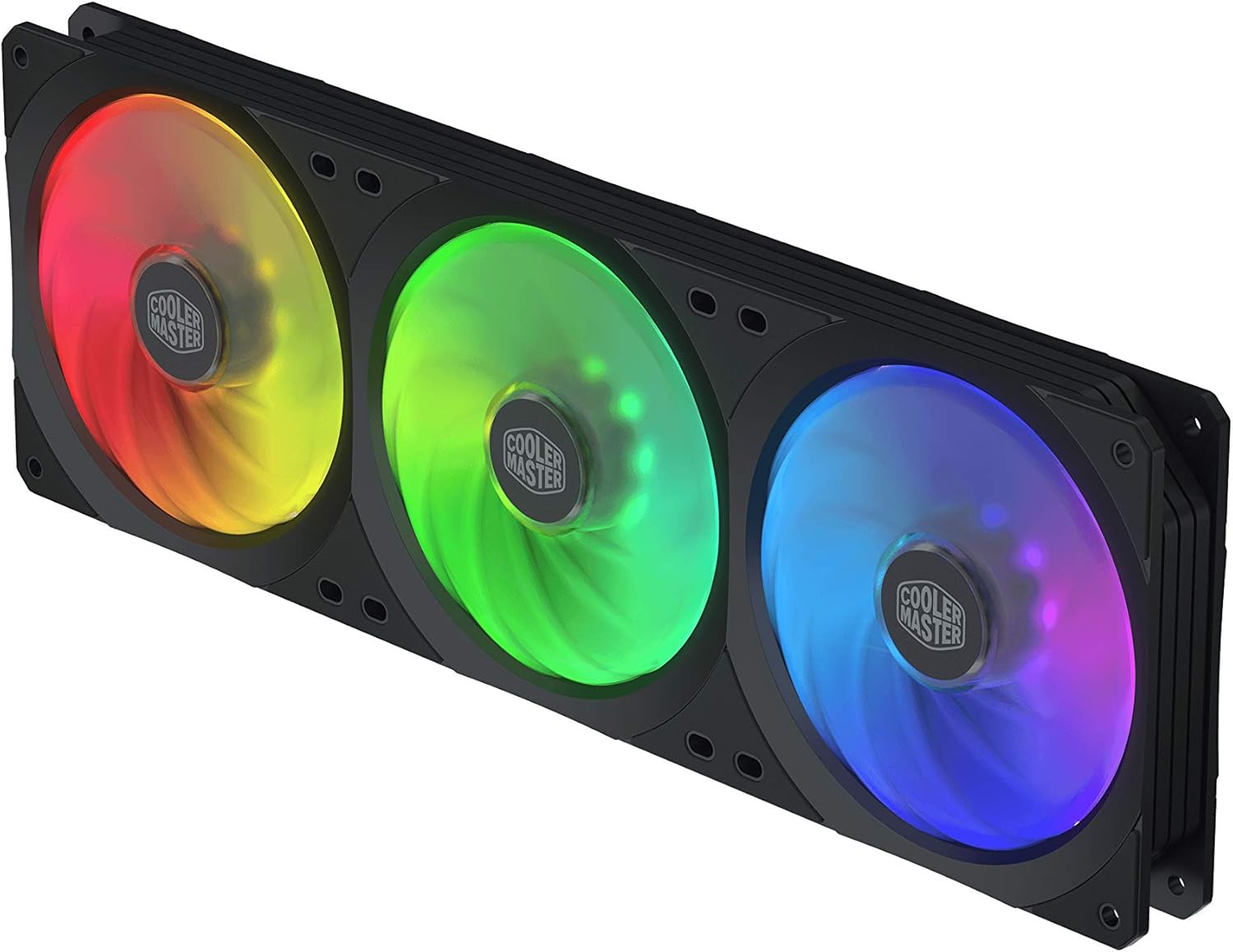
Image: Side view of the Cooler Master MasterFan SF360R ARGB 360mm Triple Set Chassis Fans, illustrating its slim profile and mounting points.
2. Wiring Connections
The SF360R features an integrated design, simplifying wiring with a single PWM cable for fan power and a single ARGB cable for lighting.
- Connect PWM Cable: Locate the 4-pin PWM fan connector on the SF360R unit. Connect this cable to an available 4-pin fan header on your motherboard (e.g., "CPU_FAN", "SYS_FAN"). If using a fan hub, connect it to the appropriate fan hub port.
- Connect ARGB Cable:
- Option A: Motherboard ARGB Header: If your motherboard has a 3-pin 5V Addressable RGB header (often labeled "ARGB", "D_RGB", or "VDG"), connect the SF360R's ARGB cable directly to it. Ensure the arrow on the connector aligns with the +5V pin on the motherboard header. Do not connect to a 12V RGB header, as this will damage the LEDs.
- Option B: Included ARGB Controller: If your motherboard lacks an ARGB header, or if you prefer to use the included controller, connect the SF360R's ARGB cable to the controller. Then, connect the controller to a SATA power connector from your power supply for power.
3. Controller Setup (if applicable)
If you are using the included Addressable RGB Controller:
- Connect the ARGB cable from the SF360R to the controller.
- Connect the controller to a SATA power connector from your power supply.
- The controller typically has buttons to cycle through various lighting modes, colors, and effects. Refer to the controller's specific instructions for detailed operation.
- The controller may also support connection to your case's lighting RESET button for easy mode switching.
Operating Instructions
Fan Speed Control (PWM)
The SF360R fans utilize Pulse Width Modulation (PWM) for precise speed control.
- BIOS/UEFI Settings: Access your motherboard's BIOS/UEFI settings during PC startup. Navigate to the fan control section to set custom fan curves based on temperature sensors (e.g., CPU, system).
- Motherboard Software: Many motherboard manufacturers provide software utilities (e.g., ASUS AI Suite, MSI Dragon Center, GIGABYTE SIV) that allow for fan speed control directly from your operating system.
Addressable RGB Lighting Control
The ARGB lighting can be controlled in two primary ways:
- Motherboard Software Sync: If connected to a compatible motherboard ARGB header, you can control the lighting effects using your motherboard's RGB software (e.g., ASUS Aura Sync, ASRock Polychrome Sync, MSI Mystic Light Sync). This allows for synchronization with other ARGB components.
- Included ARGB Controller: If using the standalone controller, use its physical buttons to cycle through preset lighting modes, colors, and effects.
Maintenance
Regular maintenance ensures optimal performance and extends the lifespan of your fans.
- Cleaning: Periodically clean the fan blades and frame to remove dust buildup. Use compressed air or a soft, dry cloth. Ensure the fans are powered off and stationary before cleaning. Do not use liquid cleaners directly on the fans or electrical components.
- Inspection: Check fan cables for any signs of wear or damage. Ensure all connections are secure.
- Jam Protection: The SF360R features a smart fan sensor for jam protection. While this helps prevent damage from obstructions, it is still recommended to ensure no cables or foreign objects interfere with the fan blades.
Troubleshooting
| Problem | Possible Cause | Solution |
|---|---|---|
| Fans not spinning |
|
|
| ARGB lighting not working |
|
|
| Fans are too loud |
|
|
Specifications
| Feature | Detail |
|---|---|
| Model Number | MFX-B2D3-18NPA-R1 |
| Dimensions (L x W x H) | 0.98 x 14.17 x 4.72 inches |
| Fan Size | 360mm (Triple 120mm fans integrated) |
| Maximum Rotational Speed | 2500 RPM |
| Power Connector | 4-Pin PWM |
| Rated Voltage | 12 Volts |
| Power Consumption | 6.48 Watts |
| LED Type | Addressable RGB (5V 3-pin compatible) |
| Material | Copper |
| Compatible Devices | Desktop PCs |
Warranty and Support
Cooler Master products come with a limited warranty. For detailed warranty information, please visit the official Cooler Master website or contact your local Cooler Master customer support.
For technical assistance, product inquiries, or to report issues, please visit the Cooler Master support portal: www.coolermaster.com/support/


