
1. Product Overview
The Epson Workforce WF-2830 is a versatile all-in-one printer designed for home office use, offering print, scan, copy, and fax functionalities. It features wireless connectivity, automatic 2-sided printing, and a color display for easy navigation.

Figure 1: Front view of the Epson Workforce WF-2830 All-in-One Printer with paper loaded in the output tray and auto document feeder.
What's in the Box:
- WorkForce WF-2830 printer
- Instruction booklets
- CD-ROM with drivers
- Power cord
- 4 Claria Ink cartridges (1x Black, 1x Cyan, 1x Magenta, 1x Yellow)
2. Setup Guide
2.1 Physical Setup
Place the printer on a stable, flat surface. Ensure adequate space around the printer for ventilation and paper handling. Connect the power cord to the printer and then to a wall outlet.

Figure 2: Front view of the printer, showing the control panel and output tray.
2.2 Initial Ink Cartridge Installation
Open the printer cover to access the ink cartridge slots. Gently shake each ink cartridge before unwrapping. Insert each cartridge into its corresponding color slot (Black, Cyan, Magenta, Yellow) until it clicks into place. Close the printer cover.
2.3 Paper Loading
The WF-2830 features a rear paper feed. Extend the paper support and pull out the output tray. Load paper into the rear paper feed, adjusting the edge guides to fit the paper width. The printer supports various paper sizes including Letter, 4x6 inches, and 5x7 inches.
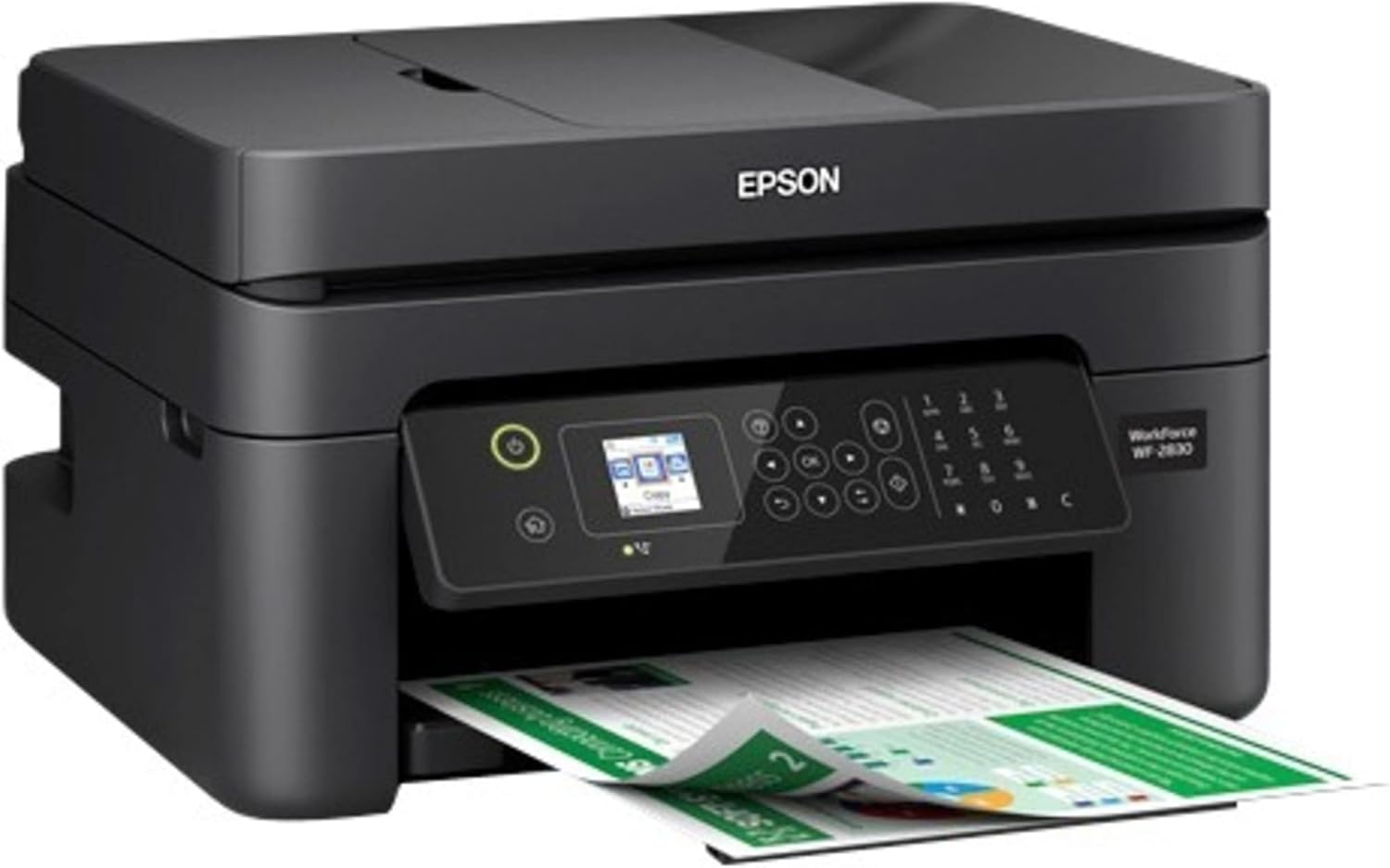
Figure 3: Side view of the printer demonstrating paper loaded in the rear feed and extending from the front output tray.
2.4 Connectivity
The printer supports Wi-Fi connectivity for easy wireless printing from various devices. It also has a USB hardware interface for direct connection to a computer.

Figure 4: Visual representation of wireless printing from a smartphone to the printer.
3. Operating Instructions
3.1 Control Panel Usage
The printer features a 1.4-inch color LCD display for effortless navigation. Use the directional buttons (up, down, left, right) and the OK button to select options. The home button returns to the main menu, and the power button turns the printer on/off.
3.2 Printing
Send print jobs wirelessly from your Android or iOS devices using the Epson Smart Panel app, or from your computer. The printer delivers professional-quality text and vibrant color graphics. Automatic 2-sided printing helps conserve paper.
3.3 Scanning
Place documents on the scanner glass or use the auto document feeder (ADF) for multiple pages. Utilize the included Epson ScanSmart scanning software to create searchable PDFs and more. The scanner type is sheetfed with a maximum input sheet capacity of 100 pages.

Figure 5: Top view of the printer with the scanner lid open, revealing the scanner glass.
3.4 Copying and Faxing
The WF-2830 functions as a copier and fax machine. Use the control panel to select copy or fax modes and adjust settings as needed.
4. Maintenance
4.1 Ink Cartridge Replacement
The printer uses individual ink cartridges (Epson Claria 212 Ink Cartridges), allowing you to replace only the color that runs out. Follow the on-screen instructions on the LCD display for step-by-step guidance during replacement. Ensure to use only Epson Genuine Cartridges to prevent damage not covered under warranty.
4.2 Printhead Cleaning
If print quality degrades (e.g., streaks, missing colors), perform a printhead cleaning cycle through the printer's maintenance settings on the control panel. Refer to the on-screen instructions for the procedure.
5. Troubleshooting
5.1 Ink Cartridge Not Recognized
If an ink cartridge is not recognized, first ensure it is an Epson Genuine Cartridge and is correctly seated in its slot. Try removing and reinserting the cartridge. If the issue persists, try restarting the printer. Some users have reported issues with non-genuine cartridges after software updates; ensure you are using authentic Epson products.
5.2 Scanner Error
If a scanner error (e.g., E-02, 100077) occurs, refer to the printer's documentation or the Epson support website for specific error code resolution. Often, turning the printer off and on can resolve temporary issues.
5.3 Paper Jams
If a paper jam occurs, carefully open all access covers and remove any jammed paper. Ensure paper is loaded correctly and not overfilled in the tray. Close all covers firmly before resuming operation.
6. Specifications
| Feature | Detail |
|---|---|
| Model Number | WF-2830 |
| Functions | Print, Copy, Scan, Fax |
| Printing Technology | Inkjet |
| Connectivity | Wi-Fi, USB |
| Max Print Resolution | 5760 x 1440 dpi (Color & B/W) |
| Max Print Speed (Color) | 5 ppm |
| Max Print Speed (Monochrome) | 10 ppm |
| Display Type | 1.4" Color LCD |
| Duplex Printing | Automatic (2-sided) |
| Max Input Sheet Capacity | 100 sheets |
| Item Weight | 11.5 pounds |
| Product Dimensions | 6.81"D x 7.2"W x 4.84"H |
| Power Consumption | 12 Watts (On-mode) |
7. Warranty and Support
The Epson Workforce WF-2830 comes with a Limited Warranty. For detailed warranty information, please refer to the official Epson website or the included documentation.
For additional support, including drivers, software, and troubleshooting guides, visit the Epson support website or consult the User Manual PDF provided with your product. You can also find a User Manual PDF here.


