Introduction
Thank you for choosing the BlueFire 4-in-1 Wireless Karaoke Microphone. This device combines a microphone, speaker, loudspeaker, and recorder into a single portable unit, designed for versatile audio entertainment. This manual provides essential information for the safe and effective use of your microphone, including setup, operation, maintenance, and troubleshooting.
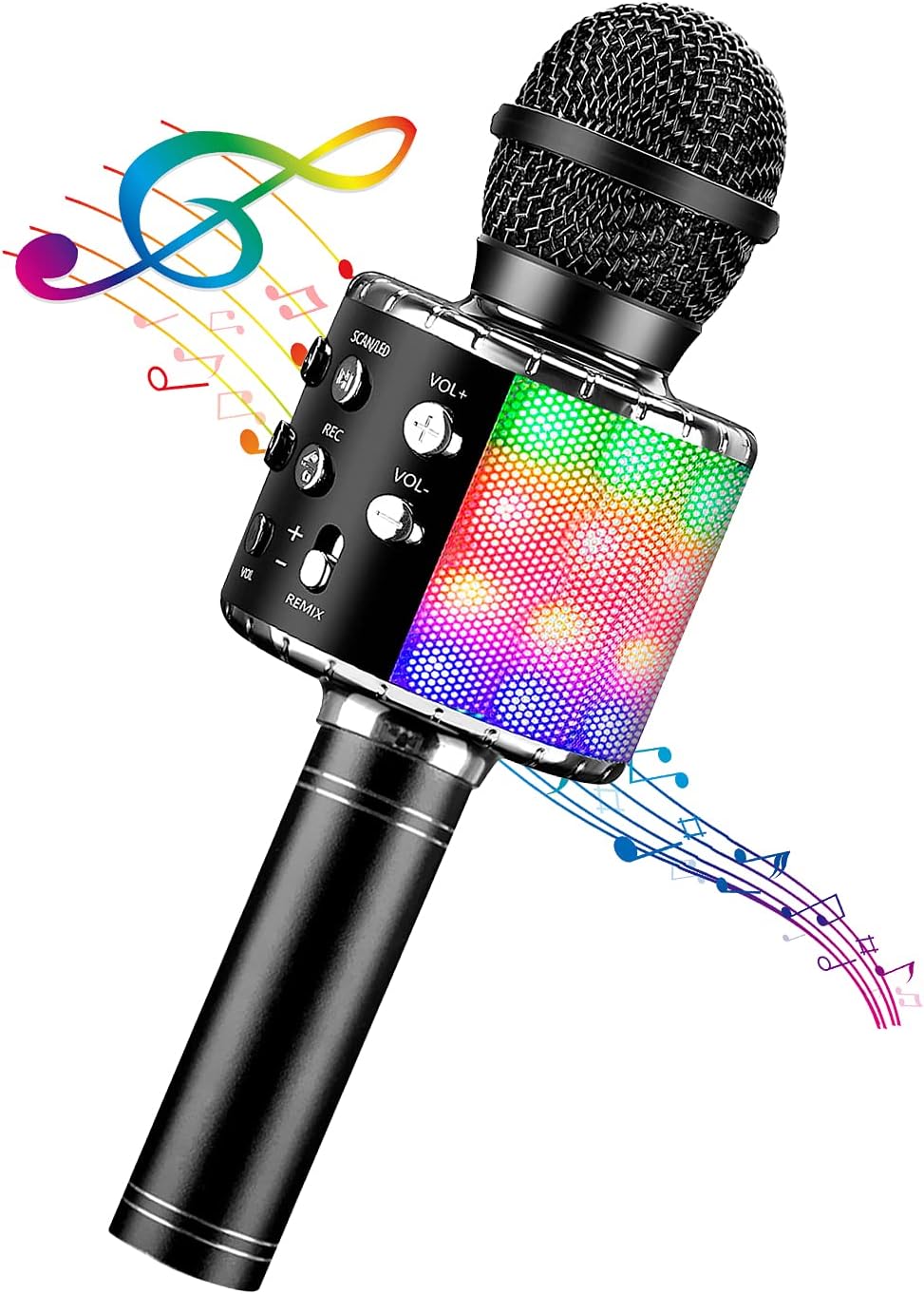
Image: BlueFire 4-in-1 Wireless Karaoke Microphone. This image displays the microphone with its integrated LED lights and control panel.
Product Overview
Key Features
- 4-in-1 Functionality: Operates as a microphone, speaker, loudspeaker, and recorder.
- Quality Audio: Features a professional audio processor, tuning system, and three-layer high-density noise reduction for clear sound.
- Dual Connectivity: Supports both wireless (Bluetooth) and 3.5mm audio jack connections.
- Wide Compatibility: Connects with Android and iOS smartphones, PCs, laptops, and various applications.
- Long Battery Life: Built-in 2400mAh rechargeable battery provides 5-6 hours of continuous use.
- LED Lights: Integrated LED lights enhance the karaoke experience.
Component Identification

Image: Diagram of the BlueFire microphone components. This image labels the various buttons and ports on the device.
- Play/Pause/Scan mode, LED light mode button
- Sturdy Shell (Dual Powerful Speakers)
- Previous Song button
- Next Song button
- Volume+ button (Music Volume Up)
- Volume- button (Music Volume Down)
- Microphone Volume control
- Magic Sound Mode / Voice Changer button
- Power/Wireless button
- Aluminum alloy Handle
- Micro-USB Port (for charging)
- Audio Output Port (3.5mm jack)
- TF Card Slot
- Charging/Recording Port
Setup
1. Charging the Microphone
Before first use, fully charge the microphone. Connect the included Micro-USB charging cable to the Micro-USB Port (11) on the microphone and the other end to a DC 5V power adapter (not included) or a computer USB port. The LED indicator will show charging status and turn off when fully charged.
2. Power On/Off
Press and hold the Power/Wireless button (9) for a few seconds to turn the microphone on or off. A voice prompt will indicate the power status.
3. Wireless (Bluetooth) Connection
- Turn on the microphone. It will automatically enter Bluetooth pairing mode.
- Enable Bluetooth on your smartphone, tablet, or other device.
- Search for available devices and select "BlueFire" (or similar name) from the list.
- Once connected, a voice prompt will confirm successful pairing. You can now play music from your device through the microphone's speakers.
4. Audio Cable Connection
For devices without Bluetooth or for a wired connection, use a 3.5mm audio cable. Connect one end to the Audio Output Port (12) on the microphone and the other end to the audio output/headphone jack of your device.

Image: Illustration of audio cable and wireless connection methods for the BlueFire microphone.
5. TF Card Insertion
To play music directly from a memory card or record your singing, insert a TF (MicroSD) card into the TF Card Slot (13). Ensure the card is inserted correctly until it clicks into place.

Image: The BlueFire microphone showing the TF card slot and illustrating two-way connection options.
Operating Instructions
1. Music Playback
- Play/Pause: Press the Play/Pause/Scan button (1) to play or pause music.
- Previous/Next Song: Use the Previous Song button (3) and Next Song button (4) to navigate through tracks.
- Music Volume: Adjust the music playback volume using the Volume+ button (5) and Volume- button (6).
2. Microphone Usage
- Microphone Volume: Adjust your voice volume using the Microphone Volume control (7).
- Echo/Reverb: The microphone features an echo effect. Adjust the echo level for desired vocal enhancement.
- Magic Sound Mode (Voice Changer): Press the Magic Sound Mode button (8) to cycle through different voice effects (e.g., high pitch, deep voice).
3. Recording Function
To record your singing, ensure a TF card is inserted. Connect the microphone to your smartphone via Bluetooth. Open a karaoke or recording application on your phone. Start playing music and singing, then use the recording function within your app. The microphone acts as an input device.
4. LED Lights
The microphone features integrated LED lights. Press the Play/Pause/Scan button (1) to activate or change the LED light mode. The lights will flash and change colors with the rhythm of the music.
Maintenance
Cleaning
- Wipe the microphone's exterior with a soft, dry cloth.
- Do not use abrasive cleaners or solvents.
- Avoid getting moisture into the microphone grille or ports.
Battery Care
- Charge the battery regularly, even if not in use, to maintain battery health.
- Avoid fully discharging the battery frequently.
- Store the microphone in a cool, dry place when not in use for extended periods.
Troubleshooting
| Problem | Possible Cause | Solution |
|---|---|---|
| Microphone does not turn on. | Battery is depleted. | Charge the microphone using the Micro-USB cable. |
| Cannot connect via Bluetooth. | Bluetooth is off on the device; microphone is not in pairing mode; interference. | Ensure Bluetooth is enabled on your device. Turn the microphone off and on again to re-enter pairing mode. Move closer to the microphone and away from other wireless devices. |
| No sound from the microphone. | Microphone volume is too low; device volume is too low; connection issue. | Increase Microphone Volume (7) and device volume. Re-establish Bluetooth or wired connection. |
| Sound quality is poor or distorted. | Microphone too close to mouth; high volume settings; environmental noise. | Maintain an appropriate distance from the microphone. Reduce microphone or music volume. Reduce background noise. |
| Microphone switched to a different language. | Accidental language setting change. | Refer to the full product manual or contact customer support for specific instructions on how to reset the language. Typically, this involves a combination of button presses. |
Specifications
| Feature | Detail |
|---|---|
| Model Number | CT007B-BF-AU-123 |
| Brand | BlueFire |
| Connectivity Technology | Wireless (Bluetooth), 3.5 mm Jack |
| Microphone Form Factor | Handheld |
| Power Source | Battery Powered |
| Battery Type | 1 Lithium Ion battery (included) |
| Battery Capacity | 2400mAh |
| Working Time | Up to 5-6 hours (8-10 hours mentioned in some images, use conservative) |
| Charge Time | DC 5V (via Micro-USB) |
| Item Weight | 0.353 ounces (approx. 10 grams) |
| Product Dimensions (L x W x H) | 3.4 x 3.4 x 10 inches (approx. 8.6 x 8.6 x 25.4 cm) |
| Material | Plastic or polymer |
| Signal-to-Noise Ratio | 115 dB |
| Frequency Response | 10 KHz |
| Compatible Devices | Karaoke Machine, Speaker, Smartphones (Android/iOS), PC, Laptops |
| Included Components | Battery, Warranty Card |
Warranty and Support
Your BlueFire 4-in-1 Wireless Karaoke Microphone comes with a warranty card. Please refer to the warranty card for details regarding coverage and duration. For technical support, product inquiries, or warranty claims, please contact BlueFire customer service through the retailer where the product was purchased or visit the official BlueFire website.
For additional information or assistance, please visit the BlueFire Store on Amazon.


