
Introduction
This manual provides comprehensive instructions for the setup, operation, maintenance, and troubleshooting of your ViewSonic ViewBoard IFP6550 Interactive Flat Panel Display. Please read this manual thoroughly before using the product to ensure proper and safe operation.
The ViewBoard IFP6550 is a 65-inch 4K UHD (3840 x 2160) interactive display designed for collaborative environments, offering multi-touch capabilities and optional slot-in PC integration.
Safety Information
Always observe the following safety precautions to prevent damage to the product and ensure user safety:
- Do not expose the display to rain or moisture.
- Do not block ventilation openings.
- Use only the power cord supplied with the unit.
- Refer all servicing to qualified service personnel.
- Ensure proper grounding for electrical safety.
Package Contents
Verify that all items are present in the package:
- ViewSonic ViewBoard IFP6550 Interactive Flat Panel Display
- Power Cord
- Remote Control with Batteries
- USB Cable (Type A to Type B)
- HDMI Cable
- Touch Pens (x2)
- Wall Mount Bracket (optional, check specific model variant)
- Quick Start Guide
Setup
Physical Installation
The ViewBoard IFP6550 can be installed on a wall mount or a mobile cart (sold separately). Ensure the mounting surface or cart can support the display's weight of approximately 103 pounds (46.7 kg).
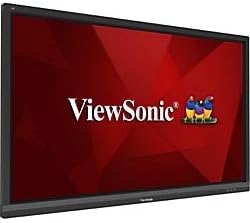
Figure 1: Front view of the ViewSonic ViewBoard IFP6550. This image shows the large 65-inch display with a dark bezel, featuring the ViewSonic logo prominently at the bottom center. The screen displays a red background with the ViewSonic brand name and colorful bird logo.
- Wall Mounting: Attach the VESA-compatible wall mount bracket (400x400mm or 600x400mm, refer to bracket instructions) securely to a sturdy wall. Carefully lift and attach the display to the bracket with at least two people.
- Mobile Cart Installation: Secure the display to a compatible mobile cart following the cart manufacturer's instructions.
Connecting Peripherals
The IFP6550 offers various ports for connectivity:
- Power: Connect the supplied power cord to the AC IN port on the display and then to a grounded power outlet.
- HDMI: Connect an HDMI cable from your source device (e.g., PC, media player) to one of the HDMI IN ports on the display.
- USB for Touch: Connect the USB Type A to Type B cable from your PC to the USB TOUCH port on the display to enable touch functionality.
- USB for Media: Use the USB 2.0 or USB 3.0 ports for connecting USB drives or other peripherals.
- LAN: Connect an Ethernet cable for network connectivity.
- Audio: Use the Audio In/Out ports for external audio devices if needed.
Operating Instructions
Powering On/Off
- Power On: Press the power button on the display's side panel or on the remote control. The power indicator light will turn blue.
- Power Off: Press the power button again. The power indicator light will turn red.
Source Selection
To switch between input sources (HDMI, VGA, internal PC, etc.):
- Press the SOURCE button on the remote control or the display's side panel.
- Navigate through the available sources using the arrow keys and press OK to select.
Touch Functionality
The IFP6550 supports multi-touch input. Ensure the USB TOUCH cable is connected to your PC.
- Use your finger or the provided touch pens to interact with the screen.
- Standard gestures like tap, drag, pinch-to-zoom are supported.
On-Screen Display (OSD) Menu
Access the OSD menu to adjust display settings:
- Press the MENU button on the remote control.
- Use the arrow keys to navigate through options like Picture, Audio, Display, System, and Network.
- Press OK to enter a sub-menu or confirm a selection.
- Press EXIT to close the OSD menu.
Maintenance
Cleaning the Display
To maintain optimal display quality:
- Always power off and unplug the display before cleaning.
- Use a soft, lint-free cloth slightly dampened with water or a non-abrasive, ammonia-free glass cleaner.
- Do not spray cleaner directly onto the screen.
- Wipe the screen gently to remove dust and fingerprints.
- Clean the bezel and back panel with a dry, soft cloth.
Storage
If storing the display for an extended period, ensure it is:
- Stored in a cool, dry place.
- Protected from extreme temperatures and humidity.
- Covered to prevent dust accumulation.
Troubleshooting
| Problem | Possible Cause | Solution |
|---|---|---|
| No power | Power cord not connected; Power outlet faulty | Ensure power cord is securely connected; Test power outlet with another device. |
| No image on screen | Incorrect input source selected; Source device not powered on or connected | Press SOURCE button to select correct input; Check source device power and cable connections. |
| Touch function not working | USB TOUCH cable not connected; Driver issue on PC | Ensure USB TOUCH cable is connected between display and PC; Reinstall or update touch drivers on PC. |
| Image is distorted or blurry | Cable connection loose; Resolution mismatch | Check all video cable connections; Adjust display resolution on source device to 3840x2160. |
Specifications
| Feature | Detail |
|---|---|
| Model Number | IFP6550 |
| Screen Size | 65 Inches (65" viewable) |
| Resolution | 4K UHD (3840 x 2160) |
| Aspect Ratio | 16:9 |
| Image Brightness | 300 cd/m² |
| Touch Technology | Multi-touch |
| Connectivity | HDMI, USB (2 total), LAN, Audio In/Out |
| Item Weight | 103 pounds (approx. 46.7 kg) |
| Package Dimensions | 63.75 x 39.38 x 8.13 inches |
| Manufacturer | ViewSonic |
Warranty Information
ViewSonic products are manufactured to the highest standards of quality and performance, and we back them with a strong warranty. For detailed warranty terms and conditions specific to your region and product, please refer to the warranty card included with your product or visit the official ViewSonic website.
Typical warranty coverage includes defects in materials and workmanship under normal use. Proof of purchase is required for all warranty claims.
Customer Support
For technical assistance, product registration, or service inquiries, please contact ViewSonic Customer Support. Have your product model number (IFP6550) and serial number ready when contacting support.
- Online Support: Visit the official ViewSonic support website for FAQs, driver downloads, and online contact forms. www.viewsonic.com/us/support
- Telephone Support: Refer to the ViewSonic website for regional contact numbers.
You can also find additional support resources and product information on the ViewSonic Store on Amazon.


