
Introduction
This user manual provides comprehensive instructions for the installation, operation, and maintenance of your KAISAI WiFi Smart-Kit. Please read this manual carefully before using the device to ensure proper functionality and safety.
Important Safety Information
Important Note: The installation of the air conditioning system, which this WiFi Smart-Kit connects to, may only be carried out by a company certified according to EU F-Gas Regulation 2024/573. By concluding the purchase contract, you confirm that this will be observed. Failure to comply may result in serious injury or damage to the equipment.
Always disconnect power before performing any installation or maintenance. Do not attempt to repair the device yourself. Refer all servicing to qualified personnel.
Product Components
The KAISAI WiFi Smart-Kit package typically includes the following:
- KAISAI WiFi Smart-Kit (Interface WiFi module)
- Associated air conditioning accessories (Klimazubehör)
- This user manual
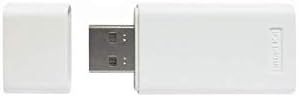
Image: The KAISAI WiFi Smart-Kit module, a white USB-like dongle with a removable cap, designed for connecting air conditioning units to a WiFi network.
Setup Instructions
- Prepare the Air Conditioning Unit: Ensure your KAISAI air conditioning unit is powered off before beginning the installation.
- Locate the WiFi Module Port: Identify the dedicated port on your air conditioning unit for the WiFi Smart-Kit. This is typically a USB-A type port or a proprietary connector. Refer to your air conditioning unit's manual for the exact location.
- Insert the Smart-Kit: Carefully insert the KAISAI WiFi Smart-Kit into the designated port. Ensure it is firmly seated.
- Power On the Unit: Restore power to your air conditioning unit. The Smart-Kit should power on automatically.
- Download the App: Download the official KAISAI smart home application from your device's app store (e.g., Apple App Store or Google Play Store).
- Register and Add Device: Open the app, create an account if you don't have one, and follow the in-app instructions to add your new device. This usually involves selecting the device type, connecting to a temporary WiFi network broadcast by the Smart-Kit, and then configuring it to connect to your home WiFi network.
- Verify Connection: Once configured, the app should indicate that your air conditioning unit is online and ready for remote control.
For detailed app-specific setup, refer to the instructions provided within the KAISAI smart home application.
Operating Instructions
Once the KAISAI WiFi Smart-Kit is successfully connected to your home network and linked to the app, you can control your air conditioning unit remotely.
- Remote Control: Use the mobile application to turn the air conditioning unit on/off, adjust temperature settings, change operating modes (e.g., cool, heat, fan, dry), set fan speed, and schedule operations.
- Status Monitoring: The app provides real-time status updates, including current room temperature, operating mode, and any error codes.
- Scheduling: Set up daily or weekly schedules for your air conditioning unit to automatically turn on/off or change settings based on your preferences.
- Voice Control (if supported): If the app integrates with smart assistants (e.g., Amazon Alexa, Google Assistant), you may be able to control your unit using voice commands. Refer to the app's settings for integration options.
Maintenance
The KAISAI WiFi Smart-Kit itself requires minimal maintenance. However, regular maintenance of your air conditioning unit is crucial for optimal performance and connectivity.
- Keep the Smart-Kit Clean: Gently wipe the exterior of the Smart-Kit with a dry, soft cloth if it becomes dusty. Do not use liquid cleaners.
- Ensure Proper Ventilation: Make sure the area around the Smart-Kit and the air conditioning unit's port is clear of obstructions to prevent overheating.
- Air Conditioning Unit Maintenance: Regularly clean or replace air filters in your air conditioning unit as recommended by its manufacturer. Ensure the outdoor unit is free from debris.
- Software Updates: Periodically check the KAISAI app for firmware updates for the Smart-Kit. Keeping the firmware updated ensures optimal performance and security.
Troubleshooting
| Problem | Possible Cause | Solution |
|---|---|---|
| Smart-Kit shows "Offline" in the app. |
|
|
| Cannot connect to the Smart-Kit during setup. |
|
|
| App functions are slow or unresponsive. |
|
|
Specifications
| Feature | Detail |
|---|---|
| Brand | KAISAI |
| Model Name | KAISAI WiFi Smart-Kit |
| Model Number | Interface WiFi |
| Connectivity Technology | WLAN |
| LAN Port Bandwidth | 10/100 megabits per second |
| Product Dimensions | 100 x 100 x 100 cm |
| Item Weight | 99.8 g |
| Included Components | Air conditioning accessories |
| EU Spare Parts Availability | 2 Years |
Warranty and Support
For warranty information, please refer to the documentation provided with your original purchase or contact KAISAI customer support. The availability period for EU spare parts is 2 years.
If you encounter issues not covered in this manual or require further assistance, please contact KAISAI customer service through their official website or the contact information provided in your product packaging.


