
1. Introduction
The CEM iLDM-150 is a professional-grade laser distance meter designed for fast, accurate, and easy distance measurement. This device utilizes a precision narrow laser beam to ensure accuracy, avoiding common errors associated with extraneous objects. Beyond basic measurements, it offers advanced functionalities such as capturing images of measured distances, marking lengths, areas, or volumes, and storing data on a cloud service for convenient access and sharing.
This manual provides detailed instructions for the safe and effective use of your iLDM-150 Laser Distance Meter. Please read it thoroughly before operating the device.
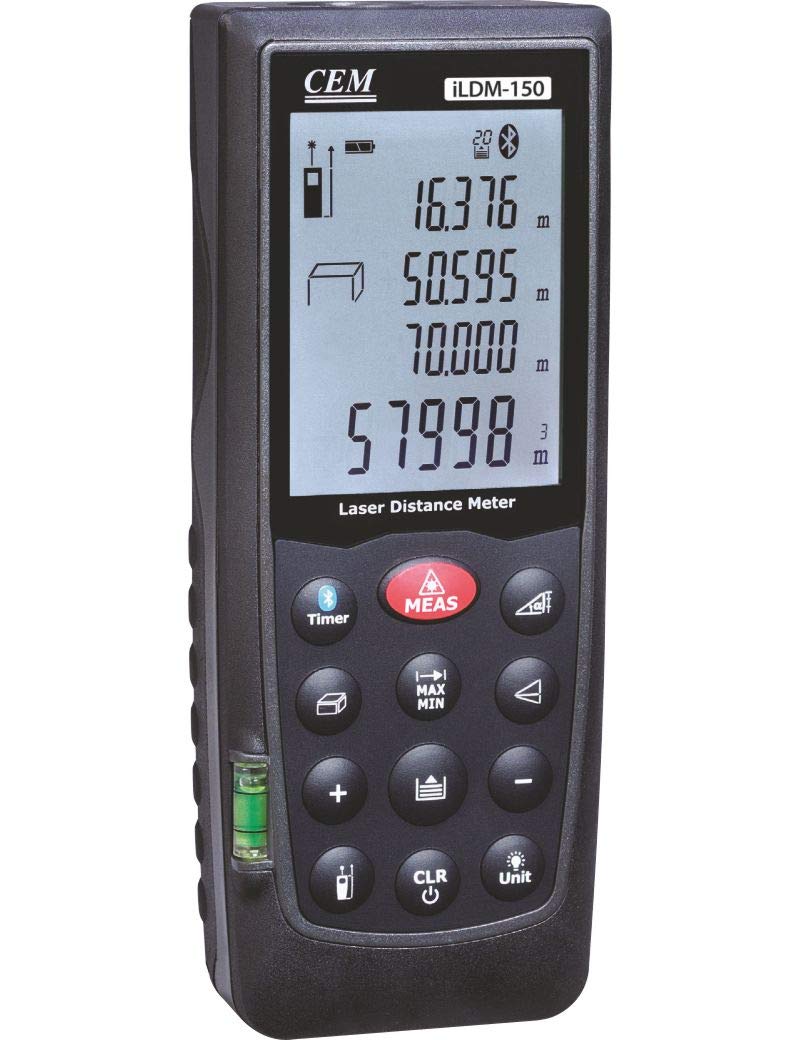
Figure 1: The CEM iLDM-150 Laser Distance Meter, displaying its compact design, digital interface, and control buttons for precise measurements.
2. Key Features
The CEM iLDM-150 Laser Distance Meter includes the following key features:
- Area and Volume Calculations: Quickly determine areas and volumes from measured lengths.
- Indirect Measuring (Pythagoras): Calculate distances indirectly using the Pythagorean theorem.
- Angle Measurement: Integrated tilt sensor allows for angle measurements.
- Continuous Measurement: Track real-time distance changes.
- Image Capture: Take pictures of measured distances.
- Cloud Service Integration: Store and manage measurement data via the Meterbox iLDM software and cloud server.
- Measurement History: Stores the last 20 measurements for review.
3. Setup
3.1 Battery Installation
The iLDM-150 requires batteries for operation. Batteries are not included with the device.
- Locate the battery compartment cover on the back or side of the device.
- Open the battery compartment cover.
- Insert the required batteries (typically AAA or AA, refer to the compartment label for exact type and polarity) ensuring correct polarity (+/-).
- Close the battery compartment cover securely.
3.2 Powering On/Off
- To power on the device, press the [ON/MEAS] button.
- To power off the device, press and hold the [OFF] button for a few seconds, or the device will automatically power off after a period of inactivity to conserve battery life.
4. Operating Instructions
4.1 Basic Distance Measurement
- Power on the device.
- Point the laser beam at the target surface.
- Press the [ON/MEAS] button once. The measured distance will be displayed on the screen.
4.2 Continuous Measurement
This mode allows you to track real-time distance changes as you move the device.
- Press the [ON/MEAS] button and hold it for a few seconds until 'Continuous' or a similar indicator appears on the display.
- Move the device; the distance displayed will update continuously.
- Press [ON/MEAS] again to stop continuous measurement.
4.3 Area and Volume Calculations
Use the dedicated shortcut keys for these functions.
- Area: Press the [AREA] button. Measure the length and width as prompted by the device. The area will be calculated and displayed.
- Volume: Press the [VOLUME] button. Measure the length, width, and height as prompted. The volume will be calculated and displayed.
4.4 Indirect Measurement (Pythagoras)
This function is useful for measuring distances that cannot be directly accessed.
- Press the [PYTHAGORAS] button.
- Follow the on-screen instructions to take the required measurements (e.g., hypotenuse and one leg for a right triangle).
- The device will calculate and display the unknown distance.
4.5 Angle Measurement
The integrated tilt sensor allows for angle measurements.
- Press the [ANGLE] button (if available) or cycle through modes until the angle measurement mode is active.
- Position the device to measure the desired angle. The angle will be displayed on the screen.
4.6 Image Capture and Cloud Service
The iLDM-150 allows you to capture images with measurements and store them.
- After taking a measurement, use the designated button (refer to device interface) to capture an image.
- Install the Meterbox iLDM software on your smartphone.
- Connect your iLDM-150 to your smartphone via Bluetooth (if supported) or transfer data as per software instructions.
- Utilize the Meterbox iLDM software and cloud server to edit, store, and share your measurement data and images.
5. Maintenance
5.1 Cleaning
- Clean the device regularly with a soft, damp cloth. Do not use abrasive cleaners or solvents.
- Ensure the laser lens and display are free from dust and debris for optimal performance. Use a lens cleaning cloth if necessary.
5.2 Storage
- Store the iLDM-150 in a dry, dust-free environment, away from direct sunlight and extreme temperatures.
- If storing for an extended period, remove the batteries to prevent leakage and damage to the device.
6. Troubleshooting
| Problem | Possible Cause | Solution |
|---|---|---|
| Device does not power on. | Low or depleted batteries; incorrect battery installation. | Replace batteries with new ones; ensure correct polarity. |
| Inaccurate measurements. | Obstructed laser path; unstable measuring surface; dirty lens. | Ensure clear line of sight to target; measure on a stable surface; clean the laser lens. |
| Display shows error message. | Measurement out of range; internal error. | Ensure target is within specified range; power off and restart the device. If error persists, contact support. |
| Cannot connect to Meterbox iLDM app. | Bluetooth not enabled; app not installed or updated; device not in pairing mode. | Ensure Bluetooth is on for both devices; install/update Meterbox iLDM app; refer to app instructions for pairing. |
7. Specifications
| Specification | Detail |
|---|---|
| Brand | CEM |
| Model Number | iLDM-150 |
| Manufacturer | CEM Instruments India Pvt Ltd |
| ASIN | B07SPL1NW2 |
| Batteries Included | No |
| Colour | Multicolor |
| Water Resistance Level | Waterproof |
8. Warranty and Support
Please note the following regarding warranty and support for your CEM iLDM-150 Laser Distance Meter:
- All sales are final. No returns are accepted.
- Replacements will be provided only in cases of a wrong item being shipped or a manufacturing defect reported.
- Any reported manufacturing defect must be replicable by the manufacturer upon receiving the product back for assessment.
For technical assistance or to report a manufacturing defect, please contact CEM Instruments India Pvt Ltd directly through their official support channels.


