1. Introduction
Thank you for choosing the Megadream Wireless Mobile Game Controller. This device is designed to enhance your mobile gaming experience on both Android and iOS smartphones and tablets. It features wireless connectivity, customizable button mapping, and a comfortable ergonomic design for extended play sessions. Please read this manual carefully to ensure proper setup and operation.
2. Package Contents
- Megadream Wireless Mobile Game Controller
- USB Charging Cable
- User Manual
3. Product Overview
The Megadream controller features a standard gamepad layout with dual analog sticks, a D-pad, action buttons (A, B, X, Y), shoulder buttons (L1, L2, R1, R2), and function buttons (BACK, MENU, START, Power). It includes an adjustable phone holder to securely mount your device.

Image 3.1: Front view of the Megadream Mobile Game Controller highlighting its components including the D-Pad, action buttons, joysticks, and power indicators. It also shows an 18-hour battery life and 400mA rechargeable battery.

Image 3.2: The controller with a smartphone mounted, illustrating its compatibility with iOS and Android devices, and its key customization feature.
4. Setup Instructions
4.1 Charging the Controller
Before first use, fully charge the controller. Connect the supplied USB charging cable to the controller's charging port and to a USB power source (e.g., computer, USB wall adapter). The power indicators will show charging status and turn off when fully charged. A full charge provides extended playtime.
4.2 Bluetooth Pairing
- Ensure the controller is sufficiently charged.
- Power on the controller by pressing and holding the Power button until the indicator lights flash.
- On your smartphone or tablet, enable Bluetooth and search for available devices.
- Select "Megadream Controller" or a similar name from the list of devices to pair.
- Once paired, the indicator light will become solid.
Note: Pairing procedures may vary slightly between Android and iOS devices. Refer to your device's Bluetooth settings for specific instructions.
4.3 Key Mapping Application
For optimal performance and customizable controls, download the dedicated key mapping application. This application allows you to assign controller buttons to specific touch screen areas in your games. The controller does not require rooting or jailbreaking your device.

Image 4.1: The controller in use, emphasizing that no jailbreak or root is required, and a free key mapping app is available.
4.4 Customizing Key Mappings
After installing the key mapping application, launch it and follow the on-screen instructions to configure your desired button layouts for individual games. This process typically involves overlaying virtual buttons on your game's interface and assigning them to physical buttons on the controller.

Image 4.2: An example of the key mapping interface, demonstrating how to customize button assignments for games.

Image 4.3: Key mapping in action within a game, illustrating how controller inputs translate to in-game actions.
5. Operating Instructions
5.1 Power On/Off
- Power On: Press and hold the Power button for 2-3 seconds until the indicator lights illuminate.
- Power Off: Press and hold the Power button for 3-5 seconds until the indicator lights turn off. The controller will also automatically power off after a period of inactivity to conserve battery.
5.2 Game Compatibility
The Megadream controller is compatible with a wide range of mobile games, including popular titles like PUBG Mobile and Fortnite, as well as various racing, fighting, and shooting games. Compatibility often relies on the key mapping application for games that do not natively support external controllers.

Image 5.1: The controller is compatible with popular mobile games such as PUBG and Fortnite.
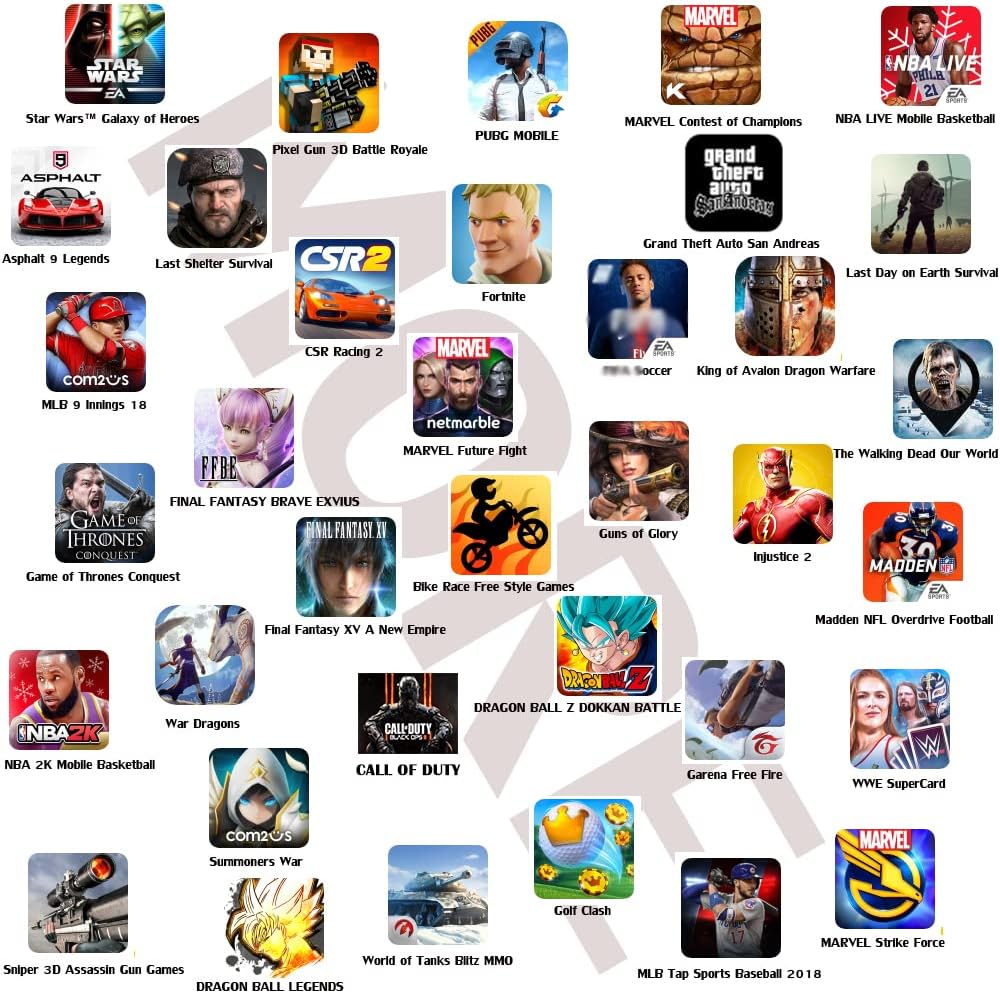
Image 5.2: A selection of mobile games compatible with the Megadream controller.
6. Maintenance
- Cleaning: Use a soft, dry cloth to clean the controller. Do not use harsh chemicals or abrasive materials.
- Storage: Store the controller in a cool, dry place away from direct sunlight and extreme temperatures.
- Battery Care: To prolong battery life, avoid fully discharging the controller frequently. Charge it regularly, even if not in use for extended periods.
7. Troubleshooting
| Problem | Possible Cause | Solution |
|---|---|---|
| Controller does not power on. | Low battery. | Charge the controller fully. |
| Unable to pair via Bluetooth. | Controller not in pairing mode; Bluetooth interference; previously paired device conflict. | Ensure controller is in pairing mode (flashing lights). Turn off and on your device's Bluetooth. Forget the device in Bluetooth settings and try pairing again. Move closer to the device. |
| Buttons are unresponsive in game. | Incorrect key mapping; game does not support controller; controller not in correct mode (iOS/Android). | Verify key mappings in the application. Ensure the controller is set to the correct operating mode for your device. Some games may not support external controllers. |
| Controller disconnects frequently. | Low battery; too far from device; Bluetooth interference. | Charge the controller. Keep the controller within close range of your device. Avoid sources of strong wireless interference. |
| Issues after iOS/Android update. | Operating system updates can sometimes affect peripheral compatibility. | Check the Megadream website or app for potential firmware updates or compatibility patches. Re-pair the device. |
8. Specifications
- Brand: Megadream
- Model: B07SPJM7NS
- Connectivity: Wireless (Bluetooth)
- Compatible Devices: Smartphones (Android, iOS), Tablets, PC, Mac
- Controller Type: Gamepad
- Power Source: Battery Powered
- Item Weight: Approximately 8.8 ounces (250 grams)
- Product Dimensions: Approximately 6.1 x 2.1 x 4.5 inches (15.5 x 5.3 x 11.4 cm)
- Special Feature: Customizable Button Mapping
9. Warranty and Support
Megadream products are manufactured with quality and performance in mind. For warranty information or technical support, please refer to the contact details provided on the product packaging or visit the official Megadream website. Keep your purchase receipt as proof of purchase for any warranty claims.

