
Introduction
This manual provides detailed instructions for the safe and efficient use of your Maxcom MM426 Dual SIM Mobile Phone. Designed for simplicity and ease of use, this GSM mobile phone features a 1.8-inch color display, Dual SIM capability, Bluetooth connectivity, and an essential SOS function for emergencies. Please read this manual thoroughly before operating your device.
Package Contents
Ensure all the following items are present in your product package:
- Maxcom MM426 Mobile Phone
- Battery (Lithium-ion)
- Charger
- USB Cable
- Charging Cradle
- User Manual
- Warranty Card
Phone Overview
Familiarize yourself with the key components of your Maxcom MM426 mobile phone.
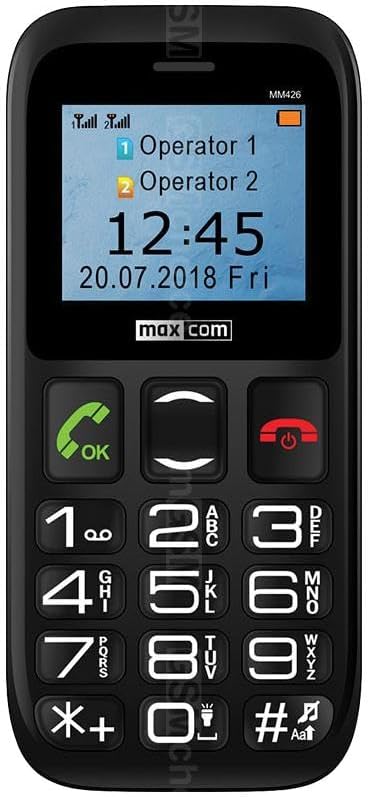
Image: Front view of the Maxcom MM426 mobile phone, showing its 1.8-inch color display and large, easy-to-read keypad with clearly marked buttons for calls, navigation, and numbers.
- Display: 1.8-inch color LCD screen for clear visibility of menus, contacts, and messages.
- Keypad: Large, tactile buttons for easy dialing and navigation.
- Call/End Buttons: Dedicated buttons for initiating and ending calls.
- Navigation Keys: For moving through menus and options.
- SOS Button: Located on the back for emergency calls (see Special Features section).
- 3.5mm Headphone Jack: For connecting headphones.
Setup
1. Battery Installation
- Carefully remove the back cover of the phone.
- Insert the Lithium-ion battery into the battery compartment, ensuring the gold contacts align with the phone's terminals.
- Replace the back cover until it clicks securely into place.
2. SIM Card Installation (Dual SIM)
The Maxcom MM426 supports two SIM cards, allowing you to manage two different numbers simultaneously.
- With the battery removed, locate the SIM card slots.
- Insert your SIM cards into the designated slots (SIM1 and SIM2) with the gold contacts facing down and the cut corner aligned as shown in the diagram (refer to the physical manual for diagram).
- Ensure the SIM cards are fully seated.
3. MicroSD Card Installation (Optional)
To expand storage for photos, music, or other files, you can install a MicroSD card (up to 32 GB, sold separately).
- Locate the MicroSD card slot, usually near the SIM card slots.
- Insert the MicroSD card into the slot until it clicks into place.
4. Charging the Phone
Before first use, fully charge the phone's battery. Charging takes approximately 3 hours.
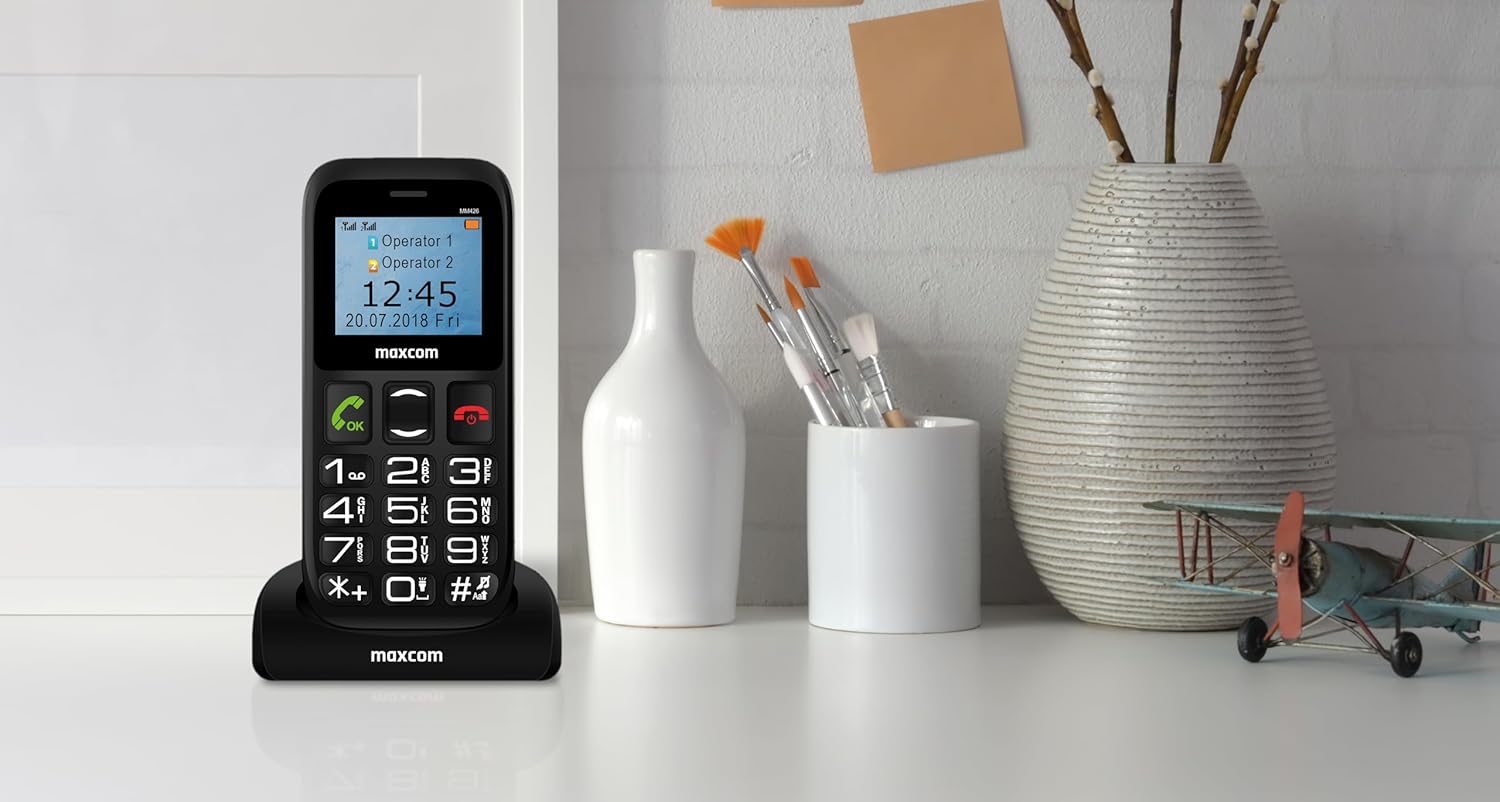
Image: The Maxcom MM426 mobile phone placed in its dedicated charging cradle, ready for charging. The phone's screen displays network and time information.
- Connect the USB cable to the charger and plug the charger into a power outlet.
- Place the phone into the charging cradle, ensuring it is properly seated. The charging indicator on the phone's screen should activate.
- Alternatively, you can connect the USB cable directly to the phone's charging port.
- Once fully charged, disconnect the charger.
Basic Operation
1. Power On/Off
- To Power On: Press and hold the End Call/Power button (red button) until the screen lights up.
- To Power Off: Press and hold the End Call/Power button until the power-off options appear, then select "Power off".
2. Making Calls
- Enter the phone number using the keypad.
- Press the Call button (green button) to initiate the call.
- To end the call, press the End Call button.
- To call from contacts, navigate to the "Contacts" menu, select a contact, and press the Call button.
3. Receiving Calls
- When a call comes in, the phone will ring and display the caller's information.
- Press the Call button (green button) to answer.
- Press the End Call button (red button) to reject or end the call.
4. Sending SMS Messages
- Go to the "Messages" menu.
- Select "Write message" or "New SMS".
- Enter your message using the keypad. Press the # key to switch input modes (e.g., ABC, abc, 123).
- Enter the recipient's phone number or select from contacts.
- Select "Send".
5. Adjusting Volume
During a call or when navigating menus, use the dedicated volume keys (if present) or the navigation keys to adjust the volume. You can also adjust ringtone and media volumes in the "Settings" menu.
Special Features
1. SOS Function
The SOS button provides a quick way to contact pre-set emergency numbers in critical situations.

Image: Rear view of the Maxcom MM426 mobile phone, highlighting the prominent orange SOS button designed for quick access in emergencies.
- Setting up SOS Numbers: Go to Settings > SOS Settings to add up to five emergency contact numbers.
- Using the SOS Function: In an emergency, press and hold the SOS button on the back of the phone for a few seconds. The phone will automatically call and send an emergency SMS to the pre-set numbers in sequence until one is answered.
2. Bluetooth Connectivity
Connect your phone to other Bluetooth-enabled devices like headsets or car kits.
- Go to Settings > Bluetooth.
- Turn Bluetooth On.
- Select "Search for devices" or "Pair new device".
- Choose your desired device from the list and follow the on-screen prompts to pair.
3. FM Radio
Enjoy listening to your favorite radio stations.
- Plug in a 3.5mm headset (acts as an antenna).
- Go to the "FM Radio" application from the main menu.
- Use the navigation keys to scan for stations or tune manually.
4. MP3 Player
Play MP3 audio files stored on your MicroSD card.
- Ensure an MicroSD card with MP3 files is inserted.
- Go to the "Music" or "MP3 Player" application from the main menu.
- Browse and select your desired audio files to play.
Maintenance
1. Cleaning Your Phone
- Use a soft, dry cloth to wipe the phone's surface.
- Avoid using liquid cleaners, aerosols, or harsh chemicals, as these can damage the device.
- The phone is not water-resistant; keep it away from liquids.
2. Battery Care
- Do not expose the battery to extreme temperatures.
- Use only the original charger and battery provided with the phone.
- If the phone will not be used for an extended period, charge the battery to about 50% before storing it.
Troubleshooting
If you encounter problems with your phone, refer to the following common issues and solutions:
| Problem | Possible Solution |
|---|---|
| Phone does not power on. | Ensure the battery is correctly installed and fully charged. Try charging the phone for at least 30 minutes. |
| Cannot make or receive calls. | Check if SIM cards are properly inserted. Ensure you have network signal. Contact your mobile operator if the issue persists. |
| No network signal. | Move to an open area. Check network settings in the phone menu. Restart the phone. |
| Battery drains quickly. | Reduce screen brightness. Close unused applications. Limit background data usage (if applicable). Ensure the battery is not old or damaged. |
| Cannot hear caller / Caller cannot hear me. | Check volume settings. Ensure microphone and speaker are not blocked. Test with another call. |
If these solutions do not resolve your issue, please contact Maxcom customer support.
Specifications
| Model | MM426 |
| Brand | Maxcom |
| Dimensions | 12 x 0.8 x 0.8 cm |
| Weight | 72 g |
| Display | 1.8-inch LCD, 240 x 320 resolution |
| RAM | 4 MB |
| CPU Model | Cortex |
| Cellular Technology | 2G (GSM) |
| SIM Card Slots | Dual SIM |
| Connectivity | Bluetooth |
| Expandable Memory | MicroSD up to 32 GB |
| Battery Type | Lithium-ion |
| Battery Capacity | 600 mAh |
| Talk Time | Up to 3 hours |
| Charging Time | Approx. 3 hours |
| Camera | 3 MP (Rear) |
| Special Features | SOS button, FM Radio, MP3 Player, Keypad input |
| Water Resistance | Not water resistant |
Warranty and Support
Your Maxcom MM426 mobile phone comes with a warranty. Please refer to the included Warranty Card for details on coverage and terms. For technical assistance, troubleshooting beyond this manual, or warranty claims, please contact Maxcom customer support. Keep your purchase receipt and warranty card handy.
You can find more information and support on the official Maxcom website or by visiting the Maxcom Store on Amazon.


