
1. Introduction
This manual provides detailed instructions for the installation, operation, and maintenance of your Anpviz 5MP PoE IP Camera, model IPC-D3150W-S. This camera is designed for both outdoor and indoor surveillance, featuring 5MP Ultra HD resolution, human and motion detection, a 110° wide-angle lens, built-in audio recording, 100ft IR night vision, and IP66 waterproofing. Please read this manual thoroughly before using the product to ensure proper setup and functionality.
2. What's in the Box
Verify that all components are present in the package:
- 1x Anpviz 5MP PoE IP Camera
- 1x Specification Manual
- 1x Warning Sticker
- 1x Waterproof Lid
- 1x Mounting Screw Bag
3. Product Overview
The Anpviz 5MP PoE IP Camera is a high-performance surveillance device designed for reliable security monitoring. Key features include:
- 5MP Ultra HD Resolution: Provides clear and crisp images up to 2592x1944 at 25 FPS.
- 110° Wide Angle Lens: A 2.8mm lens offers extensive viewing coverage.
- 100ft IR Night Vision: Infrared lights ensure clear visibility in dark environments.
- Human & Motion Detection: Advanced detection capabilities for people, vehicles, and animals, triggering instant alerts.
- Built-in Microphone: Records clear one-way audio, filtering out ambient noise.
- Power over Ethernet (PoE): Simplifies installation by providing power and data over a single LAN cable.
- IP66 Weatherproof: Durable full metal housing ensures stable operation in harsh outdoor conditions.
- H.265/H.264 Compression: Efficient video compression for saving storage space and bandwidth.
- Multi-Device Access: Real-time monitoring via smartphones, computers, tablets, and NVRs.
3.1 Camera Components

Figure 1: Anpviz 5MP PoE IP Camera Component Diagram. This image highlights the IR sensor, 2.8mm fixed lens, metal housing, one-way audio microphone, network port (PoE), and power input.
3.2 Camera Dimensions
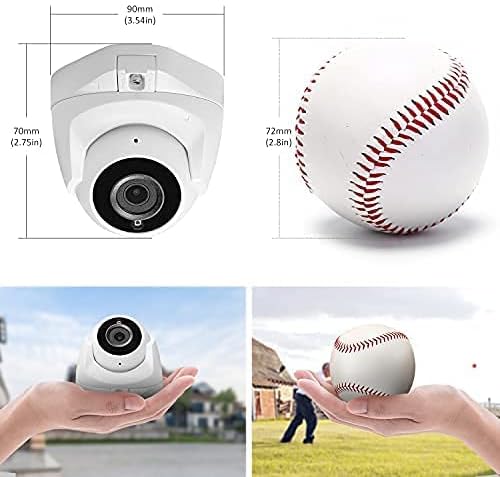
Figure 2: Anpviz 5MP PoE IP Camera Dimensions. The camera measures 90mm (3.54 inches) in width and 70mm (2.75 inches) in height, shown next to a baseball for size comparison.
4. Setup and Installation
Follow these steps for proper installation of your Anpviz 5MP PoE IP Camera.
4.1 Mounting the Camera
The camera can be ceiling-mounted. Use the provided mounting screw bag and follow the steps below:
- Detach the mounting base from the camera.
- Route the camera cables through the opening in the mounting base.
- Secure the mounting base to your desired surface (wall or ceiling) using the screws.
- Attach the camera body to the secured mounting base.
- Adjust the camera angle as needed and tighten the locking screws.
Video 1: Easy installation of IPC-D3150W-S. This video demonstrates the step-by-step process for physically installing the camera.
4.2 Power and Network Connection (PoE)
The camera supports Power over Ethernet (PoE) for simplified installation.
- Connect an Ethernet cable from a PoE-enabled NVR or PoE switch directly to the camera's network port. This single cable provides both power and data.
- If not using PoE, connect a 12V DC power adapter (not included) to the camera's power input and an Ethernet cable to a standard network switch or router.

Figure 3: PoE Connection Diagram. This image illustrates how the camera connects to an NVR using a single Ethernet cable for both power and data, simplifying installation.
Video 2: How to connect camera and NVR. This video provides a visual guide on establishing the connection between the camera and a Network Video Recorder.
4.3 Initial Configuration
After physical installation and connection, you will need to configure the camera. This typically involves:
- Activating the Camera: For U Series PoE NVRs and third-party ONVIF NVRs, the camera may require activation. Refer to your NVR's manual or the 'How to download and use SearchTools' video for guidance.
- Network Settings: Ensure the camera obtains an IP address from your network.
- Password Setup: Create a strong password for camera access.
Video 3: How to download and use SearchTools. This video guides users on how to acquire and utilize the SearchTools software for camera setup and configuration.
5. Operating Instructions
This section covers the primary operational features of your Anpviz IP Camera.
5.1 Human & Motion Detection
The camera is equipped with intelligent detection capabilities:
- The 5MP turret camera can detect moving people, vehicles, and animals.
- Upon detection, the camera will send instant email alerts and push notifications to your configured device.
- Configure detection zones and sensitivity settings via the camera's web interface or mobile application to minimize false alarms.

Figure 4: Human & Motion Detection. This image demonstrates the camera's ability to detect and highlight human figures within its field of view.
5.2 Audio Recording
The built-in microphone allows for one-way audio recording:
- The microphone is designed to filter out ambient noise, providing clear audio.
- Audio can be recorded continuously or triggered by motion detection events.
- Access recorded audio through your NVR or monitoring software.

Figure 5: Audio Recording Feature. This image depicts the camera's built-in microphone for recording audio, useful for capturing sound alongside video.
5.3 Remote Access
Monitor your property anytime, anywhere:
- Download the VideoLink mobile app (available on Google Play and Apple App Store) for smartphone and tablet access.
- Use the LMS PC Client software for computer access.
- Access the camera directly via web browsers such as IE, Edge, Firefox, and Chrome.

Figure 6: Remote Access. This image illustrates how the camera feed can be accessed remotely on various devices like smartphones, tablets, and PCs.
5.4 Connecting to NVRs and Routers
The camera offers flexible connection options:
- With a PoE Switch: Connect the camera to a PoE switch (48V to 52V power supply). The switch then connects to your router.
- Plug & Play with Anpviz NVR: Directly connect to a U Series PoE NVR. (Activation may be required).
- With a Router (Non-PoE): Connect the camera to a 12V DC power supply and then to your router via an Ethernet cable.
If you do not have broadband internet, the camera can still function within a local area network. You can form a local network with the camera and a PC or mobile device, and preview and control the camera normally through the PC LAN.

Figure 7: Camera Connection Methods. This diagram illustrates how to connect the camera to a router, an Anpviz NVR, or a PoE switch.
6. Maintenance
Regular maintenance ensures optimal performance and longevity of your camera.
- Cleaning: Periodically clean the camera lens with a soft, dry cloth to remove dust and smudges. Avoid abrasive cleaners.
- Firmware Updates: Check the Anpviz official website for the latest firmware updates. Keeping your firmware updated can improve performance and security.
- Cable Inspection: Regularly inspect all cables for any signs of wear, damage, or loose connections, especially for outdoor installations.
- Environmental Checks: Ensure the camera's mounting remains secure and that its IP66 weatherproof seal is intact, especially after severe weather conditions.
Video 4: How to take the security camera apart. This video demonstrates the process of disassembling the camera, which may be useful for advanced maintenance or component replacement.
7. Troubleshooting
This section addresses common issues you might encounter.
| Problem | Possible Cause | Solution |
|---|---|---|
| No video feed | No power; Network cable disconnected; IP address conflict. | Check power supply and cable connections. Ensure the camera is receiving power (e.g., from PoE switch or 12V adapter). Verify network connectivity. Use SearchTools to check/assign IP address. |
| Poor image quality | Dirty lens; Insufficient lighting; Incorrect camera settings. | Clean the camera lens. Ensure adequate lighting or verify night vision is active. Adjust image settings (brightness, contrast, resolution) in the camera interface. |
| Motion detection not working | Detection zones not configured; Sensitivity too low; Firmware outdated. | Configure motion detection zones and adjust sensitivity in the camera settings. Ensure the camera's firmware is up to date. |
| Cannot access camera remotely | Network configuration issues; Firewall blocking access; Incorrect app settings. | Verify internet connection. Check router settings for port forwarding or UPnP. Ensure firewall is not blocking camera ports. Reconfigure remote access settings in the mobile app or PC client. |
| Camera not working with PoE switch between DVR and camera (Lorex example) | Potential IP address conflict or specific DVR compatibility issues with intermediate PoE switches. | Try connecting the camera directly to the DVR's PoE port if possible. Consult the DVR's manual for specific network configurations with PoE switches. Ensure each camera has a unique IP address. |
8. Specifications
Detailed technical specifications for the Anpviz 5MP PoE IP Camera (IPC-D3150W-S).
| Feature | Detail |
|---|---|
| Model Name | IPC-D3150W-S |
| Video Capture Resolution | 5 MP (2592x1944) |
| Frame Rate | 25 FPS |
| Lens | 2.8 mm fixed lens |
| Viewing Angle | 110 Degrees |
| Night Vision Range | 100 Feet (IR Night Vision) |
| Audio | Built-in Microphone (One-way audio) |
| Detection | Human & Motion Detection |
| Connectivity | Wired Power over Ethernet (PoE) |
| Power Source | PoE (48V-52V) or 12V DC (Power Adapter Not Included) |
| Weather Resistance | IP66 Waterproof |
| Material | Full Metal Housing |
| Compression | H.265/H.264 |
| Compatible Devices | Smartphones, PCs, Tablets, NVRs (ONVIF compatible) |
| Operating Temperature | Typically -20°C to 60°C (-4°F to 140°F) |
| Dimensions | Approx. 4.65 x 4.61 x 4.49 inches |
| Weight | 13.4 ounces |
| Compliance | NDAA Compliant |
9. Warranty and Support
Anpviz is committed to providing high-quality products and customer satisfaction.
- Warranty Information: Please refer to the warranty card included in your product packaging or visit the official Anpviz website for detailed warranty terms and conditions.
- Technical Support: For technical assistance, troubleshooting, or product inquiries, please contact Anpviz customer support through their official website or the contact information provided in your product documentation.
- Online Resources: Additional resources, including FAQs, software downloads, and video tutorials, may be available on the Anpviz support page.
