
Introduction
The NEDIS ACAM41BK Action Camera is designed to capture high-quality video and photos in various environments. Featuring 4K Ultra HD video recording and 16-megapixel still image capture, this versatile camera is equipped with Wi-Fi connectivity for convenient control and content transfer. Its robust design, including a waterproof housing, makes it suitable for outdoor and underwater activities.
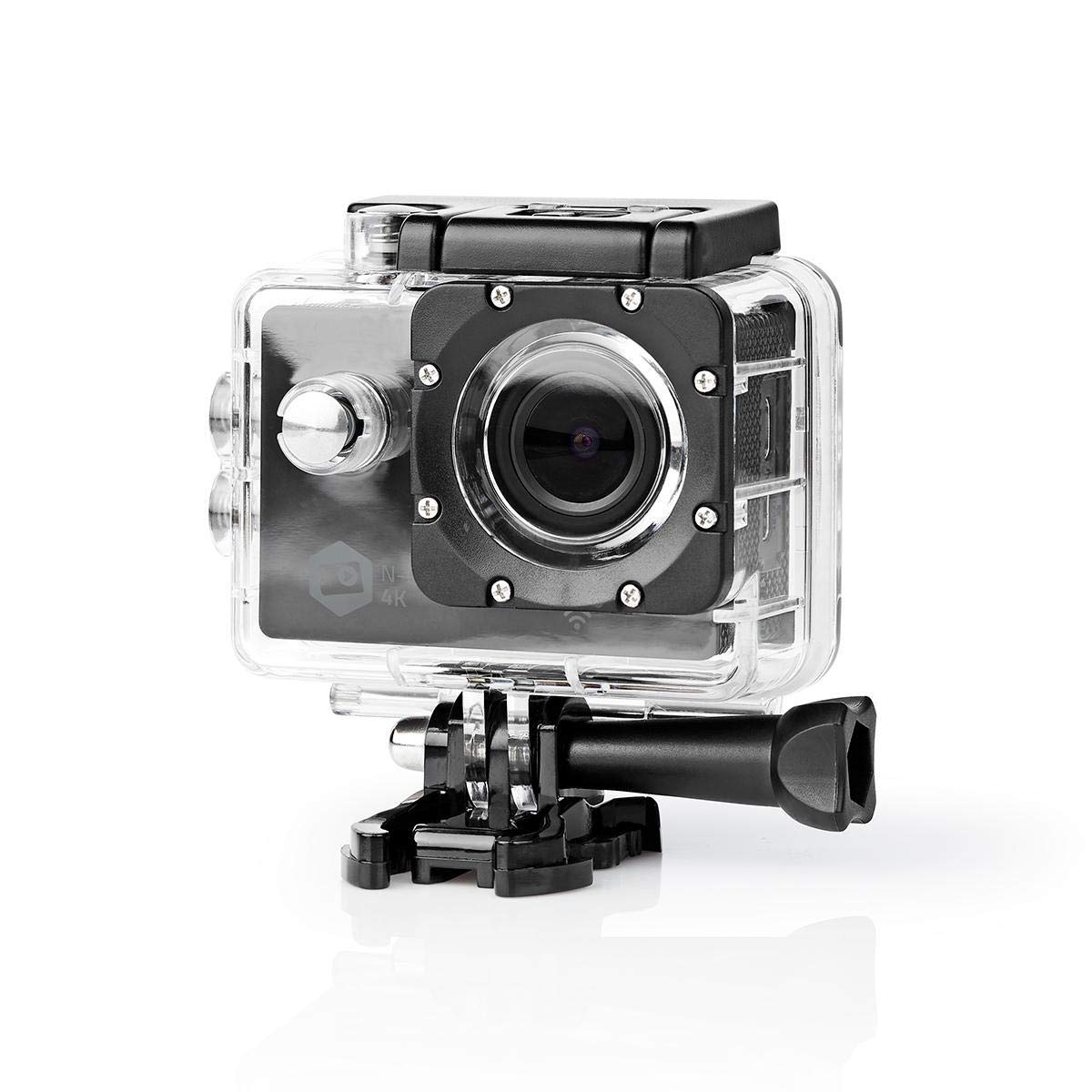
Image: The NEDIS ACAM41BK Action Camera, enclosed in its waterproof case, positioned against a backdrop of snowy mountains with a snowboarder in action. This illustrates the camera's intended use for extreme sports and outdoor adventures.
Safety Information
- Do not expose the camera to extreme temperatures or direct sunlight for extended periods.
- Keep the device away from water and moisture unless it is securely enclosed in its waterproof housing.
- Use only original or certified accessories to avoid damage and ensure proper functionality.
- Do not attempt to disassemble or modify the camera, as this will void the warranty and may cause damage.
- Dispose of batteries and electronic components responsibly according to local regulations.
Package Contents
Verify that all items listed below are present in your package:
- NEDIS ACAM41BK Action Camera
- Waterproof Housing
- Open Frame Housing
- Mounting Accessories (various clips, mounts, and straps)
- Battery (Lithium-ion)
- USB Charging Cable

Image: A top-down view of all included accessories for the NEDIS ACAM41BK Action Camera, neatly arranged on a white background. This includes the camera, waterproof case, various mounts, straps, and cables.
Product Overview
Familiarize yourself with the camera's components and controls.
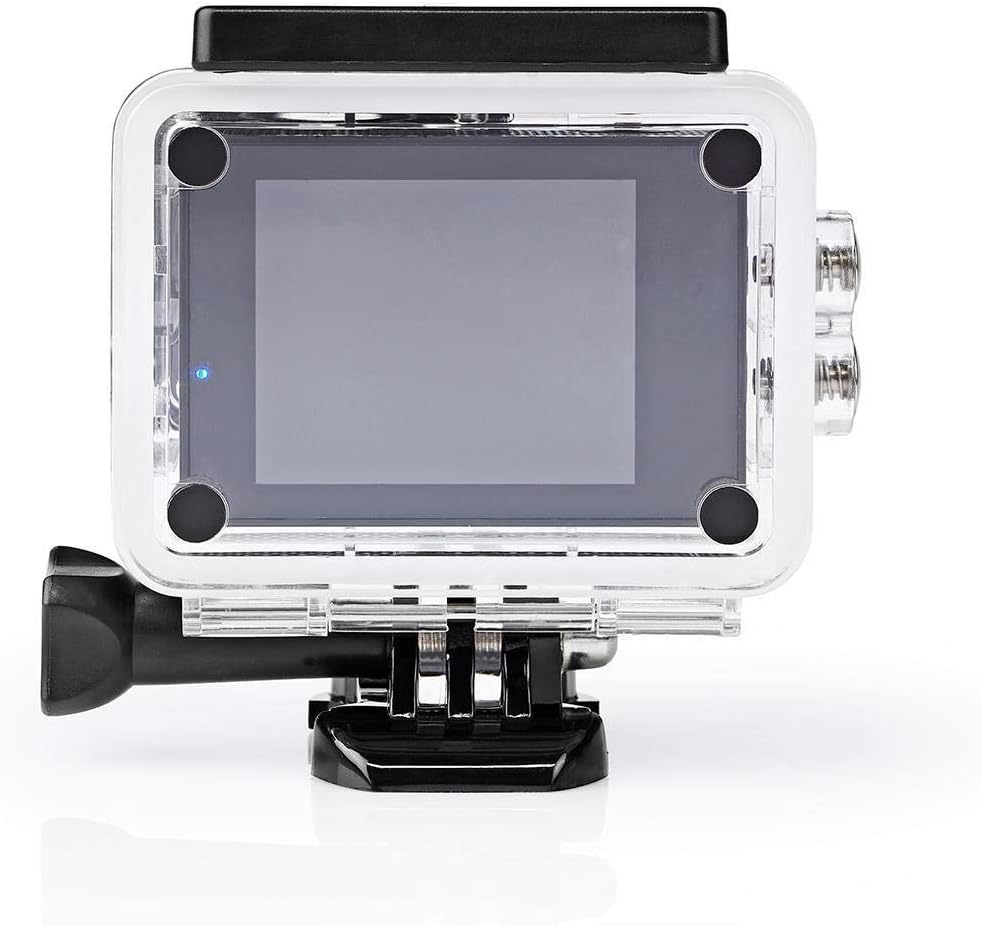
Image: The NEDIS ACAM41BK Action Camera shown without its waterproof housing, displaying the lens, power/mode button, and side ports for MicroSD, USB, and HDMI.
- Lens: Captures video and photos.
- Power/Mode Button: Press to power on/off, short press to switch modes.
- Shutter/OK Button: Press to start/stop recording or take a photo.
- 2-inch TFT Screen: Displays live view, menu, and playback.
- Microphone: Records audio.
- MicroSD Card Slot: For memory card insertion.
- USB Port: For charging and data transfer.
- HDMI Port: For connecting to an external display.
Setup
1. Battery Installation and Charging
- Open the battery compartment cover on the bottom of the camera.
- Insert the Lithium-ion battery, ensuring the correct polarity.
- Close the battery compartment cover securely.
- Connect the camera to a USB power source using the provided USB cable to fully charge the battery before first use. The charging indicator will show the charging status.
2. MicroSD Card Insertion
The camera supports MicroSD cards up to 64GB (Class 4 or UHS-I recommended).
- Locate the MicroSD card slot on the side of the camera.
- Insert the MicroSD card with the gold contacts facing the back of the camera until it clicks into place.
- To remove, gently push the card until it springs out.
3. Using the Waterproof Housing
The waterproof housing protects the camera from water, dust, and impacts.

Image: The NEDIS ACAM41BK Action Camera is shown inside its transparent waterproof housing, highlighting the secure closure and button access through the case.
- Ensure the camera is clean and dry before placing it inside the housing.
- Open the latch on the top of the waterproof housing and carefully insert the camera.
- Close the latch firmly to ensure a watertight seal.
- Before using in water, perform a leak test with the housing empty.
4. Attaching Mounting Accessories
Use the various mounting accessories to attach the camera to helmets, handlebars, or other surfaces.
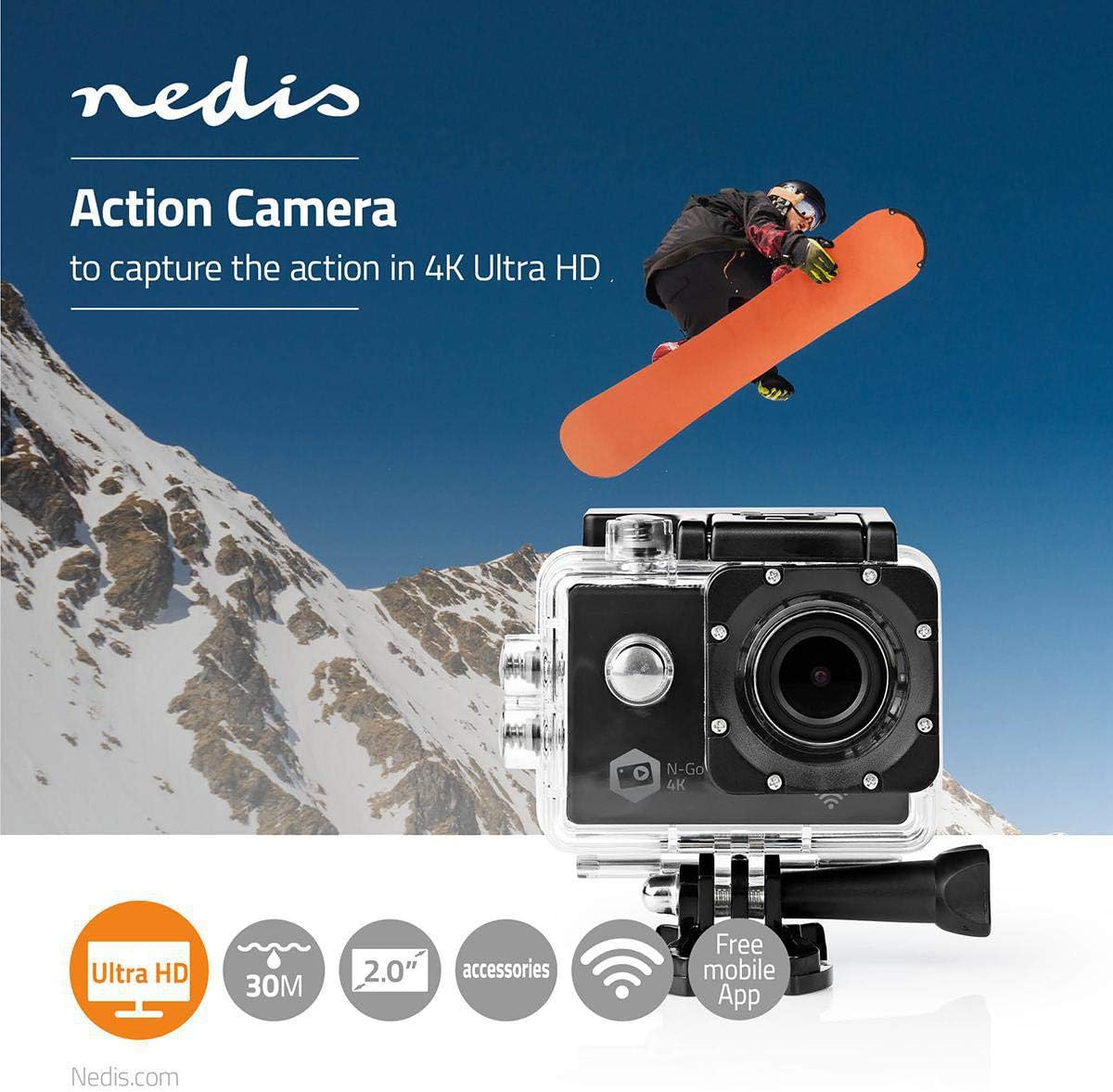
Image: The NEDIS ACAM41BK Action Camera, housed in its waterproof case, is shown securely attached to a mounting bracket, demonstrating how accessories connect to the camera.
- Select the appropriate mount for your activity.
- Attach the camera (either in its waterproof or open frame housing) to the chosen mount using the provided screws and adapters.
- Ensure all connections are tight and secure before use.
Operating the Camera
1. Power On/Off
- To Power On: Press and hold the Power/Mode button for a few seconds until the screen turns on.
- To Power Off: Press and hold the Power/Mode button again until the screen turns off.
2. Mode Selection
Short press the Power/Mode button to cycle through the available modes:
- Video Recording Mode: Indicated by a video camera icon.
- Photo Mode: Indicated by a camera icon.
- Playback Mode: Indicated by a play icon, for reviewing captured content.
- Settings Mode: Indicated by a gear icon, for adjusting camera parameters.
3. Recording Videos and Taking Photos
- In Video Recording Mode: Press the Shutter/OK button once to start recording. The recording indicator will flash. Press the Shutter/OK button again to stop recording.
- In Photo Mode: Press the Shutter/OK button once to take a photo.
4. Wi-Fi Connectivity
The camera features WLAN (Wi-Fi) connectivity for remote control via a smartphone or tablet.
- Ensure Wi-Fi is enabled in the camera's settings.
- On your smartphone or tablet, search for available Wi-Fi networks and connect to the camera's network (SSID will be displayed on the camera screen).
- Download and install the dedicated NEDIS action camera app (if available) from your device's app store.
- Open the app to control the camera, view live footage, and transfer files.
Maintenance
Cleaning the Camera
- Use a soft, lint-free cloth to clean the camera body.
- For the lens, use a specialized lens cleaning cloth and solution to avoid scratches.
- Ensure the camera and waterproof housing are dry before storage.
Storage
- Store the camera in a cool, dry place away from direct sunlight.
- Remove the battery if the camera will not be used for an extended period.
Troubleshooting
| Problem | Possible Solution |
|---|---|
| Camera does not power on. | Ensure the battery is fully charged and correctly inserted. |
| Cannot record video or take photos. | Check if a MicroSD card is inserted and has sufficient free space. Format the card if necessary (this will erase all data). |
| Poor video/photo quality. | Ensure the lens is clean. Check resolution settings in the camera menu. Ensure adequate lighting. |
| Wi-Fi connection issues. | Ensure Wi-Fi is enabled on the camera and your smart device. Restart both devices. Check the camera's Wi-Fi password if applicable. |
| Camera freezes or becomes unresponsive. | Remove and reinsert the battery to perform a hard reset. |
Specifications
| Feature | Detail |
|---|---|
| Model Number | ACAM41BK |
| Video Resolution | 4K Ultra HD |
| Photo Resolution | 16 Megapixels |
| Display | 2-inch TFT Screen |
| Lens Angle | 140 Degrees (Fixed 160° mentioned in feature bullets, using 140° from spec table for consistency) |
| Storage | MicroSD up to 64GB (Class 4 / UHS-I) |
| Connectivity | Wi-Fi (802.11a/b/g/n/ac), HDMI, USB |
| Water Resistance | Waterproof (with housing) |
| Battery Type | Lithium-ion |
| Average Battery Life | 90 minutes |
| Dimensions (L x W x H) | 6 x 3 x 4 cm |
| Weight | 356 Grams |
| Supported Audio Format | AAC or MP3 |
| Supported Video Format | MP4 |
| Supported Image Format | JPEG |
Warranty and Support
For warranty information, please refer to the documentation provided at the time of purchase. If you encounter any issues or require technical assistance, please contact NEDIS customer support through their official website or the retailer where the product was purchased.


