1. Introduction
The AIWA KSTB6043 Network Video Player is designed to transform your existing television into a smart Android TV. This device allows you to access various network video services and play media content from external storage devices. It operates on Android 8.0 Oreo and supports HDMI 2.0 for high-definition video output.
Included accessories are a Bluetooth remote control, a 1.5m Premium HDMI cable, an instruction manual, and a warranty card.
2. Product Overview
2.1. Device Components
Familiarize yourself with the various ports and components of your AIWA KSTB6043 Network Video Player.
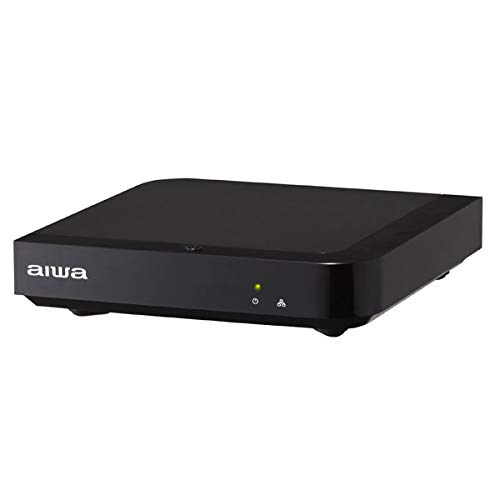
Image 1: Front View. This image displays the front of the AIWA KSTB6043 unit, featuring the AIWA logo and indicator lights.

Image 2: Side View. This image shows the side of the device, highlighting a USB port for connecting external storage.
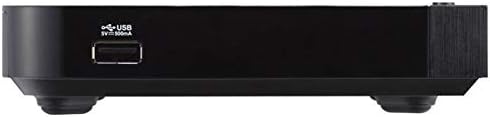
Image 3: Rear View. This image illustrates the rear panel of the player, featuring the LAN port, HDMI output, S/PDIF port, power input (12V=1.5A IN), and a reset button.
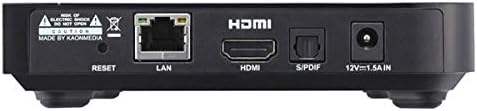
Image 4: Setup Example. The player is shown connected to a television, with the remote control placed nearby, demonstrating a typical setup.
2.2. Remote Control
The included Bluetooth remote control allows for easy navigation and control of the network video player. Refer to the remote control diagram in the included physical manual for specific button functions.
3. Setup
Follow these steps to set up your AIWA KSTB6043 Network Video Player:
- Connect to TV: Use the provided Premium HDMI cable to connect the HDMI OUT port on the network video player to an HDMI input port on your television.
- Connect Power: Plug the power adapter into the 12V=1.5A IN port on the back of the player, then plug the adapter into a wall outlet.
- Power On: Press the power button on the remote control or the device. The indicator light on the front of the player will illuminate.
- Select Input: On your TV, select the corresponding HDMI input source using your TV's remote control.
- Initial Setup: Follow the on-screen prompts for initial Android TV setup, including language selection, network connection (Wi-Fi or Ethernet), and Google account login.
3.1. Connection Demonstration Video
Video 1: Basic Connection and Media Playback. This video demonstrates how to connect a media player to a TV and play content from an SD card or USB drive. Note: The specific product shown in this video may differ from the AIWA KSTB6043, but the connection principles are similar.
Video 2: Detailed Port Overview and Setup. This video provides a closer look at the ports on a media player, including HDMI, USB, and power, and shows the connection process. It also demonstrates basic menu navigation. Note: The specific product shown in this video may differ from the AIWA KSTB6043, but the connection principles and interface navigation are generally applicable.
4. Operating Instructions
4.1. Navigating the Android TV Interface
Once powered on and connected, the Android TV home screen will appear. Use the directional buttons (up, down, left, right) and the OK button on your remote control to navigate through apps, settings, and content.
- Home Screen: Access your installed apps, recommended content, and system settings.
- Apps: Select the 'Apps' icon to view and launch all installed applications.
- Settings: Access network settings, display options, audio settings, and device preferences.
4.2. Playing Media from External Storage
The AIWA KSTB6043 supports playback of video, image, and music files from USB drives or SD cards.
- Insert Storage: Insert your USB drive into a USB port or your SD card into the SD card slot on the device.
- Access Files: Navigate to the 'File Manager' or 'Media Player' app on the Android TV interface.
- Select Content: Browse your external storage for the desired video, image, or music files and select them for playback.
4.3. Using Network Services
With an internet connection, you can access various streaming services. The device supports Netflix, among others.
- Connect to Network: Ensure your device is connected to Wi-Fi or via an Ethernet cable.
- Launch App: Select the desired streaming app (e.g., Netflix) from the home screen or app list.
- Login/Subscribe: Log in with your existing account or follow the prompts to subscribe to the service.
5. Maintenance
- Cleaning: Use a soft, dry cloth to clean the exterior of the device. Do not use liquid cleaners or abrasive materials.
- Software Updates: Periodically check for system updates in the settings menu to ensure optimal performance and access to the latest features.
- Ventilation: Ensure the device is placed in a well-ventilated area to prevent overheating. Do not block ventilation openings.
6. Troubleshooting
| Problem | Possible Cause | Solution |
|---|---|---|
| No power | Power cable not connected; Power outlet not working | Check power cable connection; Try a different power outlet |
| No signal on TV | Incorrect HDMI input selected; HDMI cable loose or faulty | Select correct HDMI input on TV; Reconnect or replace HDMI cable |
| Remote control not working | Batteries depleted; Obstruction between remote and device | Replace batteries; Ensure clear line of sight to the device |
| Cannot connect to Wi-Fi | Incorrect password; Router issue; Device too far from router | Verify Wi-Fi password; Restart router; Move device closer to router |
7. Specifications
| Feature | Detail |
|---|---|
| Model Number | KSTB6043 |
| Operating System | Android 8.0 Oreo |
| HDMI Version | 2.0 |
| HDMI Port Count | 1 |
| Connectivity Technology | Bluetooth, HDMI |
| Supported Audio Formats | Dolby Digital, DTS, PCM |
| Internet Services | Netflix (and others via Android apps) |
| Resolution | 1920 x 1080 pixels (Full HD) |
| Product Dimensions | 12.5 cm (L) x 12.5 cm (W) x 3 cm (H) |
| Weight | Approx. 760 g (packaged) |
| Features | High-definition video output, Android TV compatible |
8. Warranty and Support
The AIWA KSTB6043 Network Video Player comes with a warranty. Please refer to the warranty card included in the product packaging for detailed terms and conditions, including the warranty period and coverage.
For technical support or inquiries, please contact AIWA customer service through the contact information provided in your warranty documentation or on the official AIWA website.


