
1. Introduction
This manual provides essential information for setting up, operating, maintaining, and troubleshooting your Lenovo ThinkPad E495 laptop. Please read this guide thoroughly to ensure proper use and to maximize the performance and longevity of your device.
The Lenovo ThinkPad E495 is a 14-inch Full HD laptop powered by an AMD Ryzen 5 3500U processor, equipped with 8GB of memory and a 256GB SSD, running Windows 10 Pro.
2. Product Overview
Familiarize yourself with the main components of your ThinkPad E495 laptop.
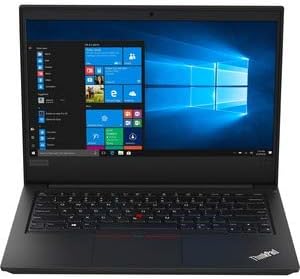
Figure 2.1: Front view of the Lenovo ThinkPad E495 laptop, open with the screen displaying the Windows 10 desktop and the keyboard visible.
2.1 Key Components
- Display: 14-inch Full HD (1920x1080) LCD screen.
- Keyboard: Chiclet-style keyboard with TrackPoint.
- Touchpad: Multi-touch enabled touchpad for navigation.
- Webcam: Integrated webcam for video conferencing.
- Ports: USB ports, HDMI output, Ethernet, Audio jack.
- Power Button: Located on the side or top deck.
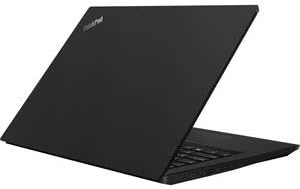
Figure 2.2: Side view of the Lenovo ThinkPad E495 laptop in a closed position, highlighting its slim profile.
3. Setup
3.1 Unboxing
Carefully remove the laptop and all accessories from the packaging. Ensure the following items are present:
- Lenovo ThinkPad E495 Laptop
- AC Adapter
- Power Cable
- Battery (may be integrated)
3.2 Connecting Power
- Connect the power cable to the AC adapter.
- Plug the AC adapter into a power outlet.
- Connect the AC adapter's output plug to the power input port on your laptop.
- Allow the battery to charge for at least 30 minutes before initial use, or until the battery indicator shows sufficient charge.
3.3 Initial Boot-Up and Windows Setup
- Press the power button to turn on the laptop.
- Follow the on-screen instructions to complete the Windows 10 Pro setup process. This typically involves selecting your region, language, accepting terms, and creating a user account.
- Connect to a Wi-Fi network when prompted to ensure updates can be downloaded.
4. Operating Your Laptop
4.1 Power Management
- Power On: Press the power button.
- Sleep Mode: Close the lid or press Fn + F4 (or equivalent sleep key).
- Shut Down: Click the Start button, then Power > Shut down.
- Restart: Click the Start button, then Power > Restart.
4.2 Keyboard and Input Devices
- Keyboard: Use the full-sized keyboard for typing. Function keys (F1-F12) often have secondary functions accessible via the Fn key.
- TrackPoint: The red pointing stick in the center of the keyboard allows for precise cursor control. Use the associated buttons below the spacebar for left, right, and middle clicks.
- Touchpad: The multi-touch touchpad supports gestures for scrolling, zooming, and other functions. Refer to Windows settings for customization.
4.3 Connecting Peripherals
Your ThinkPad E495 supports various external devices:
- USB Devices: Connect USB drives, mice, keyboards, or other USB accessories to the available USB ports.
- HDMI: Use the HDMI port to connect to an external monitor or projector.
- Wi-Fi: Connect to wireless networks via the built-in Wi-Fi. Access Wi-Fi settings through the Windows taskbar network icon.
- Bluetooth: Pair Bluetooth-enabled devices such as headphones, speakers, or mice. Enable Bluetooth in Windows settings.
- Ethernet: Connect to a wired network using the Ethernet port.

Figure 4.1: The Lenovo ThinkPad E495 laptop in use, displaying a video conference application on its screen.
5. Maintenance
5.1 Cleaning Your Laptop
- Screen: Use a soft, lint-free cloth lightly dampened with water or a screen cleaner. Do not spray liquid directly onto the screen.
- Keyboard and Chassis: Use a soft cloth, slightly dampened with water or a mild cleaning solution. Avoid excessive moisture. An air duster can remove debris from between keys.
- Ports: Keep ports free of dust and debris. Use compressed air if necessary.
5.2 Software Updates
Regularly update your operating system and drivers to ensure optimal performance and security.
- Windows Updates: Go to Start > Settings > Update & Security > Windows Update.
- Driver Updates: Visit the official Lenovo support website for the latest drivers for your ThinkPad E495 model.
5.3 Data Backup
Regularly back up your important data to an external drive or cloud storage to prevent data loss.
6. Troubleshooting
| Problem | Solution |
|---|---|
| Laptop does not power on. | Ensure the AC adapter is securely connected to both the laptop and a working power outlet. Check if the power outlet is functional. Try a different power outlet. |
| Screen is blank or not displaying. | Press Fn + F7 (or the display toggle key) to cycle through display modes. Ensure the laptop is not in sleep mode. Connect to an external monitor to check if the issue is with the laptop's display. |
| Wi-Fi connection issues. | Check if Wi-Fi is enabled in Windows settings. Restart your router and modem. Ensure you are within range of a Wi-Fi network. Update Wi-Fi drivers from the Lenovo support website. |
| Keyboard or touchpad not responding. | Restart the laptop. Check for any physical obstructions. Ensure drivers are up to date. |
| System is slow or unresponsive. | Close unnecessary applications. Check Task Manager for processes consuming high CPU or memory. Run a virus scan. Ensure Windows and drivers are updated. Consider freeing up disk space. |
For more detailed troubleshooting, refer to the Lenovo support website or contact customer service.
7. Specifications
| Feature | Detail |
|---|---|
| Brand | Lenovo |
| Model Name | Lenovo ThinkPad E495 |
| Model Number | 20NE0002US |
| Screen Size | 14 Inches |
| Display Resolution | 1920 x 1080 Pixels (Full HD) |
| CPU Model | AMD Ryzen 5 3500U (2.1 GHz, up to 3.7 GHz) |
| RAM Memory | 8 GB DDR4 (2400 MHz) |
| Hard Disk Size | 256 GB SSD |
| Operating System | Windows 10 Pro |
| Graphics Coprocessor | AMD Radeon Vega 8 (Integrated) |
| Connectivity | Bluetooth 5.0, Ethernet (1 Gbps), USB, Wi-Fi |
| Ports | HDMI, USB ports, Headphones (Audio Output) |
| Webcam | Yes |
| Battery | 3-cell, 45 Watt Hours |
| Item Weight | 3.86 Pounds |
| Dimensions (L x W x Th) | 14.14" x 9.28" x 0.78" |
| UPC | 193386253563 |
8. Warranty and Support
8.1 Product Warranty
Your Lenovo ThinkPad E495 laptop comes with a 1-year limited warranty. This warranty covers manufacturing defects and hardware failures under normal use conditions. For specific terms and conditions, please refer to the warranty documentation included with your product or visit the official Lenovo support website.
8.2 Customer Support
For technical assistance, warranty claims, or additional support, please visit the official Lenovo support website. You can find drivers, FAQs, and contact information for customer service there.
Lenovo Support Website: support.lenovo.com


