1. Introduction
The Shark ION Robot Vacuum RV761 is designed to provide automated floor cleaning for your home. It features a Tri-Brush System for effective debris collection across various surfaces and offers convenient control via the SharkClean app or voice commands through Alexa or Google Assistant.

Image 1.1: The Shark ION Robot Vacuum RV761, showcasing its sleek design and control buttons.
2. What's Included
Verify that all components are present in the packaging:
- (1) Shark ION Robot Vacuum
- (1) Charging Dock
- (1) Lithium-Ion Battery (pre-installed)
- (1) Filter (pre-installed)
- (2) Side Brushes (pre-installed)
- (2) Extra Side Brushes
- (1) Extra Filter

Image 2.1: Overview of the Shark ION Robot Vacuum RV761 and its included accessories.
3. Setup Guide
3.1. Charging Dock Placement
Place the charging dock on a level surface against a wall in an open area. Ensure there is at least 3 feet of clear space on either side of the dock and 5 feet in front of it for optimal robot navigation. Connect the power cord to the dock and plug it into a wall outlet.
3.2. Initial Charge
Place the robot onto the charging dock. The robot's indicator lights will illuminate to show it is charging. Allow the robot to charge completely before its first use, which may take up to 6 hours.
3.3. SharkClean App Setup
- Download the SharkClean app from your device's app store.
- Follow the in-app instructions to create an account and connect your robot to your home Wi-Fi network.
- The app allows for scheduling, remote control, and access to additional features.
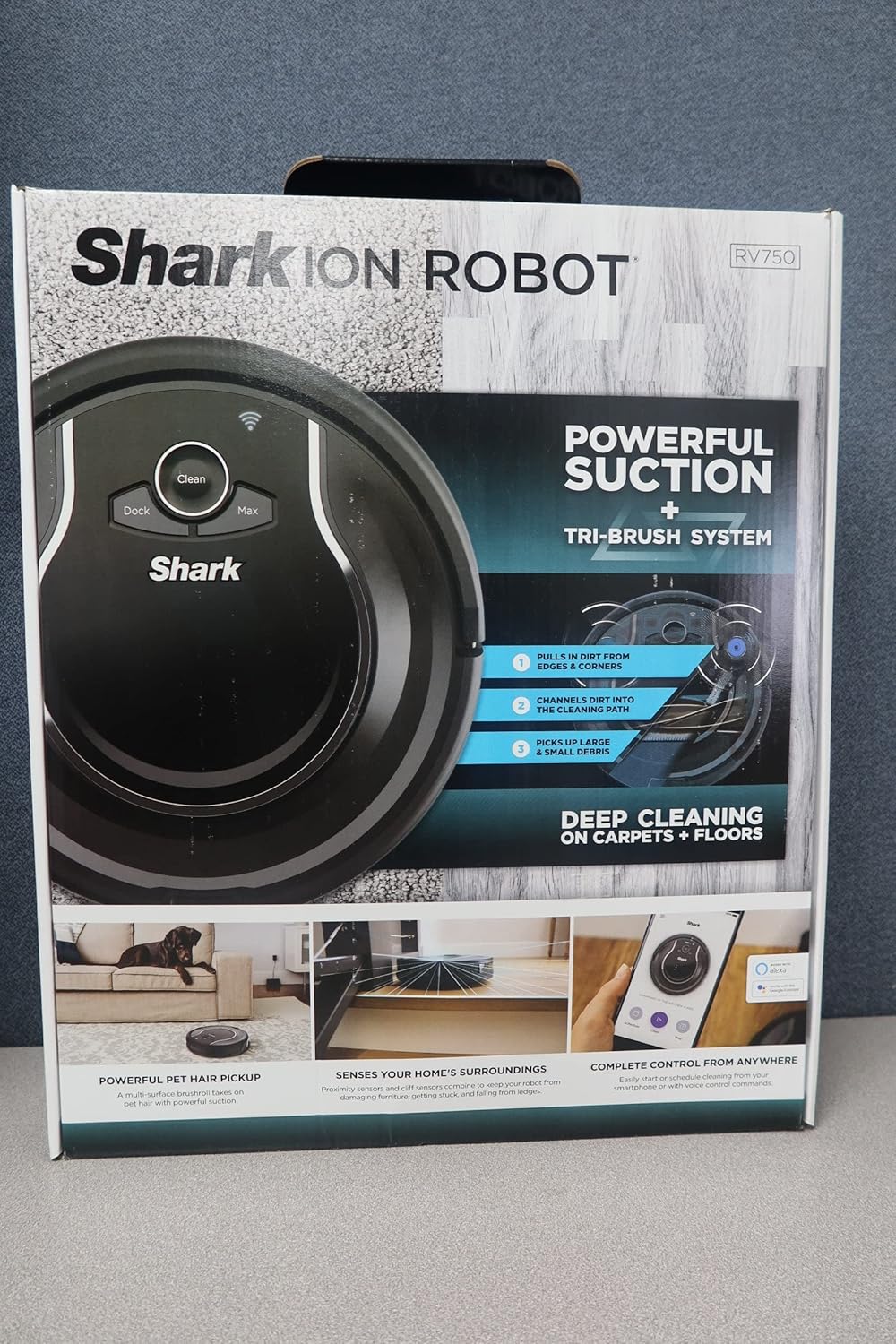
Image 3.1: The SharkClean app interface, demonstrating remote control capabilities.
3.4. Boundary Strips (Optional)
Use the included boundary strips to create off-limit zones for your robot. Cut the strips to the desired length and place them flat on the floor. Ensure the shiny side faces down. The robot will detect these strips and avoid the designated areas.
4. Operating Instructions
4.1. Starting a Clean Cycle
- Manual Start: Press the "Clean" button on the robot.
- App Control: Use the SharkClean app to start, stop, or pause cleaning from anywhere.
- Voice Control: Integrate with Amazon Alexa or Google Assistant to initiate cleaning with voice commands.
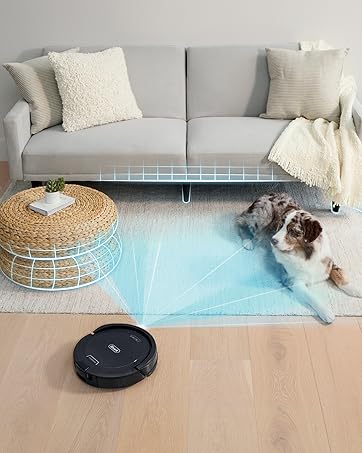
Image 4.1: The robot vacuum actively cleaning a hard floor surface.
4.2. Cleaning Modes
The robot employs a systematic cleaning pattern to cover your floors. Its Tri-Brush System, consisting of side brushes, channel brushes, and a multi-surface brushroll, effectively captures debris from edges, corners, and open areas on both carpets and hard floors.
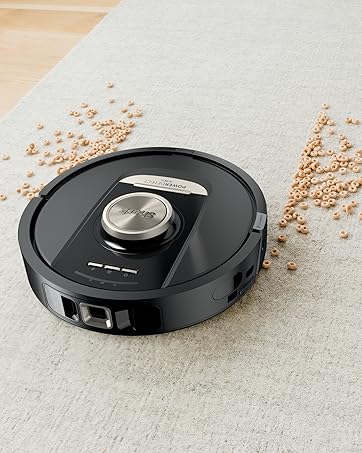
Image 4.2: The robot vacuum demonstrating its cleaning capability on a carpeted surface.
4.3. Scheduling
Use the SharkClean app to set up recurring cleaning schedules. This allows the robot to clean automatically at your preferred times.
4.4. Navigation and Sensors
The Shark ION Robot is equipped with sensors to detect ledges and stairs, preventing falls. It also navigates around furniture and walls, minimizing collisions and avoiding stuck situations.
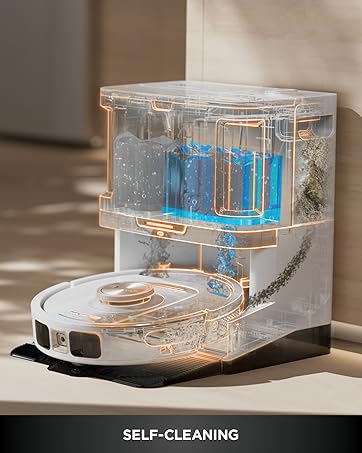
Image 4.3: The robot vacuum effectively cleaning under furniture, demonstrating its low-profile design.
5. Maintenance
Regular maintenance ensures optimal performance of your Shark ION Robot Vacuum.
5.1. Emptying the Dust Bin
Empty the dust bin after each cleaning cycle. Press the release button on the robot to remove the dust bin, then open it and discard collected debris. Rinse the dust bin with water if necessary, ensuring it is completely dry before reinserting.
5.2. Cleaning the Filter
Remove the filter from the dust bin and tap it gently to remove dust and debris. Replace the filter every 2-3 months, or as needed, using the provided extra filter.
5.3. Cleaning the Brushroll
Periodically check the multi-surface brushroll for hair or debris entanglement. Remove the brushroll cover and lift out the brushroll. Use the cleaning tool (if included) or scissors to cut away any wrapped hair or fibers. Reinstall the brushroll securely.
5.4. Cleaning Side Brushes
Inspect the side brushes regularly for wear or damage. If bent or damaged, remove and replace them with the extra side brushes provided. Clean any debris wrapped around the brush posts.
5.5. Cleaning Sensors and Charging Pads
Wipe the cliff sensors, wheel sensors, and charging pads on both the robot and the dock with a clean, dry cloth to remove dust and debris. This ensures proper navigation and charging.
6. Troubleshooting
| Issue | Possible Cause | Solution |
|---|---|---|
| Robot not charging | Charging contacts are dirty; dock not powered; robot not properly aligned. | Clean charging contacts on robot and dock. Ensure dock is plugged in. Realign robot on dock. |
| Robot gets stuck frequently | Obstacles (cables, rugs); dirty sensors; uneven surfaces. | Clear obstacles from cleaning path. Clean cliff and wheel sensors. Use boundary strips for problem areas. |
| Poor cleaning performance | Full dust bin; clogged filter; tangled brushroll; worn side brushes. | Empty dust bin. Clean or replace filter. Clean brushroll. Replace side brushes. |
| App connectivity issues | Incorrect Wi-Fi password; weak Wi-Fi signal; robot not in pairing mode. | Verify Wi-Fi password. Ensure strong Wi-Fi signal. Follow app instructions for re-pairing. |
| Robot not returning to dock | Dock is obstructed; robot too far from dock; dirty charging contacts. | Ensure clear path to dock. Place robot closer to dock. Clean charging contacts. |
7. Specifications
- Model Name:
- ION Robot Vacuum RV761
- Product Dimensions:
- 12.8"L x 12.6"W x 3.5"H
- Item Weight:
- 7.22 pounds
- Capacity:
- 0.5 Quarts
- Power Source:
- Battery Powered (Lithium Ion)
- Control Method:
- Voice, App
- Compatible Devices:
- Amazon Echo, Google Home
- Filter Type:
- Non Washable Filter
- Voltage:
- 100-240V
8. Warranty and Support
8.1. Warranty Information
The Shark ION Robot Vacuum RV761 comes with a 1-year limited warranty. Please retain your proof of purchase for warranty claims. For detailed terms and conditions, refer to the warranty card included with your product or visit the official Shark website.
8.2. Customer Support
For further assistance, troubleshooting, or to order replacement parts, please contact Shark Customer Service. Contact information can typically be found on the official Shark website or within the SharkClean app.
Online Resources: www.sharkclean.com