
JOYACCESS XK2BFR
JOYACCESS Wireless Keyboard and Mouse User Manual
Model: XK2BFR
Product Overview
This manual provides detailed instructions for the setup, operation, and maintenance of your JOYACCESS 2.4Ghz Wireless Keyboard and Mouse combo. Designed for efficiency and comfort, this set offers a compact, full-size AZERTY keyboard and an ergonomic, silent mouse, ideal for various computing environments.

Image: The JOYACCESS wireless keyboard and mouse set, featuring a compact AZERTY keyboard and an ergonomic mouse, alongside the small USB nano-receiver.
Setup Instructions
Follow these steps to quickly set up your wireless keyboard and mouse.
- Insert Batteries:
- For the keyboard: Insert 2 AAA alkaline batteries (not included) into the battery compartment on the underside.
- For the mouse: Insert 1 AA alkaline battery (not included) into the battery compartment on the underside.
- Locate the USB Nano-Receiver: The nano-receiver is conveniently stored inside the mouse's battery compartment. Gently remove it.
- Connect the Receiver: Plug the USB nano-receiver into an available USB port on your computer, laptop, or Smart TV.
- Power On: Ensure the power switch on both the keyboard and mouse (usually on the underside) is in the "ON" position.
- Automatic Connection: The keyboard and mouse should automatically connect to your device. No additional drivers are typically required for most operating systems.

Image: A laptop demonstrating the 2.4G wireless connection between the computer and the keyboard and mouse, highlighting the USB nano-receiver.
Operating Instructions
Keyboard Usage
The keyboard features a full-size AZERTY layout with a numeric keypad and multimedia shortcut keys for enhanced productivity.
- Multimedia Shortcuts: Access common functions like volume control, play/pause, and web browser shortcuts directly from the keyboard. Note: Some quick access keys may not be fully compatible with Mac systems.
- Indicator Lights:
- NUM Indicator: Lights up when Num Lock is active.
- CAPS Indicator: Lights up when Caps Lock is active.
- Power Indicator: Indicates battery status.
- Ergonomic Design: The keyboard has an optimal tilt angle for comfortable typing.
- Silent and Responsive Keys: The low-profile scissor-switch keys provide a quiet and tactile typing experience.

Image: A detailed view of the JOYACCESS keyboard's upper right section, highlighting the NUM, CAPS, and Power indicator lights, as well as the grey and black color scheme and responsive tactile keys.
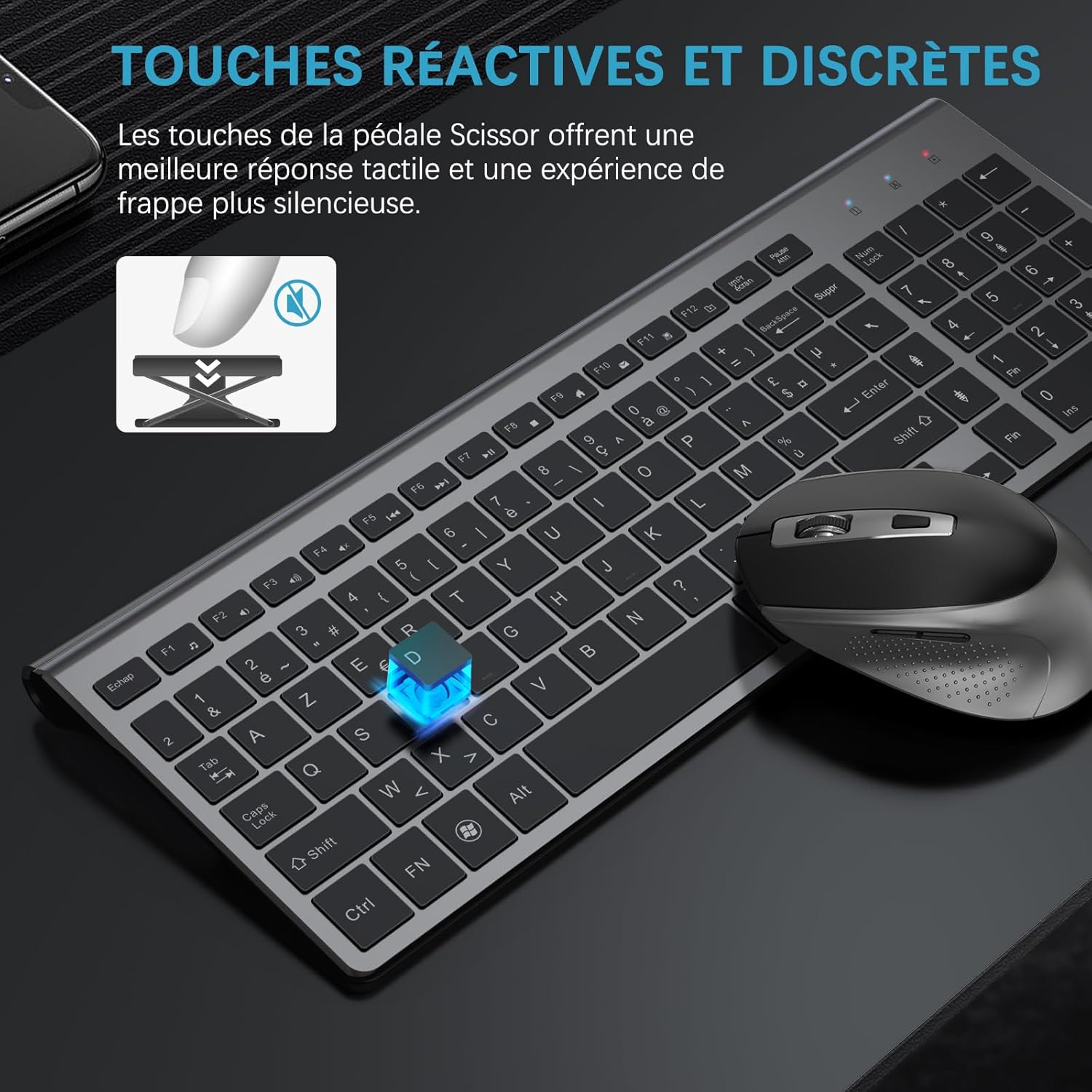
Image: A close-up illustrating the scissor-switch mechanism beneath a keyboard key, emphasizing the reactive and discreet key presses for a quieter typing experience.
Mouse Usage
The ergonomic mouse is designed for comfortable, silent operation.
- DPI Adjustment: Easily change cursor sensitivity with 5 adjustable DPI levels (up to 2400 DPI) to suit your activity.
- 1600 DPI: Recommended for desktop use.
- 2000-2400 DPI: Suitable for 4K monitors or gaming.
- Polling Rate Adjustment: Switch between 125 Hz and 250 Hz polling rates by pressing the right button and scroll wheel simultaneously for 3 seconds.
- Forward/Backward Buttons: The mouse is equipped with convenient forward and backward buttons for web browsing and navigation.
- Silent Clicks: Enjoy a quiet working environment with silent mouse clicks.
- Ergonomic Design: The contoured shape and soft, sweat-resistant finish ensure comfortable use for extended periods.

Image: The ergonomic design of the JOYACCESS mouse, highlighting its anti-slip scroll and silent click functionality for comfortable and quiet operation.
Maintenance
Proper maintenance ensures the longevity and optimal performance of your JOYACCESS wireless set.
- Battery Replacement:
- Replace keyboard batteries when the power indicator light flashes or performance degrades.
- Replace mouse battery when cursor movement becomes erratic or unresponsive.
- Always use new alkaline batteries for best performance.
- Cleaning:
- Use a soft, dry cloth to clean the surfaces of the keyboard and mouse.
- For stubborn dirt, slightly dampen the cloth with water or a mild, non-abrasive cleaner. Avoid excessive moisture.
- Do not use harsh chemicals or abrasive materials, as they may damage the finish.
- Storage: When not in use for extended periods, turn off both the keyboard and mouse to conserve battery life. Store the USB nano-receiver inside the mouse.
Troubleshooting
If you encounter issues with your JOYACCESS wireless keyboard and mouse, refer to the following common solutions:
| Problem | Possible Cause / Solution |
|---|---|
| Keyboard or mouse not responding. |
|
| Erratic mouse cursor movement. |
|
| Multimedia keys not working on Mac. | Some quick access keys may have limited or no functionality on macOS due to system-specific configurations. This is a known compatibility limitation. |
| Short battery life. |
|
Specifications
| Feature | Detail |
|---|---|
| Brand | JOYACCESS |
| Model Number | XK2BFR |
| Connectivity Technology | 2.4 GHz Radio Frequency Wireless |
| Keyboard Layout | AZERTY (French) |
| Keyboard Dimensions | Approx. 35.5 x 12.7 x 2 cm (14.5 x 5.6 x 0.8 inches) |
| Mouse DPI Levels | Adjustable: 1600, 2000, 2400 DPI |
| Mouse Polling Rate | Adjustable: 125 Hz, 250 Hz |
| Power Source | Battery Powered |
| Batteries Required | Keyboard: 2 x AAA (not included), Mouse: 1 x AA (not included) |
| Compatible Operating Systems | Windows (All versions from 2000 onwards), PC, Laptop, Smart TV (functionality may vary) |
| Special Features | Wireless, Portable, Compact, Ergonomic Design, Silent Click Mouse, Multimedia Hotkeys, Long Battery Life, Lightweight, Mouse Forward/Backward Buttons. |

Image: The compact design of the keyboard, illustrating its reduced footprint compared to a standard keyboard while retaining full functionality, including a numeric keypad.

Image: The JOYACCESS wireless keyboard and mouse setup shown in use with a desktop PC, a laptop, and a smart TV, demonstrating its broad compatibility.
Warranty and Support
For warranty information and technical support, please refer to the official JOYACCESS website or contact their customer service directly. Keep your purchase receipt for warranty claims.
For further assistance, you may visit the product page on Amazon:
Related documentsXK2BFR

Ask a question about this manual
Ask about setup, troubleshooting, compatibility, parts, safety, or missing instructions. Manuals+ will review the question and use this page’s manual context to help answer it.