Introduction
The Yeastar S20 is a compact and powerful stand-alone telephone system designed for small businesses with up to 20 users. It supports 10 concurrent calls and offers flexible combinations of telephony ports, including FXS, PSTN, ISDN BRI, and GSM/CDMA/3G. The S20 features a unique modular design, allowing for future scalability and customization of telephony interfaces to meet evolving business needs.

Image: Front view of the Yeastar S20 PBX system, showcasing its sleek black design and front-facing LED indicators for power, system status, WAN, LAN, and port activity.
Setup
Follow these steps to set up your Yeastar S20 PBX system:
- Unboxing and Inspection: Carefully remove all components from the packaging. Verify that all items listed in the packing list are present and undamaged.
- Physical Connection:
- Connect the power adapter to the DC 12V port on the rear of the S20 and plug it into a power outlet.
- Connect the WAN port of the S20 to your internet router or modem using an Ethernet cable.
- Connect the LAN port of the S20 to your local network switch or directly to a computer for initial configuration.
- Install any required telephony modules (FXS, FXO, BRI, GSM/3G) into the available module slots. The S20 has 2 onboard module slots.

Image: Rear view of the Yeastar S20 PBX system, displaying the various network and telephony ports, including WAN, LAN, and module slots for expansion.
- Initial Configuration:
- Once powered on, wait for the system LED to indicate readiness.
- Access the web-based management interface by entering the default IP address (usually printed on the device or found via a network scan tool) into your web browser.
- Log in with the default username and password (refer to the quick start guide for details).
- Follow the setup wizard to configure basic network settings, time zone, and administrator password.
Operating Instructions
The Yeastar S20 offers a comprehensive suite of features for managing your business communications. Here are some key operational aspects:
- Extension Management: Create and manage SIP extensions for your users. Assign numbers, configure voicemail, and set call routing rules.
- Trunk Configuration: Set up and manage your telephony trunks (SIP, PSTN, ISDN, GSM) to connect to external phone lines or VoIP providers.
- Call Routing: Configure inbound and outbound call routes, IVRs (Interactive Voice Response), call queues, and time conditions to direct calls efficiently.
- Security: Implement firewall rules, manage user permissions, and enable intrusion detection to protect your system.
- Monitoring: Utilize the system's dashboard to monitor call activity, system status, and resource usage.

Image: Angled front view of the Yeastar S20 PBX system, highlighting its compact form factor and front panel indicators.
Maintenance
Regular maintenance ensures the optimal performance and longevity of your Yeastar S20 system:
- Firmware Updates: Periodically check for and apply firmware updates from the official Yeastar website. Updates often include new features, bug fixes, and security enhancements.
- Backup Configuration: Regularly back up your system configuration. This allows for quick restoration in case of data loss or system issues.
- Physical Cleaning: Keep the device free from dust and debris. Use a soft, dry cloth for cleaning. Ensure ventilation slots are clear to prevent overheating.
- System Logs: Review system logs periodically for any unusual activity or error messages that might indicate underlying issues.
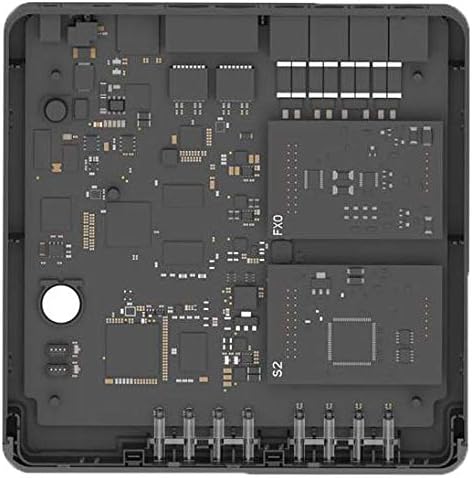
Image: Internal view of the Yeastar S20 circuit board, illustrating the modular design with slots for expansion cards like FXO and S2 modules.
Troubleshooting
Here are some common issues and their potential solutions:
| Problem | Possible Cause | Solution |
|---|---|---|
| No Power | Power adapter disconnected or faulty. | Check power connections. Ensure the power adapter is securely plugged into the device and a working power outlet. |
| Cannot Access Web Interface | Incorrect IP address, network configuration issue, or firewall blocking access. | Verify the S20's IP address. Ensure your computer is on the same network segment. Temporarily disable firewalls to test connectivity. |
| No Dial Tone on Extensions | Extension not registered, incorrect module installation, or trunk issue. | Check extension registration status in the web interface. Verify modules are correctly seated. Test trunk connectivity. |
| Poor Call Quality | Network congestion, insufficient bandwidth, or codec mismatch. | Ensure adequate internet bandwidth. Check network latency and jitter. Adjust audio codecs in system settings. |
Specifications
Key technical specifications for the Yeastar S20 PBX system:
- Model: S20
- Users: Up to 20
- Concurrent Calls: 10
- Module Slots: 2 onboard
- Interfaces: Supports FXS, FXO, ISDN BRI, GSM/CDMA/3G modules
- Connectivity: WAN, LAN Ethernet ports
- Power Source: Corded Electric
- Material: Plastic
- Color: Black
- Package Dimensions: 10.5 x 7.3 x 2.4 inches
- Item Weight: 1.5 pounds (0.68 Kilograms)
Warranty and Support
Information regarding product warranty and customer support is typically provided with your purchase documentation or available on the official Yeastar website. Please refer to those resources for the most accurate and up-to-date details on warranty coverage, technical support contacts, and service procedures.
For further assistance, you may visit the Yeastar official website or contact their customer support directly.


