
Introduction
The Shark ION Robot RV871 is an advanced robotic vacuum cleaner designed to provide efficient and thorough cleaning of your home. It features a Tri-Brush System for comprehensive debris pickup and can be controlled via the SharkClean app or voice commands through Alexa or Google Assistant.
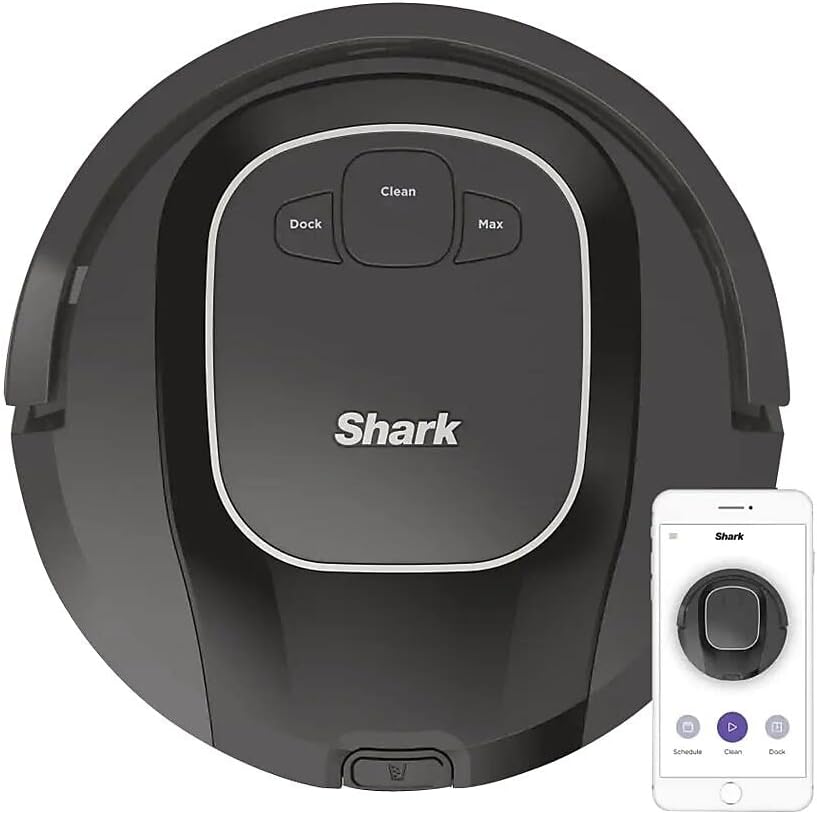
Image: The Shark ION Robot RV871, showcasing its sleek design and the accompanying mobile application for remote control.
Setup and Installation
1. Unboxing and Initial Placement
Carefully remove all components from the packaging. Place the charging dock on a level surface against a wall, ensuring there are no obstacles within 3 feet (1 meter) on either side and 5 feet (1.5 meters) in front of the dock. Plug the power cord into an outlet.
2. Charging the Robot
Place the robot onto the charging dock. The indicator lights on the robot will illuminate to show it is charging. Allow the robot to fully charge before its first use, which may take several hours.
3. Connecting to Wi-Fi and SharkClean App
Download the SharkClean app from your device's app store. Follow the in-app instructions to connect your robot to your home Wi-Fi network. This enables remote control, scheduling, and access to additional features.
4. Using BotBoundary Strips
The included 8-foot BotBoundary strip can be used to create "no-go" zones for your robot. Cut the strip to the desired length and place it flat on the floor to block off areas you do not want the robot to enter, such as pet bowls or delicate furniture.
Operating the Robot
Cleaning Modes
- Clean: Press the Clean button on the robot or in the app to start a standard cleaning cycle. The robot will navigate and clean your floors automatically.
- Max: For a deeper clean, select the Max mode. This increases suction power for more intensive cleaning of heavily soiled areas.
- Dock: Press the Dock button to send the robot back to its charging dock.

Image: The robot vacuum effectively cleaning different floor types, from carpet with pet hair to hard floors with scattered debris.
Scheduling and Voice Control
Utilize the SharkClean app to set up cleaning schedules that fit your routine. The robot can also be controlled using voice commands through Amazon Alexa or Google Assistant, allowing you to start, stop, or dock the robot hands-free.

Image: Remote control of the robot vacuum via a smartphone app, highlighting convenience.
Navigation and Obstacle Avoidance
The Shark ION Robot is equipped with sensors to detect ledges and stairs, preventing falls. It also maneuvers around furniture and walls, minimizing collisions and getting stuck. For optimal performance, clear small obstacles like cables and loose items from the floor before cleaning.

Image: The robot vacuum demonstrating its navigation capabilities, moving efficiently around furniture.

Image: The robot vacuum's ability to clean under low-lying furniture, reaching hidden dust and debris.
Maintenance
Regular maintenance ensures your Shark ION Robot continues to perform optimally.
1. Emptying the Dust Bin
The robot features an extra-large dust bin. Empty the dust bin after each cleaning cycle or when it appears full. Press the release button to remove the bin, open it, and discard collected debris.

Image: The robot vacuum's ability to pick up various types of debris, indicating its powerful suction.
2. Cleaning the Tri-Brush System
Periodically inspect and clean the side brushes, channel brushes, and multi-surface brushroll. Remove any tangled hair or debris to maintain effective cleaning performance.
3. Filter Cleaning and Replacement
Clean the filter regularly by tapping off loose dirt. Replace the filter every 6-12 months, or as needed, to ensure consistent suction power.
Troubleshooting
If you encounter issues with your Shark ION Robot, refer to the following common solutions:
- Robot not charging: Ensure the charging dock is properly plugged in and the robot is correctly aligned on the dock. Clean the charging contacts on both the robot and the dock.
- Robot getting stuck frequently: Clear small obstacles, loose cables, and thick rugs from the cleaning path. Use BotBoundary strips to block off problematic areas.
- Poor cleaning performance: Empty the dust bin, clean the brushroll and side brushes, and clean or replace the filter.
- App connectivity issues: Ensure your Wi-Fi network is stable and the robot is within range. Restart both the robot and your mobile device.
For more detailed troubleshooting steps, please consult the official Installation Manual (PDF).
Specifications
| Brand | Shark |
| Model Name | ION Robot Vacuum RV871 |
| Special Feature | Cordless |
| Color | Black |
| Included Components | (1) 8-foot BotBoundary strip, (1) Charging dock, (1) Shark ION Robot, Battery, Filter, Side Brush |
| Battery Life | 90 minutes |
| Voltage | 110-120 Volts |
| Control Method | Voice |
| Compatible Devices | Amazon Echo, Google Home |
| Product Dimensions | 12.8 x 12.6 x 3.5 inches |
| Item Weight | 5.7 pounds |
| Manufacturer | SharkNinja |
Warranty and Support
The Shark ION Robot RV871 comes with a 1-year limited warranty. For warranty claims, technical support, or further assistance, please visit the official Shark website or contact their customer service department.
For additional resources, you may refer to the Shark Brand Store.


