
1. Introduction
Welcome to the user manual for your new TCL 55S525 55-inch Class 5-Series 4K UHD Dolby Vision HDR Roku Smart TV. This guide provides essential information for setting up, operating, maintaining, and troubleshooting your television to ensure optimal performance and enjoyment.
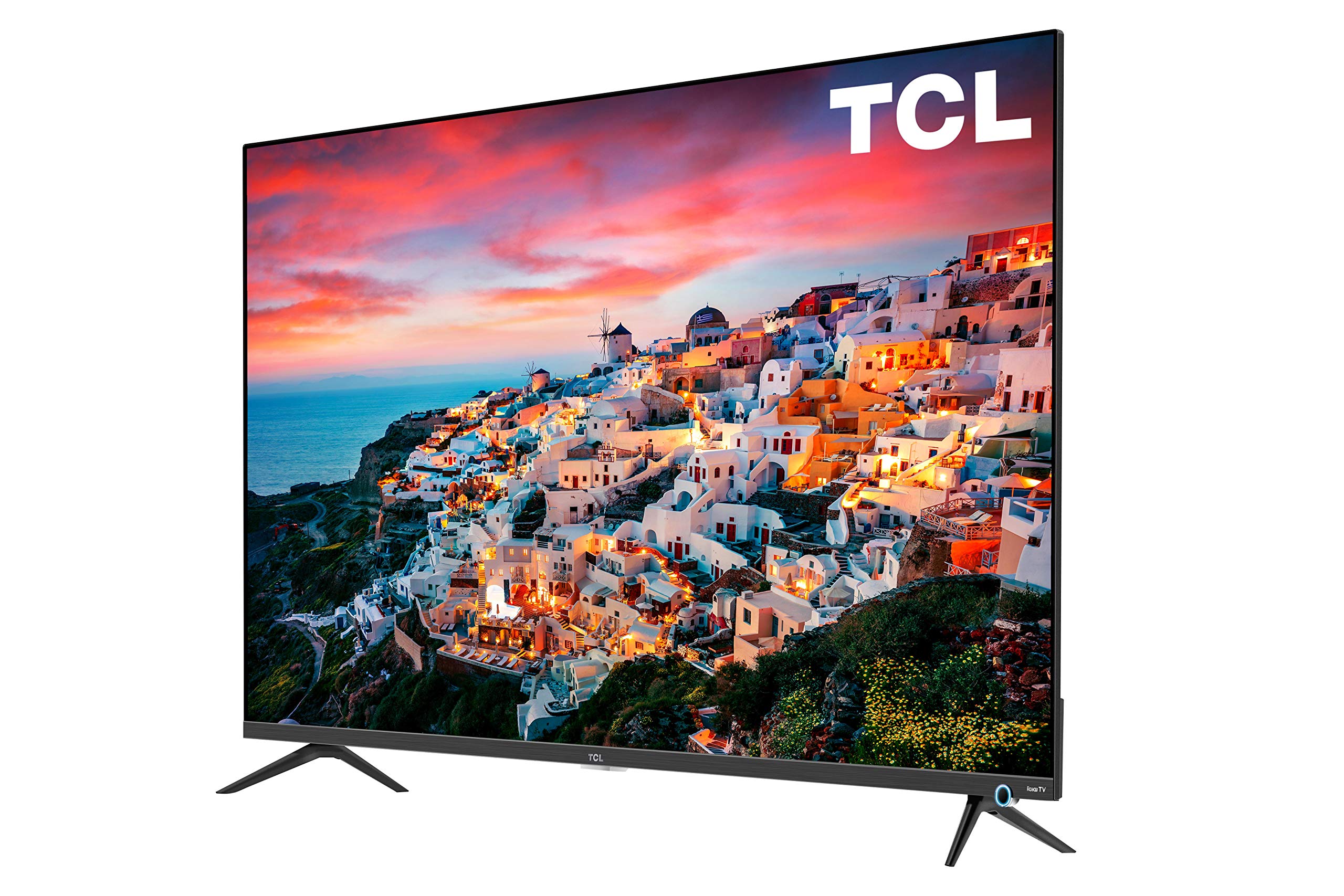
Image: The TCL 55S525 55-inch 4K UHD Roku Smart TV displayed on a media console in a modern living room.
2. Setup
2.1 Unboxing and Initial Placement
Carefully remove the TV from its packaging. Place the TV on a stable, flat surface or prepare for wall mounting. Ensure adequate ventilation around the TV.
2.2 Attaching the Stand (Optional)
If you choose not to wall mount, attach the included stands to the bottom of the TV using the provided screws. Refer to the quick start guide for detailed instructions on stand attachment.
2.3 Connecting Devices
Your TCL Roku TV offers multiple connectivity options:
- HDMI Inputs: 4 HDMI 2.0 ports with HDCP 2.2 (one with HDMI ARC) for connecting devices like gaming consoles, Blu-ray players, or cable boxes.
- USB Input: 1 USB port for media playback.
- Other Inputs: RF (Antenna/Cable), Composite, Headphone Jack, Optical Audio Out, Ethernet.
Connect your desired devices to the appropriate ports on the back or side of the TV.

Image: A detailed view of the side-mounted input ports on the TCL 55S525 TV, including HDMI, USB, and other audio/video connections.
2.4 Power On and Network Connection
Plug the power cord into an electrical outlet. Press the power button on the remote control. Follow the on-screen instructions to connect your TV to your home Wi-Fi network. A stable internet connection is essential for Roku Smart TV features.
Video: An official TCL video demonstrating the unboxing, setup, and initial impressions of a TCL 5-Series 4K UHD TV, including stand attachment and basic connectivity.
3. Operating the TV
3.1 Roku Smart Platform
Your TCL TV features the award-winning Roku TV smart platform, providing access to thousands of streaming channels and over 500,000 movies and TV episodes. The intuitive interface makes navigation simple.
- Home Screen: Access all your streaming channels, connected devices, and settings from a single, customizable home screen.
- Streaming Channels: Popular apps like Netflix, Prime Video, Hulu, Disney+, YouTube, Spotify, and many more are available.
- Live TV: Access live television through compatible apps or an antenna connected to the RF input.
Video: An official TCL video showcasing the features and user interface of the TCL Class 5-Series 4K UHD Dolby Vision HDR Roku Smart TV, highlighting its smart capabilities and app selection.
3.2 Remote Control
The included remote control provides easy access to all TV functions. It features dedicated buttons for popular streaming services for quick access.
- Navigation: Use the directional pad to navigate menus and select options.
- Voice Control: Some Roku remotes include voice control for searching content or controlling playback.
- Quick Access Buttons: Dedicated buttons for Netflix, Disney+, Hulu, and Sling provide instant access to these services.
3.3 Picture and Sound Settings
Customize your viewing experience through the TV's settings menu:
- Picture Modes: Select from various preset picture modes (e.g., Movie, Sports, Vivid) or customize settings like brightness, contrast, and color.
- Dolby Vision HDR: Experience superior 4K UHD picture clarity with enhanced contrast, color, and detail.
- Audio Settings: Adjust volume, sound mode, and other audio preferences.
- Auto Game Mode: Automatically enhances performance for gaming by offering smoother action, lower latency, and optimized picture settings.
Video: An official TCL video discussing the features of the TCL 5-Series, including its 4K HDR capabilities and suitability for gaming, providing insights into picture quality and performance.
4. Maintenance
4.1 Screen Cleaning
To clean the TV screen, gently wipe it with a soft, dry, lint-free cloth. For stubborn marks, lightly dampen the cloth with water or a screen-cleaning solution specifically designed for TVs. Avoid using harsh chemicals or abrasive materials.
4.2 Exterior Cleaning
Wipe the TV's exterior surfaces with a soft, dry cloth. Do not use liquid cleaners directly on the TV to prevent damage to internal components.
4.3 Software Updates
Your Roku TV will automatically check for and install software updates when connected to the internet. Ensure your TV remains connected to Wi-Fi to receive the latest features and performance improvements.
5. Troubleshooting
5.1 No Picture/No Signal
- Ensure the TV is powered on and the correct input source is selected.
- Check all cable connections (HDMI, RF, etc.) to ensure they are secure.
- Verify that connected devices are powered on and functioning correctly.
5.2 Remote Control Issues
- Replace the batteries in the remote control.
- Ensure there are no obstructions between the remote and the TV's IR sensor.
- If the remote is a Wi-Fi direct remote, try re-pairing it according to the Roku TV instructions.
5.3 Network Connectivity Problems
- Restart your Wi-Fi router and modem.
- Check the TV's network settings to ensure it's connected to the correct network and the signal strength is adequate.
- If issues persist, try connecting the TV via an Ethernet cable.
6. Specifications
| Feature | Description |
|---|---|
| Brand | TCL |
| Model Number | 55S525 |
| Screen Size | 55 Inches |
| Display Technology | LED |
| Resolution | 4K Ultra HD (3840 x 2160) |
| HDR Support | Dolby Vision HDR |
| Refresh Rate | 120 Hz |
| Smart TV Platform | Roku TV |
| Inputs | 4 HDMI 2.0 (HDCP 2.2, 1 ARC), 1 USB, RF, Composite, Headphone Jack, Optical Audio Out, Ethernet |
| Connectivity Technology | HDMI, Wi-Fi |
| Product Dimensions (with stand) | 48.4" W x 30.6" H x 10.0" D |
| Product Dimensions (without stand) | 48.4" W x 28.1" H x 3.0" D |
| Item Weight | 39.8 pounds |
| Special Features | Flat, Auto Game Mode |
| Included Components | Remote, Stand |
7. Warranty and Support
For warranty information and customer support, please refer to the warranty card included with your product or visit the official TCL support website. You can also find additional resources and FAQs online.


