
1. Product Overview
The Perfect Choice Dust wireless kit provides a versatile and convenient solution to enhance productivity and comfort in your work environment. Its ergonomic design, spill resistance, and silent keys make it an ideal choice for users seeking a reliable set of wireless input devices.
Key Features:
- Silent keys and mouse clicks for a quiet working experience.
- Spill-resistant design protects against accidental liquid spills.
- Reliable wireless connection for freedom of movement.
- Ergonomic design for comfortable long-term use.
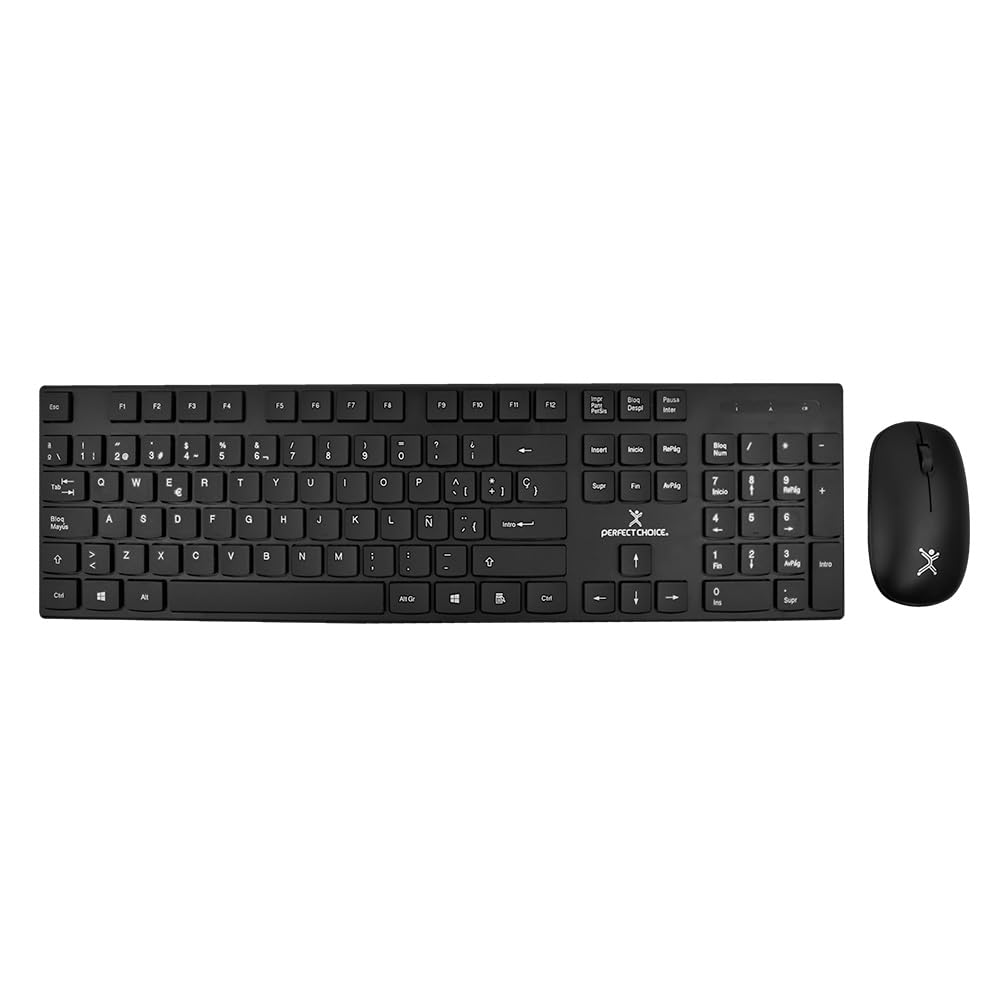
Image 1.1: The Perfect Choice Dust wireless keyboard and mouse kit, showcasing its sleek black design.
2. Setup Guide
Follow these steps to set up your Perfect Choice Dust wireless keyboard and mouse kit.
2.1. Battery Installation
- For the Keyboard: Locate the battery compartment on the underside of the keyboard. Open the cover and insert two (2) AA batteries, ensuring correct polarity (+/-). Close the battery compartment cover.
- For the Mouse: Locate the battery compartment on the underside of the mouse. Open the cover and insert one (1) AA battery, ensuring correct polarity (+/-). Close the battery compartment cover.

Image 2.1: Underside view of the keyboard and mouse, highlighting the battery compartments and the USB receiver storage slot on the mouse.
2.2. Connecting the Wireless Receiver
- Locate the USB wireless receiver, typically stored within the mouse's battery compartment or a dedicated slot.
- Plug the USB wireless receiver into an available USB port on your computer.
- Your operating system (Windows, Mac OS, Linux) should automatically detect and install the necessary drivers. This process may take a few moments.
- Once the drivers are installed, the keyboard and mouse should be ready for use.
3. Operating Instructions
The Perfect Choice Dust kit is designed for intuitive use. Here are some general operating guidelines:
3.1. Keyboard Usage
- The keyboard features a standard layout with silent keys, reducing typing noise.
- Utilize the function keys (F1-F12) for various shortcuts, often in combination with the 'Fn' key if present, depending on your operating system and software.
- The ergonomic design promotes a natural typing posture, reducing strain during extended use.

Image 3.1: The keyboard with its adjustable feet extended for ergonomic typing, alongside the wireless mouse.
3.2. Mouse Usage
- The mouse offers precise tracking and silent clicks for a distraction-free experience.
- The scroll wheel allows for easy navigation through documents and web pages.
- Its ergonomic shape fits comfortably in your hand, suitable for both left and right-handed users.
4. Maintenance and Care
Proper maintenance ensures the longevity and optimal performance of your wireless kit.
4.1. Cleaning
- The keyboard is designed to be spill-resistant. In case of accidental liquid spills, immediately disconnect the USB receiver from your computer.
- Gently wipe the surface with a soft, damp cloth. Avoid using harsh chemicals or abrasive cleaners.
- Ensure the device is completely dry before reconnecting the USB receiver.
- For general cleaning, use a soft, dry cloth to remove dust and debris from both the keyboard and mouse.
4.2. Battery Replacement
- When the keyboard or mouse becomes unresponsive or exhibits delayed input, it may be time to replace the batteries.
- Refer to Section 2.1 for instructions on how to open the battery compartments and replace the AA batteries.
- Always use fresh, high-quality batteries for best performance.
5. Troubleshooting
If you encounter issues with your Perfect Choice Dust wireless kit, try the following troubleshooting steps:
5.1. No Response from Keyboard or Mouse
- Check Batteries: Ensure that fresh batteries are correctly installed in both the keyboard and mouse. Replace them if necessary.
- Check USB Receiver: Make sure the USB wireless receiver is securely plugged into a working USB port on your computer. Try plugging it into a different USB port.
- Proximity: Ensure the keyboard and mouse are within the effective range of the USB receiver (typically up to 10 meters).
- Interference: Move the kit away from other wireless devices or large metal objects that might cause interference.
- Restart Computer: Sometimes, a simple computer restart can resolve connection issues.
5.2. Lag or Delayed Input
- Low Batteries: Replace batteries in both devices.
- Interference: As mentioned above, check for potential sources of wireless interference.
- USB Port: Try a different USB port, preferably a direct port on the computer rather than a hub.
If problems persist after trying these steps, please contact Perfect Choice customer support.
6. Technical Specifications
| Brand | Perfect Choice |
| Model | Dust |
| Color | Black |
| Connectivity Technology | Wireless (USB Receiver) |
| Power Source | Batteries |
| Batteries Required | 2 AA (Keyboard), 1 AA (Mouse) |
| Compatible Operating Systems | Linux, Mac OS, Windows 7, Windows Vista (and newer versions) |
| Special Feature | Ergonomic, Silent Click, Spill-Resistant |
| Product Dimensions | 54 x 3 x 16 cm (Keyboard & Mouse combined packaging); 400 g |
| ASIN | B07S5LNQX4 |
7. Warranty and Support
Perfect Choice products are designed for reliability and performance. For information regarding warranty coverage and terms, please refer to the warranty card included with your product or visit the official Perfect Choice website.
If you require technical assistance or have questions not covered in this manual, please contact Perfect Choice customer support through their official channels. Keep your purchase receipt for warranty claims.