
Introduction
Thank you for choosing the JOYACCESS Wireless Keyboard and Mouse Combo. This compact and ergonomic set provides a reliable 2.4 GHz wireless connection, silent operation, and adjustable mouse sensitivity for enhanced productivity across various devices. This manual provides detailed instructions for setup, operation, maintenance, and troubleshooting to ensure optimal performance.
Setup Instructions
1. Battery Installation
- Keyboard: Open the battery compartment on the underside of the keyboard. Insert two (2) AA alkaline batteries, ensuring correct polarity. Close the compartment.
- Mouse: Open the battery compartment on the underside of the mouse. Insert one (1) AA alkaline battery, ensuring correct polarity. Close the compartment.
- Note: Batteries are not included with the product.
2. Connect the USB Receiver
- Locate the nano USB receiver, which is stored inside the mouse's battery compartment.
- Plug the USB receiver into an available USB port on your computer, laptop, or Smart TV.
- The system will automatically detect and install the necessary drivers. This may take a few moments.
3. Power On
- Turn on the keyboard using the power switch, usually located on the top right or underside.
- Turn on the mouse using the power switch on its underside.
- The keyboard and mouse should now be connected and ready for use.
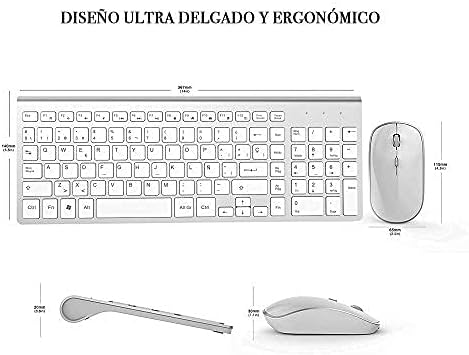
Image: The JOYACCESS wireless keyboard and mouse connected to a laptop, illustrating the stable 2.4 GHz wireless connection.
Operating Instructions
Keyboard Functions
- QWERTY Layout: The keyboard features a standard Spanish QWERTY layout with 102 keys, including a numeric keypad.
- Multimedia Hotkeys: Access multimedia functions (music, internet, email, volume control) quickly using the dedicated hotkeys. These keys are generally activated by pressing the 'Fn' key in combination with the corresponding function key (F1-F12). Note: Multimedia functions may not be fully compatible with Mac operating systems.
- Indicator Lights: The keyboard includes LED indicators for Caps Lock, Num Lock, and battery status.

Image: The JOYACCESS keyboard, illustrating the 17 multimedia buttons and the integrated numeric keypad. The multimedia function is not available with macOS.
Mouse Functions
- Adjustable DPI: The mouse offers 5 adjustable DPI levels for precision control. Easily switch sensitivity between 800, 1600, 1800, 2000, and 2400 DPI.
- DPI Adjustment: To change DPI, press the right mouse button and the scroll wheel simultaneously for 3 seconds.
- Polling Rate: The mouse supports polling rates of 125 Hz and 250 Hz.
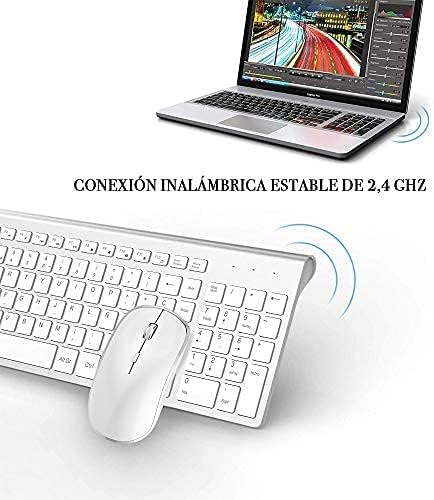
Image: The JOYACCESS mouse, with a diagram indicating its 5 adjustable DPI levels (800, 1600, 1800, 2000, 2400 DPI) for precise cursor movement.
Power Saving Mode
- Mouse: The optical mouse enters power-saving mode after 20 seconds of inactivity. Click any button to reactivate it.
- Keyboard: The compact keyboard enters power-saving mode after 8 minutes of inactivity. Press any key to reactivate it.
Compatibility
The JOYACCESS Wireless Keyboard and Mouse Combo is compatible with Windows 2000/ME/XP/Vista/7/8/10. It functions well with desktop computers, Chromebooks, PCs, laptops, and Smart TVs.
Maintenance
Cleaning
- To clean the keyboard and mouse, use a soft, dry cloth.
- For stubborn dirt, slightly dampen the cloth with water or a mild, non-abrasive cleaner. Ensure no liquid enters the devices.
- Avoid using harsh chemicals, solvents, or abrasive materials, as these can damage the surface.
Battery Replacement
- When the battery indicator light on the keyboard or mouse signals low power, replace the batteries promptly.
- Follow the battery installation steps outlined in the Setup section.
- Dispose of used batteries according to local regulations.
Troubleshooting
No Connection / Unresponsive Devices
- Check Batteries: Ensure fresh batteries are correctly installed in both the keyboard and mouse.
- Power Switches: Verify that both the keyboard and mouse are powered on.
- USB Receiver: Ensure the USB receiver is securely plugged into a working USB port. Try a different USB port if necessary.
- Re-pairing: If connection is lost, try unplugging and re-plugging the USB receiver. The devices should automatically reconnect.
- Distance: Ensure the keyboard and mouse are within the effective range of the USB receiver (typically up to 10 meters).
- Interference: Move the devices away from other wireless devices or large metal objects that might cause interference.
Mouse Cursor Jumps or is Inaccurate
- Surface: Use the mouse on a clean, non-reflective, and uniform surface. Avoid glass or highly reflective surfaces.
- DPI Setting: Adjust the mouse DPI to a suitable level for your task and screen resolution.
Keys Not Responding
- Clean Keys: Check for any debris under the keys that might be preventing proper function.
- Battery: Ensure the keyboard has sufficient battery power.
Specifications
| Model Number | XK2BES |
| Connectivity Technology | 2.4 GHz Wireless |
| Keyboard Layout | Spanish QWERTY |
| Number of Keys | 102 |
| Mouse DPI Levels | 800, 1600, 1800, 2000, 2400 |
| Motion Detection Technology | Optical |
| Compatible Operating Systems | Windows 2000/ME/XP/Vista/7/8/10 |
| Power Source | Batteries (2x AA for keyboard, 1x AA for mouse - not included) |
| Product Dimensions (Package) | 38.2 x 14.4 x 4.7 cm; 630 g |
| Country of Origin | China |
| GTIN / UPC | 787794219329 |

Image: Diagram illustrating the ultra-slim and ergonomic design, along with the dimensions of the keyboard and mouse.
Warranty Information
The JOYACCESS Wireless Keyboard and Mouse Combo (Model XK2BES) comes with a 2-Year Limited Warranty from the date of purchase. This warranty covers manufacturing defects and malfunctions under normal use. It does not cover damage caused by misuse, accidents, unauthorized modifications, or normal wear and tear.
Please retain your proof of purchase for warranty claims.
Customer Support
If you encounter any issues or have questions regarding your JOYACCESS Wireless Keyboard and Mouse Combo that are not addressed in this manual, please contact JOYACCESS customer support. For the most up-to-date contact information, please refer to the official JOYACCESS website or your purchase platform.
When contacting support, please have your product model number (XK2BES) and proof of purchase ready.
