
1. Introduction
The Nulaxy BR04 is a versatile Bluetooth 5.0 audio adapter designed to function as both a transmitter (TX) and a receiver (RX). This device allows you to wirelessly stream audio from non-Bluetooth devices like TVs, PCs, and home stereos to Bluetooth headphones or speakers (TX mode). Conversely, it can receive Bluetooth audio from your smartphone or tablet and output it to wired speakers, headphones, or car stereos (RX mode). The BR04 supports various audio codecs, including aptX Low Latency and aptX HD, to minimize audio delay and provide high-quality sound.
2. Package Contents
Carefully unpack your Nulaxy BR04 and ensure all items are present:
- Nulaxy BR04 Bluetooth 2-in-1 Receiver and Transmitter Unit
- Optical Cable (x1)
- 3.5mm Audio Cable (x1)
- USB Charging Cable (x1)
- 3.5mm Female to RCA Male Cable (x1)
- User Manual

Image: Nulaxy BR04 device and its included accessories.
3. Product Overview
The Nulaxy BR04 features a compact design with an external antenna for enhanced range. The front panel includes indicator lights for connection status (A, B), mode (RX, TX), input/output type (OPT, AUX), and active audio codec (SBC, aptX, LL, HD). Control buttons are provided for power, pairing, and volume adjustment. The rear panel houses various ports for audio input and output.
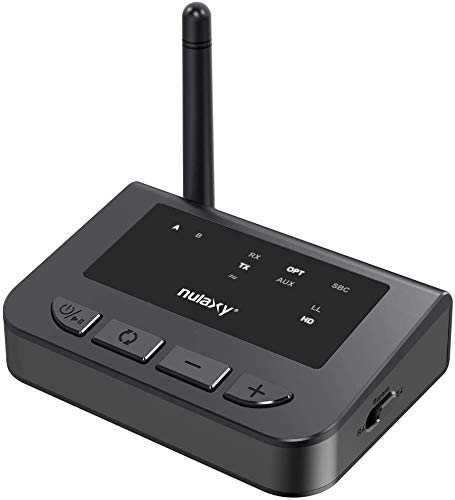
Image: Nulaxy BR04 device with its controls and indicators.
4. Setup and Operating Modes
4.1. TX Mode (Transmitter)
In TX mode, the BR04 transmits audio from a non-Bluetooth source (e.g., TV, PC, iPod) to Bluetooth headphones or speakers.
- Connect the BR04 to your audio source (TV, PC, etc.) using the appropriate cable (Optical, 3.5mm AUX, or RCA).
- Ensure the AUX/Optical switch on the BR04 is set to the correct input position.
- Slide the mode switch to "TX".
- Power on the BR04.
- Put your Bluetooth headphones or speaker into pairing mode.
- The BR04 will automatically search and connect to your Bluetooth device. Once connected, the 'A' or 'B' indicator light will illuminate.

Image: Nulaxy BR04 TX Mode connection diagram.
4.2. RX Mode (Receiver)
In RX mode, the BR04 receives Bluetooth audio from your smartphone or tablet and outputs it to wired speakers, headphones, or car stereos.
- Connect the BR04 to your wired audio system (speakers, headphones, car stereo) using the appropriate cable (3.5mm AUX or RCA).
- Ensure the AUX/Optical switch on the BR04 is set to the correct output position.
- Slide the mode switch to "RX".
- Power on the BR04.
- Enable Bluetooth on your smartphone or tablet and search for "BR04".
- Select "BR04" to pair. Once connected, the 'A' or 'B' indicator light will illuminate.

Image: Nulaxy BR04 RX Mode connection diagram.
4.3. Bypass Mode
Bypass mode allows you to connect your audio source directly to your audio output device without Bluetooth conversion. This is useful when you want to switch between wired and wireless audio without re-cabling.
- Connect your audio source to the BR04's input port.
- Connect your audio output device to the BR04's output port.
- Slide the mode switch to "Bypass".
- Audio will pass through the BR04 directly to your output device.
5. Pairing Instructions
5.1. Connecting One Bluetooth Device
- Turn on the Nulaxy BR04 and select the desired mode (TX or RX).
- Place your Bluetooth device (headphones, speaker, smartphone) into pairing mode.
- The BR04 will automatically search for and pair with your device. The 'A' indicator light will illuminate upon successful connection.
5.2. Connecting Two Bluetooth Devices (TX Mode Only)
The BR04 supports connecting to two Bluetooth receiving devices simultaneously in TX mode.
- Connect the first Bluetooth device as described in section 5.1. The 'A' light will be on.
- Put the second Bluetooth device into pairing mode.
- Press the pairing button on the BR04. It will search for and connect to the second device.
- When both 'A' and 'B' indicator lights are on, both devices are successfully connected.
Warm Tip: For optimal audio quality and minimal delay, ensure your Bluetooth headphones or speakers support aptX Low Latency (LL) technology when using TX mode for video content.
6. Troubleshooting
6.1. No Sound / Device Not Working
If you experience no audio or the device is not functioning, check the following:
- No Audio Signal into the Transmitter: Ensure your audio source is actively playing sound.
- If connected using Optical Port:
- Ensure the Aux/Optical switch on BR04 is set to the "Optical" position.
- Ensure your TV audio format is set to "PCM" or "DOLBY/DTS" is off. Refer to your TV's audio settings.
- Change your TV audio OUT setting to "External Speaker".
- If connected using RCA Ports:
- Ensure the Aux/Optical switch on BR04 is set to the "Aux" position.
- Ensure you are using the Red/White ports labeled "AUDIO OUT". Other RCA ports are typically AUDIO IN and will not work.
- Change your TV audio OUT setting to "External Speaker".
- To test, plug headphones directly into the RCA ports with a 3.5mm to RCA audio cable to verify sound output from the source.
- If connected using AUX/3.5mm Audio Out:
- Ensure the Aux/Optical switch on BR04 is set to the "AUX" position.
- Change your TV audio OUT setting to "Headset".
- To test, directly plug headphones into the TV with the 3.5mm audio cable to verify sound output from the source.
6.2. Cannot Connect to Headphones/Speakers
If the BR04 fails to connect to your Bluetooth device:
- Ensure no other Bluetooth devices are actively paired with the headphones/speakers or the BR04. Turn off other Bluetooth devices.
- Clear the Bluetooth pairing information on both your headphones/speakers and the BR04. Refer to their respective manuals for instructions.
- Ensure the BR04 is in the correct transmitting (TX) or receiving (RX) state and in search/pairing mode.
- When attempting to connect, keep the Bluetooth headphones/speakers and the BR04 within 1 meter (3 feet) of each other to facilitate initial pairing.
6.3. Static or Broken Audio / Range Issues
If audio is staticky, broken, or the range is limited:
- Obstacles such as walls, furniture, or other electronic devices can interfere with Bluetooth signals. Try to minimize obstructions between the BR04 and your connected device.
- Signal interference from other wireless devices (Wi-Fi routers, microwaves) can also affect performance.
- The effective range of Bluetooth can vary depending on the environment and the receiving device.
6.4. Audio Delay (Lip Sync Issues)
If you experience noticeable audio delay, especially when watching videos:
- The BR04 supports aptX Low Latency (LL) and aptX HD codecs to minimize delay. However, your connected Bluetooth headphones or speakers must also support these codecs for them to be active.
- Check the indicator lights on the BR04 to see which codec is active (SBC, LL, HD). If it's not LL or HD, your receiving device may not support it, and the default SBC codec will be used, which has higher latency.
- For low-delay audio, ensure both the BR04 and your receiving device support aptX Low Latency.
7. Specifications
| Feature | Detail |
|---|---|
| Brand | Nulaxy |
| Model | BR04 |
| Connectivity Technology | Auxiliary, Bluetooth |
| Wireless Communication Standard | Bluetooth 5.0 |
| Hardware Interface | Bluetooth, Bluetooth 5 |
| Audio Output Type | Speaker |
| Number of Channels | 2 |
| Supported Audio Codecs | SBC, aptX, aptX Low Latency (LL), aptX HD |
8. Official Product Video
Watch this official product video for a visual guide on setting up and using your Nulaxy BR04 Bluetooth adapter.
Video: Nulaxy aptX HD Long Range Bluetooth Transmitter for TV, Bluetooth 5.0 Transmitter Receiver Adapter setup and features. This video demonstrates the product's capabilities and connection methods.
9. Warranty and Support
Nulaxy products are designed for reliability and performance. For warranty information, technical support, or further assistance, please refer to the contact details provided in the included user manual or visit the official Nulaxy website. Keep your purchase receipt for warranty claims.

